Connect your calendar
Link your Google Calendar or Outlook (Microsoft 365 or Outlook.com) once. Your appointments appear in the week agenda, meetings planned in CoVince land in your own calendar, and the meeting planner can see when you are busy.
Set up once - your calendar - 4 min. You need: your Google or Outlook login
Nothing is sent to anybody. You choose what colleagues may see: only "busy", or nothing at all.
What you will be able to do
- See all your appointments Your Google or Outlook appointments show in CoVince.
- Choose what others see Only "busy", everything, or nothing.
- Meetings land in your calendar A meeting planned in CoVince also shows in your own calendar.
- No more double plans Others see when you are busy before they plan.
Get this ready first
- Be logged in to CoVince The green link opens CoVince.
- Know your calendar login The address and password of your Google or Outlook.
Do it together, one step at a time
Five steps. Tick one off when you have done it.
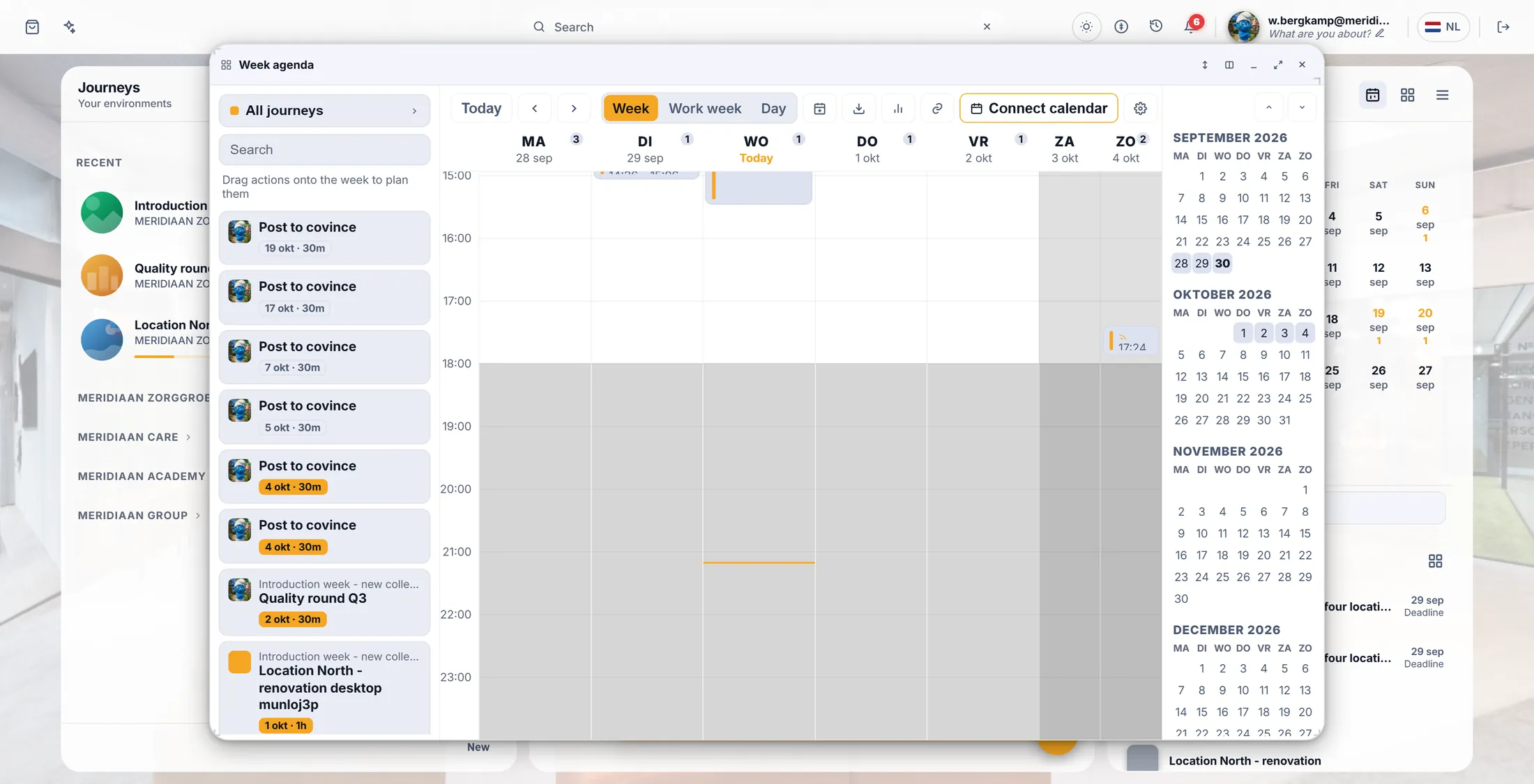
Open your week
Your week is behind a small button above the Agenda column.
- Open CoVince. On the right is the column Agenda.
- At the top of that column, press the small calendar button Week agenda.
- A big window opens with your week: seven days, hour by hour.
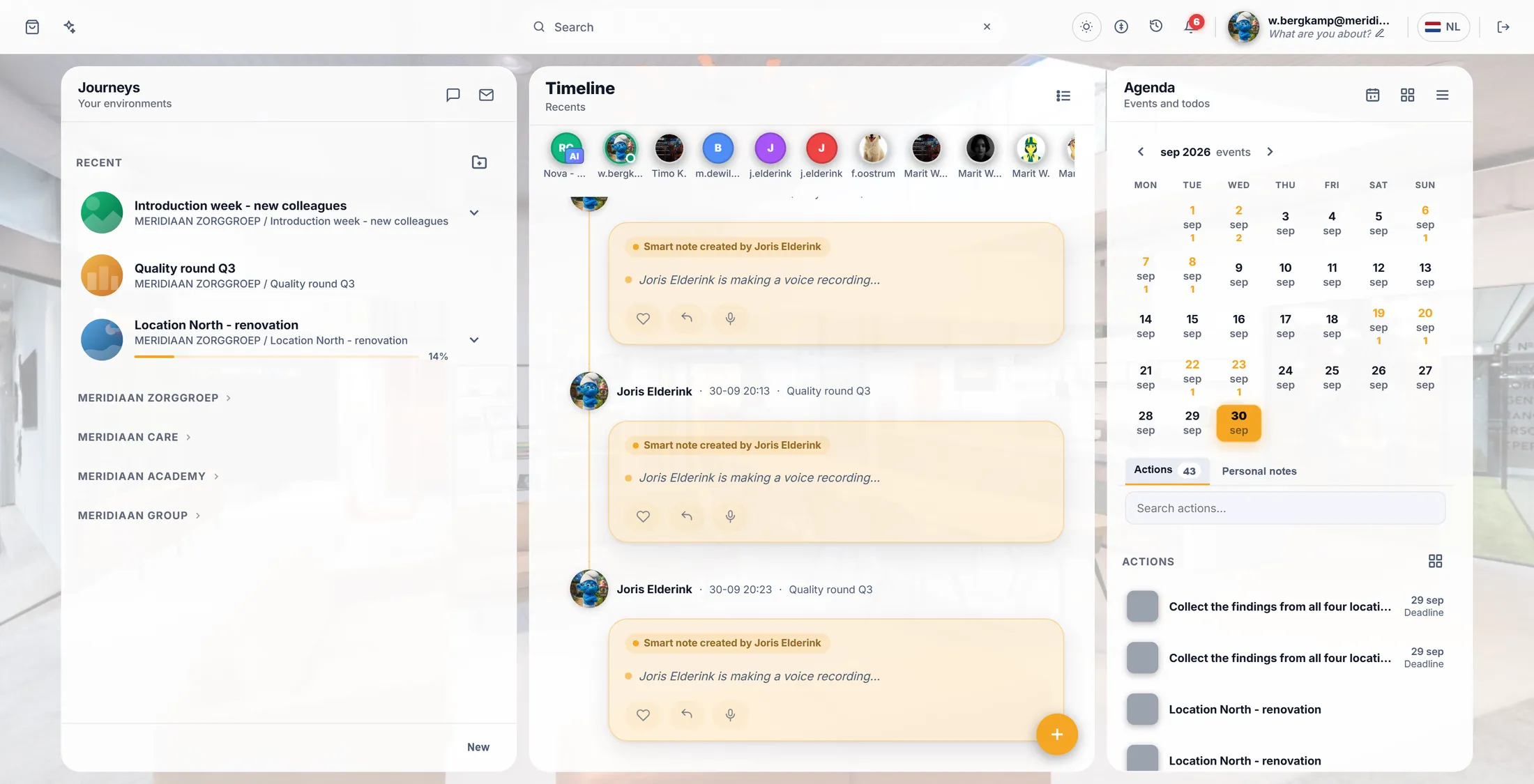
The button is in the top of the right column. Press Connect calendar
The green button in the top bar starts it.
- In the top bar of your week, press the orange-edged button Connect calendar.
- You now see the list Agenda sources : one line for Google Calendar and one for Outlook Calendar .
- Next to the one you use, press Connect.
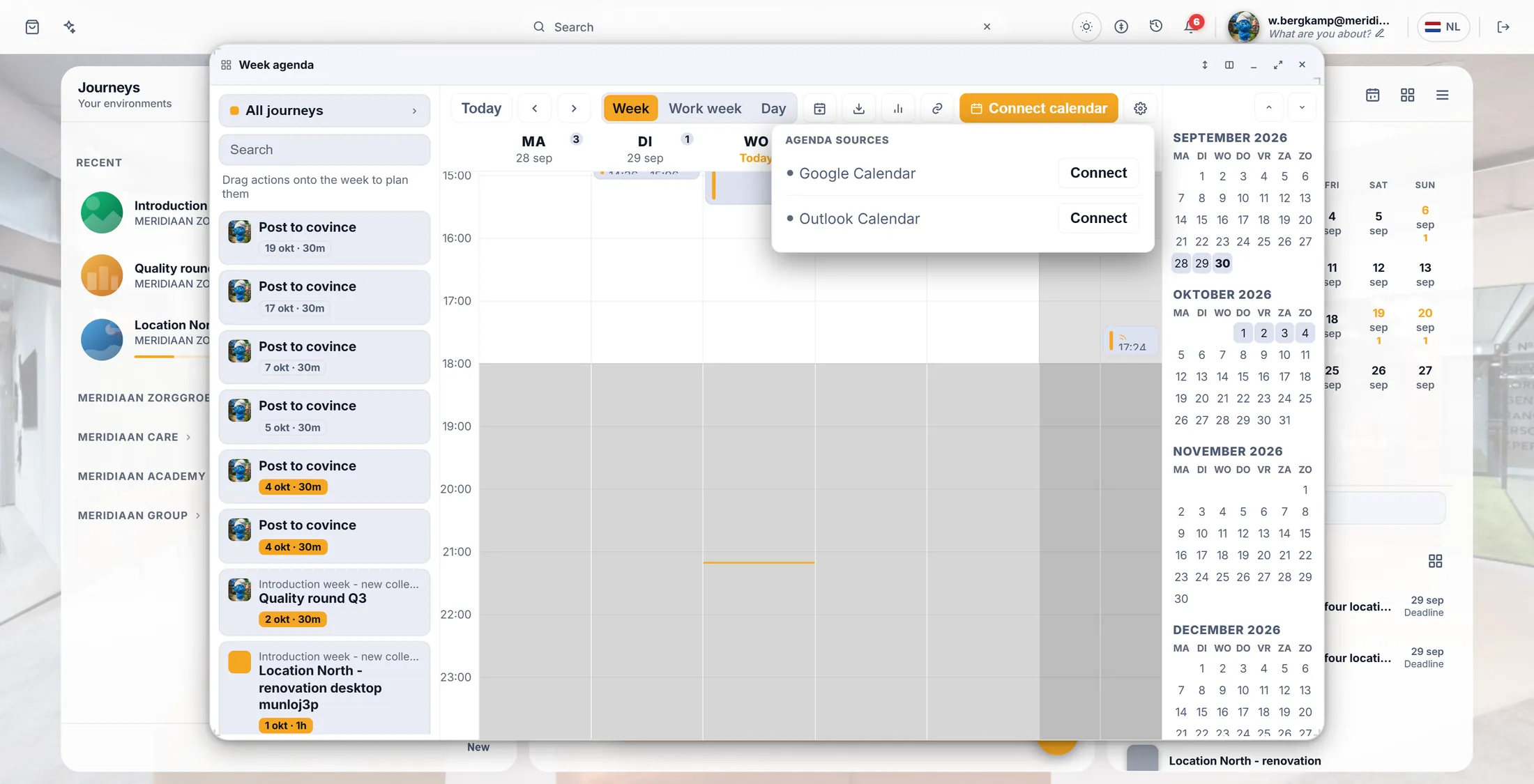
Two choices: Google or Outlook. Choose what others see
Before it connects, it asks what colleagues may see.
- The window asks: What may journey members see of this calendar? (a journey is what CoVince calls a journey).
- Show busy blocks (times only) is already ticked. Colleagues see that you are busy - not what you do.
- Only tick Show full details if colleagues may read the titles of your appointments.
- Press Connect.
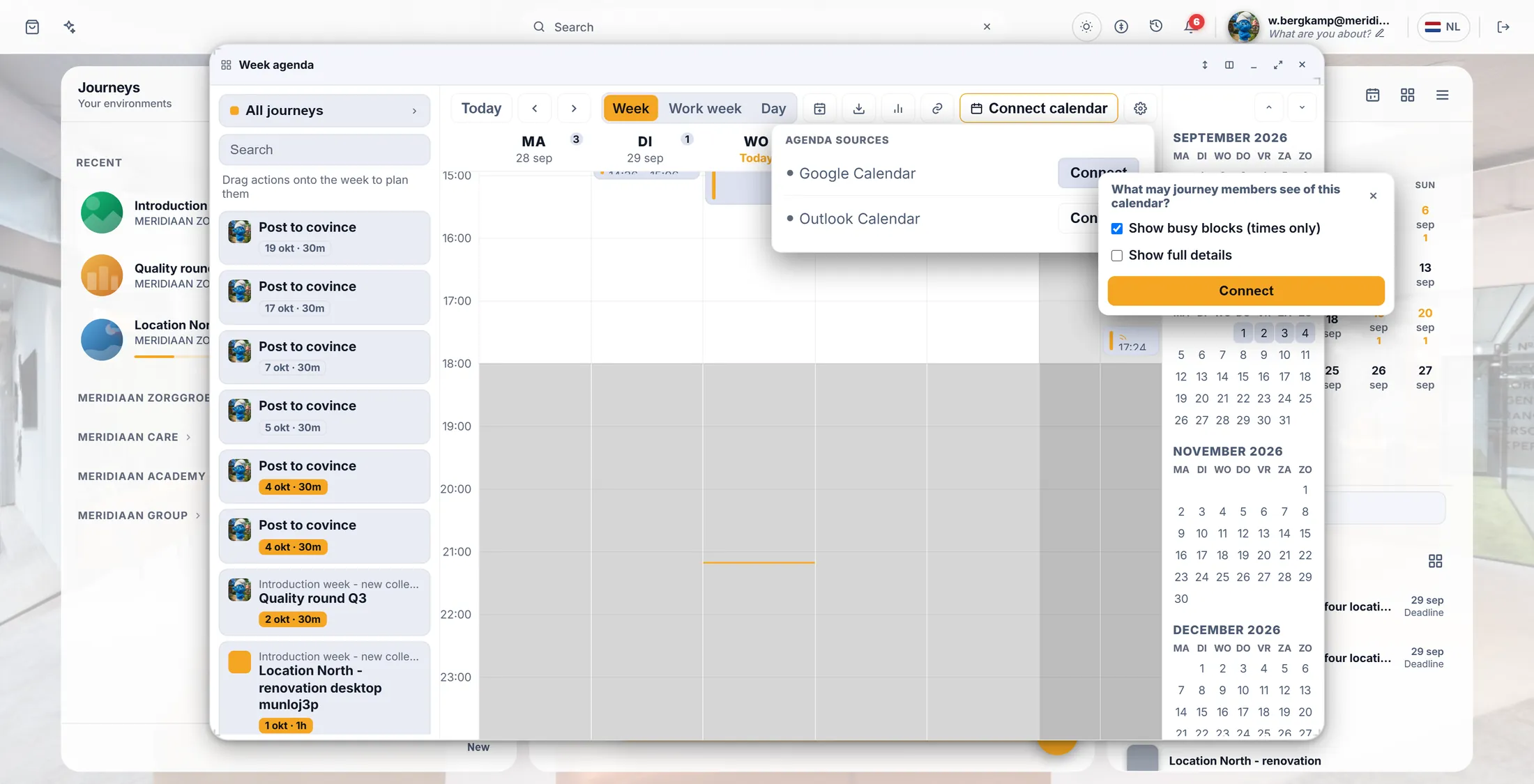
The safe choice is already ticked. Log in at Google or Microsoft
A window from Google or Microsoft asks you to log in and say yes.
- A small window opens. It is from Google or Microsoft, not from CoVince.
- Log in with your usual address and password.
- It asks whether CoVince may use your calendar. Press Allow (Google) or Accept (Microsoft).
- The window says Connected . You may close it.
See your appointments
Back in CoVince, your appointments are in your week.
- Go back to CoVince. Your week fills with your own appointments.
- In Agenda sources the row is now green, with your mail address.
- Have more than one calendar (for example a team calendar)? Press Calendars and tick the ones you want to see.
- Close the list. Done: from now on a meeting planned in CoVince also lands in your own calendar.
If something is not right
I do not see Connect calendar.
Then a calendar is already connected. Press the gear Agenda sources in the top bar to see it.
How do I stop it?
Open Agenda sources. Set what others see to None and untick every calendar under Calendars.
I use Apple or another calendar.
Not yet. Only Google and Outlook.
Can colleagues read my appointments now?
Only if you ticked "full details". Otherwise they see "busy" and a time.
The words, in plain language
- week agenda
- Your week in CoVince, seven days hour by hour, opened from the Agenda column.
- busy block
- A grey block that says you are busy at that time, without saying what you do.
- primary calendar
- The main calendar of your Google or Microsoft account. New CoVince meetings are written there.
Where to go next
- All explainers The other things you can learn here.