Import a Moodle course
You already made a course in Moodle. This page walks the whole way: make the course backup in Moodle, import the .mbz file into a flow in a journey, wait for it, check the groups and slides, fix what did not come across, and share it.
Learnings - bring in a Moodle course - 10 min. You need: a Moodle backup file and a CoVince login
Nothing here can go wrong for your Moodle course: it is only read, never changed. The import fills an empty flow, and you can edit or delete everything afterwards.
What you will be able to do
- Make a Moodle backup One .mbz file with the whole course.
- Import it Choose the file and a mode, then press Import.
- Get slides and questions One group per section, your text and quizzes kept.
- Check and share Fix what did not come across, then share it.
Get this ready first
- A Moodle course you may back up You need the Backup option in that course. Not there? Ask your Moodle admin.
- A journey to put it in The learning lives in a journey you can edit.
Do it together, one step at a time
Nine steps. First Moodle, then CoVince.
Make the backup in Moodle
Moodle can pack a whole course into one file. That file is what CoVince reads.
- Open the course in Moodle and choose Course administration (in newer Moodle: the More menu, then Course reuse ), then Backup.
- Keep the sections and activities you want ticked. Leave out user data: CoVince only needs the teaching material.
- Press Jump to final step, then Perform backup, then Continue.
- Under User private backup area (or Course backup area) click Download next to the new file. It ends in .mbz. Save it where you can find it.
Open an empty flow
The import fills a flow. Open the flow of a new learning in your journey.
- Open your journey in the Editor and choose Journey Flow . Use Add Node to add a slide flow, or open one that is still empty.
- The window How do you want to create your swipeslides? opens by itself.
- Click the card Import from Moodle : “Upload a Moodle backup (.mbz / .imscc) and convert directly or via AI.”
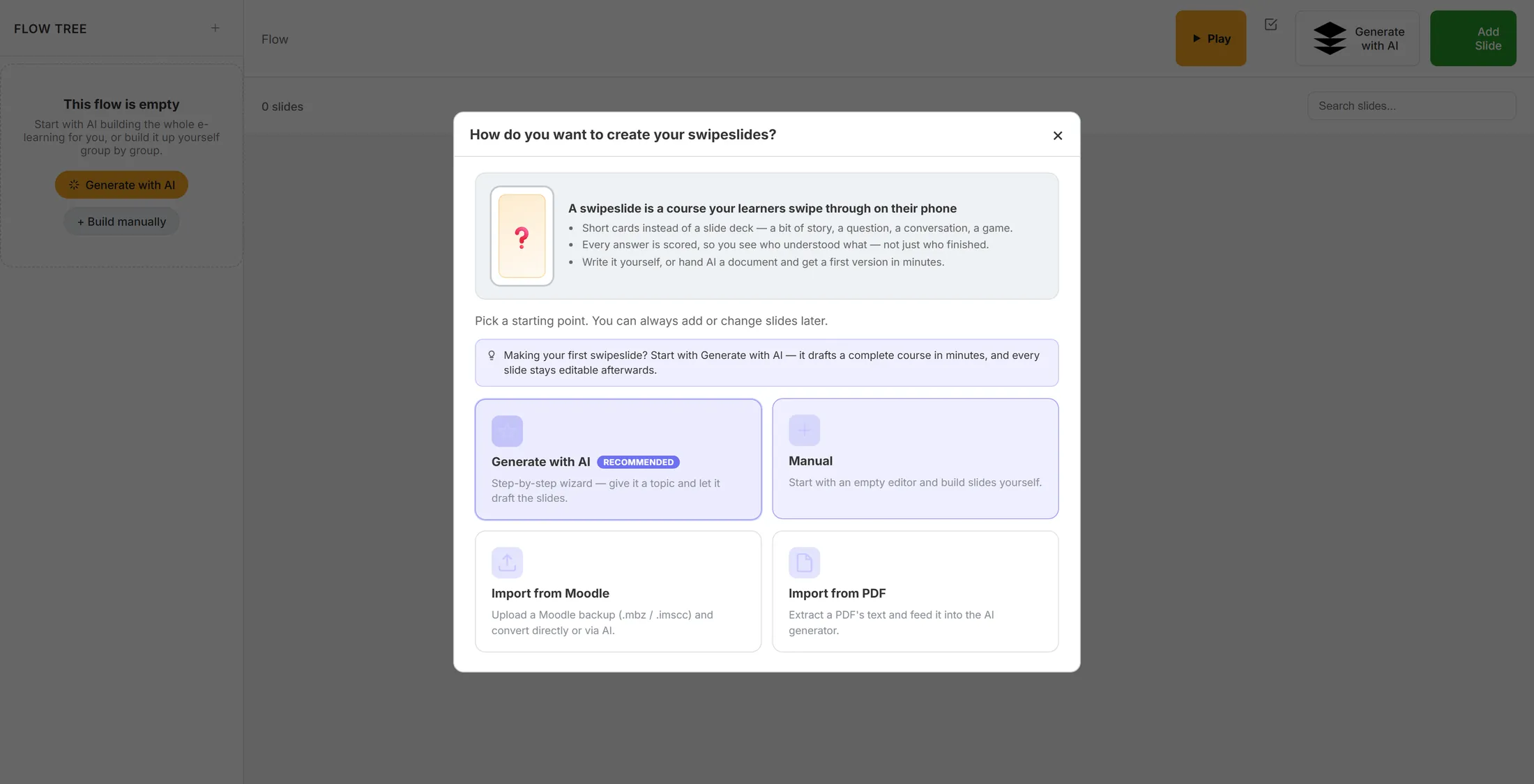
Four ways to fill a flow. The Moodle card is bottom left. Choose your backup file
Point CoVince at the .mbz file you saved.
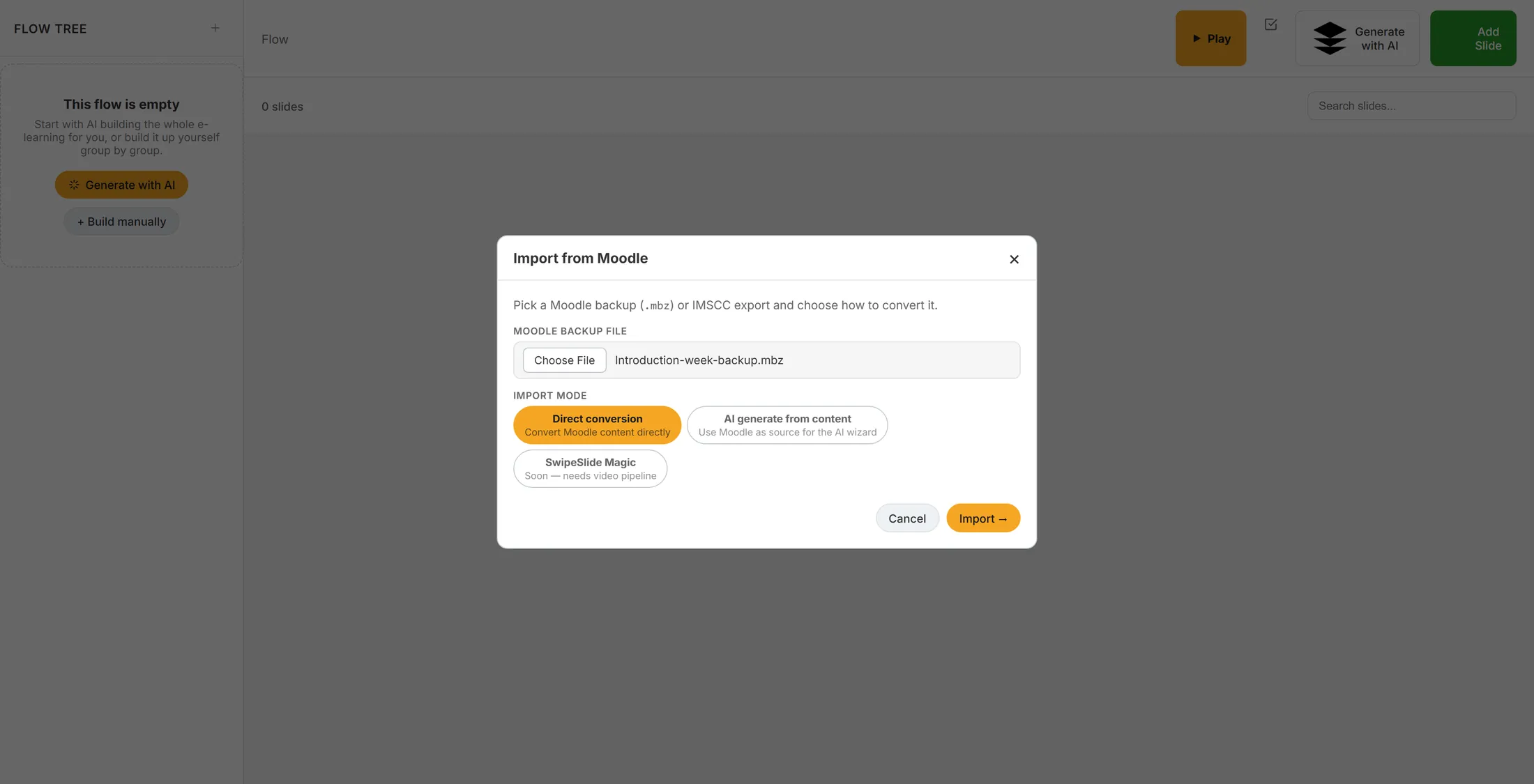
- In the window Import from Moodle find Moodle backup file .
- Press Choose File and pick your .mbz.
- The file name appears next to the button. Nothing is sent yet.
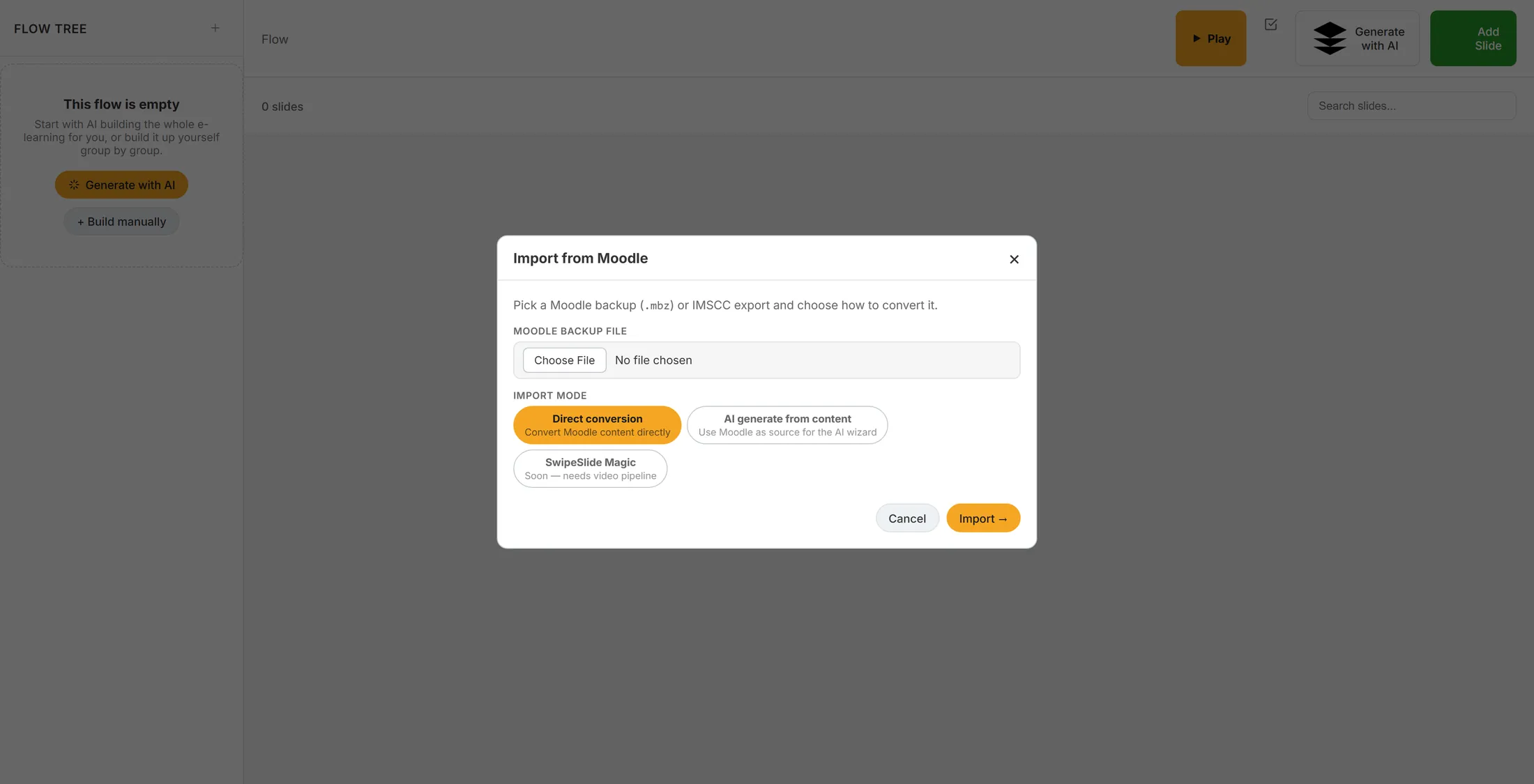
One window: the file, the mode, and Import. Choose how to convert it
Direct conversion keeps your course as it is. AI writes a new version from it.
- Under Import mode choose Direct conversion to keep your course as it is. It is already selected.
- Want a fresh version written by AI instead? Choose AI generate from content. The wizard opens with your course text filled in.
- SwipeSlide Magic is grey and says “Soon”. You cannot pick it yet.
- Press Import →.
The file is chosen, Direct conversion is on, Import is ready. Wait while it reads
CoVince reads the file. Keep the window open.
- The window says Parsing and the name of your file, and under it Uploading and reading the backup .
- Watch the bar move to the right. A big course can take a minute or more.
- Do not close the window or the page until it says Done.
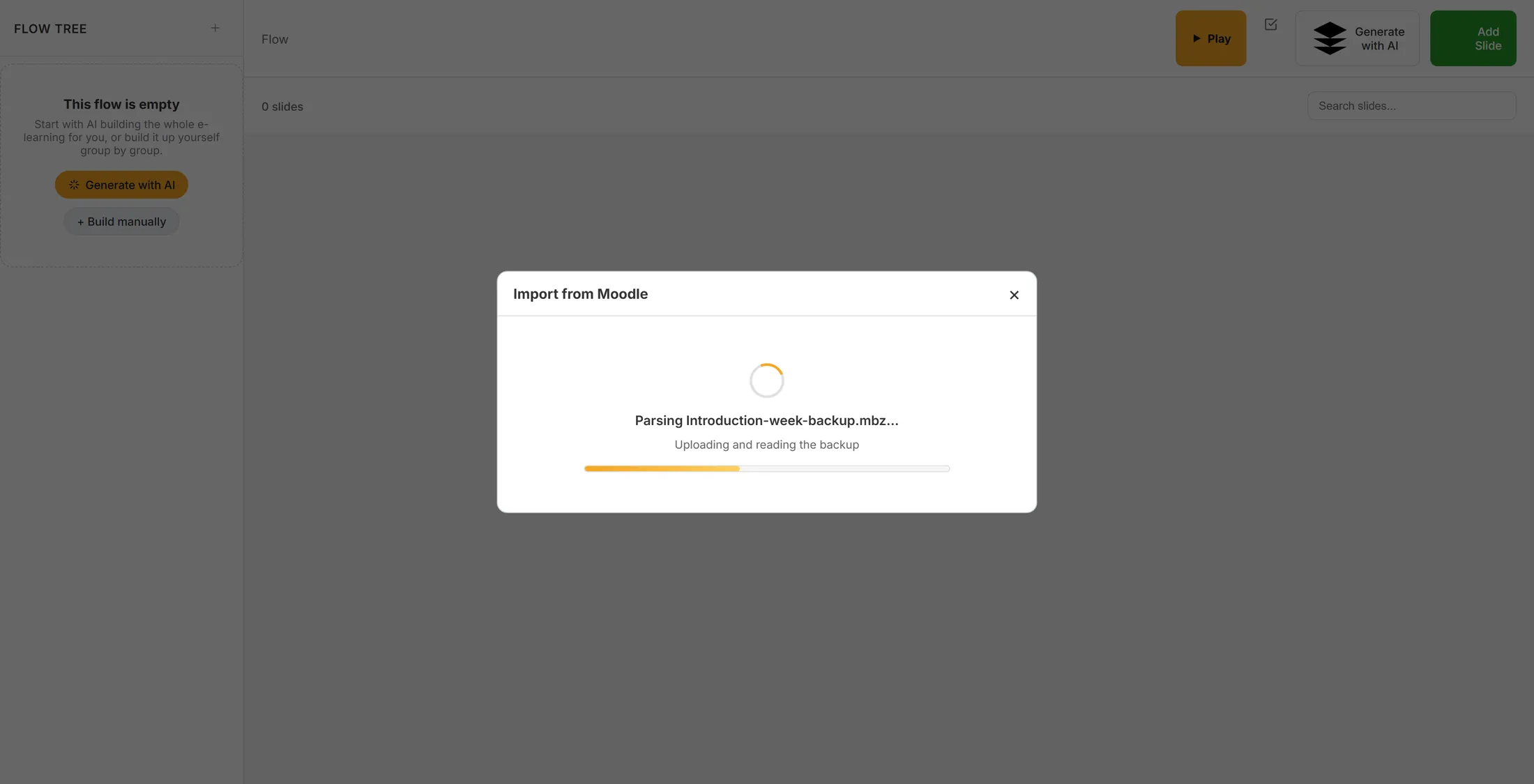
The bar keeps moving while CoVince works. Read the result
The window counts what it made. Then open the flow.
- Read the line Done : for example “6 groups, 48 slides”.
- Under it: the name of the course, the sections and the activities it found.
- Press Open flow.
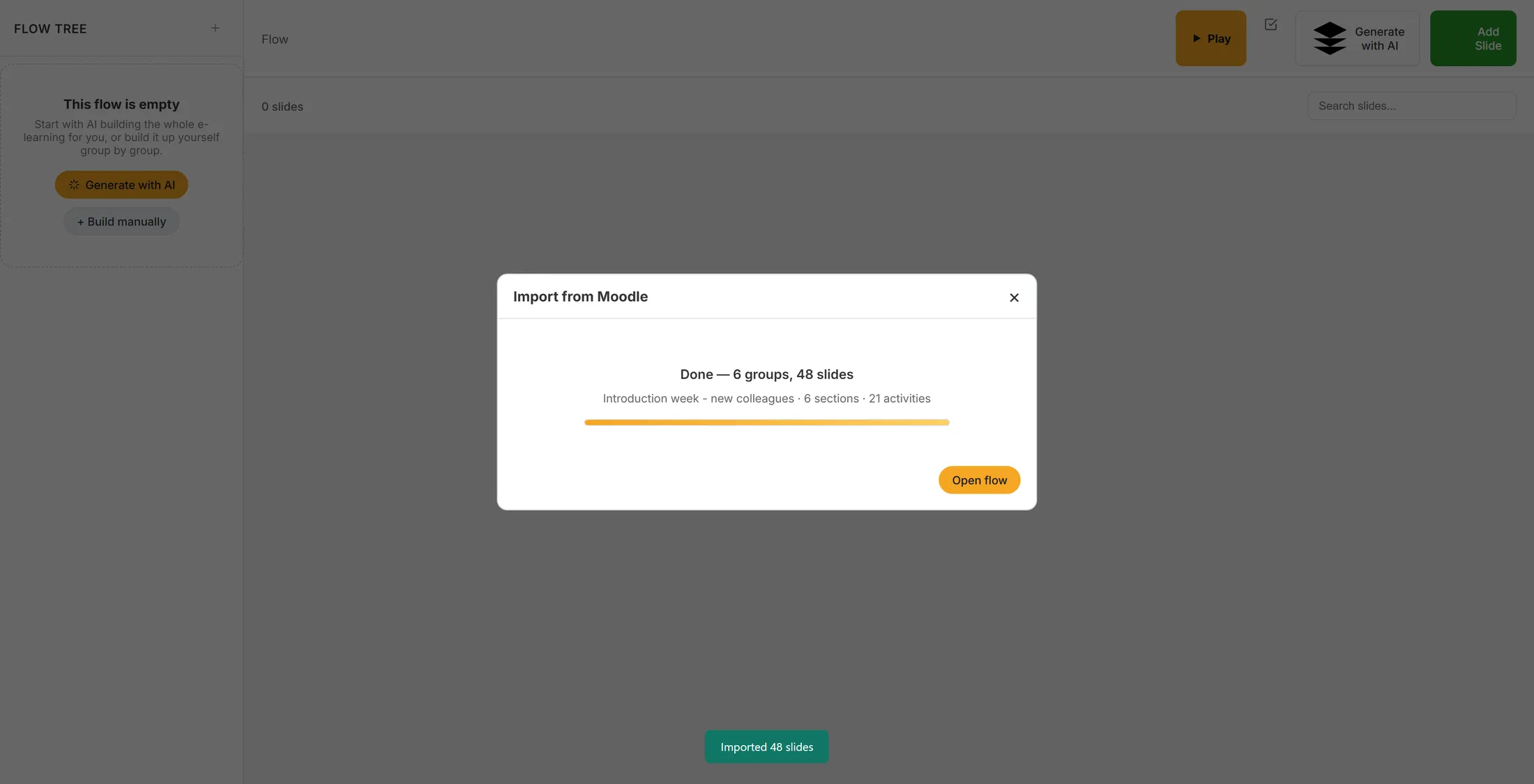
A finished import, with what it made counted. Check the flow
Walk down the groups and compare them with Moodle. Fix what is off.
- Read the groups down the left side: each has the name of a Moodle section, a short description and its slides.
- Click a slide to open it. Change the text, swap a picture, or fix a question.
- Use the + tile in a group to add a slide, or the three dots to move, rename or delete a group.
- Press Play to swipe through it the way a learner will.
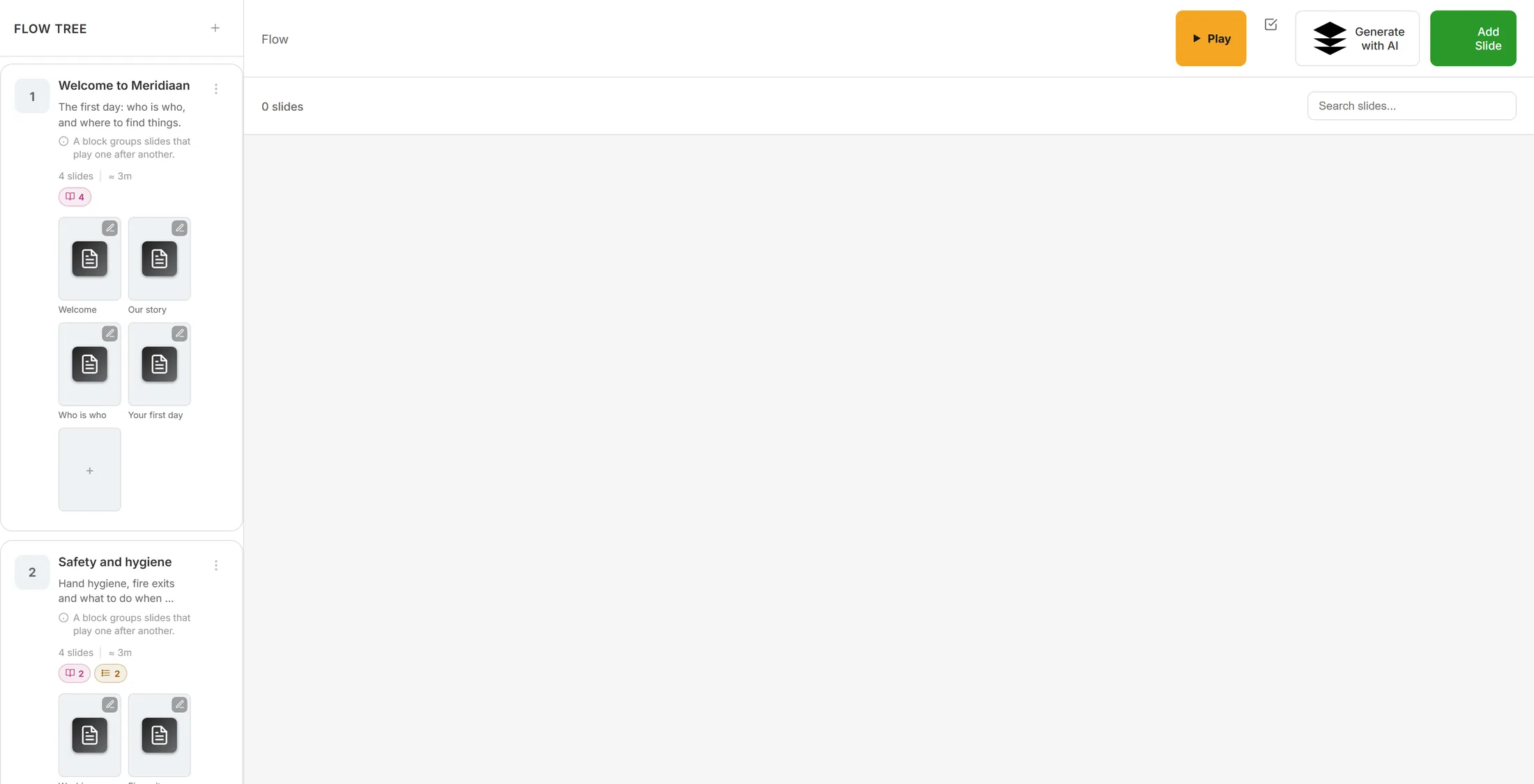
One group per section, the slides in a row under it. If nothing comes across
A message in red means the file held nothing to import. Nothing was changed.
- Read the red line. “No importable content found in the archive” means the backup has no course material in it.
- Press Close.
- In Moodle, make the backup again. Tick the sections and activities, and do not tick only user data.
- Open the import again and choose the new file.
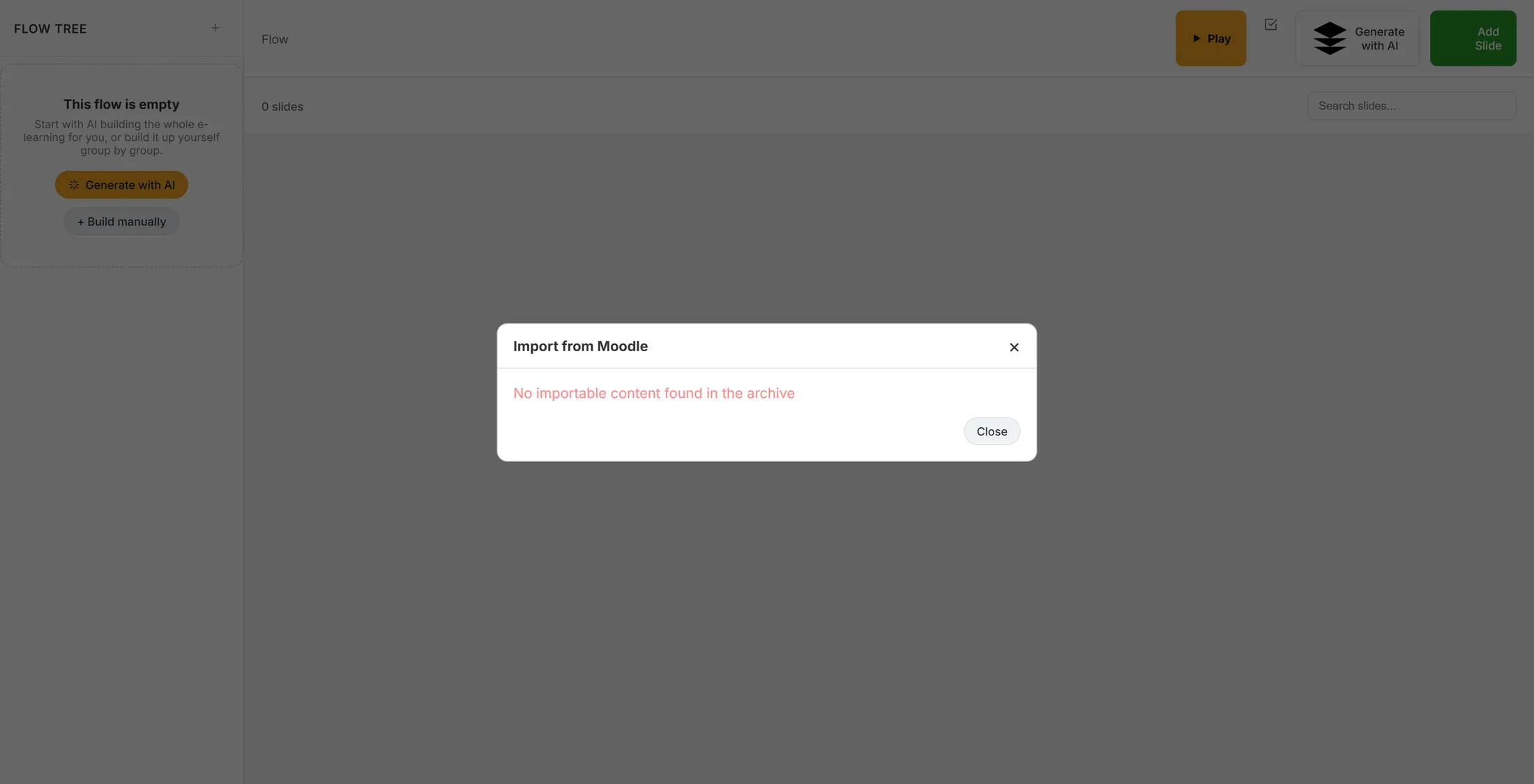
The window says what went wrong. Nothing was saved.
If something is not right
The window How do you want to create your swipeslides? does not open.
It only opens on a flow with no slides. Use a new flow, or use the import icon in the tree toolbar and pick Import from Moodle.
A picture or video is missing.
Pictures and videos that Moodle stores as links come across. A video file uploaded inside Moodle does not: add it again on the slide.
Too few slides, or the wrong ones.
The import follows the backup. Check in Moodle that the sections and activities were ticked when you made it, then import again into a new empty flow.
I imported twice and now have double groups.
Use the three dots on a group to delete the extra ones.
The words, in plain language
- .mbz
- The file Moodle makes when you back up a course.
- flow
- The row of groups and slides that makes up a learning.
- group
- A block of slides that play one after another. An import makes one per Moodle section.
Where to go next
- Make a learning The slide kinds, questions and playing it back.
- All explainers The other things you can learn here.