Make and use a sheet
Sheets are CoVince's own spreadsheet: made from Community Files, stored with the journey, edited together, with formulas, number formats, charts and a line that adds up whatever you select. Download it as Excel, PDF, Word or CSV whenever you need a file.
Content - numbers, lists and budgets - 5 min. You need: a journey
Reading this page changes nothing. A new sheet is only made when you press OK.
What you will be able to do
- Make a sheet Three clicks and a name.
- Fill it in Click a box, type, press Enter.
- Let it count Select numbers: the total is at the bottom.
- Take it with you As Excel, PDF, Word or CSV.
Get this ready first
- A journey A sheet always belongs to a journey.
- An Excel file? Fine. You can bring it in. See the tip in step 5.
Do it together, one step at a time
Eight steps. Four to make it, four to use it.
Open the files of your journey
Click your journey. Then click Files on the right.
- In the left column, click your journey, for example Quality round Q3 .
- At the top of the right column, click Files.
- A sheet in the list says Spreadsheet under its name, with a small grid in front of it. Click one to open it.

A sheet in the list of files. Press Create with AI
A list opens. The last line is Create document.
- Press Create with AI.
- A list opens: pictures, canvas, presentation, video and more.
- Press the last line: Create document.
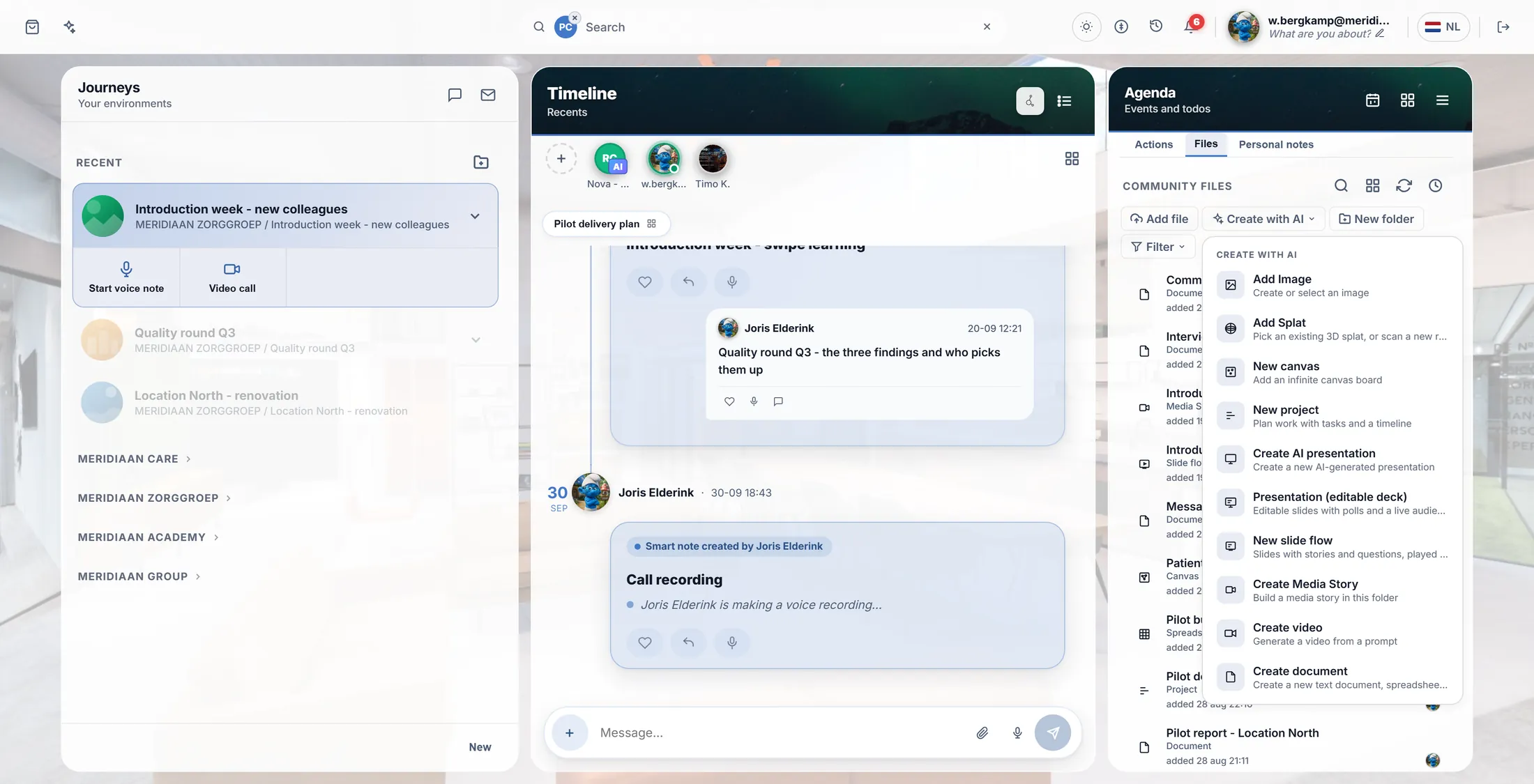
Create document is at the bottom. Choose Spreadsheet
Three choices. Press the middle one: Spreadsheet.
- A window says Create document .
- Press Spreadsheet (the middle one, with the little grid).
- Wrong one? Press Cancel.
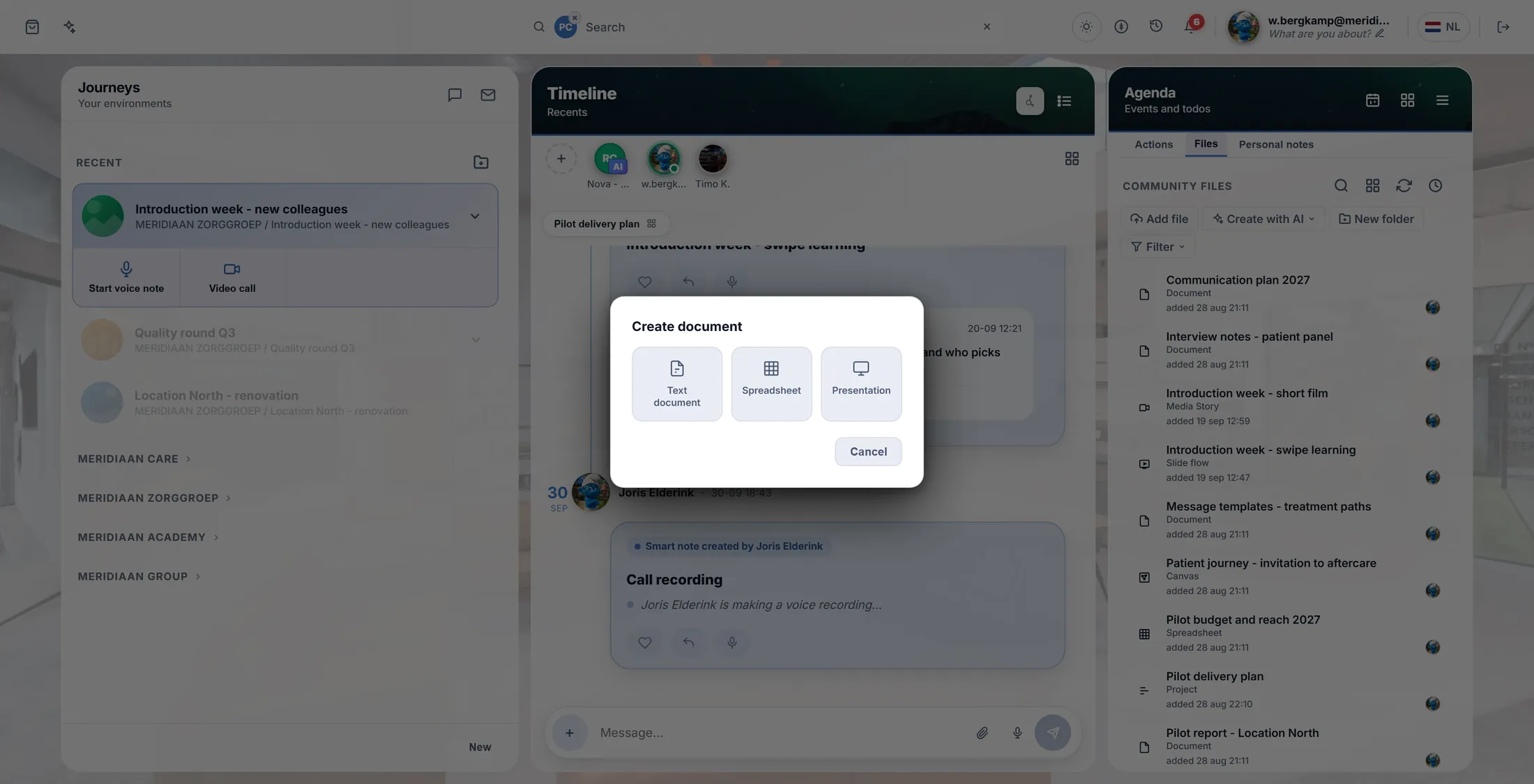
Press Spreadsheet. Give it a name
Type a name. Press OK. The sheet opens.
- A window says Document name . It already says Spreadsheet ; type a better name, for example Introduction week - budget .
- Press OK.
- The sheet opens over the whole screen, empty and ready. It is also in the list of files now.
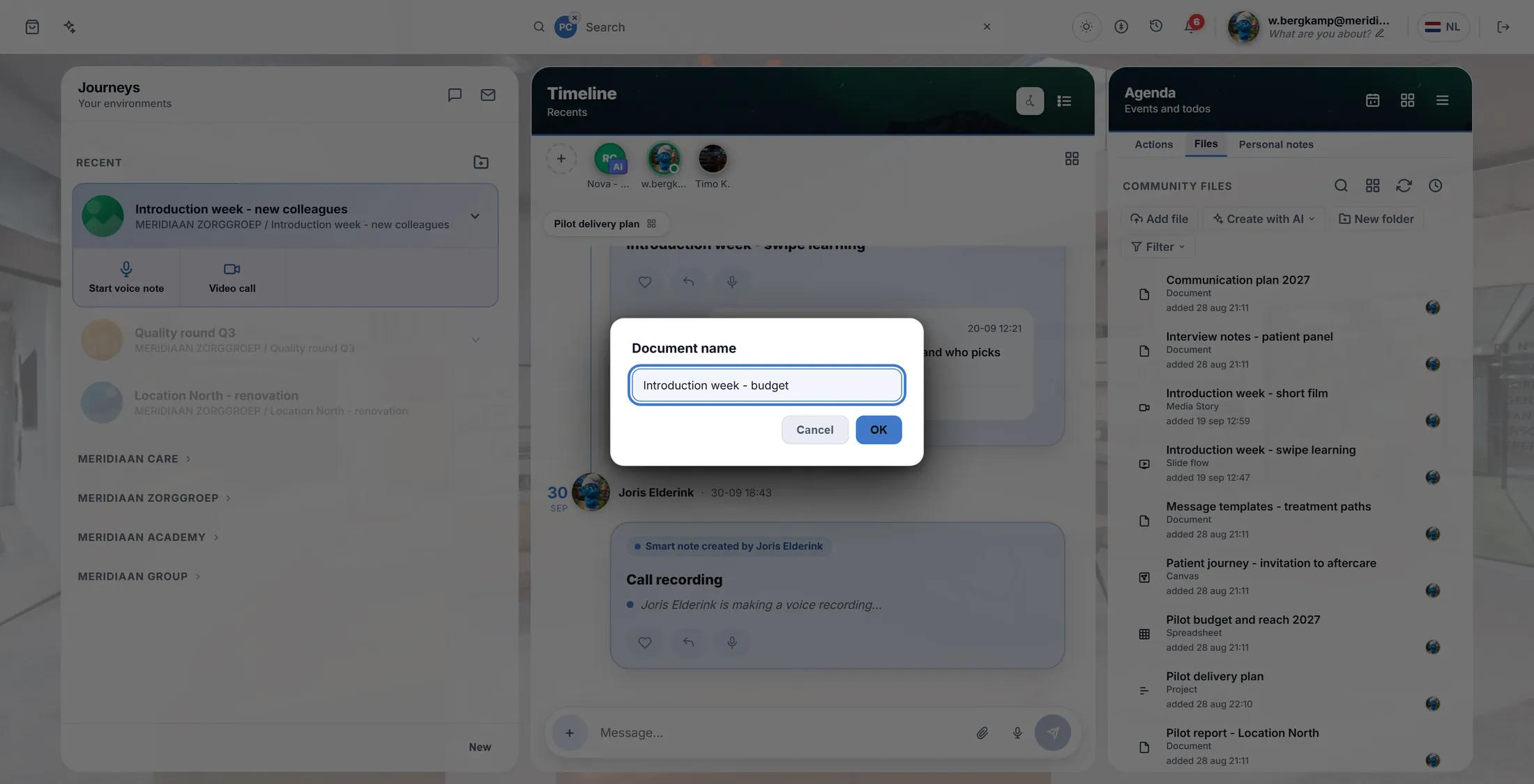
Type the name, then OK. Your sheet
Boxes in rows and columns. Click a box and type.
- Every box is a cell . Its name is the letter above it and the number beside it: B2 .
- Click a cell and type. Press Enter to go down, Tab to go right.
- The buttons on top are in groups: FONT , ALIGN , NUMBER , CELLS , DATA , INSERT , VIEW . Hold the pointer on a button and it says what it does.
- Made a mistake? Undo (Ctrl + Z). The sheet saves by itself; there is no Save button.
- Done? The cross at the top right closes it.
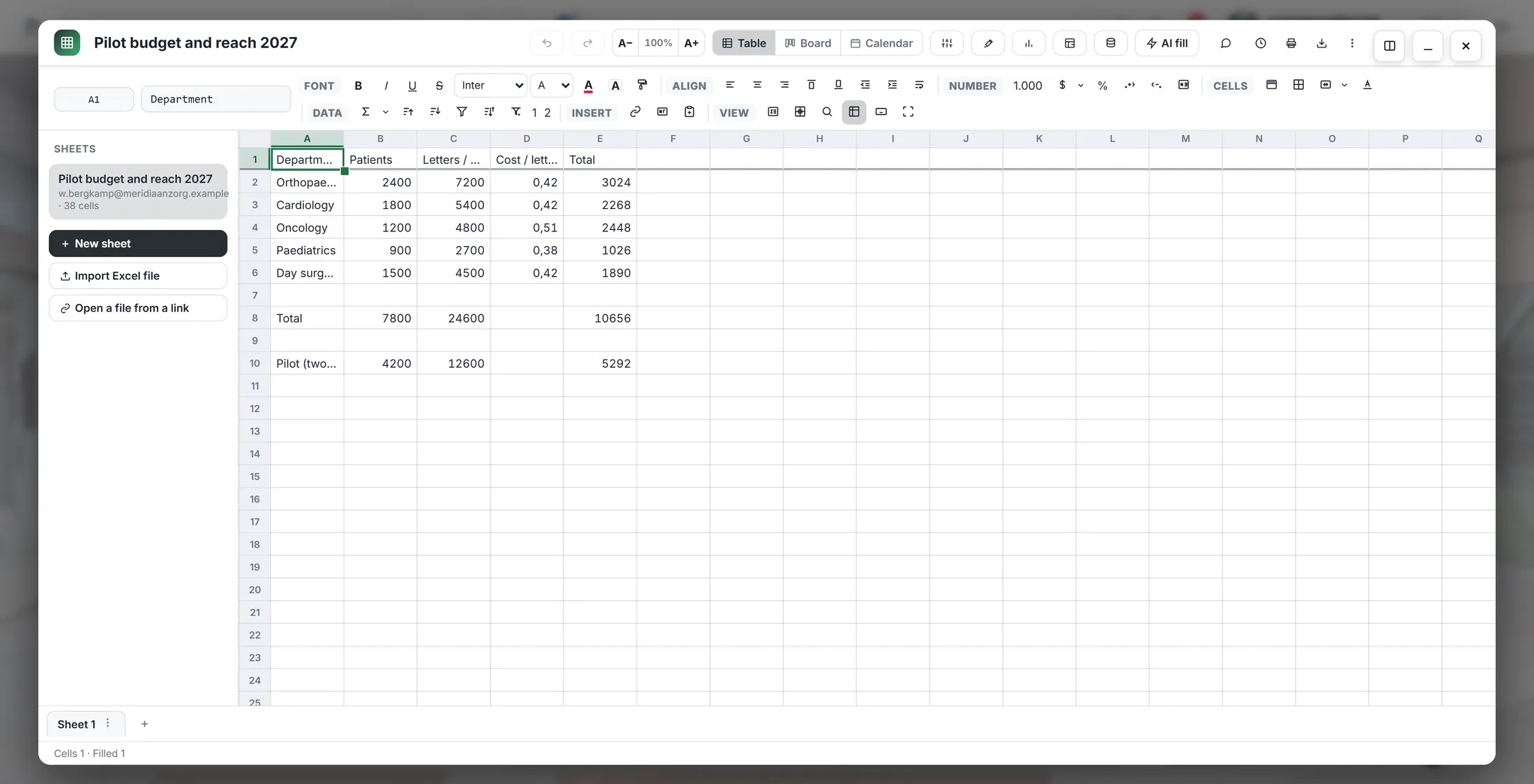
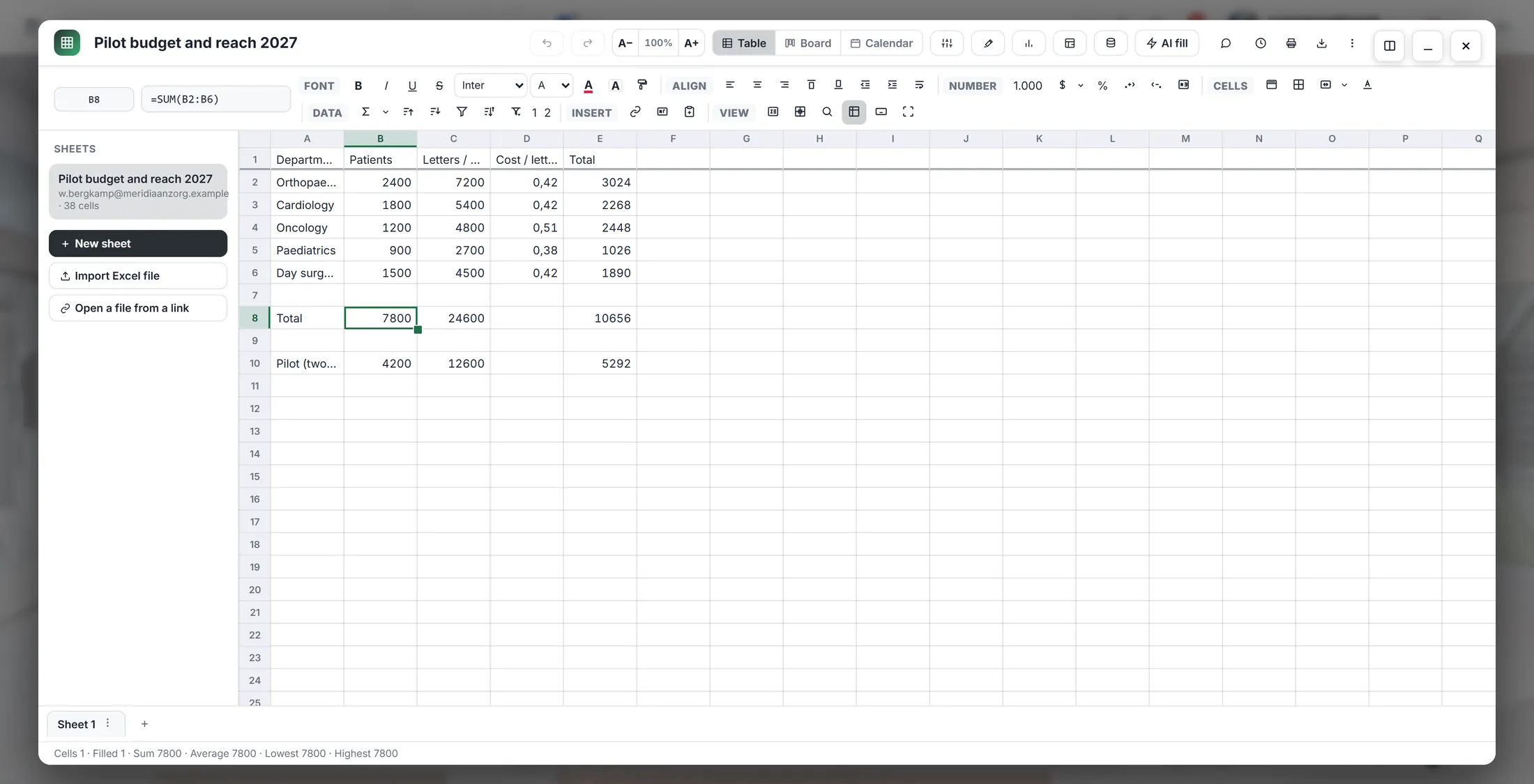
A sheet with a small table in it. Let it add up
Type = and a sum. The sheet works it out.
- Click an empty cell under your numbers.
- Type =SUM(B2:B6) and press Enter. That adds up B2 to B6.
- The cell shows the answer, 7800 . Click it again: the bar at the top shows the formula.
- Easier: select the cell and press the AutoSum button (Σ, Alt + =). It adds up the numbers above.
- Change a number: the total changes by itself.
Above: the sum. In the box: the answer. Select numbers, see the total
Select some numbers. The line at the very bottom adds them up.
- Click the first number. Hold Shift and click the last one.
- The numbers turn grey: they are selected.
- Look at the very bottom: Sum 7800 · Average 1560 · Lowest 900 · Highest 2400 .
- Nothing is typed in the sheet. It is only a quick look.
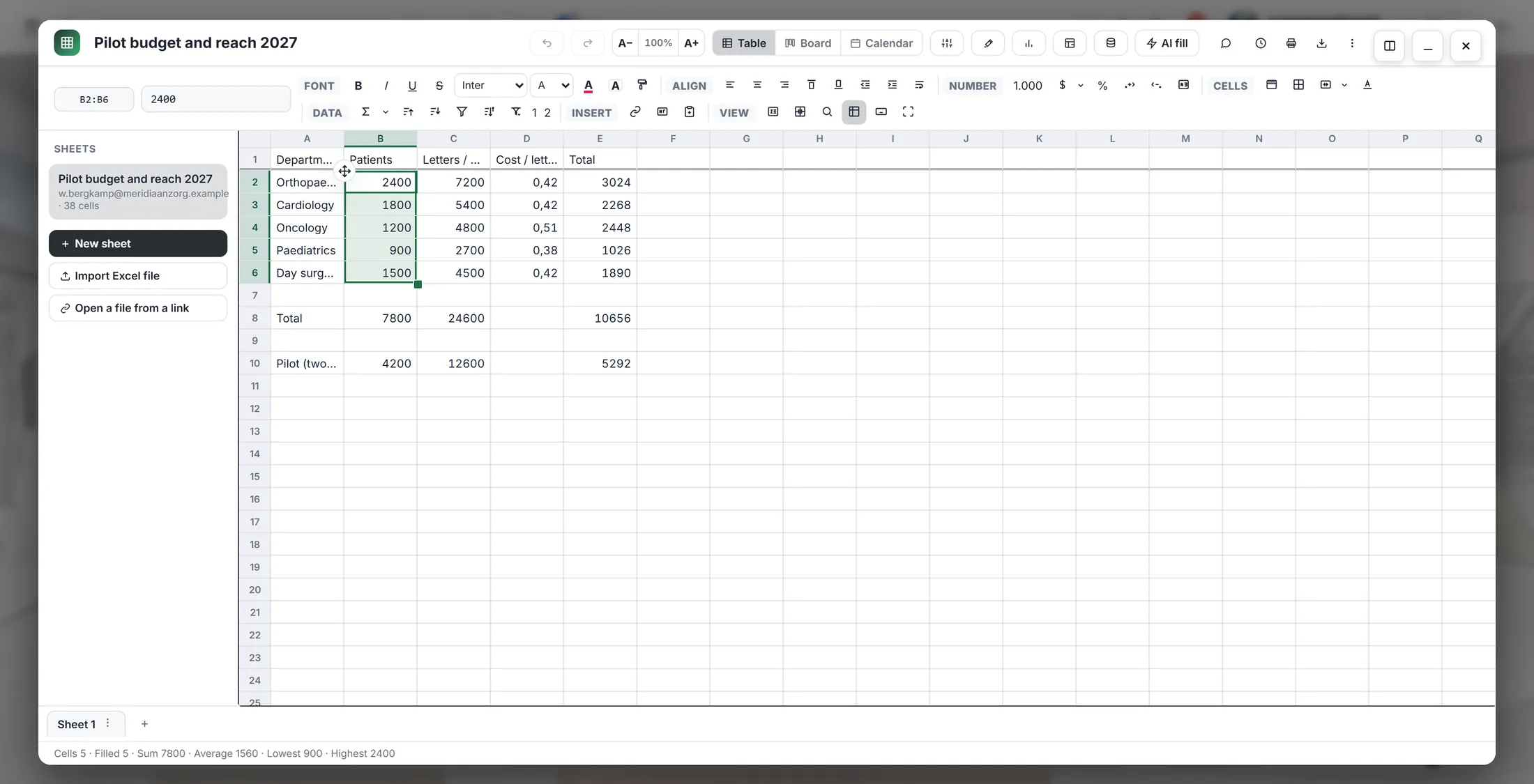
Five numbers selected. The total is at the bottom. Take it with you
Need a file? Download it as Excel, PDF, Word or CSV.
- Press Download at the top right (the arrow pointing down), or Ctrl + Shift + E.
- Pick the kind of file: Excel (.xlsx) , PDF , Word (.docx) or CSV .
- The file lands in your Downloads. The sheet in CoVince stays as it is.
- To share the sheet itself: close it, and use Share on its row in the files. People in the journey can already open it.
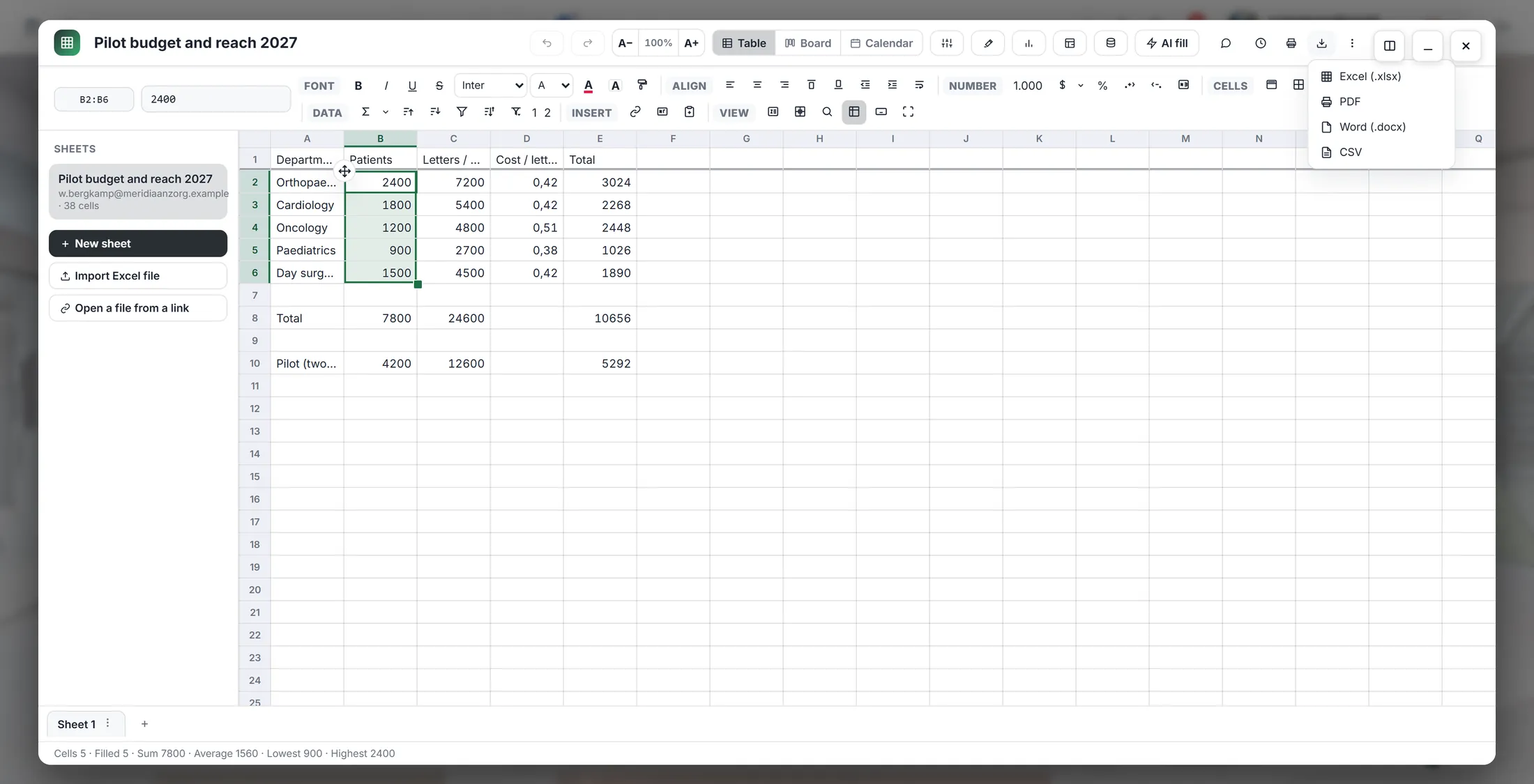
Four kinds of file.
If something is not right
Where is the Save button?
There is none. It saves by itself.
I see no Create with AI.
Click a journey first, then Files.
My sum says #REF.
Click the cell. The bar says what is wrong.
Can I open my Excel file?
Yes: Import Excel file, on the left in the sheet.
The words, in plain language
- cell
- One box in the sheet, named by its column letter and row number, like B2.
- formula
- A calculation in a cell. It starts with =, like =SUM(B2:B6).
- spreadsheet
- A table of rows and columns that can calculate. CoVince calls it a sheet.
Where to go next
- All explainers The other things you can learn here.