Ask several parties for the same information
An input list asks several parties for the same information. Each party fills in its own column through a link, no account needed. You follow the status per question in an overview, remind who is still open, and export or download everything.
Coordination - the same questions for several parties - 14 min. You need: a login, a journey and the e-mail addresses of the parties
Nothing is sent until you press Send all links. Reading this page changes nothing.
What you will be able to do
- One list, many parties Write the questions once, add the parties, and each gets its own link.
- Answers on a phone Text, contacts, choices with pictures, photos, films and dates - saved while they type.
- See who is still open A status per question per party, a reminder in one press, and an export when it is complete.
Get this ready first
- The parties and their e-mails For example Meridiaan B.V. and IX3 Studio. A party can have several addresses.
- Your journey The list lives in the Community Files of a journey, for example Launch Meridiaan.
Do it together, one step at a time
Four parts: build the list, send it, see the parties answer on their phone, and follow it up. Tick each step off - the page remembers where you were.
Make the list in Community Files
Open the journey, press Create, choose Input list: ask several parties for the same information - each fills in their own column via a link, no account needed.
- Open your journey, for example Launch Meridiaan, and go to its Community Files.
- Press Create and choose Input list.
- Type a name, for example Launch Meridiaan - what we need from our partners, and press OK. The list opens in its own window.
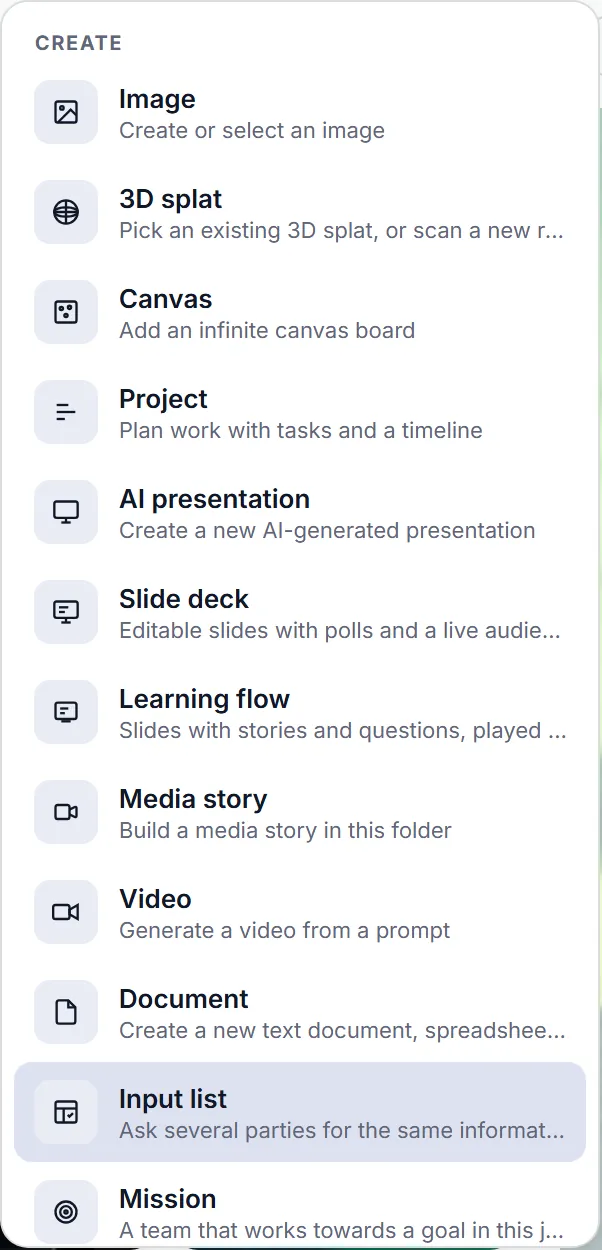
The Create menu, with Input list and its one-line explanation. Read the "How an input list works" strip
A new list explains itself in four steps. Press Got it when you know them.
- The strip says: add questions, add parties and send each its own link, each party fills in its own column, follow the status in the Overview.
- A list with no parties yet opens on Questions and parties. Once there are parties, it opens on the Overview.

The strip on a new list: the one-line promise and the four steps. Write the first question
Press Add a section, name it, then Add a question. A question card has three parts side by side.
- Left, Question: what you ask, for example What should we say about you in the press release?
- Middle, Explanation: a hint shown under the question on the party’s page.
- Right, Answer type and Allow ’not applicable’: what kind of answer, and whether a party may say the question does not apply to it.

A question card: Question, Explanation, Answer type with Allow ’not applicable’. Pick the kind of answer
Press the Answer type list. Five kinds: free text, contacts list, choice, file upload and date and time.
- Free text: a text box, for a sentence or a paragraph.
- Contacts list: name, role, e-mail and phone, and the party can add more people.
- Choice, File upload and Date and time come next. The list closes when you pick one.
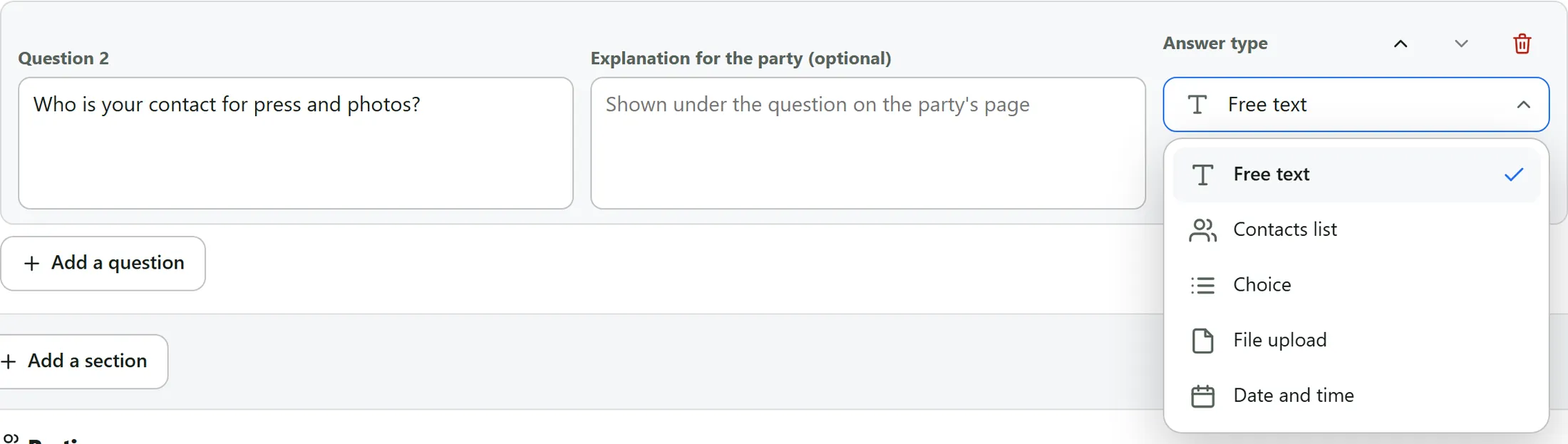
The answer types, open under a question. A choice, with pictures if you like
With Choice you write the options. Each option can carry a picture, and you can allow more than one answer.
- Write the option, for example Small set-up, and press Add an option for the next one.
- Press the square left of an option to add a picture. The picture opens the usual picture wizard: library, upload or AI.
- Tick Multiple answers allowed if a party may pick more than one.
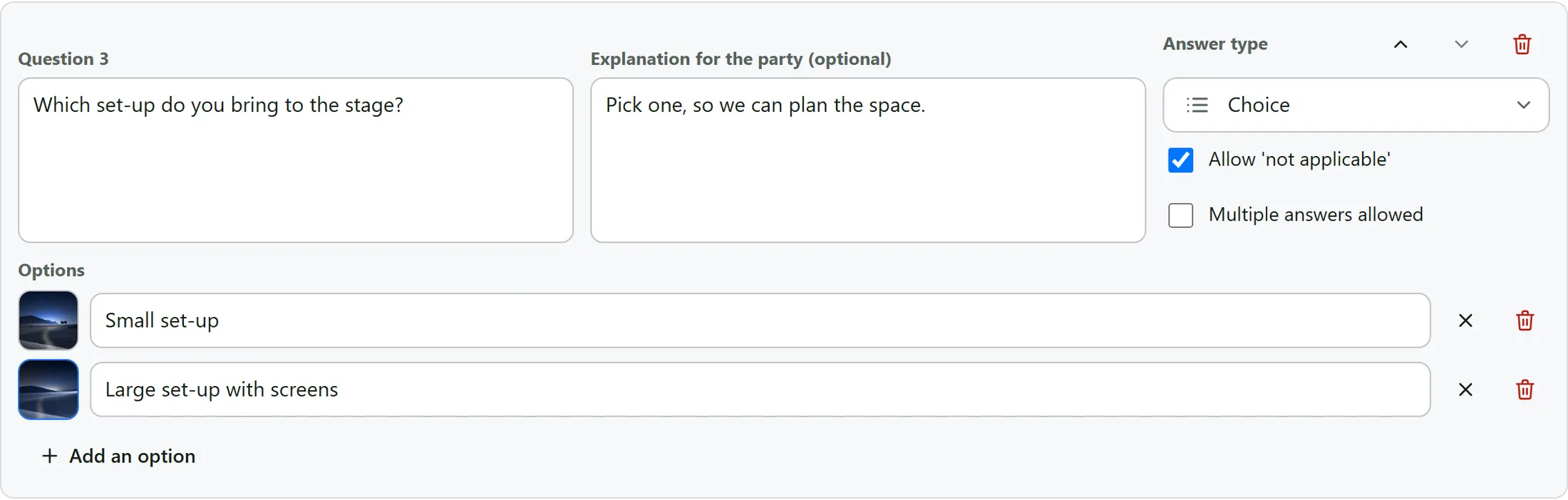
A choice question with two options, each with a picture. Ask for files and dates
File upload lets a party send photos, films and documents. Date and time gives a date picker.
- Choose File upload as the answer type.
- Tick Multiple files allowed if a party may send several, for example photos and a film. Without it, a second file replaces the first.

A file upload question with Multiple files allowed ticked. Let AI draft the questions
Press Fill with AI, describe what you need, and choose what to add. Nothing is saved until you add it.
- Type what you need, for example What we need from our partners for the launch day: catering, access for vans and parking. Press the button to draft.
- A progress line names the phase and the seconds while it works. You then see the drafted sections and questions.
- Press Add to the list to take them over, or Discard / Try again. You can edit every question afterwards.
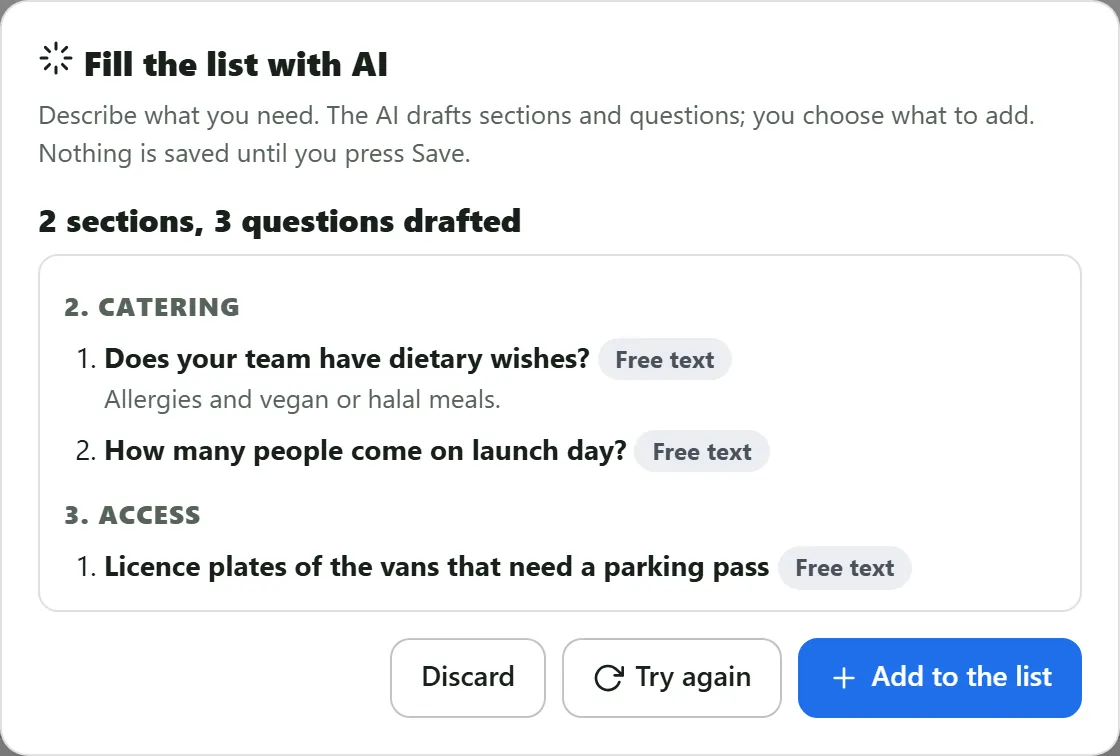
The AI draft: two sections, three questions, with Add to the list. Add the parties
Under Parties press Add a party. Give each a name and the e-mail addresses of its contacts.
- Type the name, for example Meridiaan B.V., and the addresses, separated by commas.
- The party gets its own link at once, under the name. The link icon copies it, and New link (old one stops) replaces it.
- The bin removes the party. The list saves itself while you type: look for Saved.

A party card: name, e-mails, and the link row with the copy icon. Send each party its link
Send all links mails every party its own link. You are asked to confirm first, with the number of parties.
- Press Send all links at the top of Parties, or Send link on one card.
- Check the number and confirm. A party without a name is marked; nothing is sent until that is fixed.
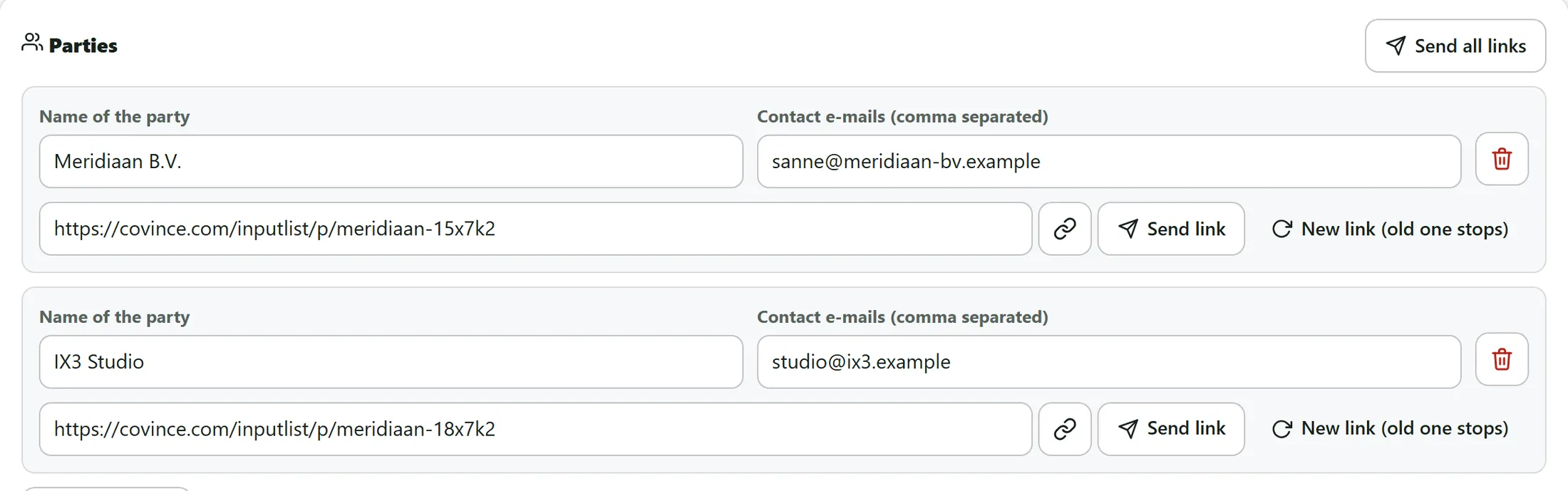
Both parties with their own link, and Send all links above them. What a party sees
The party opens its link on a phone or a computer. No account, no password: just its own questions.
- The page greets the party by name and says everything is saved while it types.
- A counter, for example 0 of 5 answered, and a bar show how far it is. Each question has a status: Not received yet.
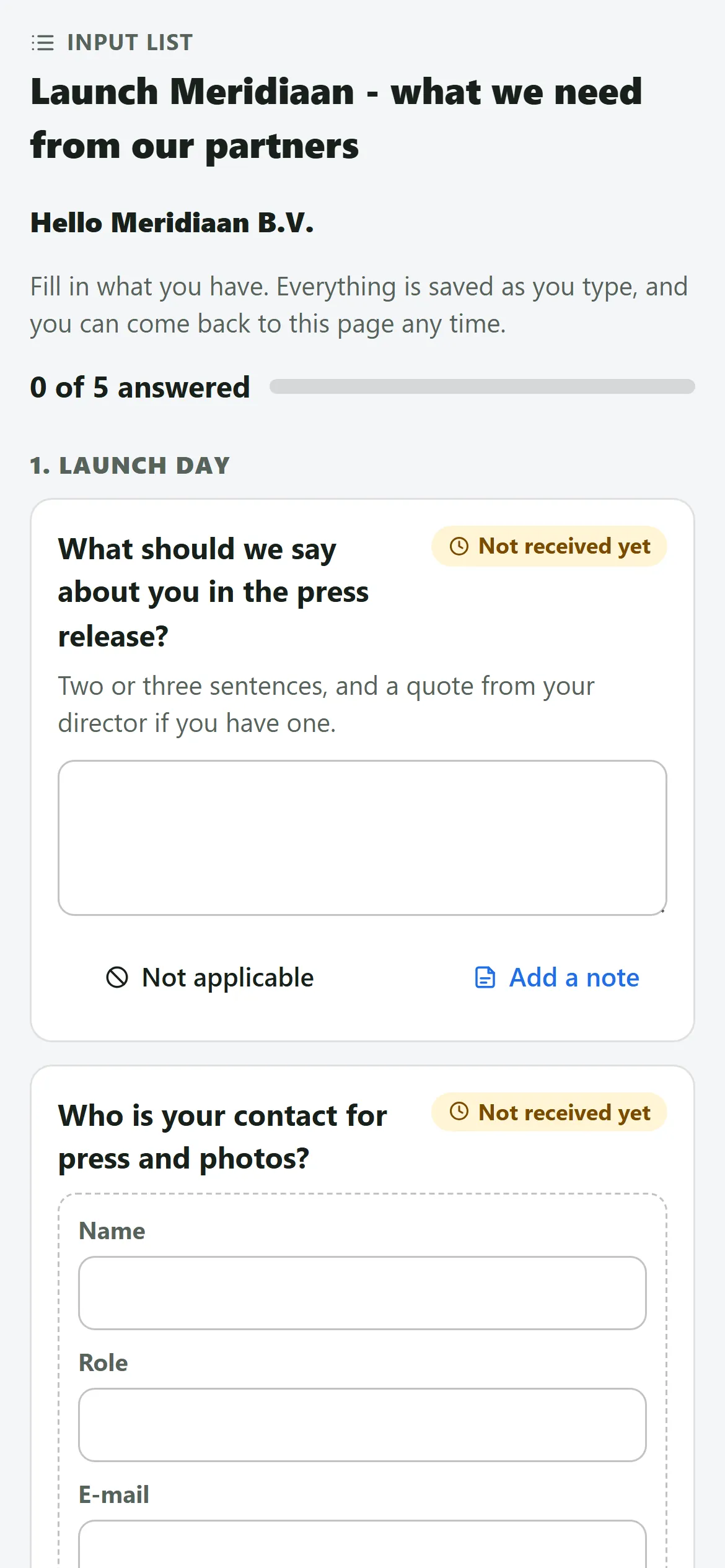
The party page on a phone, before anything is answered. Answering
The party types its answer. It is saved while it types - the line under the box says Saved - and the question turns Received.
- Type in the box. The counter goes up: 2 of 5 answered.
- A contacts question asks name, role, e-mail and phone. A wrong e-mail address marks only that field, and is not saved until it is right.
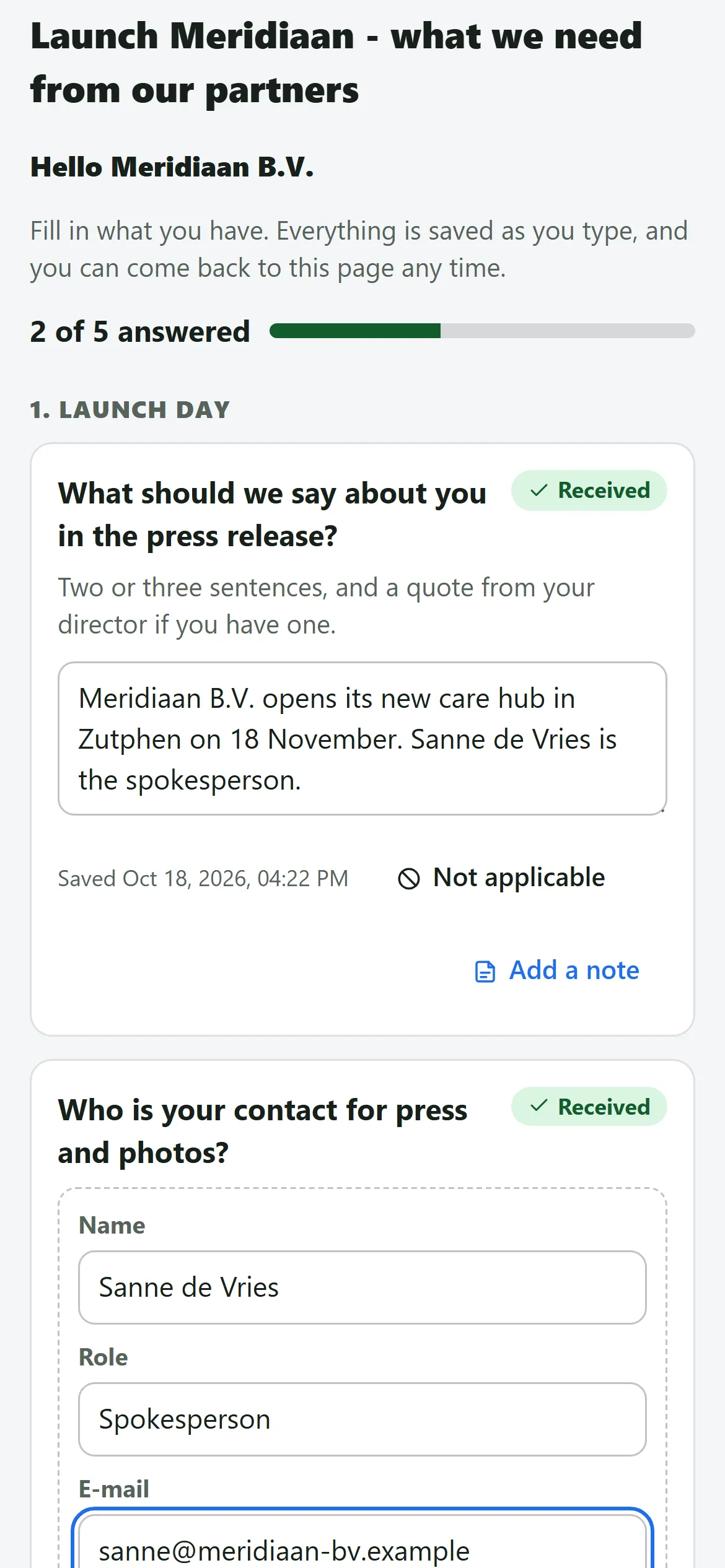
A text answer and a contact filled in; the counter says 2 of 5. Choosing with pictures
Options that have a picture show as picture cards. The party taps one - or more, if you allowed several.
- Tap a card. The round mark fills in and the choice is saved.
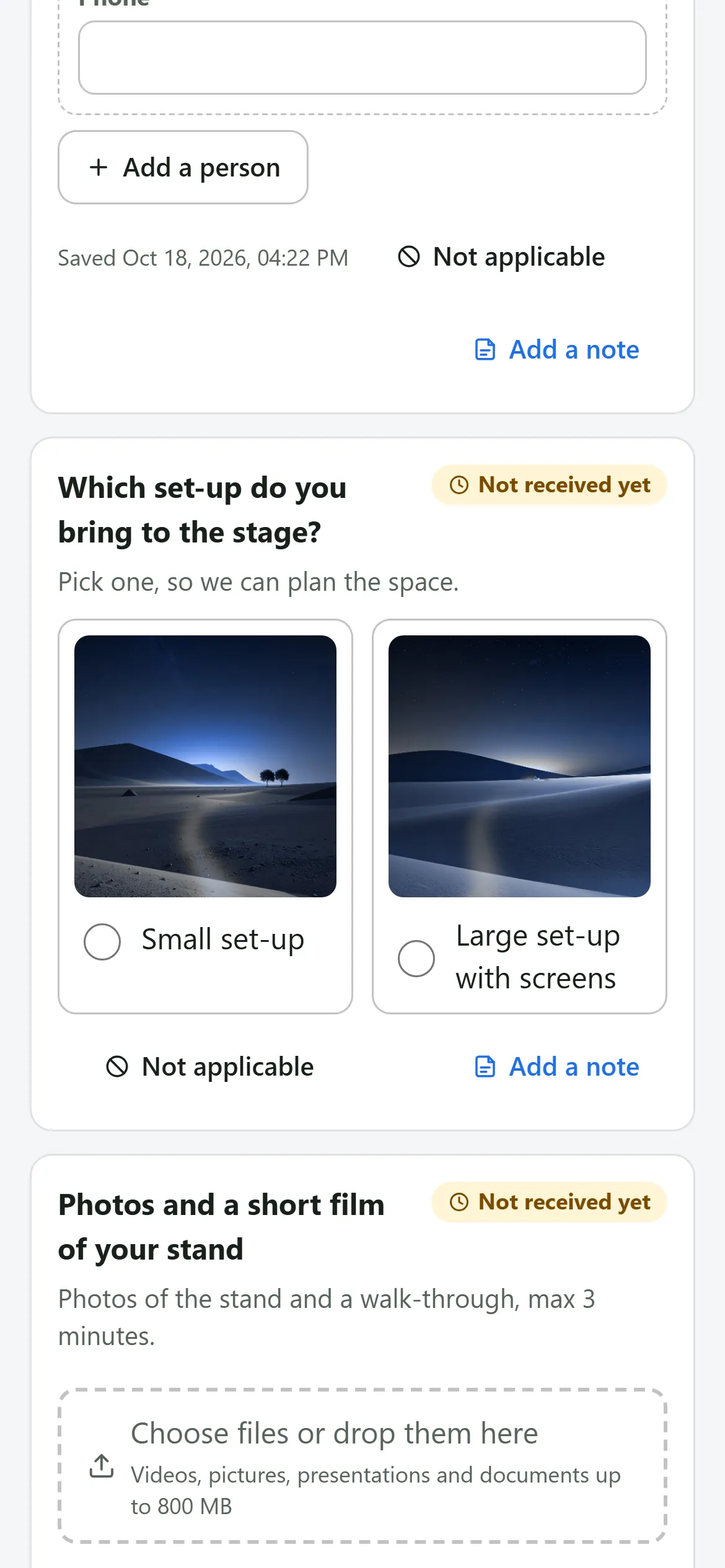
The choice question as picture cards: Small set-up and Large set-up. Not applicable
If a question does not apply, the party presses Not applicable. The question turns grey and counts as handled.
- Press Not applicable. The answer box disappears and the page says Marked as not applicable.
- Changed its mind? Undo brings the answer box back, with what was typed.
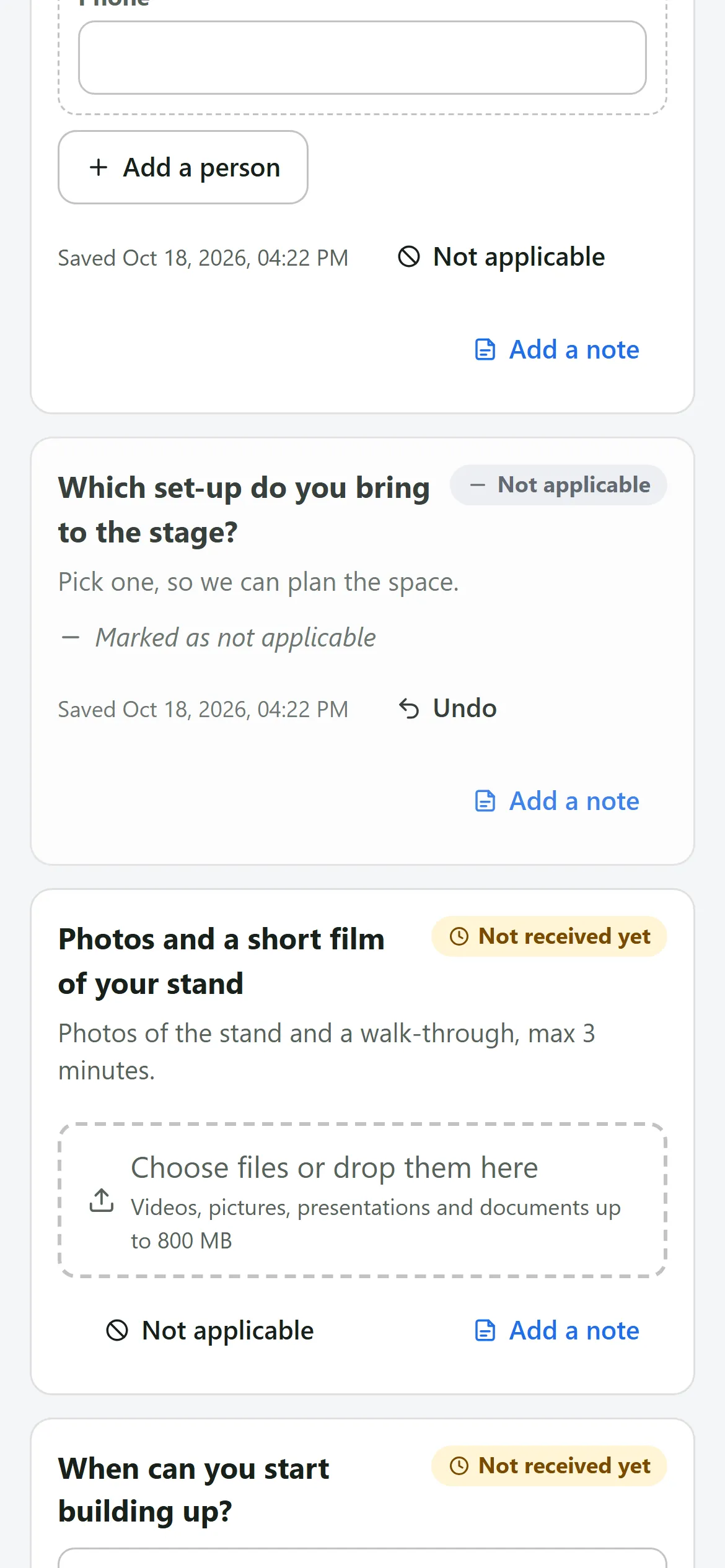
A question marked Not applicable: grey, with Undo. Add a note
Under every question, Add a note opens a box for extra context. It is saved too, and you see it in the Overview.
- Press Add a note and type, for example The quote still needs approval from our director.
- Hide note folds it away again; the note stays saved.
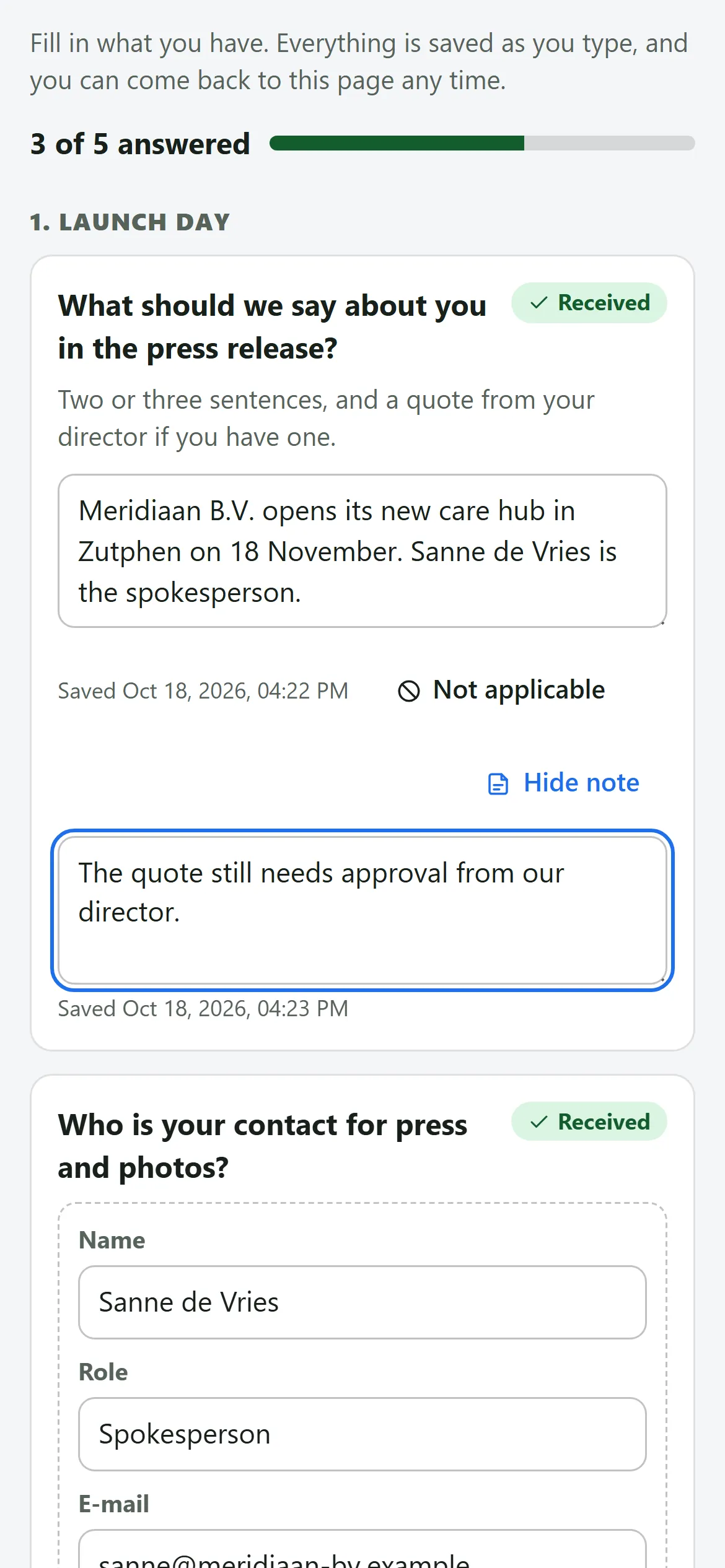
A note under an answer, saved. Uploading photos
The party presses the upload zone and picks files from its phone or computer. Each file appears with a thumbnail and its size.
- Press Choose files or drop them here and pick one or more pictures.
- The bin removes a file. Pictures, films, presentations and documents are fine, up to 800 MB each.
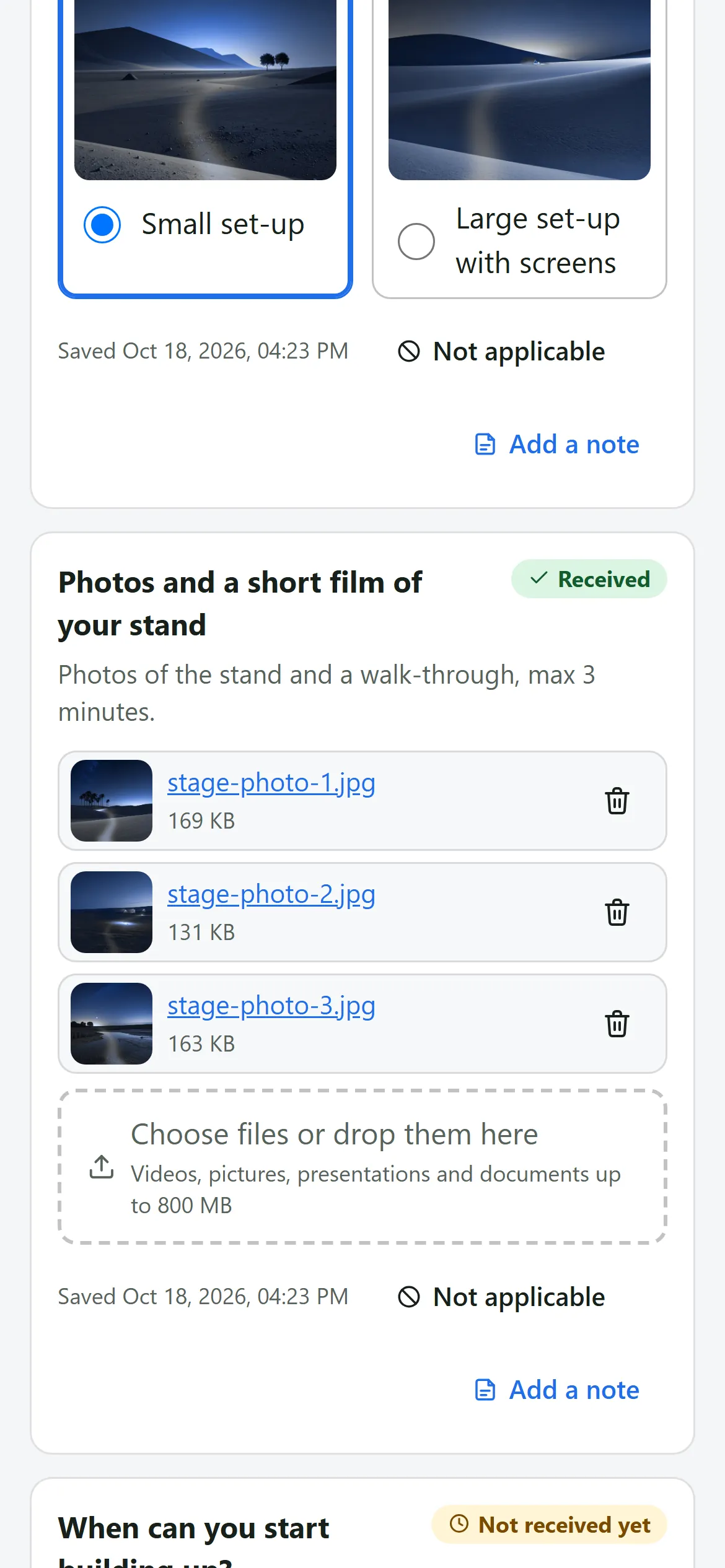
Three photos uploaded, each with a thumbnail. Uploading a film
A big file goes up in pieces, and a bar shows how far it is. The party can cancel, and nothing half-finished is kept.
- Pick the film. The file name, the word Saving and a blue bar appear while it goes up.
- Cancel upload stops it. If the connection drops, the party sees a message and can try again.
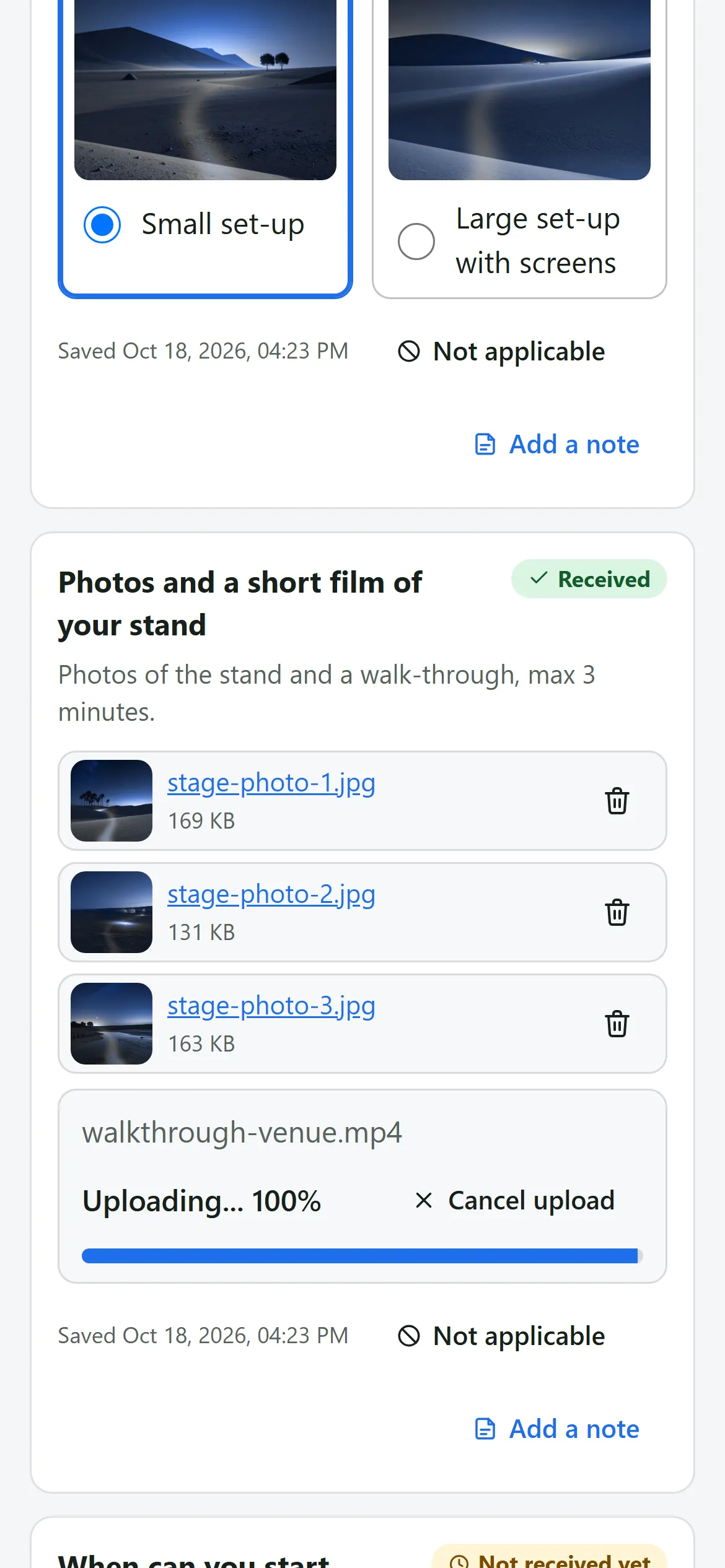
A film uploading, with the progress bar half way. Finalise and send
When the party is done it presses Finalise and send. If a question is still open, it is asked to confirm first.
- Press Finalise and send at the bottom of the page.
- Open questions? The page says how many are still open and asks if it should finalise anyway. Cancel changes nothing.
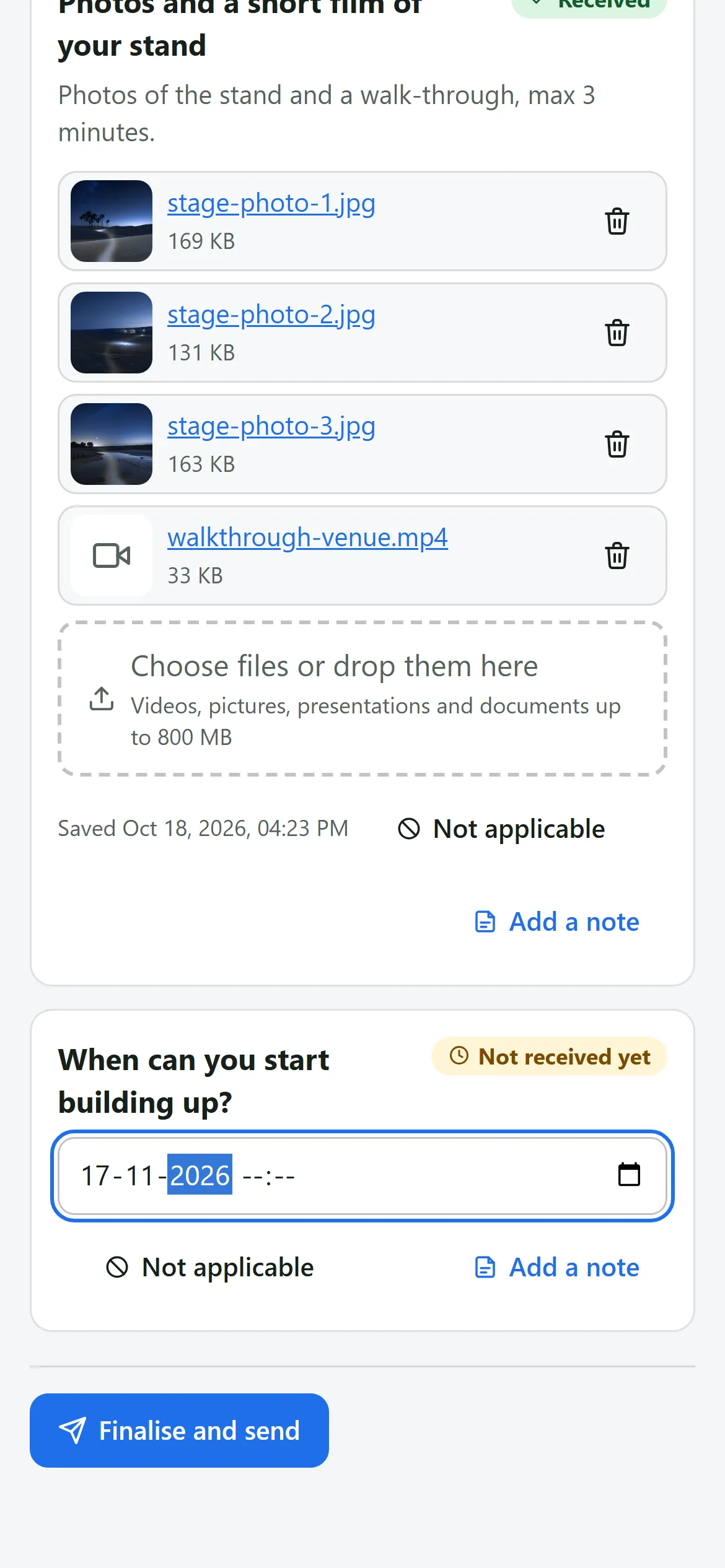
The Finalise and send button under the last question. The thank-you
The party sees Thank you - your input was sent, with the time. You have been told. It can still press Change my answers.
- The questions step aside; only the thank-you stays.
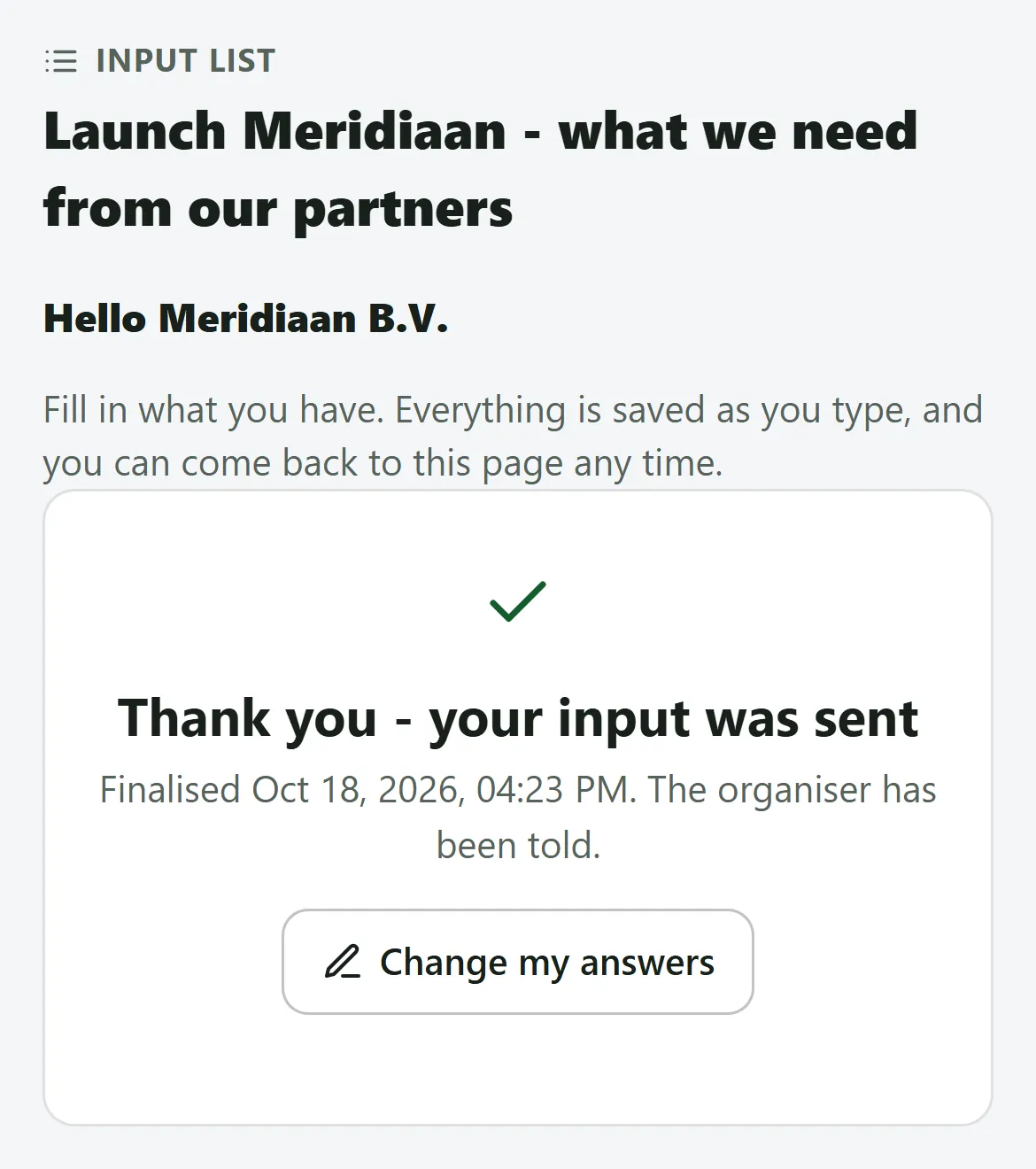
The thank-you after Finalise and send. The Overview
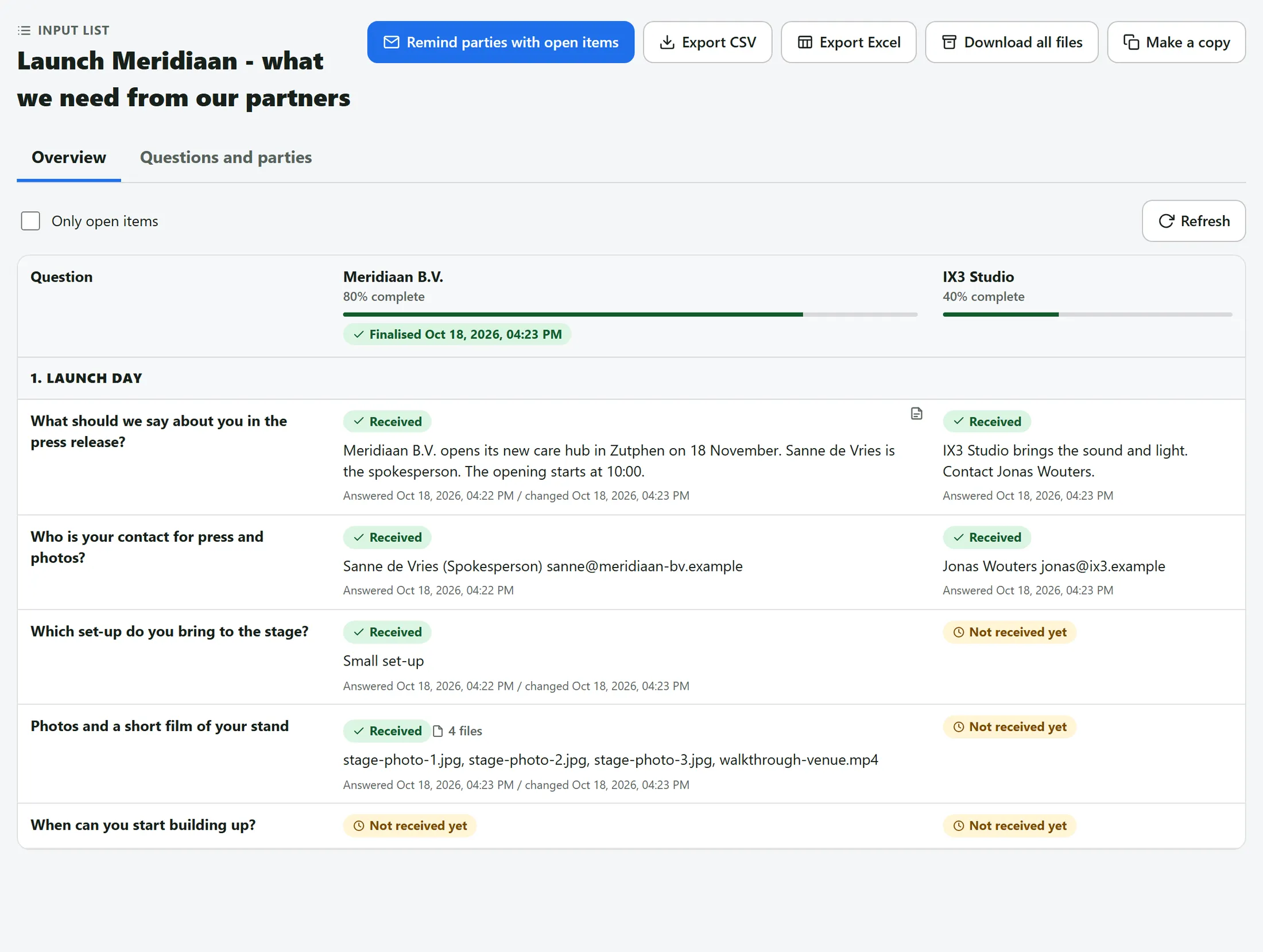
Once there are parties, the list opens on Overview: a row per question, a column per party, and a status in every cell.
- Each column shows how complete the party is (80% complete) and a bar.
- A green Finalised chip with the time shows who said they are done. Received, Not received yet and grey cells show the rest.
- Every answer shows when it was answered and changed. A small note icon means the party left a note. Refresh loads the newest answers.
The Overview: Meridiaan B.V. finalised at 80%, IX3 Studio at 40%. Show only what is open
Tick Only open items and every row that is complete for all parties disappears.
- Tick the box left of Only open items. Untick it to see everything again.
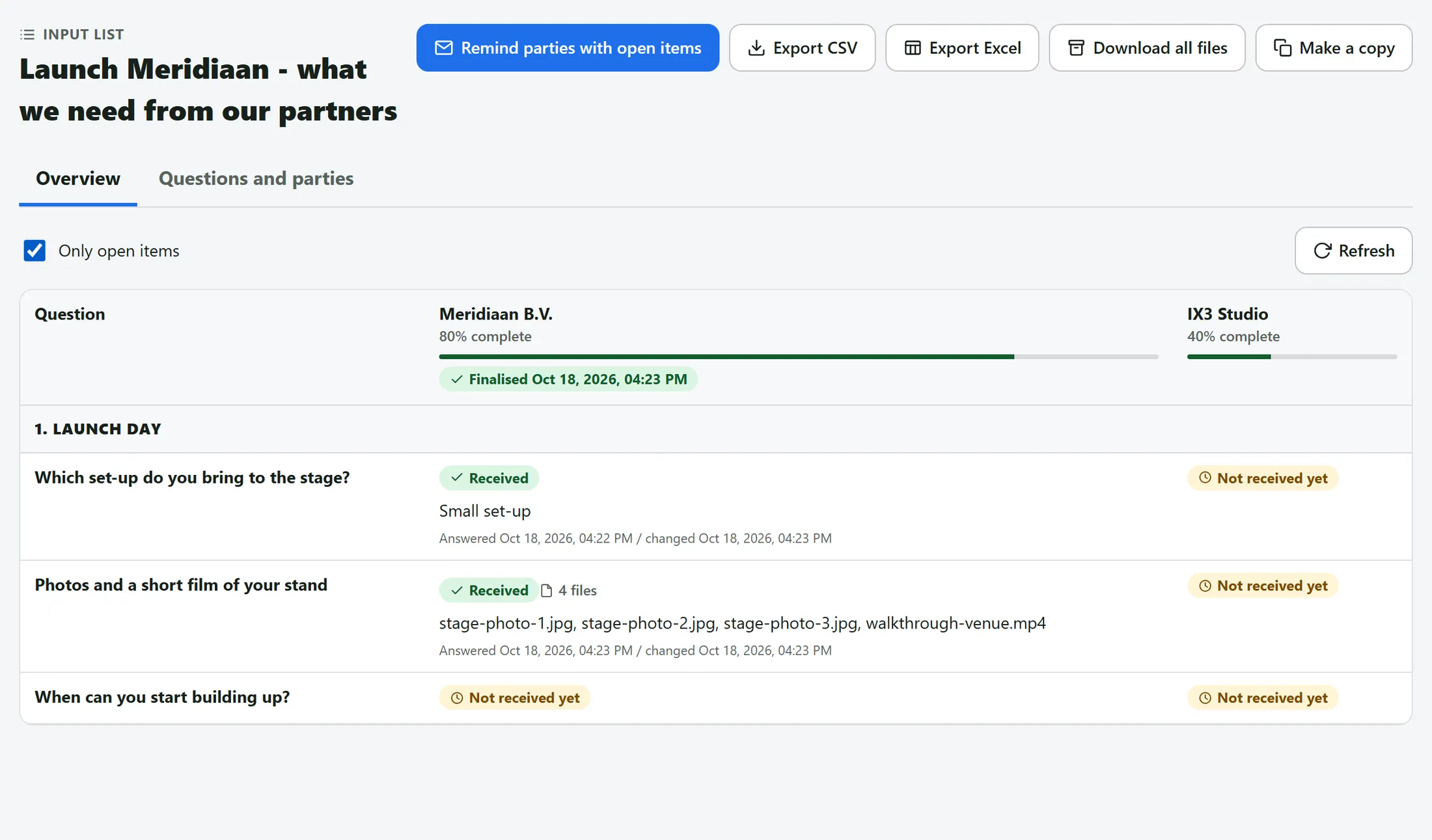
Only open items: just the rows that still need something. Open a cell: answer, note and History
Press a cell. A dialog shows the answer, the status, the note, and the History of every step.
- You can fix the answer or change the status here, then press Save.
- History lists every step with date and who did it: answered, reopened, changed (old → new), finalised.
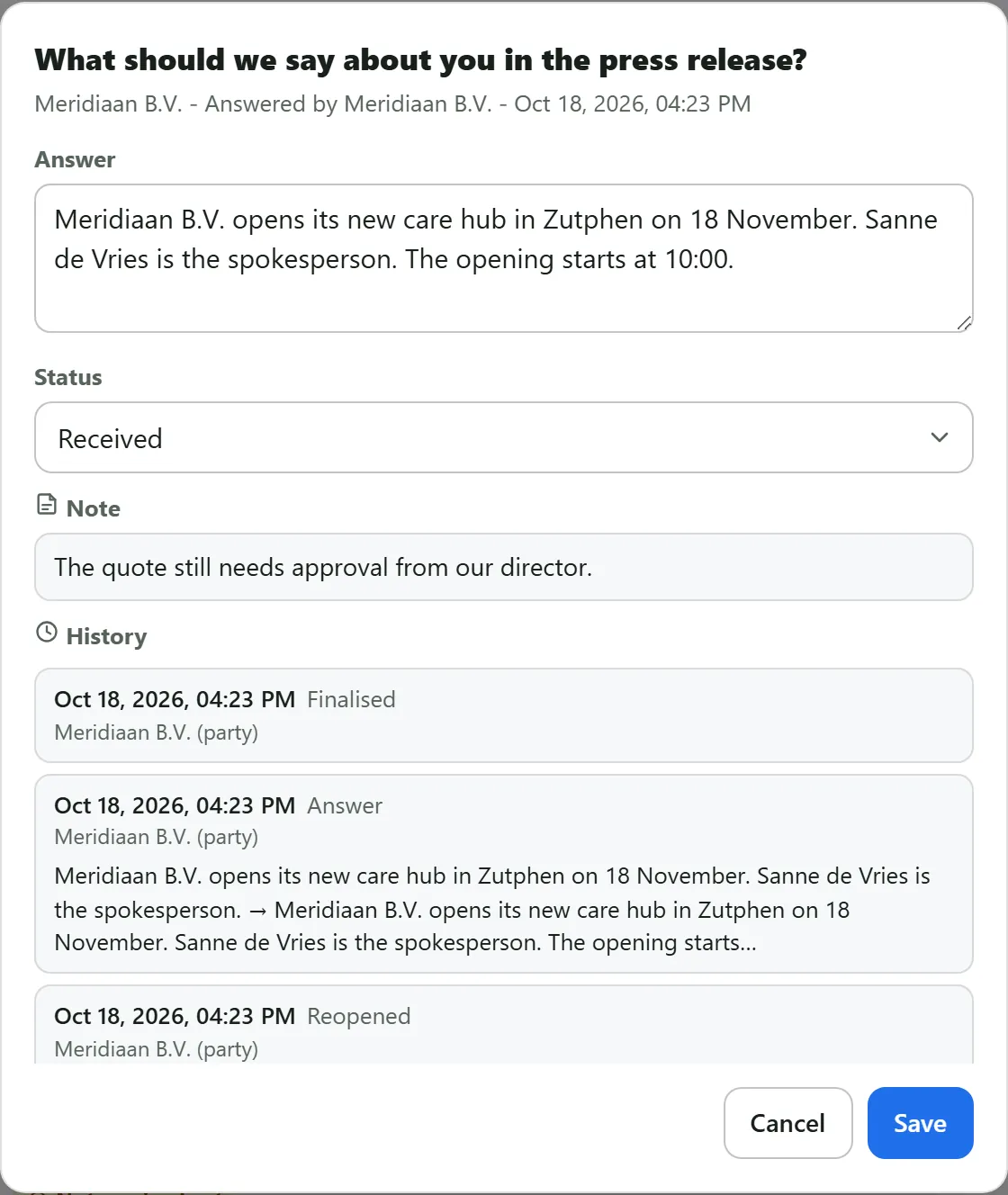
The cell dialog: answer, status, note, and the History below. Remind the parties who are still open
Press Remind parties with open items. Every party with open questions gets a reminder mail; the others get nothing.
- Press the blue button at the top, then confirm in the dialog.
- You get mail too: one when a party finalises, and one bundled mail about changes after that - not one per edit.
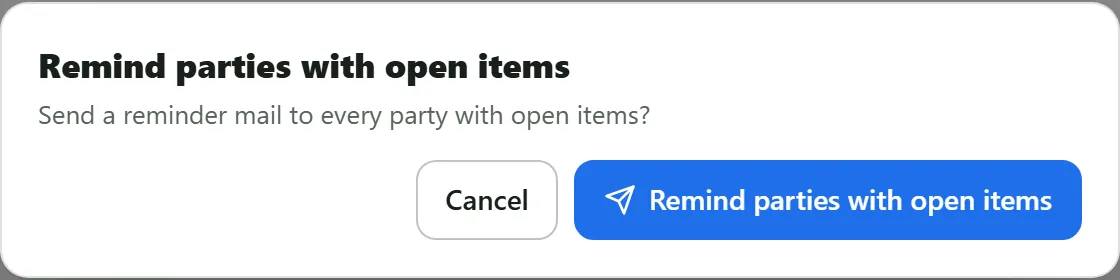
The reminder dialog. Export the answers
Export CSV and Export Excel give one sheet with every answer, plus when each was answered and last changed.
- Press Export CSV or Export Excel in the top row. The file downloads at once.

The top row: Remind, Export CSV, Export Excel, Download all files, Make a copy. Download all files
Download all files packs every uploaded file into one zip: a folder per party, or a folder per question.
- Press Download all files. A dialog shows the progress while the zip is made.
- When it says it is ready, press Download. The button is greyed out while there are no files yet.
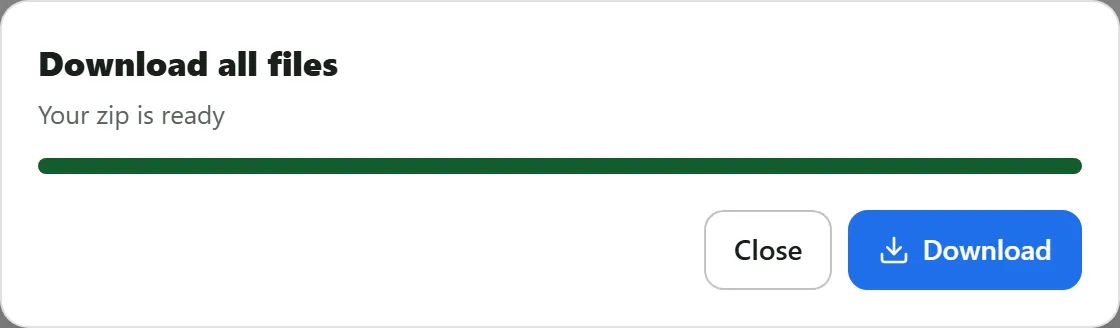
The zip dialog when the file is ready. Find it again: the timeline card
A new list puts a card on the journey’s Timeline. Press Open on it and the list opens.
- Open the journey and look at its Timeline for the card with the name of your list.
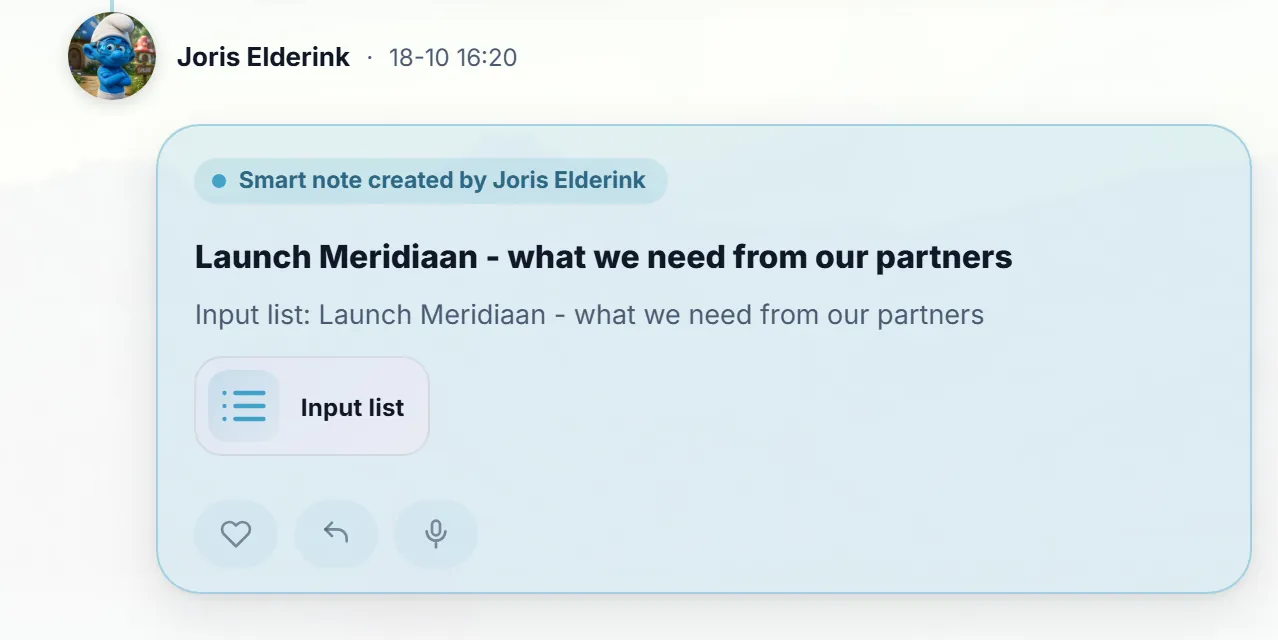
The timeline card of the input list, with Open. Find it again: My history
My history keeps a line for the list you created, with an Open button.
- Open My history from the first screen.
- Find the line Created and press Open: the list opens in its window.
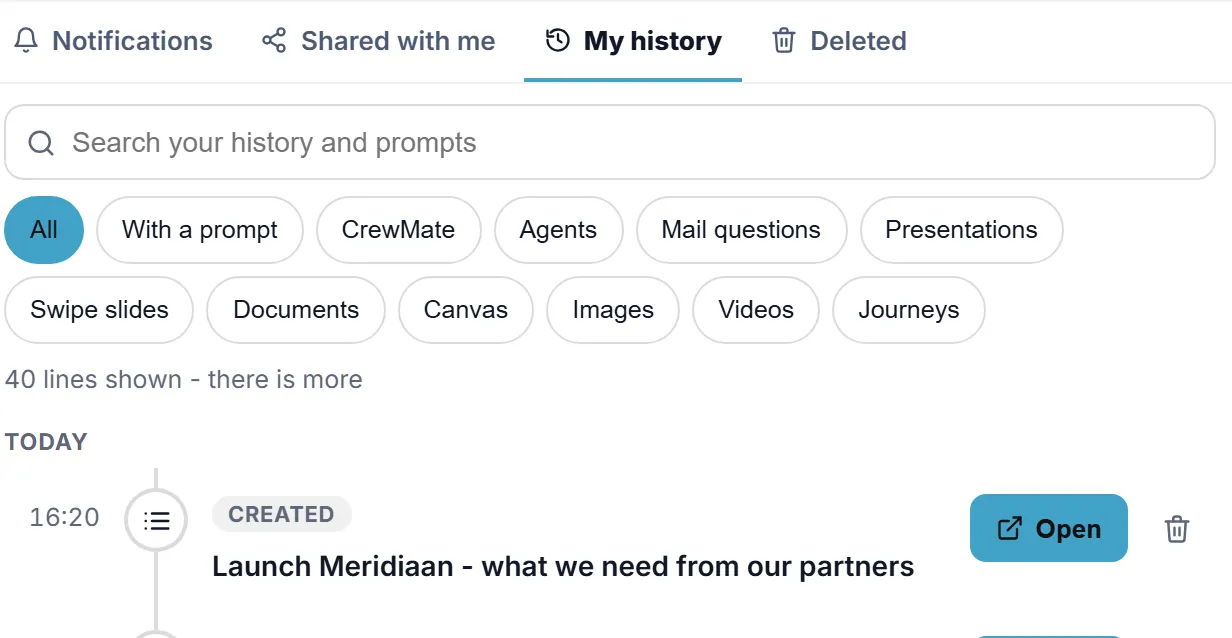
My history with the input list and its Open button.
If something is not right
A party says the link does not work
Each link belongs to one party. Check you sent the right one. New link (old one stops) on the party card makes a fresh link; the old one stops working.
A party wants to change an answer after finalising
They press Change my answers on their thank-you page. The Overview then shows Reopened, and you get one bundled mail about the changes after they finalise again.
A question does not apply to one party
Keep Allow ’not applicable’ ticked on that question. The party presses Not applicable and the cell turns grey - that counts as handled.
The words, in plain language
- input list
- A list of questions that several parties answer, each in its own column, through its own link.
- party
- A person or organisation you ask, for example Meridiaan B.V. It has a name, one or more e-mail addresses and one link.
- Finalise
- A party tells you it is done. You can still see and change its answers, and it can reopen them.
Where to go next
- All explainers The other things you can learn here.