Make a landing page
Say what the page is for, record a walkthrough of your screen while you talk, and the studio composes a designed page from your words and the screenshots. You edit every text and picture, then publish it under your organisation's address.
Communication - a page on the internet - 7 min. You need: to be an admin, and a microphone
Nothing goes online until you press Publish.
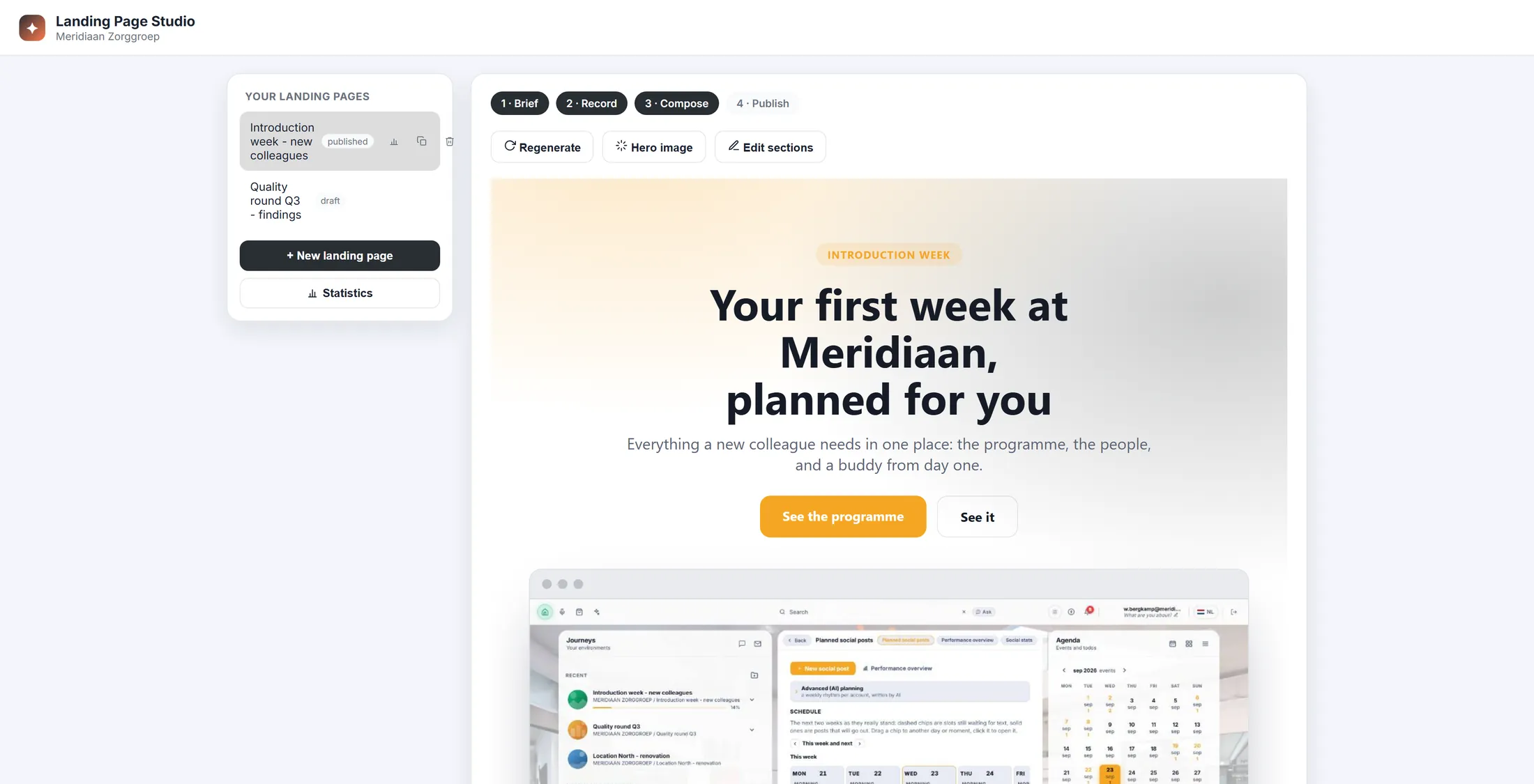
What you will be able to do
- Tell, do not type Your words become the text.
- Get a finished page Title, parts, pictures, a button.
- Change anything Every text, every picture.
- Put it online One button, one link.
Get this ready first
- Be an admin Only admins can make these pages. Not an admin? Ask the person who looks after CoVince where you work.
- A microphone The one in your laptop is fine. Think of three things to say.
Do it together, one step at a time
Seven steps. The studio itself counts four: Brief, Record, Compose, Publish.
Open the studio
The studio is inside the Editor, where your organisation's pages are.
- Open the Editor and choose your organisation.
- In the list on the left, click Organisation Landings Pages .
- Press Make product landing page with AI. The studio opens right there.
- Your pages so far are listed under Hosted pages (AI studio + uploaded) .
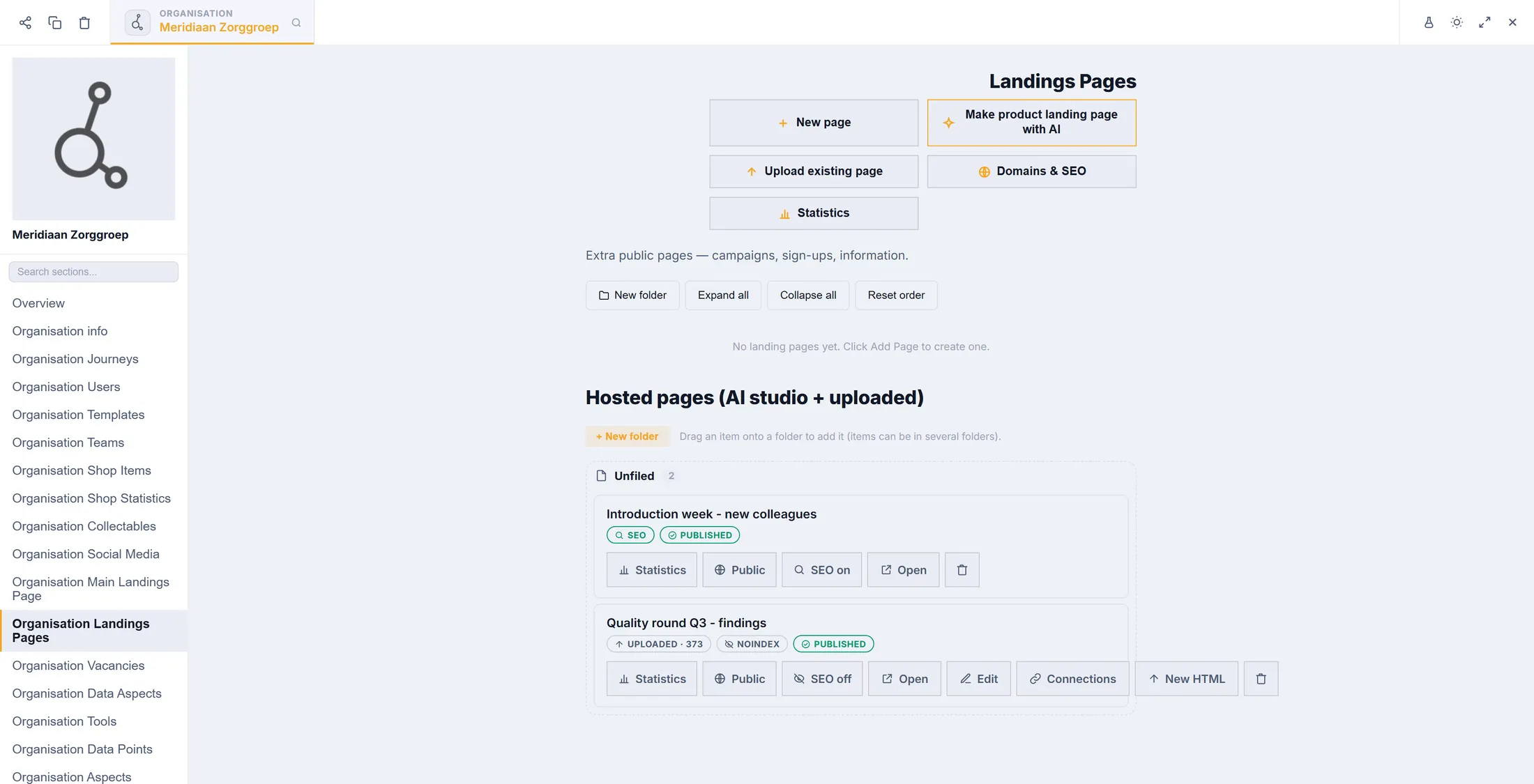
The button with the little star opens the studio. Say what the page is for
Give the page a name. Write in one or two lines what it must tell.
- Press + New landing page.
- Page name : a name you will recognise, for example Buddy programme .
- Assignment : who it is for and what it must explain, in your own words.
- Perspectives : press who reads it - End user , Editor , Admin or Manager .
- Style : SaaS Modern, Dark Cinematic, Bold Editorial or Glass. Your organisation's colour is used by itself.
- Language : the language the page is written in. Then press Save & continue →.
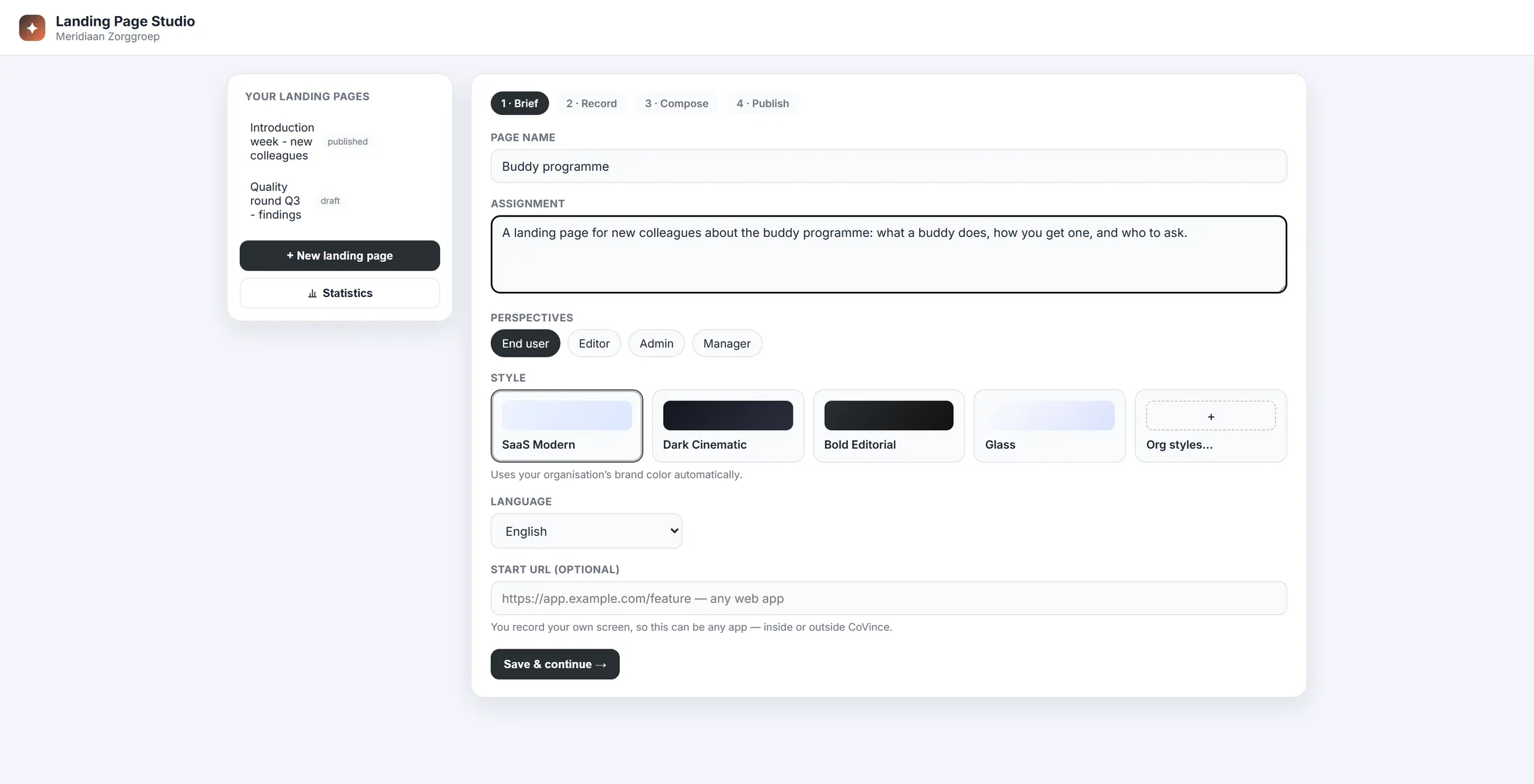
The name, and what the page is about. Show it and tell it
Click through your screen and talk, like you explain it to a colleague.
- Press ● Start recording.
- Your product opens in a separate window. The browser asks which screen or window to record - pick that window.
- Click through it step by step and talk out loud: the problem, what it gives people, how it works.
- Come back to the studio and press Stop recording. It says Processing recording… while it writes down what you said.
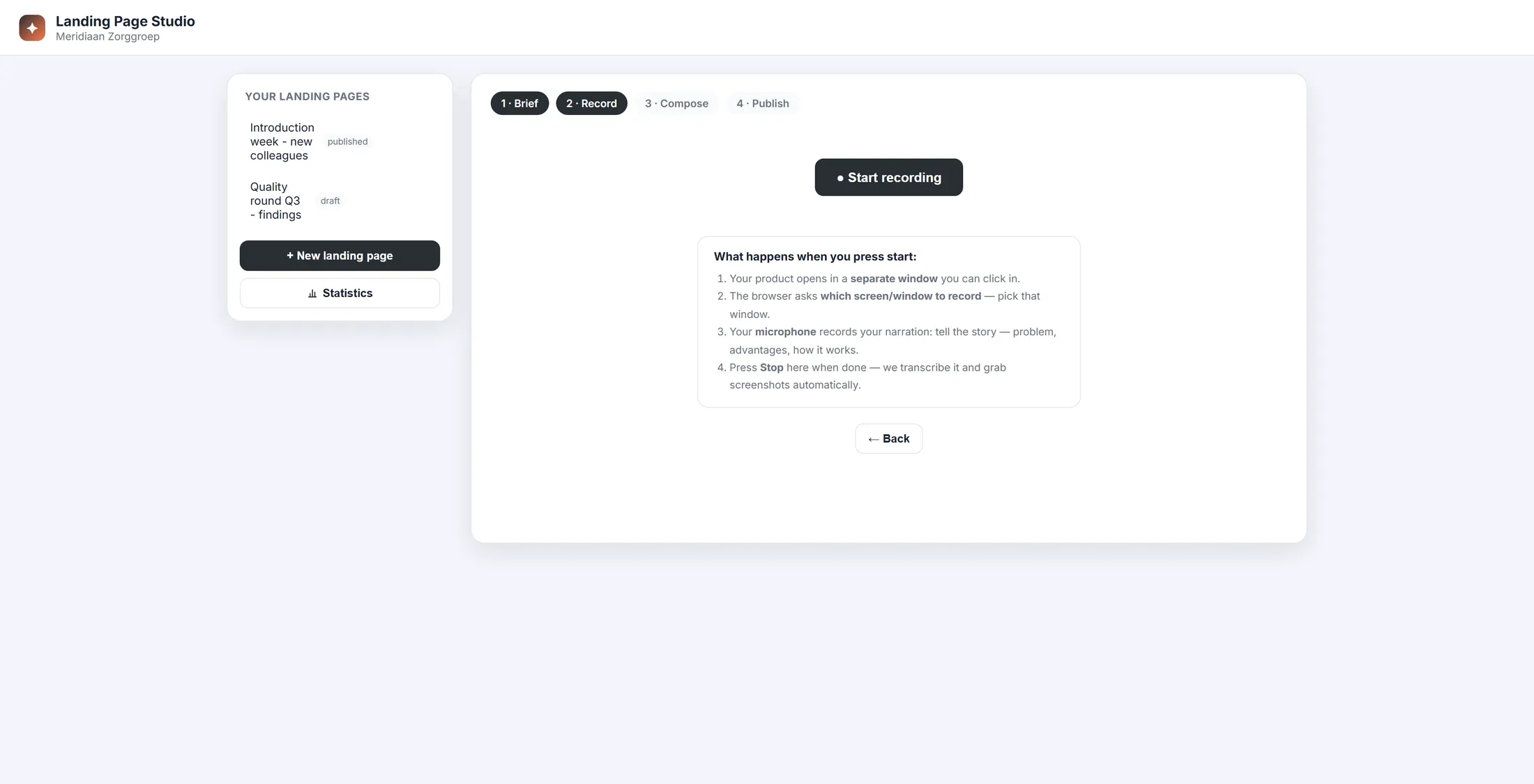
One button, and what happens after it. Check what it heard
Read what CoVince wrote down. Fix a word if it is wrong.
- Read the Narration transcript . Click in it and fix any word that was heard wrong.
- Under Captured screenshots you see the pictures taken from your recording, with the second each one was taken.
- Not happy? Press ● Record again.
- Good? Press Continue to AI →.
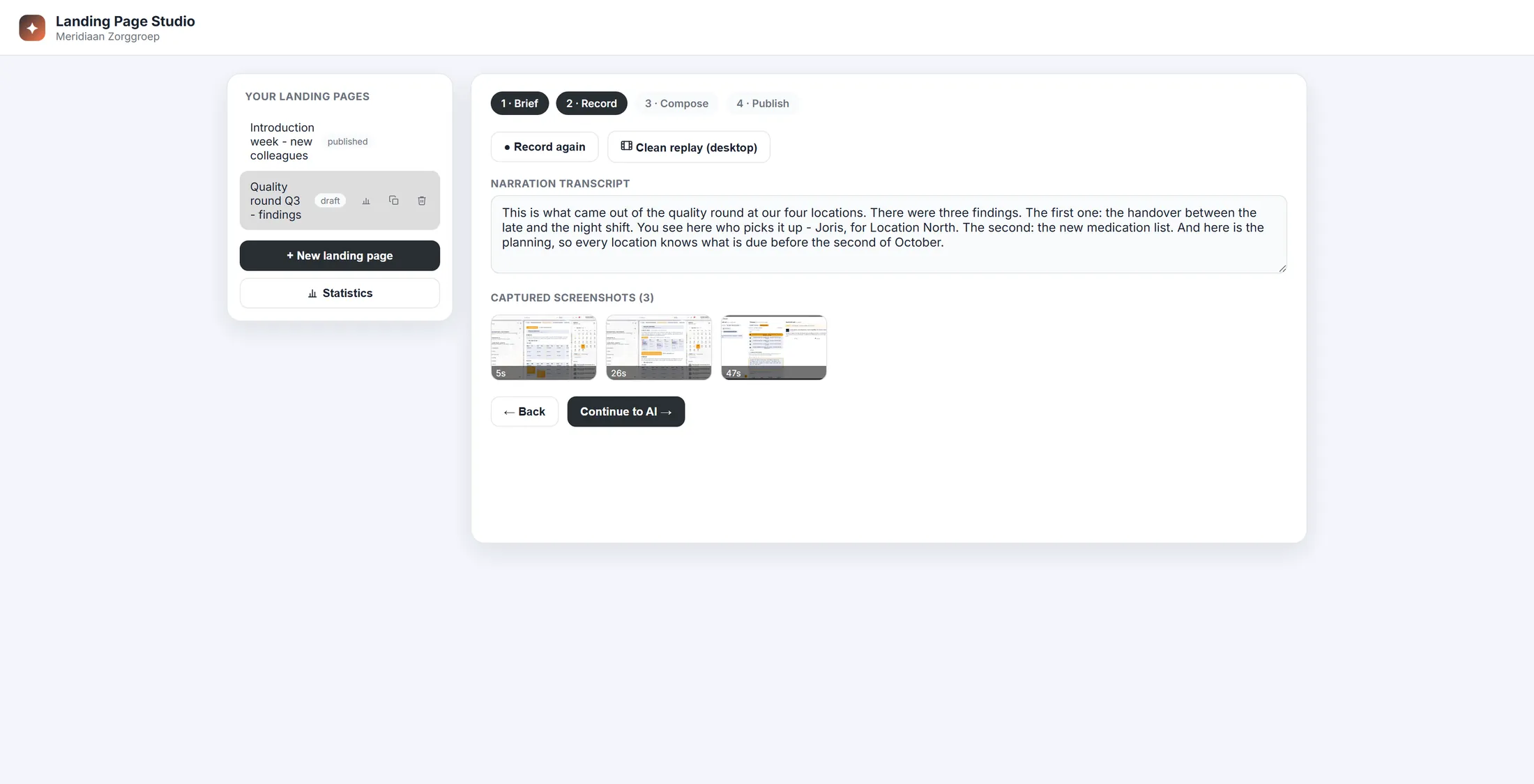
What it heard, and the pictures it took. Let CoVince write the page
One press. The page is made from your words and pictures.
- Press Generate landing page with AI.
- It says Composing… (10–20s) . Wait a moment.
- Then the page appears, with a title, parts, your screenshots and a button.
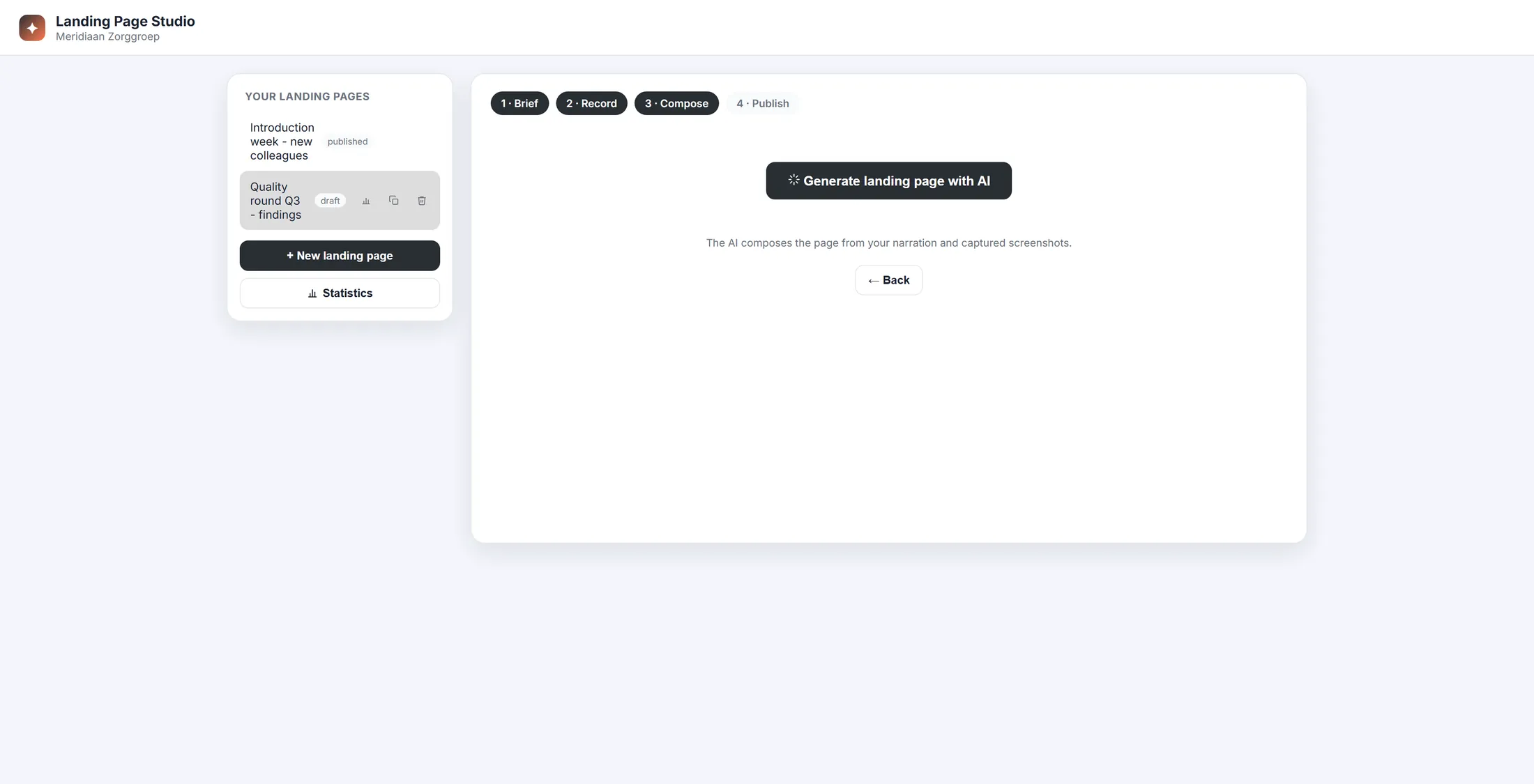
One button makes the page. Look at the page and change it
It is your page. Read it all, and change what is not right.
- Scroll through the page from top to bottom.
- Press Edit sections. Every part gets its own boxes: change the words right there.
- Use the arrows to move a part up or down, the cross to remove it, and the small pictures to pick another screenshot.
- Hero image makes or picks the big picture at the top. Regenerate writes the whole page again.
- Happy? Press Continue to publish → at the bottom.
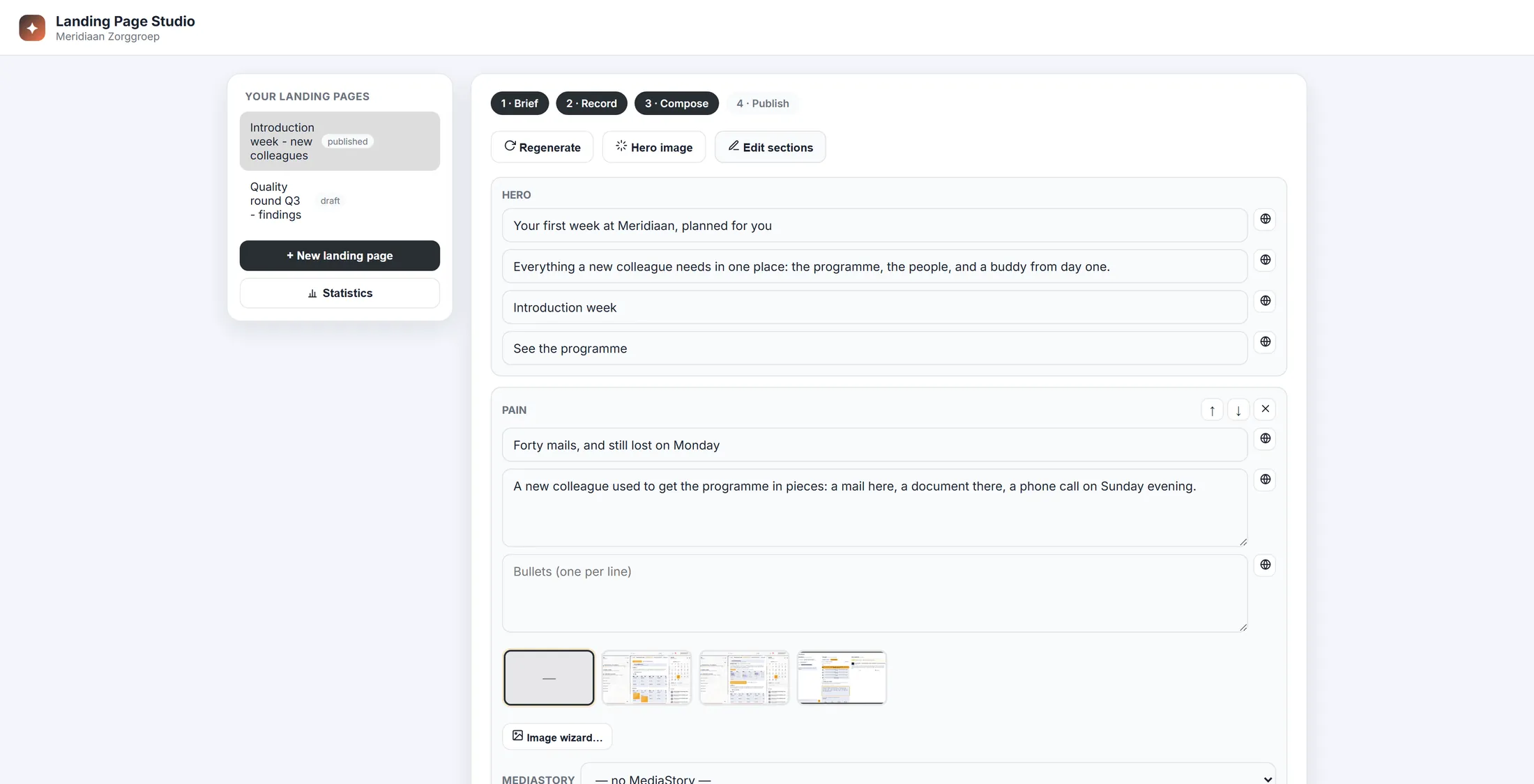
Every part of the page, in boxes you can change. Put it online
Press Publish. Then copy the link and send it.
- At the top, Findability : tick Add to SEO only if Google may find the page. Off is fine for a page you only send around.
- Want tiles of your other pages at the bottom? Click them under related pages .
- Press Publish. It says Published .
- Under Public link : press Copy link to send it, or Open page ↗ to see it live.
- Changed something later? The button is now Re-publish. Download HTML gives you the page as one file.
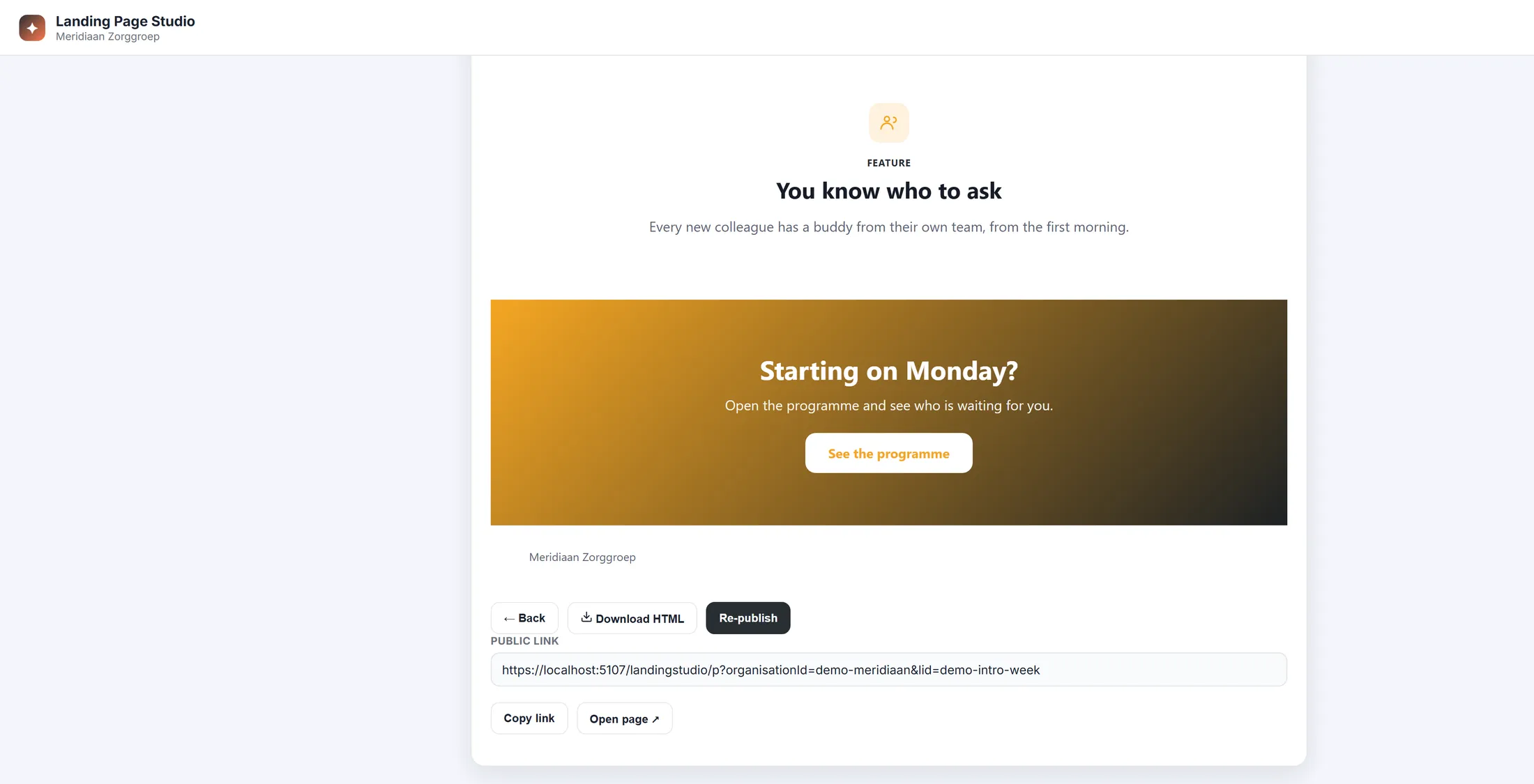
Published. Here is the link to send.
If something is not right
It says only admins can do this.
Ask the person who looks after CoVince where you work.
The browser does not ask which window.
Allow the screen and the microphone when the browser asks.
The text is not what I said.
Fix it in Edit sections. Or fix the transcript and press Regenerate.
Can I start again?
Yes. Press ● Record again, or make a new page.
The words, in plain language
- landing page
- One web page that explains one thing, with a button that says what to do next.
- transcript
- Your spoken words, written down by the computer.
- SEO
- Whether search engines like Google may find and show the page.
Where to go next
- All explainers The other things you can learn here.