Add a page to your website menu
Build a page in the page builder, set it Live, and add it to the navigation bar: choose the page from the dropdown, group pages under one menu item, and save. Every page of your organisation shows the same menu.
Communication - your own website - 6 min. You need: to be an admin of your organisation
Nobody sees the new page until you set it to Live. Nothing is sent to anyone.
What you will be able to do
- Make a page An empty page, with a name.
- Put it online So everyone can open it.
- Add it to the menu Pick it from a list.
- Make a group Several pages under one word.
Get this ready first
- Be an admin Only admins see these screens. Not an admin? Ask the person who looks after CoVince where you work.
- Know the menu Write down the words for the top of your website. For example: About us, Our locations, Contact.
Do it together, one step at a time
Nine steps. First you make the page. Then you put it in the menu.
Open your pages
Your website pages are in the Editor.
- Open the Editor and choose your organisation.
- In the list on the left, click Organisation Landings Pages .
- At the top you see New page, Make product landing page with AI, Upload existing page, Domains & SEO and Statistics.
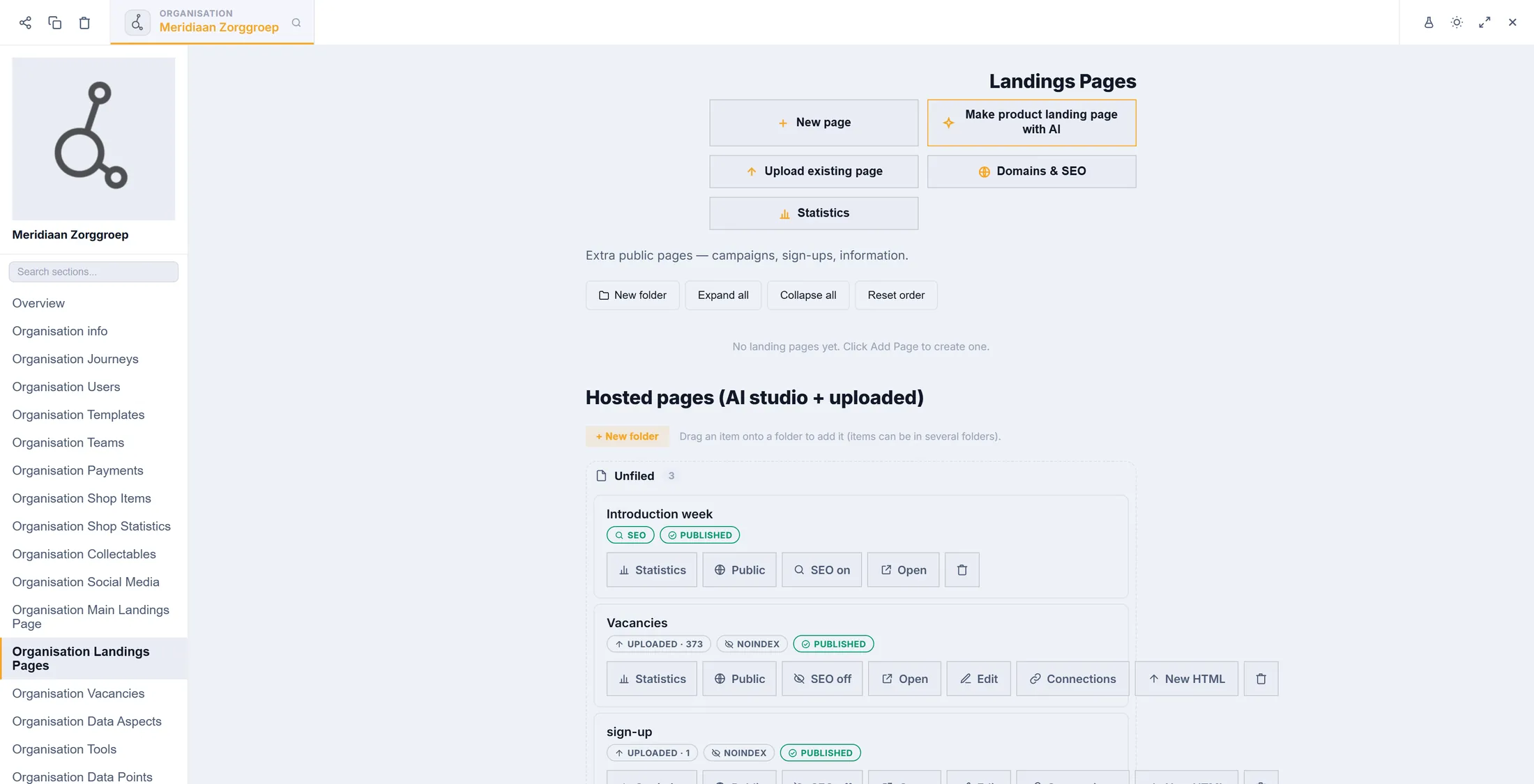
New page is the first button. Start a new page
Pick "Empty page" for a normal page.
- Press New page.
- Under Page , click Empty page . It gets an orange edge.
- News overview is a page with a search bar and a list of news, ready made.
- Leave the Template cards alone for now. They are for pages that other pages are built from.
- Press Next.
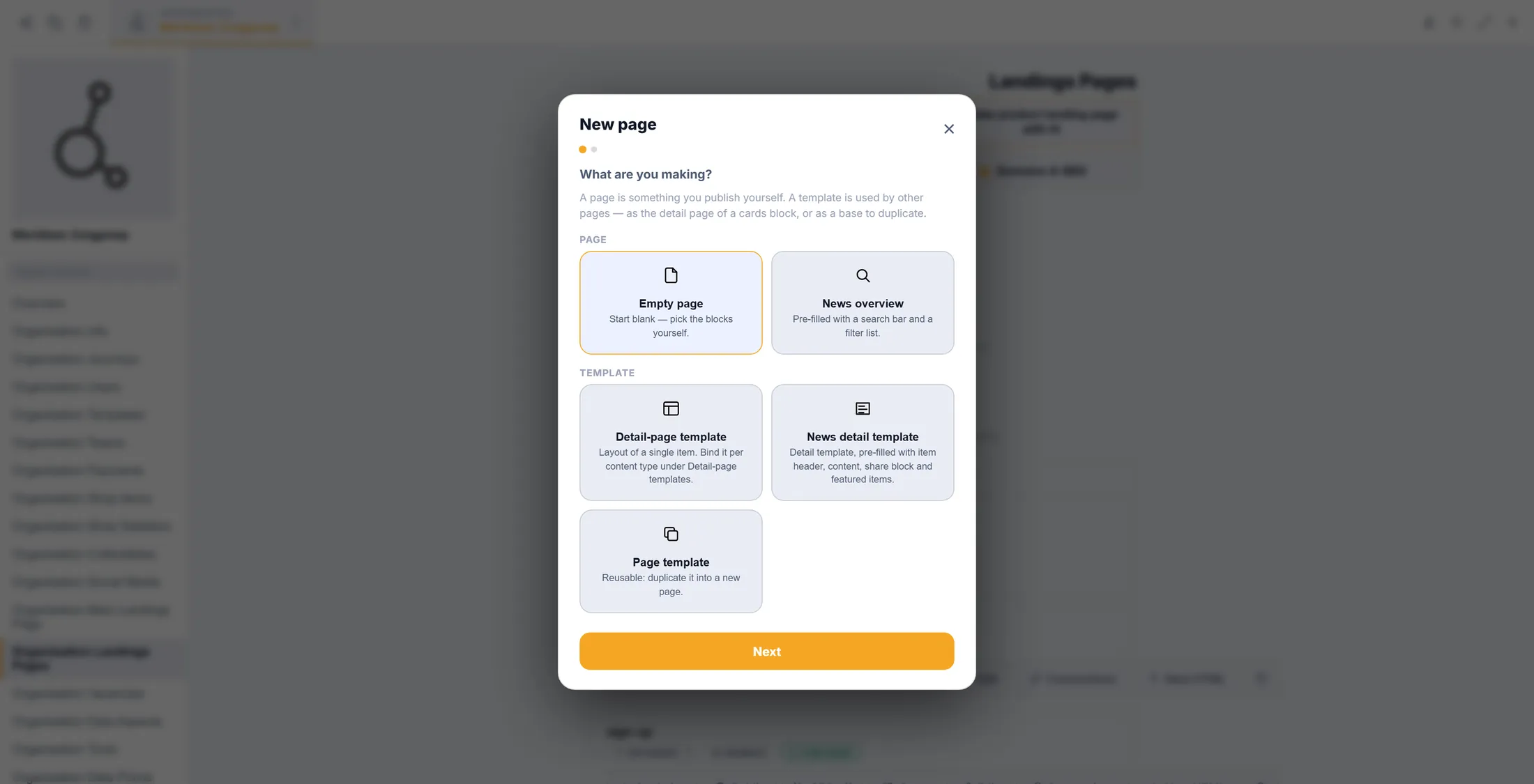
Empty page, then Next. Give the page a name
The name is what you will pick later in the menu list.
- Type the name, for example Our locations .
- Press Create page. The page opens in the page builder.
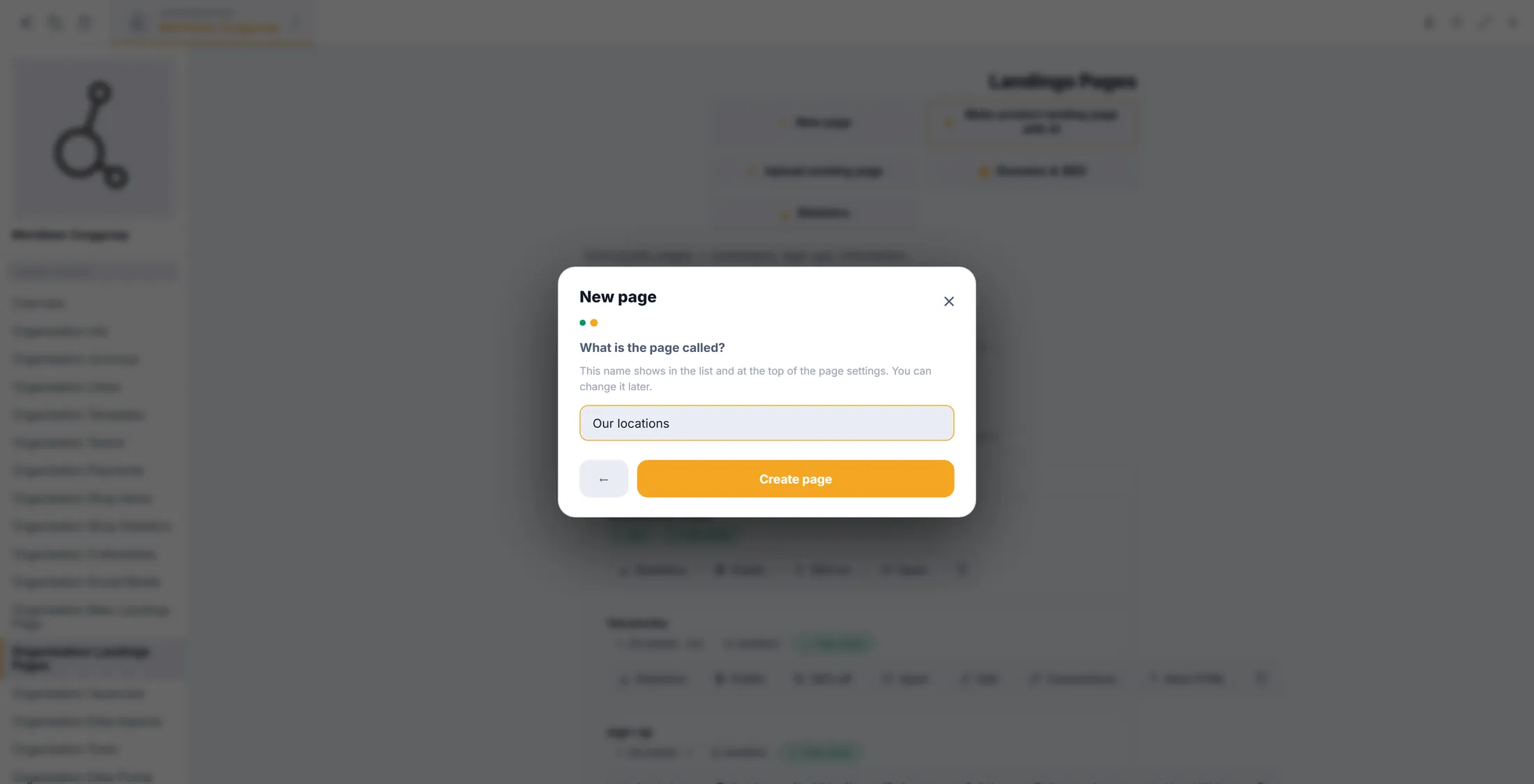
A clear name makes the menu easy. Fill the page, and put it online
Put something on the page. Then switch it to Live, so visitors can open it.
- Press + Section and pick a block - a title, a text, a picture. Fill it in on the left; the right side shows the page.
- Press Page settings at the top.
- At Status , choose Live — everyone can see it . Close the window.
- Press Save (top right).
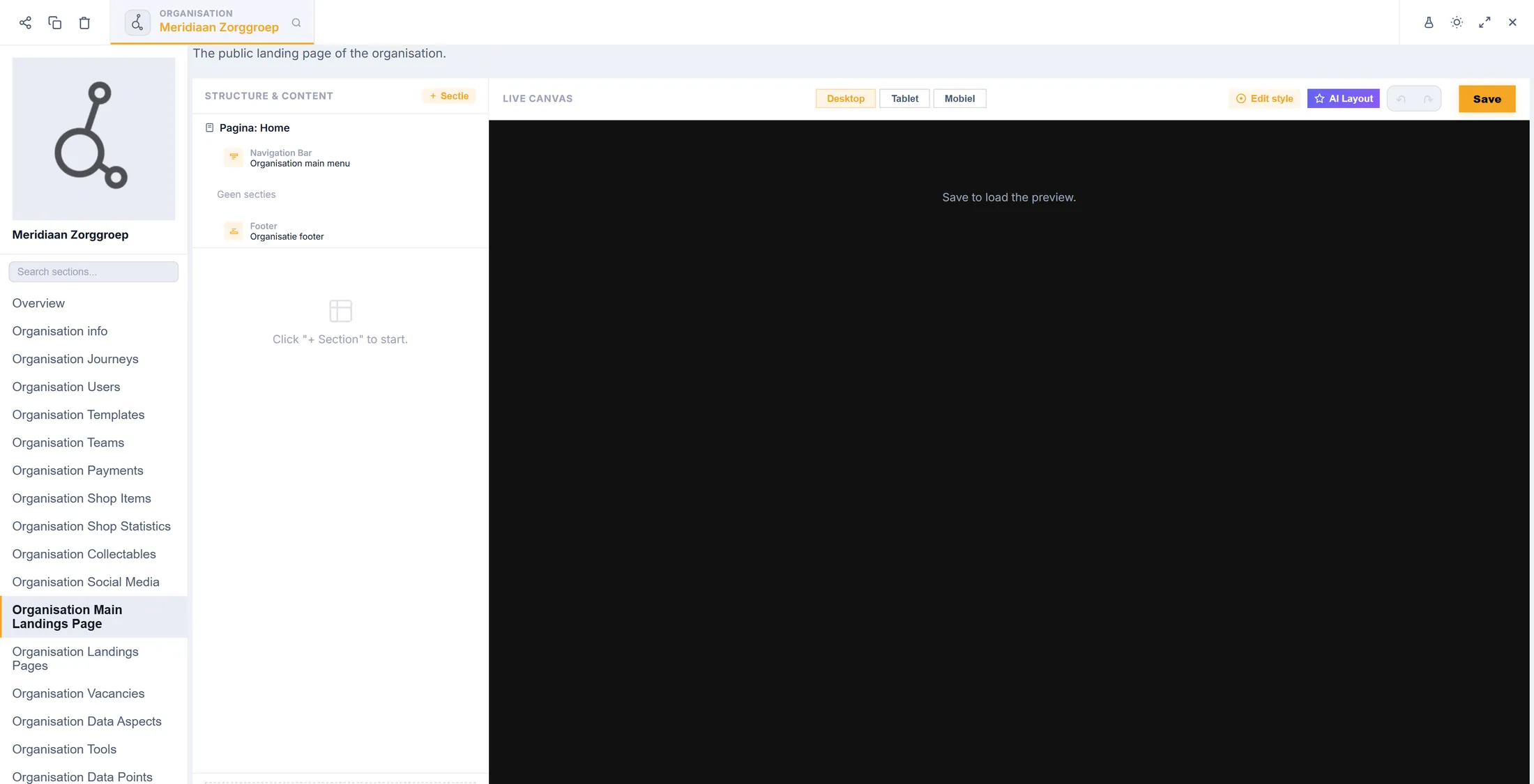
Left: what is on the page. Right: how it looks. Open the menu
The menu belongs to your main page. It is shown on every page.
- In the list on the left, click Organisation Main Landings Page .
- Under Structure & Content , click the row Navigation Bar - Organisation main menu .
- The menu opens under it. Check that Nav bar on is ticked.
The Navigation Bar row is at the top. Add your page to the menu
Type the word for the menu, and pick your page from the list.
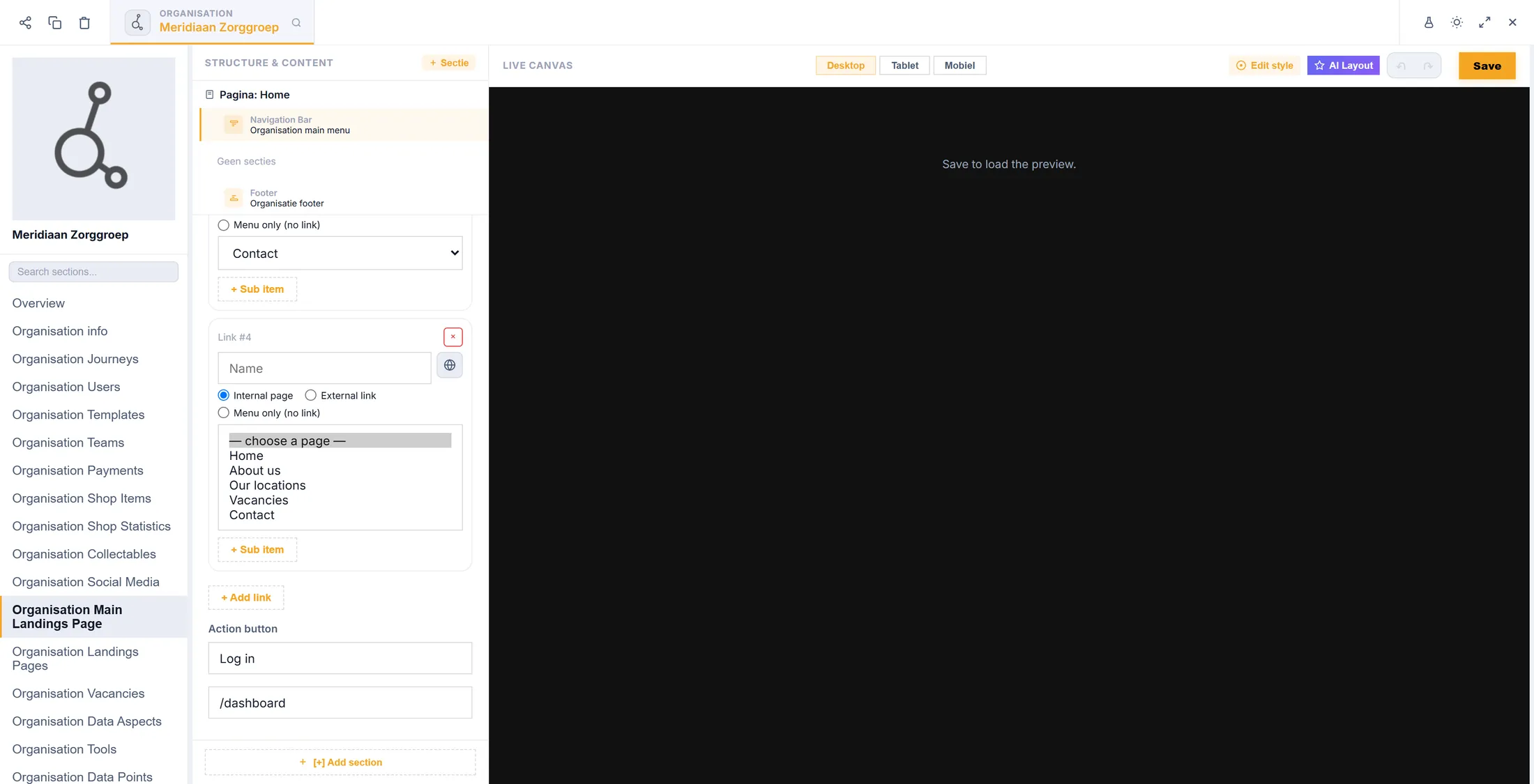
- Press + Add link. A new block appears: Link #1 , Link #2 and so on.
- Type the word for the menu in Name , for example Our locations .
- Leave Internal page chosen.
- Open the list under it ( — choose a page — ) and click your page.
- Want another language? Press the small globe next to the name.
Every page you made is in this list. Put pages under one word
One word in the menu, and a small list opens under it.
- Make a link for the group, for example Work with us .
- Choose Menu only (no link) : the word only opens the list.
- Press + Sub item under it. Give the sub item a name and pick its page, just like before.
- A sub item can have its own + Sub item: that is the third level, and the last.
- Press the red × on a block to remove it.
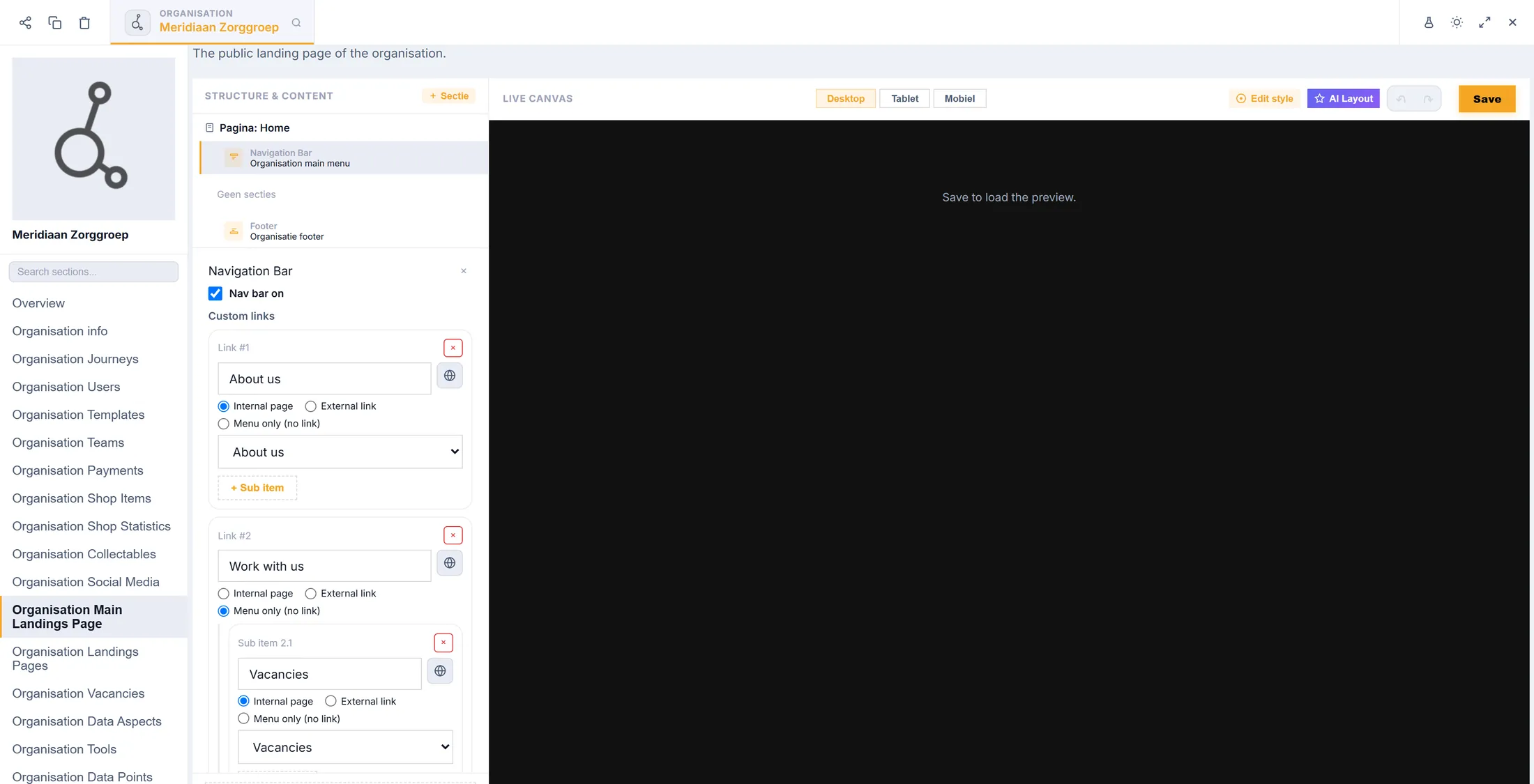
"Work with us" opens a small list with "Vacancies". Save the menu
Press Save nav bar. Now every page shows the new menu.
- Action button : the button on the right of the menu. Type its words, for example Log in , and the web address it opens.
- Press Save nav bar. A green message says Nav bar saved .
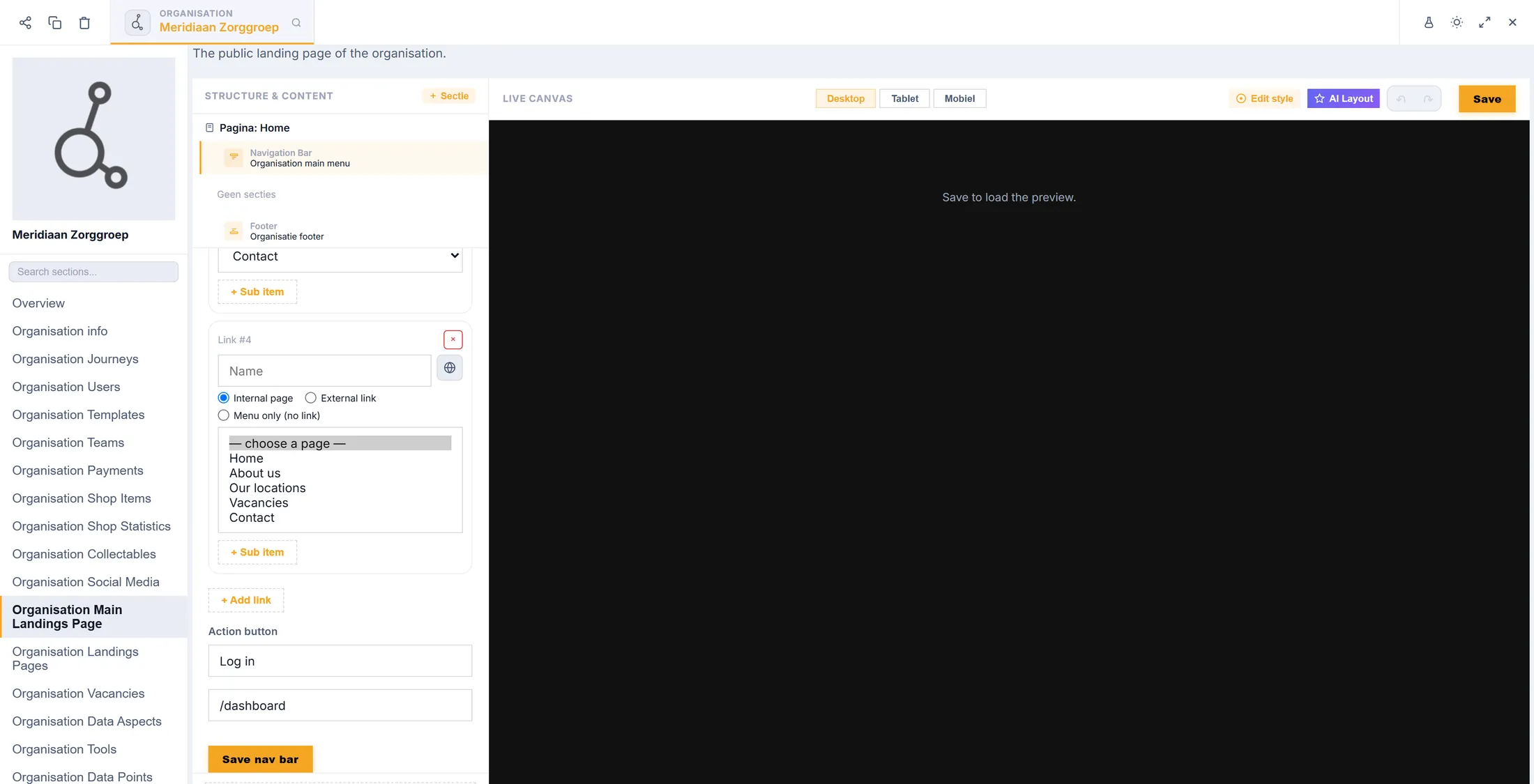
The orange button saves the menu. Where the menu is kept
The menu is also listed in Data Aspects. Keep "Nav bar enabled" ticked there.
- Click Organisation Data Aspects and scroll to Nav bar items .
- You see the same menu links as in the Navigation Bar. Add item adds one here.
- Tick Nav bar enabled . If it is off, no page shows a menu.
- Nav bar logo : Pick image sets the logo on the left of the menu.
- Press Save at the top of the section.
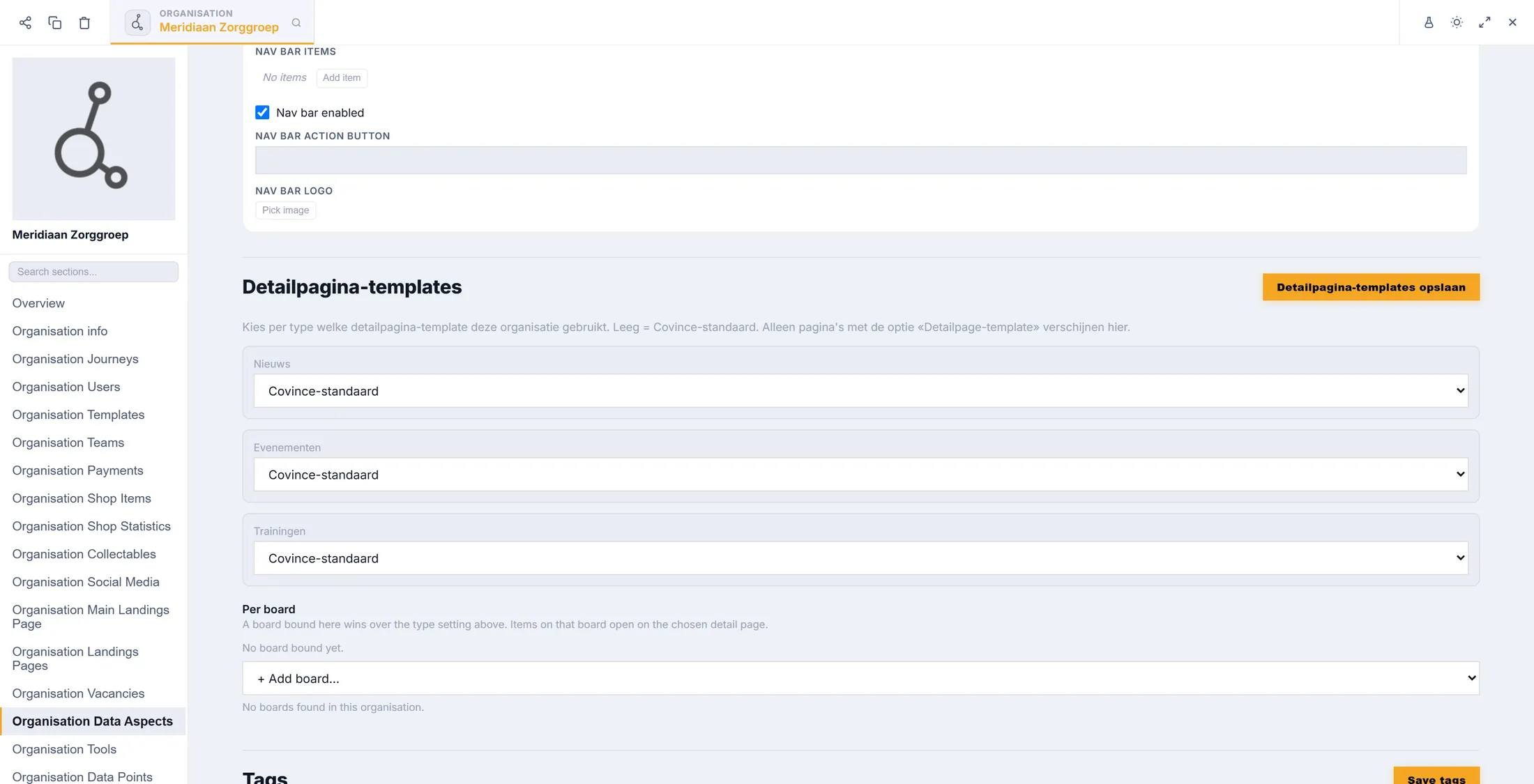
The same menu, kept on your organisation. Look at your website
Open a page of your website. The menu is at the top.
- Open your website, or press Open next to a page in Organisation Landings Pages .
- At the top you see your words. A group opens its small list when you point at it or click it.
- Click your new page: it opens.
- On a phone, the menu is behind the menu button at the top. Tap a group to fold it open.
If something is not right
There is no menu on my website.
Tick "Nav bar on" in the Navigation Bar (or "Nav bar enabled" in Data Aspects), and add at least one link. Then save.
My page is not in the list.
Close the Navigation Bar and open it again.
Visitors cannot open my page.
Set the page to Live in Page settings.
A word in the menu does not show.
A "Menu only" word needs at least one sub item.
The words, in plain language
- navigation bar
- The menu at the top of your website, with the words people click.
- dropdown
- A small list that opens under one word in the menu.
- Live
- Online: everyone who has the link or clicks the menu can see the page.
Where to go next
- Make a landing page A page written from what you tell.
- All explainers The other things you can learn here.