Organise an event
An event is a date on your journey agenda. You make it in a short wizard, share the place or the online link, let people sign up, invite the ones who have not, plan the programme and switch on reminder mails that go out by themselves.
Coordination - everything that has to happen - 8 min. You need: a login and a journey
Reading this changes nothing. Nobody gets a mail until you press Create and switch reminders on.
What you will be able to do
- Make an event Name, date, time and place.
- Get people in They sign up or you invite them.
- Send reminders Switch them on once.
- Follow it up Programme, photos, thank you.
Get this ready first
- A journey An event belongs to a journey. Make one first if you have none.
- Date and place Know when it is and where. Online is fine too.
Do it together, one step at a time
First you make the event (steps 1 to 6). Then you look after it (7 to 10).
Pick a day in the Agenda
You start an event by pressing the day it happens.
- Look at the Agenda on the right of the first screen.
- Press the day of your event.
- A small menu opens with three choices: Create event, Plan a meeting and Date poll.
- Press Create event. The wizard opens, and the day is already filled in for you.
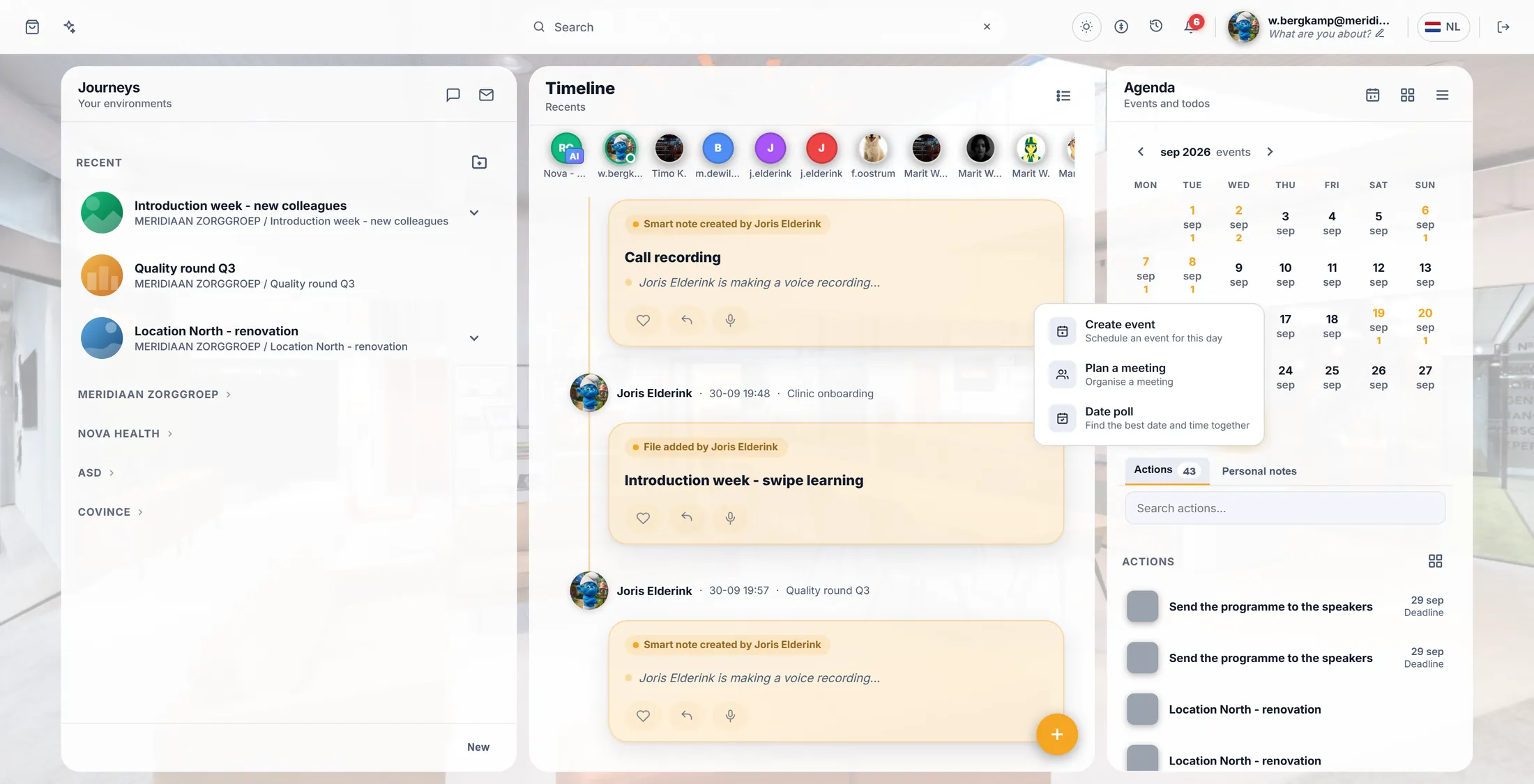
Press a day. Then press Create event. Choose the journey
Say where the event lives. Members of that journey see it.
- If you did this from inside a journey, this screen is skipped.
- Otherwise the wizard asks Select a journey . Type a few letters in the search box, or pick one from the list.
- No journey yet? Press Create new journey and come back.
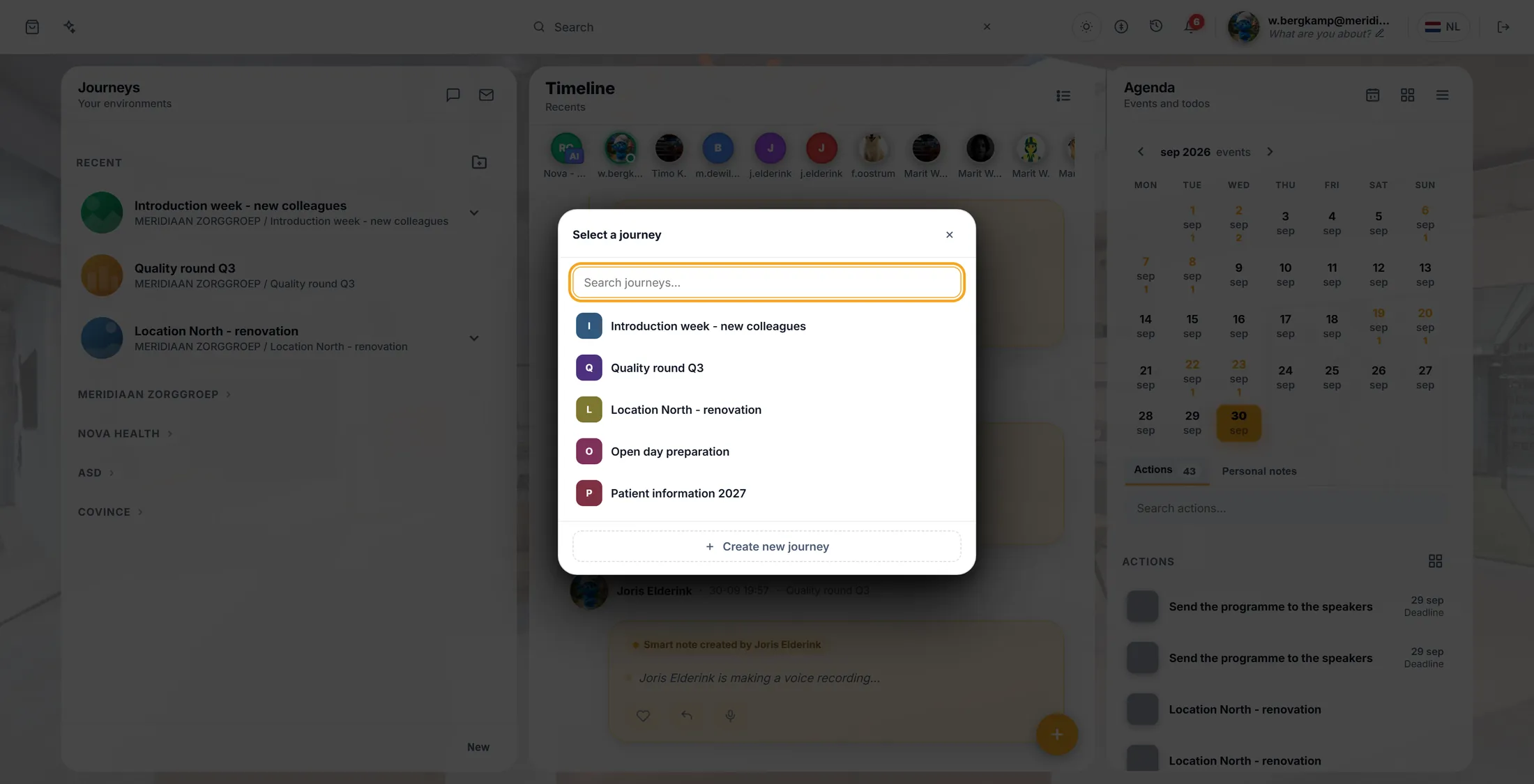
Pick the journey. Give it a name and a description
The first two questions: what is it called, what is it about.
- The first screen asks for the name of the event. Type it, for example Open evening - Location North .
- Press Next. If the box is empty, the wizard tells you This field is required .
- The second screen asks what the event is about. Write two or three sentences: who it is for, what happens, what to bring.
- The third screen lets you add a picture with Pick image. It is for the top of the event window.
- Use Previous at any time to go back. Nothing is saved until the last screen.
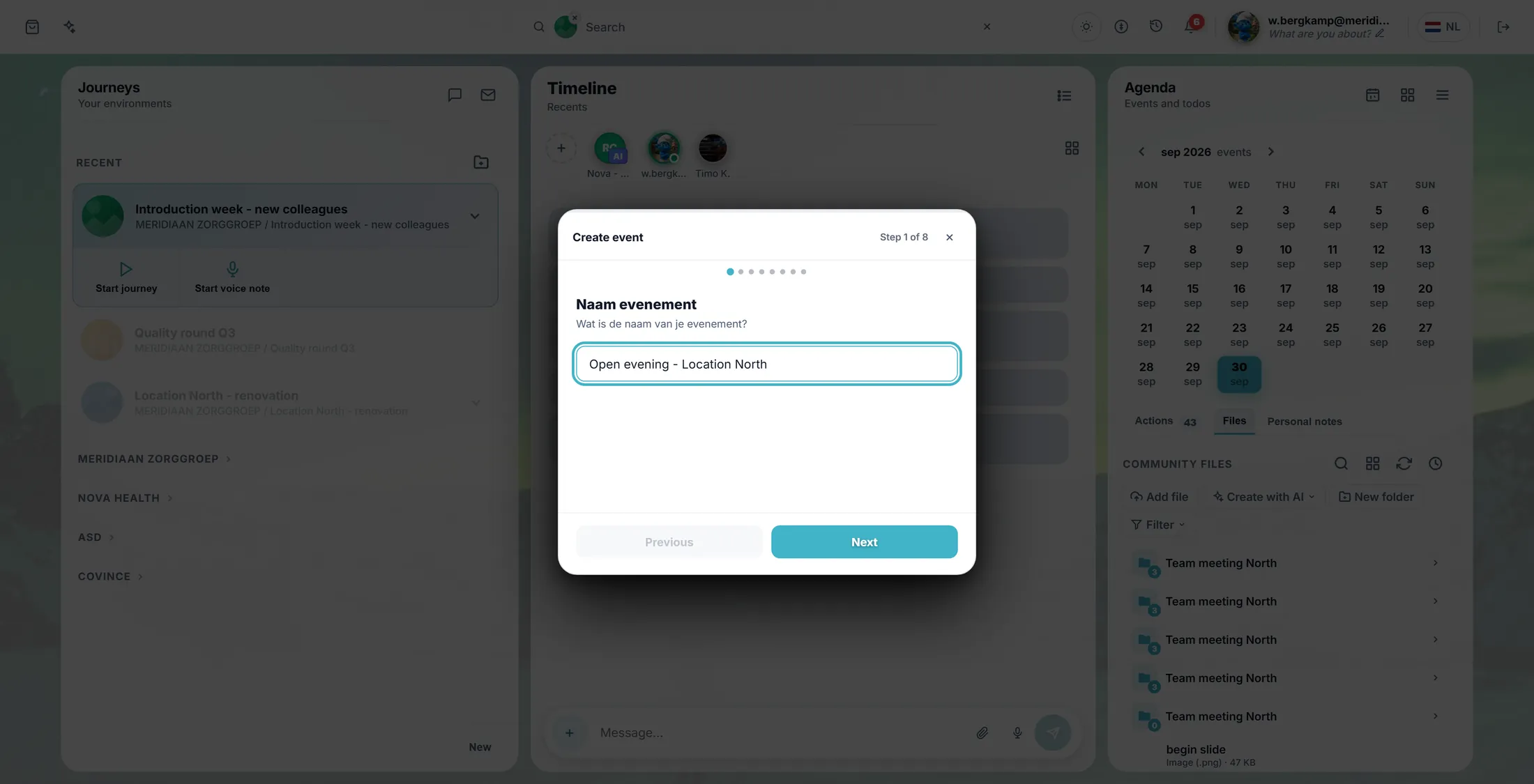
Question 1 of 8: the name. Choose what kind of event it is
The type decides who can see it and what you can set.
- Press one of the cards. Event is for the members of your journey. It is already chosen.
- Public event is visible to everyone outside the community, for example an open day.
- Agenda item is only for you. Meeting is online or in person. Training is a learning event.
- Press Next.
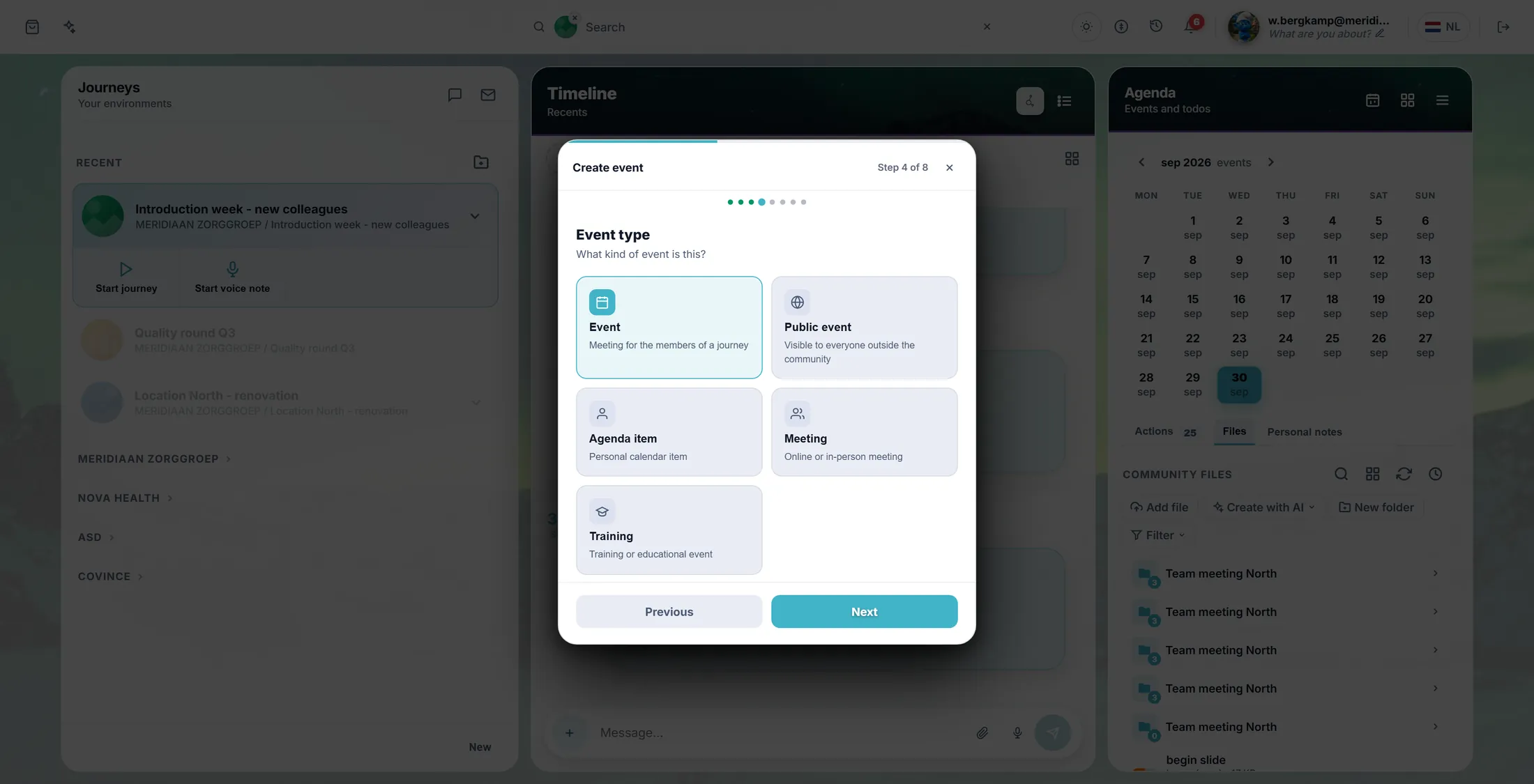
Five cards. One is already chosen. Set the date, the time and how long
Check the date the wizard filled in and add the time.
- Check the date. Press the calendar button to pick another one.
- Type the start time, for example 19:00.
- The next question asks if the event is visible to everyone . Press Yes or No.
- Then choose how long it lasts, for example 1:00 for one hour.
- Press Next after each one.
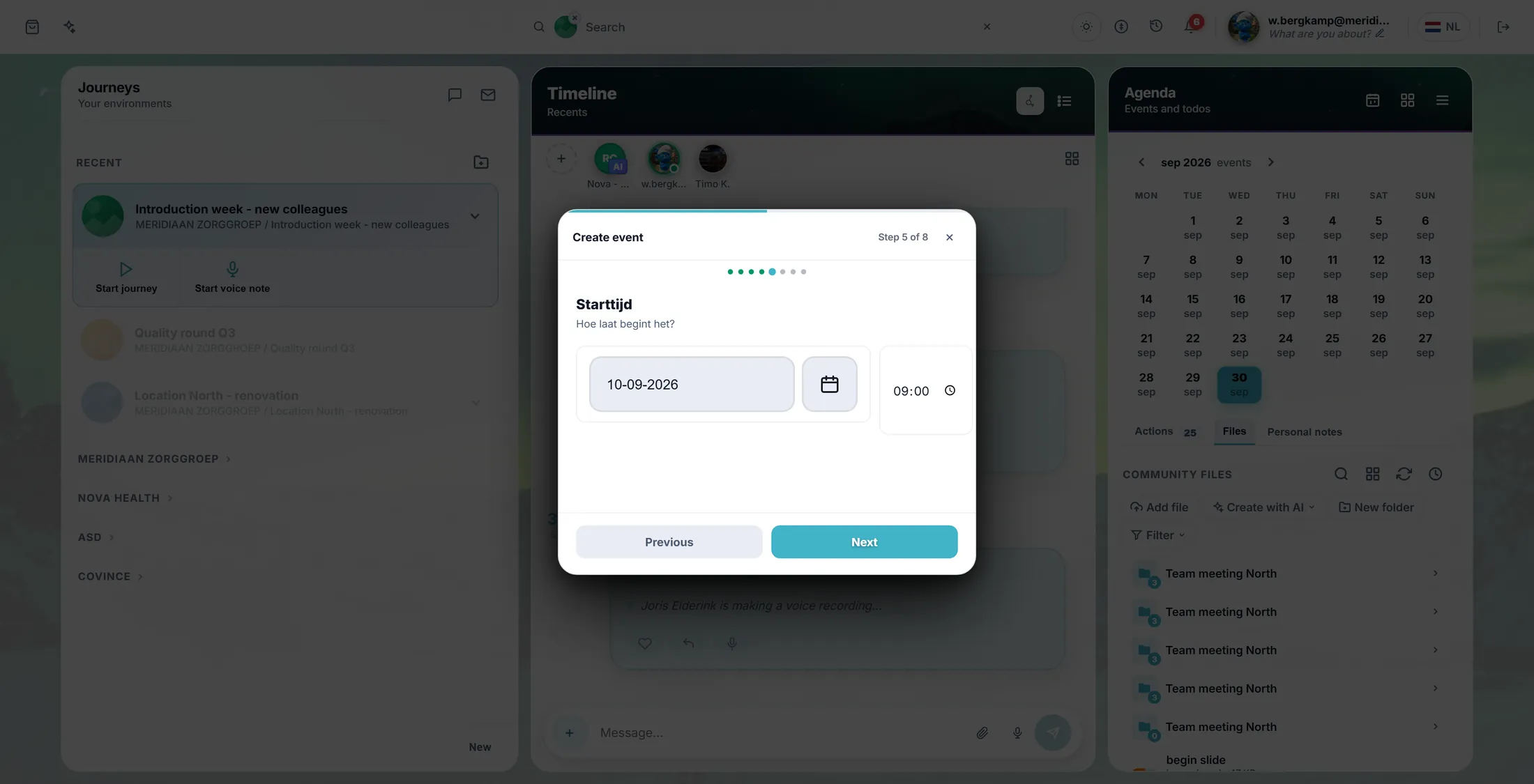
The date is filled in. Add the time. Say where it is, and make it
The last question: where do people go? Then you press Create.
- On location: type a room, a building or an address.
- Journey videocall: members of the journey join the call from their dashboard.
- Open video call: anyone with the link joins without signing in - video only, no journey data.
- Other link: paste the link of another tool, starting with https://.
- Press Create. The event is on the agenda, and the wizard closes.
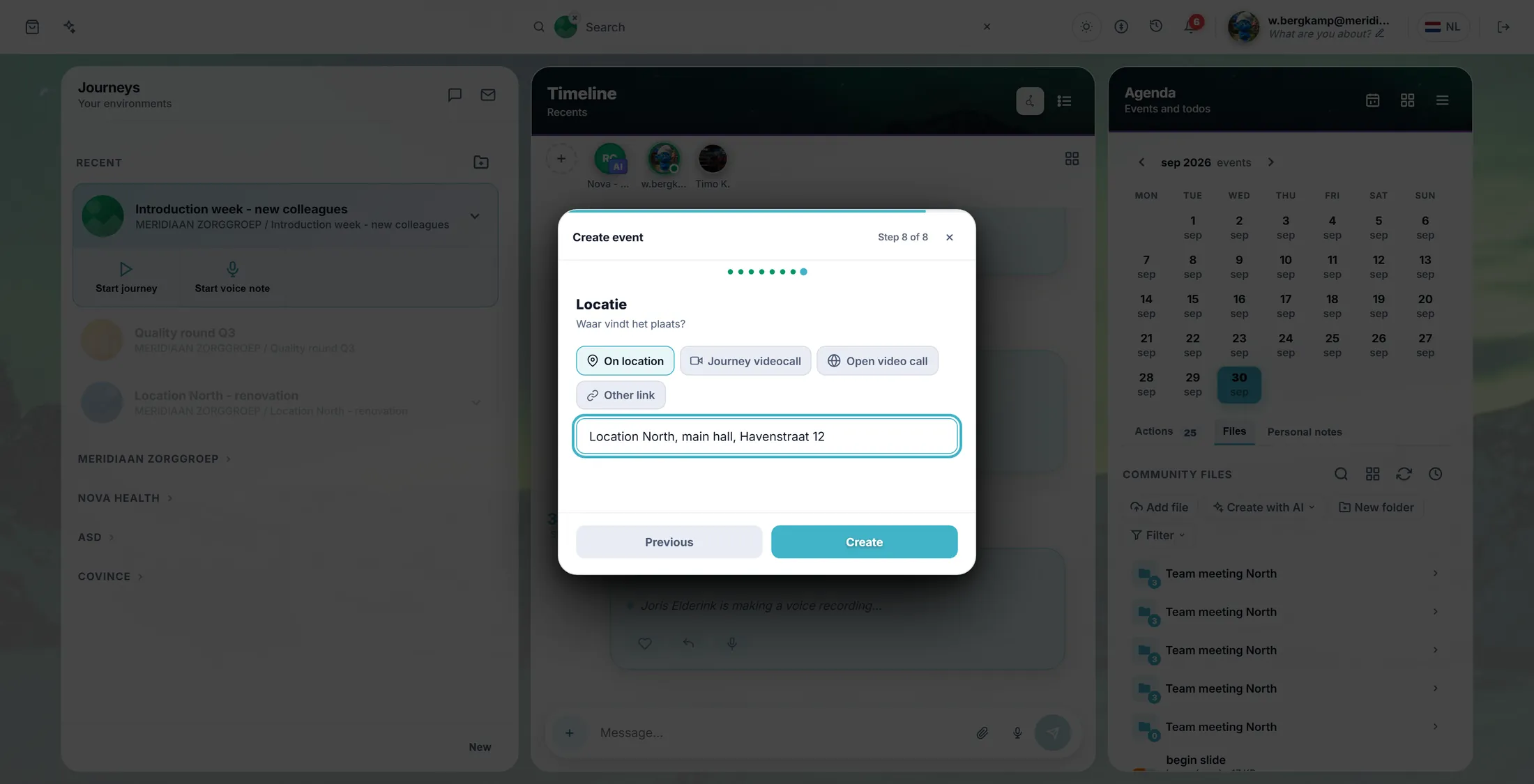
The last screen has Create. Open your event
Everything about the event is in one window.
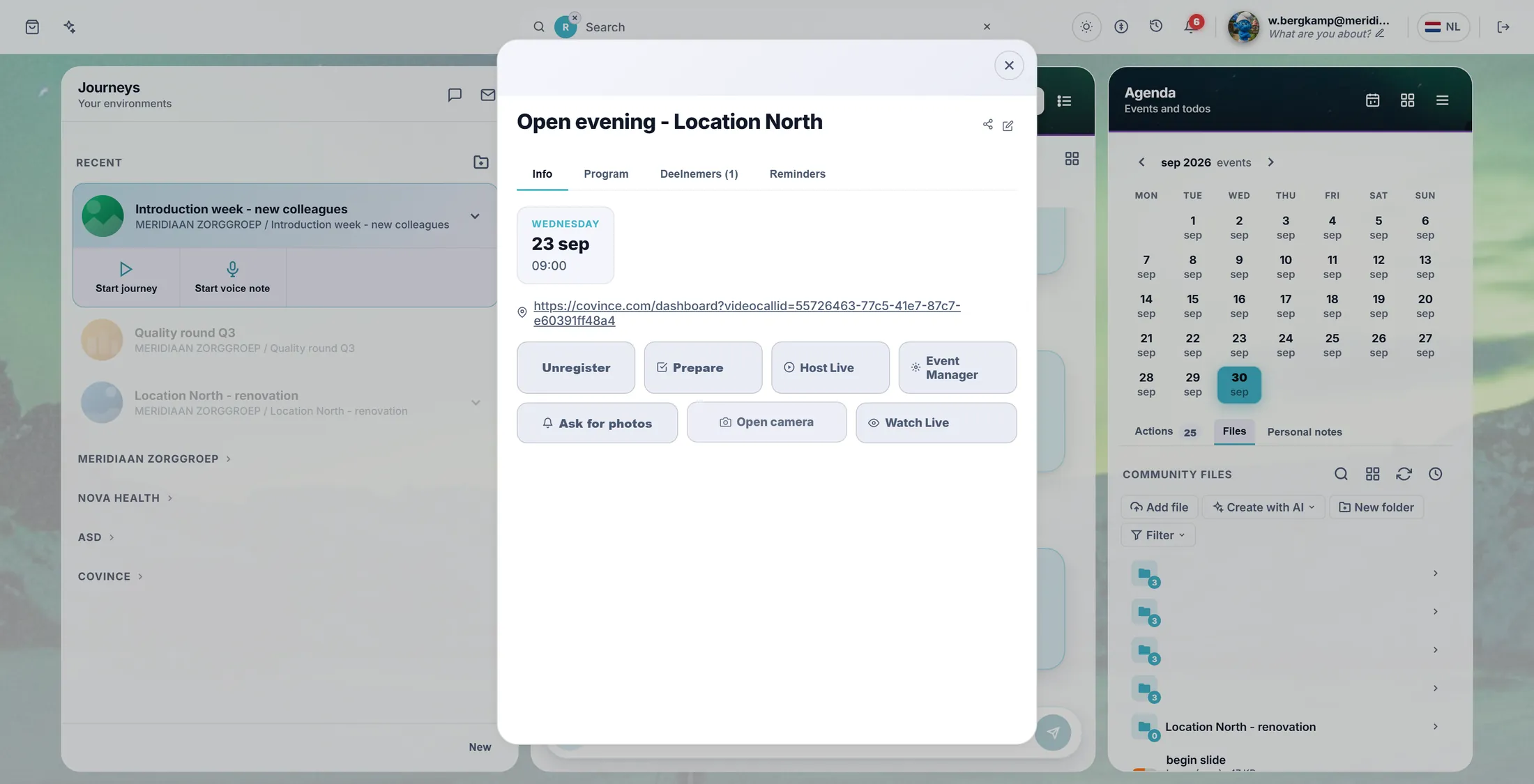
- The top shows the date, the time and the place or the link. People press it to go there.
- Join signs you up. When you are signed up it says Unregister, and that takes you off the list again.
- Prepare collects what you need for the meeting. Host Live and Event Manager are for going live; only organisers see them.
- Ask for photos asks everyone with the app for pictures during the event. Open camera takes one yourself.
- Watch Live is the address for people who follow from home.
- The share icon at the top has Share for community users in CoVince and Promote on board. The pencil changes anything you set in the wizard.
The event window. Add a programme
Tell people what happens at what time.
- Press the tab Program.
- Press the edit button under the tab (in this picture it reads Programma bewerken ).
- Press Add item. Fill in the time (for example 19:00), a title, the speaker and a short description.
- Add one row for every part of the evening. The bin icon at the end of a row removes it.
- Press Save. Everybody who opens the event now sees the programme.
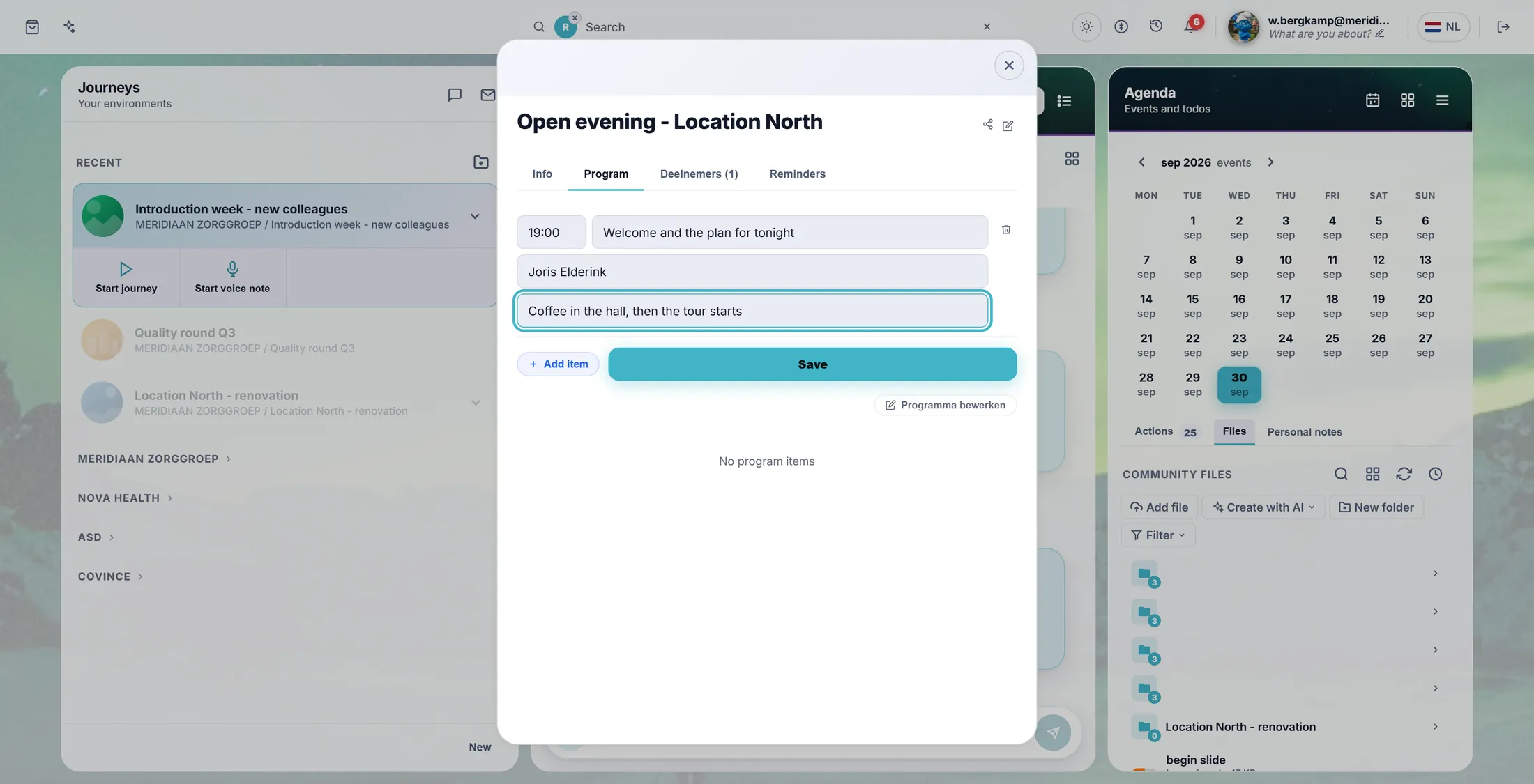
One row of the programme. See who is coming, and invite more
Know who signed up. Invite the ones who did not.
- Press the third tab. It shows how many people signed up, in this picture 1 .
- You see their faces with a first name. Press one to open the profile.
- Press Invite. A box asks for an e-mail address. Type it and press OK.
- Press CSV to download the list, for example for the reception desk.
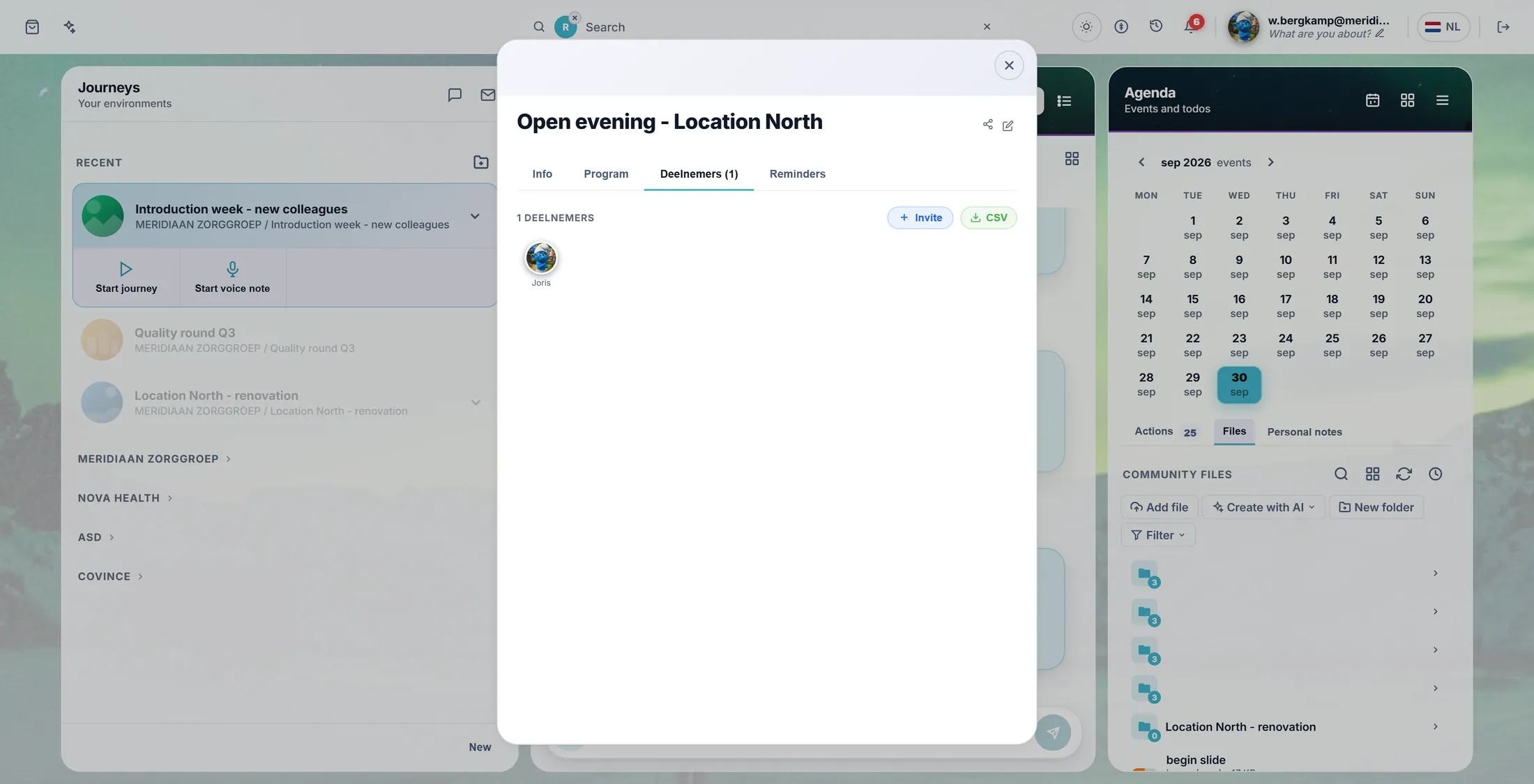
Who signed up. Switch on reminders
People forget. A reminder mail helps, and you do not have to send it.
- Press the tab Reminders. You see six cards: A week before, The day before, Starting soon, How to prepare, Thank you, afterwards and The time changed.
- Press the switch of a card to turn it on. The card opens with when it goes out, who gets it, the subject and the text.
- Change the words if you like. Use {name}, {event}, {when}, {where} and {organiser} to put in the right details.
- Press Preview to see the mail first. Press Send me a test to get it yourself.
- Press Save reminders. From now on each reminder goes out at its own moment.
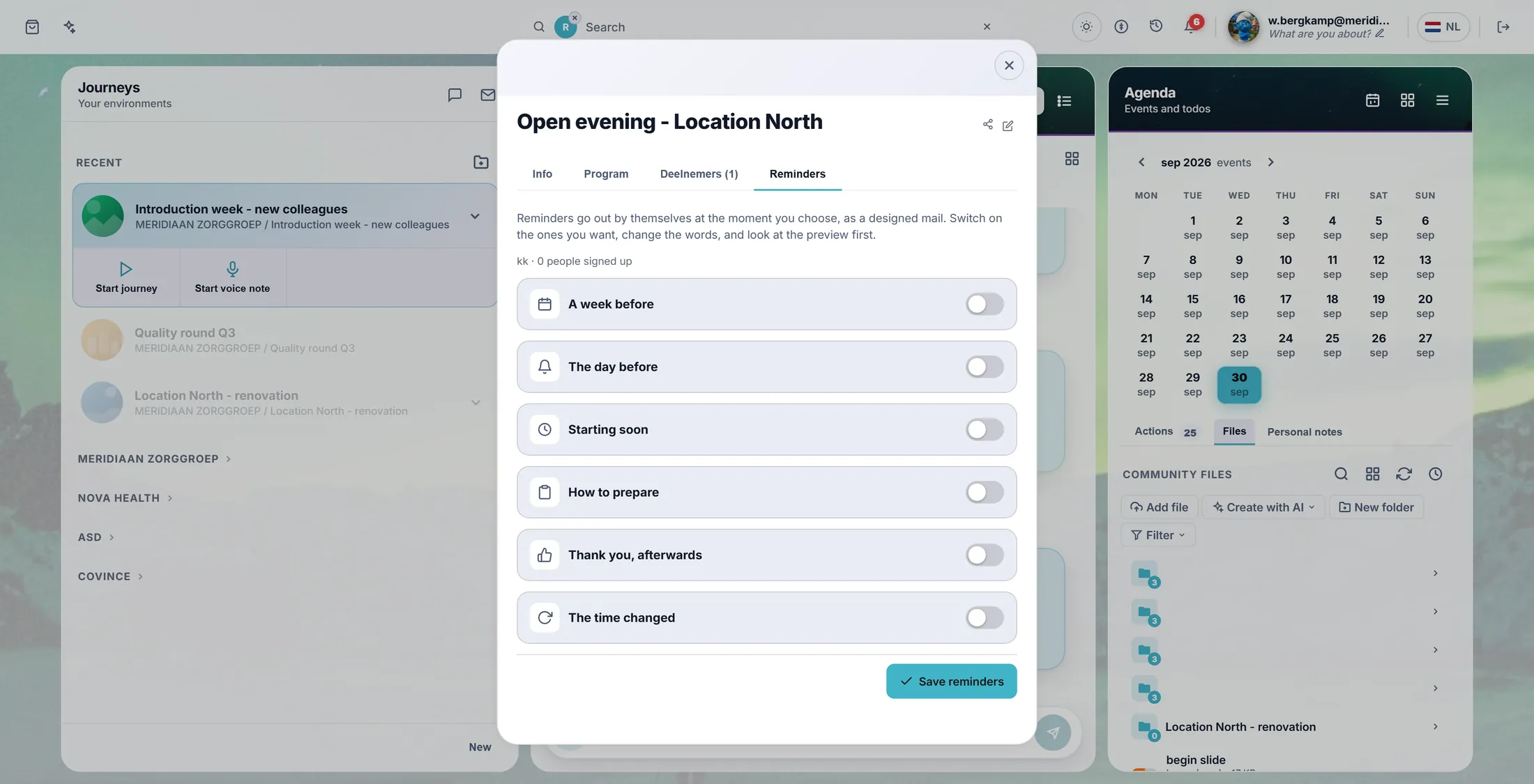
Six reminders. All still off.
If something is not right
I do not see Create event.
Press a day in the month view of the Agenda. The menu opens next to it. If it is still missing, ask the person who looks after CoVince where you work.
The wizard says "This field is required".
That question must be filled in. Type an answer and press Next again.
Where is the Reminders tab?
Only people who may edit the event see it. Ask the organiser.
Can I limit the number of people?
Yes, for a training. Choose the type Training, open the event, press the pencil and fill in Capacity.
I made the event in the wrong journey.
Make it again in the right journey. Then remove the first one.
The words, in plain language
- event
- A date on the agenda of a journey that people can sign up for.
- program
- The list of what happens at the event, with a time, a title and a speaker for each part.
- reminder
- A mail that goes out by itself before or after the event, at the moment you chose.
- public event
- An event that people outside the community can also see.
- attendee
- A person who signed up for the event.
Where to go next
- Host a webinar Turn the event into a live show and share the replay.
- Plan a meeting For a few people instead of a group.
- All explainers The other things you can learn here.