Put files in a journey, and share them
Community Files is the shelf of one journey: upload files or a whole folder, sort them into folders, and share a file or a folder - with named people, with everyone in the journey, or with anyone who has the link. A folder of pictures and clips can open as a gallery.
Content - the files of your journey - 5 min. You need: a journey, and a file on your computer
Reading this page changes nothing. Nothing is shared until you press the last button.
What you will be able to do
- Put files in One file, many files, or a whole folder.
- Make folders Give a folder a name. Put files in it.
- Send a link To some people, to the journey, or to anyone.
- Show pictures nicely The first picture big, the rest in a row.
Get this ready first
- A journey Files always belong to a journey. No journey yet? Make one first.
- Your files Know where they are on your computer.
Do it together, one step at a time
Seven steps. The first three put files in. The last four share them.
Open the files of your journey
Click your journey. Then click the word Files on the right.
- In the left column (Journeys), click your journey, for example Introduction week - new colleagues .
- At the top of the right column, click the word Files.
- You see COMMUNITY FILES : the buttons Add file, Create with AI and New folder, and under them the folders and files of this journey.
The files of this journey. Put a file in
Press Add file, then Upload. Pick the file on your computer.
- Press Add file. A small menu opens with the word ADD on top.
- Press Upload for one or more files. Or press Upload folder for a whole folder, with the folders inside it.
- Your computer asks which files. Pick them and press Open .
- The file shows up in the list. A big upload counts along while it goes.
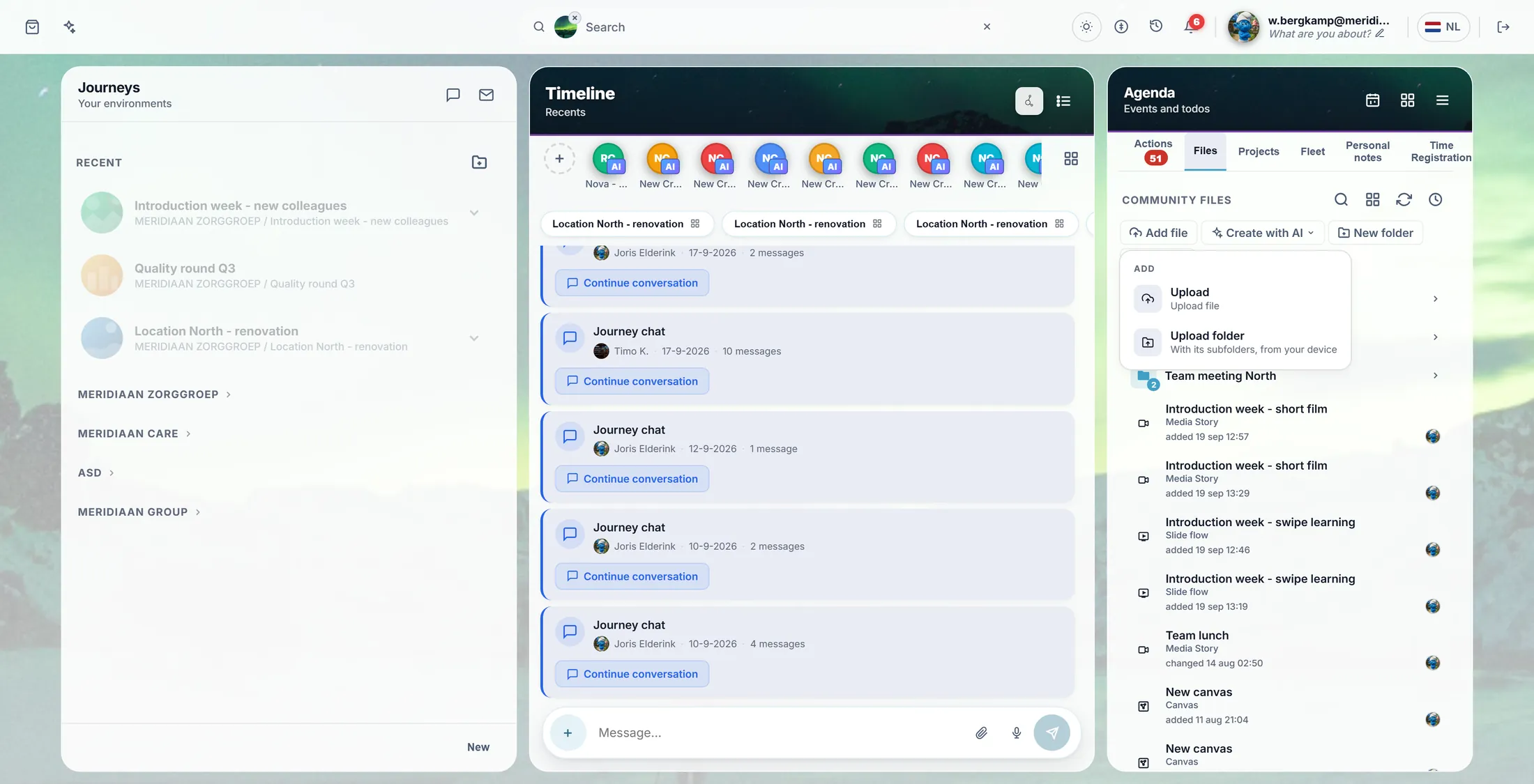
Upload a file, or a whole folder. Make a folder
Press New folder, type a name, press OK.
- Press New folder.
- A small window says Enter folder name . Type the name, for example Introduction week - forms .
- Press OK. The folder is in the list at once.
- A folder inside a folder? Rest the pointer on the folder and press Add; the same menu then puts things inside it.
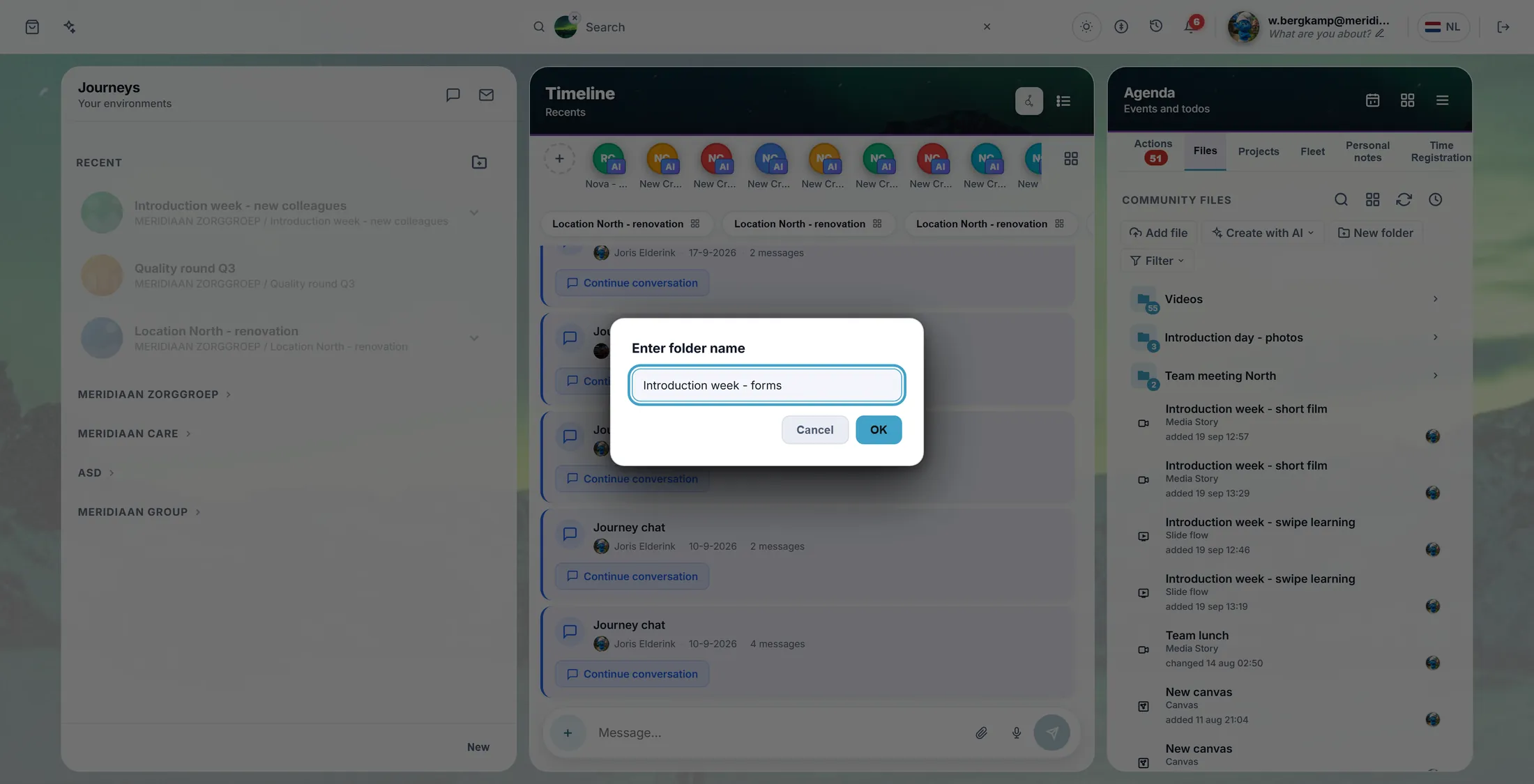
Type the name of the folder. Open the folder
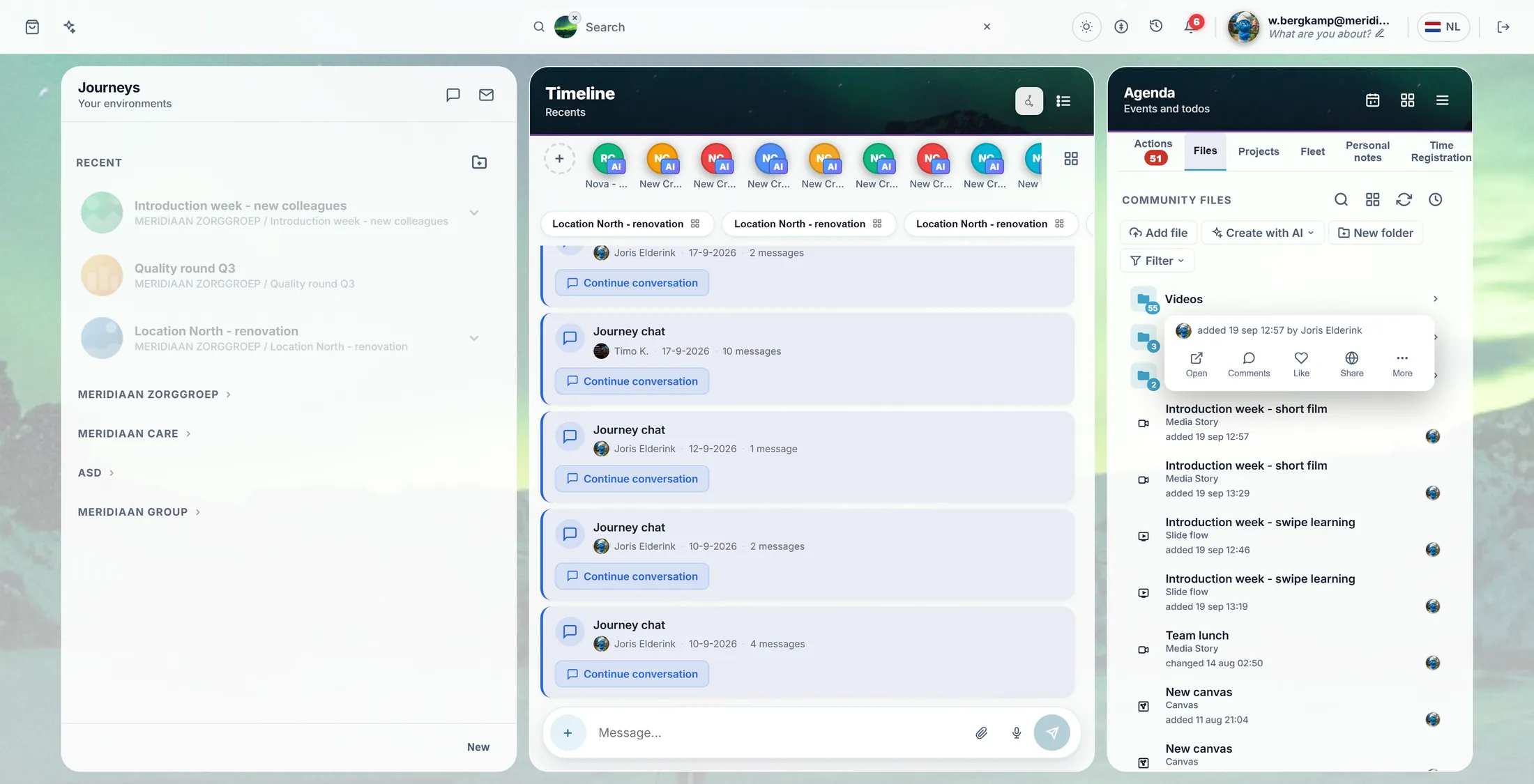
Click a folder to open it. Hold the pointer still on it: a small card shows what you can do.
- Click the folder, for example Introduction day - photos . It opens, and you see what is inside.
- Keep the pointer still on the folder for a moment. A small card opens.
- On the card: Add (put files inside), Comments, Share, Download (everything as one zip), Sync and More.
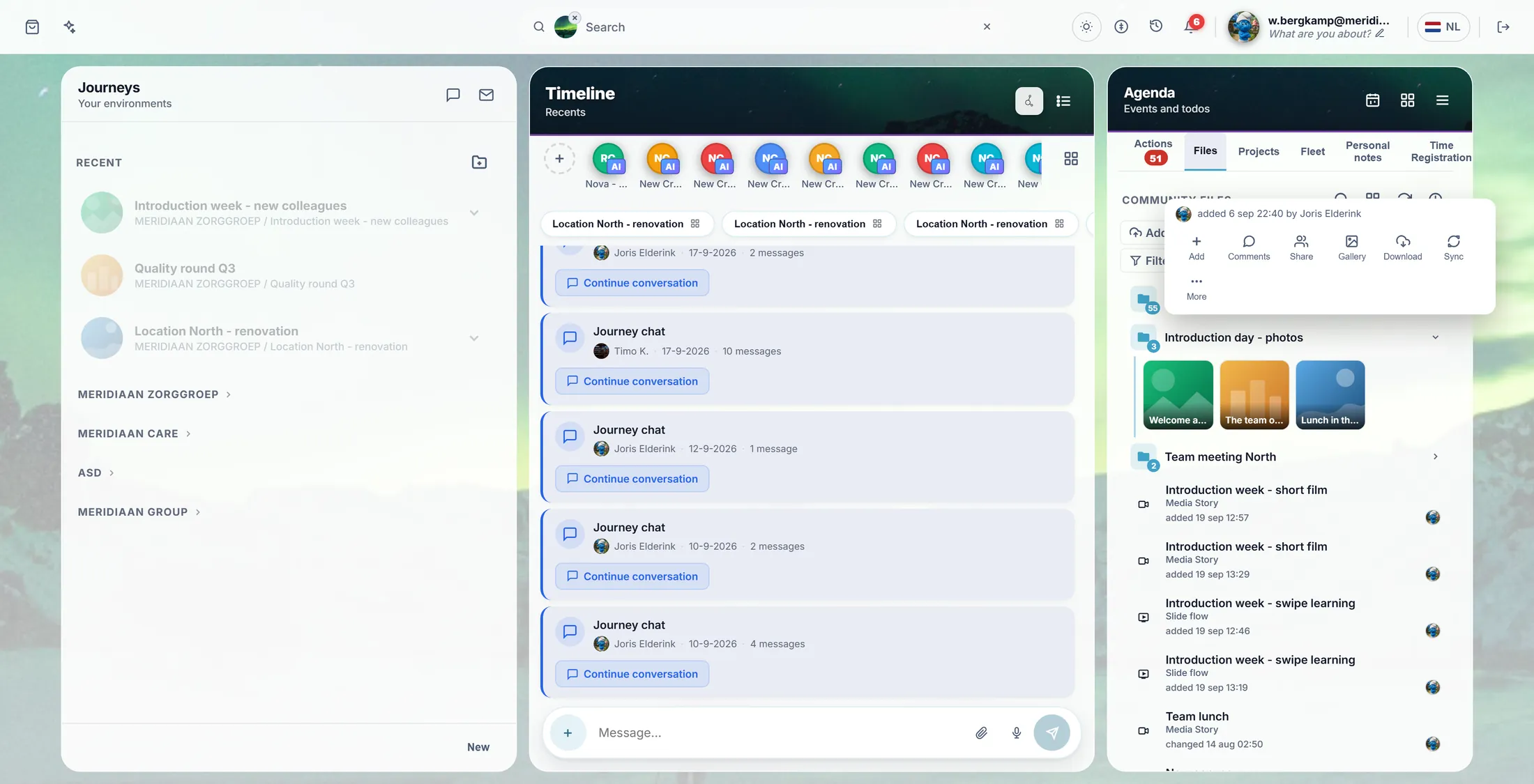
The folder is open. The card shows what you can do. Press Share
Share asks one question: who may open this?
- Press Share on the card.
- A menu asks Who can open this? , with three choices:
- Specific people - you type their name or mail address. Also people outside this journey.
- Everyone in this journey - you get the link. Only people in this journey can open it.
- Anyone with the link - it becomes public. Anybody with the link can open it.
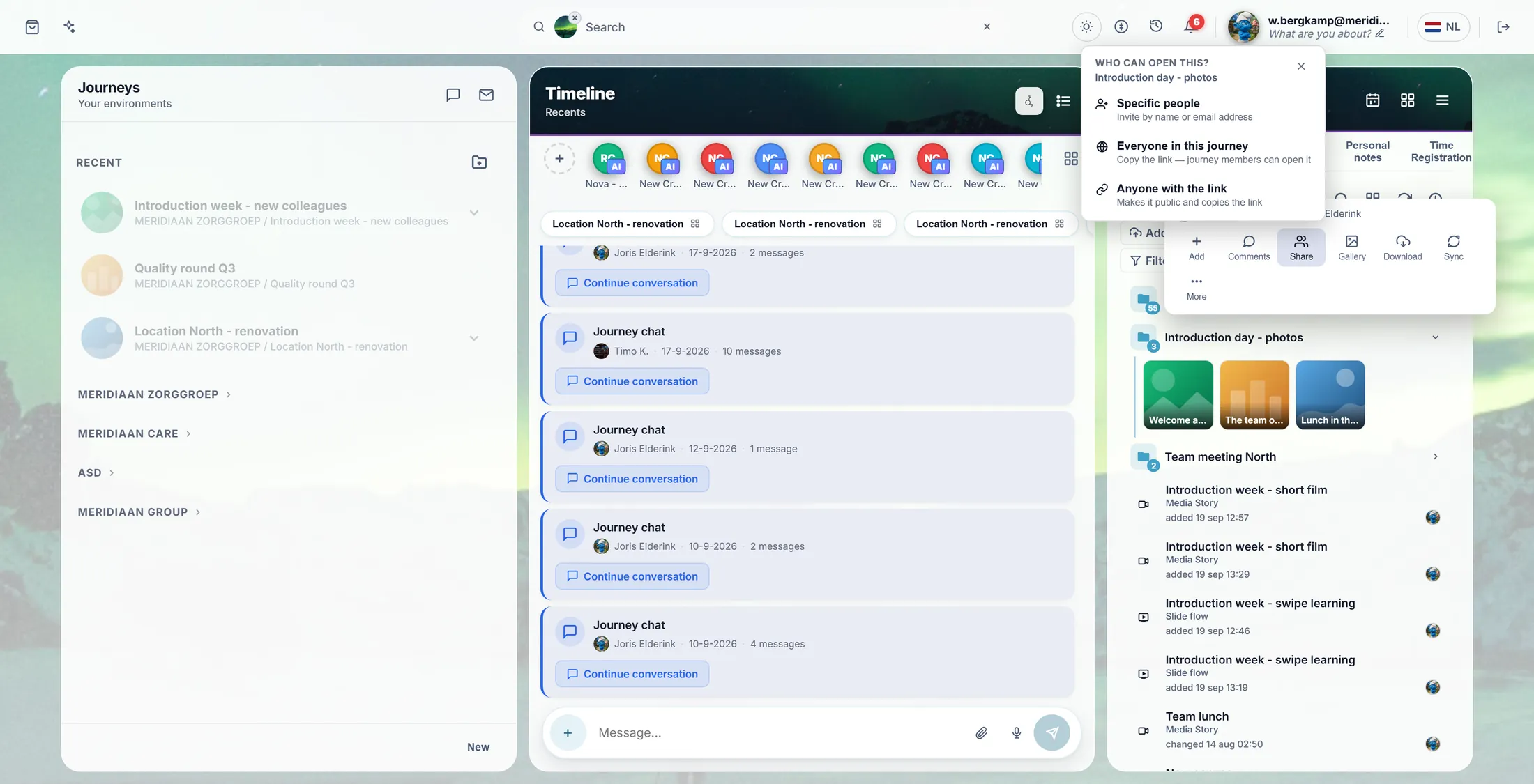
Who may open it? You choose. Gallery or list
A folder with pictures asks one more thing: show them as a gallery, or as a list?
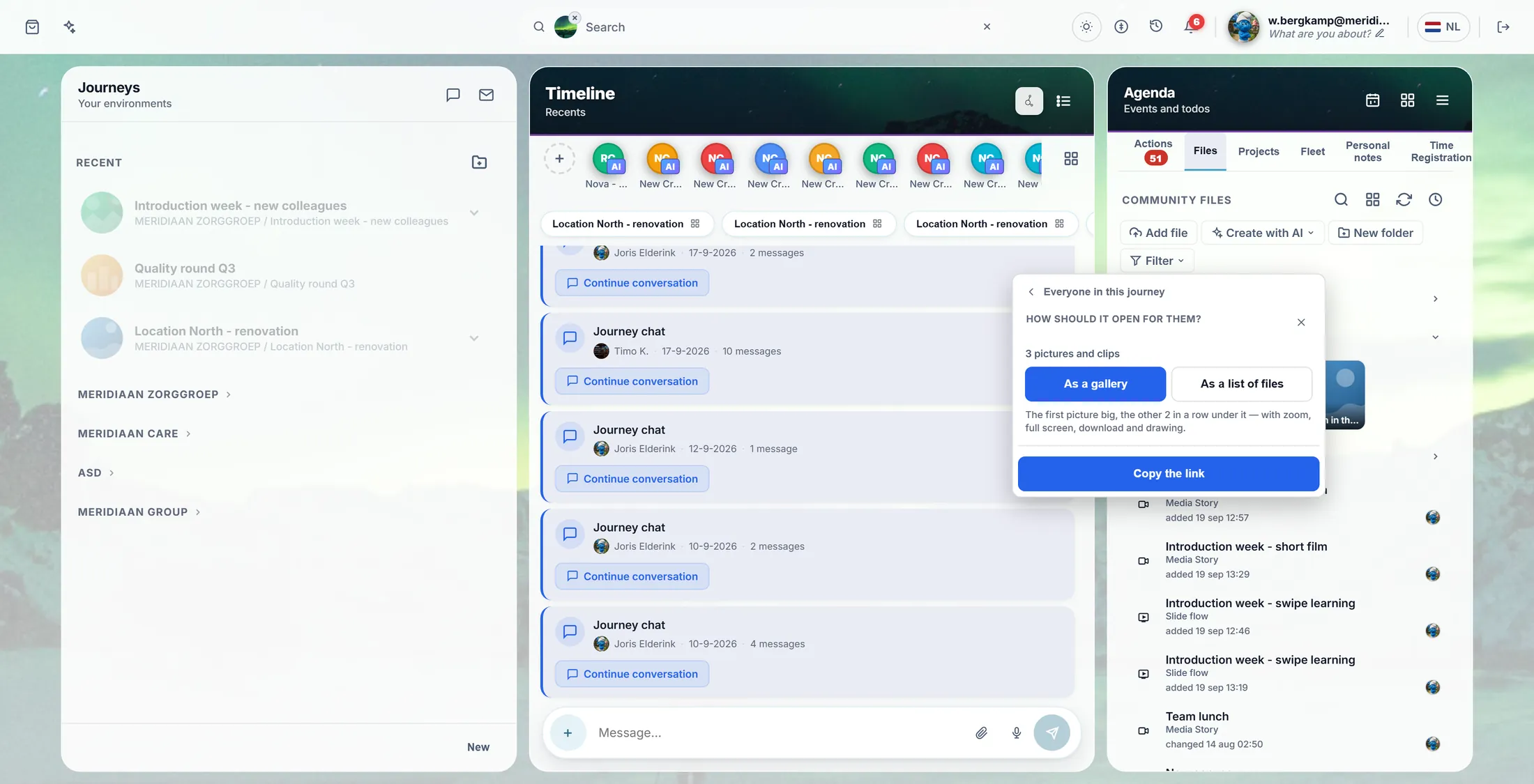
- The menu now asks How should it open for them? and says how many pictures there are.
- Press As a gallery: the first picture big, the others in a row under it. Or press As a list of files.
- Press the blue button at the bottom. For the journey it says Copy the link; for some people Choose people…; for anyone Make it public and copy the link.
- Paste the link where you want: in a mail, a chat or a message. Or, for some people, type their addresses in the window that opens.
As a gallery, then Copy the link. What they see
They open the link and see your pictures, big, one by one.
- They press the link. The name of the folder is at the top, with Shared with you .
- The first picture is big. The others are in a row at the bottom; the arrows go to the next one.
- The buttons at the top right zoom in, show it full screen, and download the picture or the whole folder.
- Did you pick Everyone in this journey or Specific people ? Then they sign in first, with their own account.
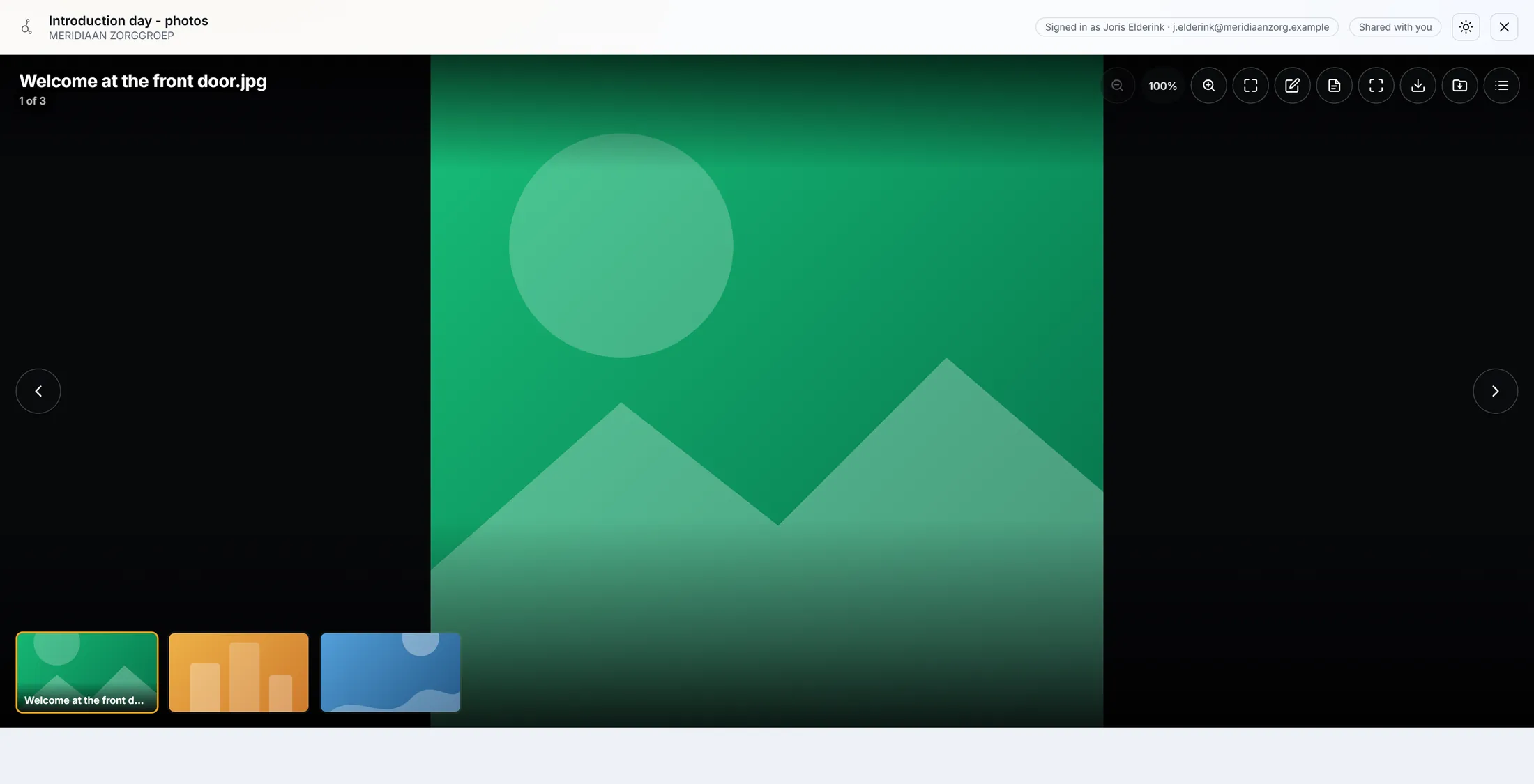
This is what Joris Elderink sees.
If something is not right
I do not see Files.
Click a journey on the left first.
My file is very big.
That is fine. It asks you first, then counts along.
Gallery is not offered.
Only a folder with pictures or films gets it.
They cannot open the link.
Were they in the journey? If not, choose Specific people.
The words, in plain language
- Community Files
- The files of one journey, for everybody in it.
- journey
- What CoVince calls a journey: one goal, with its people, files and plans.
- gallery
- A page that shows a folder of pictures one by one, big.
Where to go next
- All explainers The other things you can learn here.