Plan social posts
Set up a weekly rhythm once - which kind of post on which day, for which account, written by which CrewMate. One button writes drafts for the coming four weeks; you read them, change what you want, and the schedule sends them.
Communication - posts on social media - 6 min. You need: a social media account, like LinkedIn
Nothing is posted until you say so. Writing drafts sends nothing.
What you will be able to do
- Pick your days Monday a tip, Friday news.
- Let a helper write One button writes all the posts.
- Read before it goes out You read and change each one.
- Move a post Drag it to another day.
Get this ready first
- An account to post on LinkedIn, Facebook or Instagram - and its password.
- Three things to talk about For example: new colleagues, quality, the new building.
Do it together, one step at a time
Seven steps. Steps 2 to 4 you only do once.
Open the planner
The planner is where all your posts live.
- Open CoVince. In the Agenda on the right, press the menu (three stripes) and choose Manage social media . Or use the button on this page.
- The middle column now says Planned social posts .
- At the top: + New social post for one post right now. Under it: Advanced (AI) planning . Under that: the Schedule .
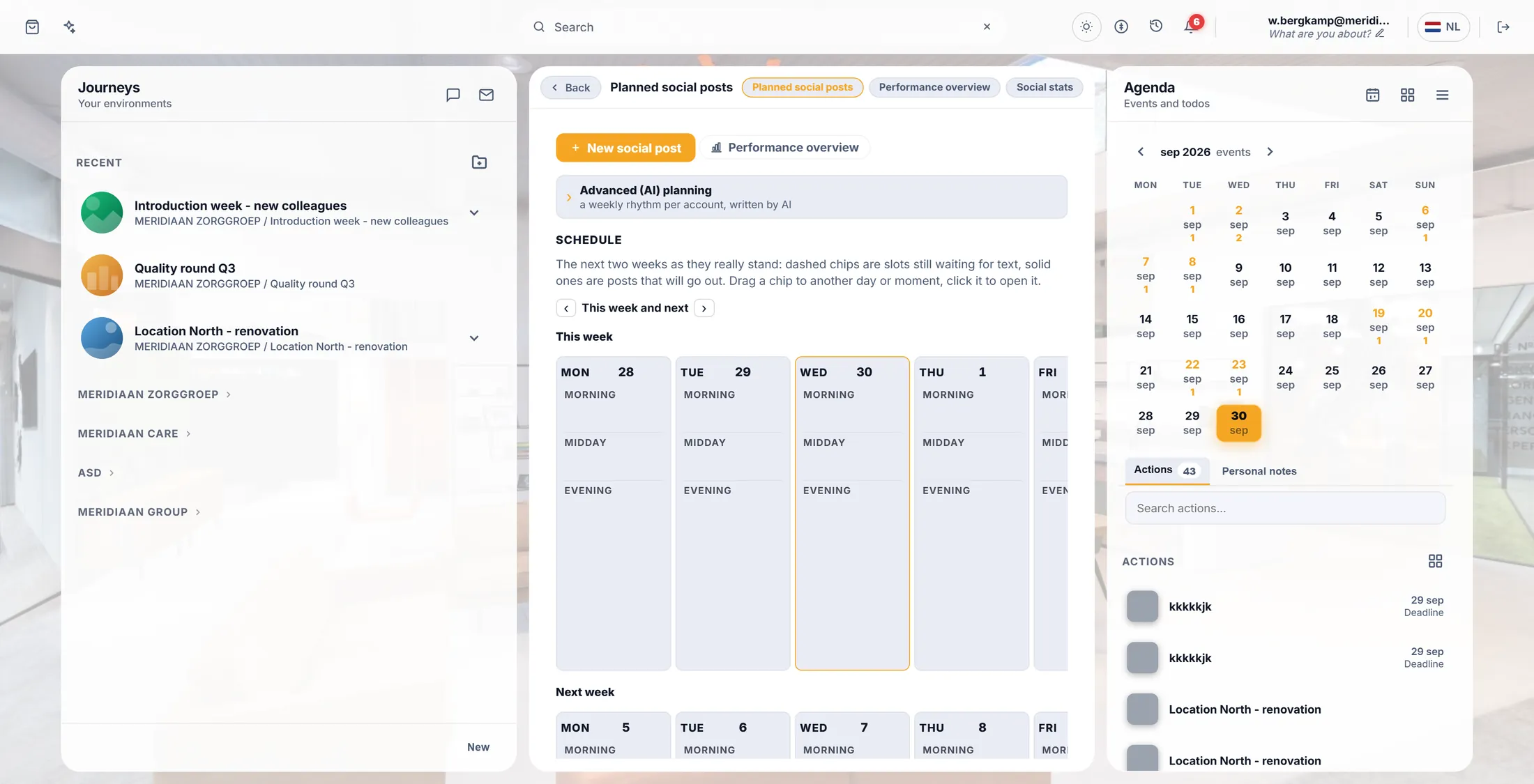
The planner, in the middle of the screen. Add your account
Tell CoVince where the posts go. You do this once.
- Press Advanced (AI) planning . It folds open.
- Above the week, press + Add account.
- Pick the network: linkedin , facebook , x , instagram , threads or mastodon . Or CoVince journey , to post inside a journey.
- A window of that network opens. Sign in there and press its Allow . The account now stands next to All accounts .
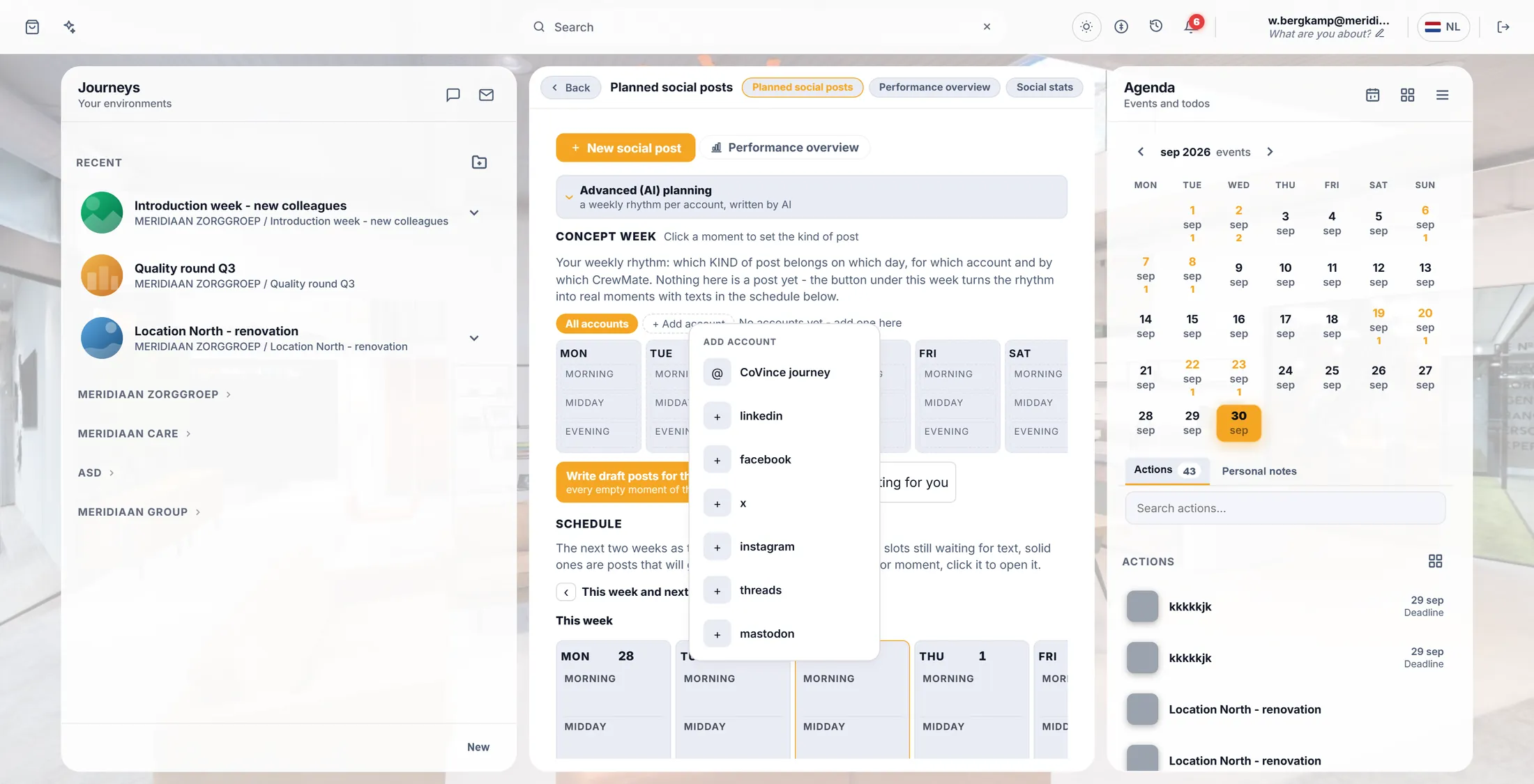
Pick where your posts go. Pick a day and a time
Click a spot in the week. Say what kind of post goes there.
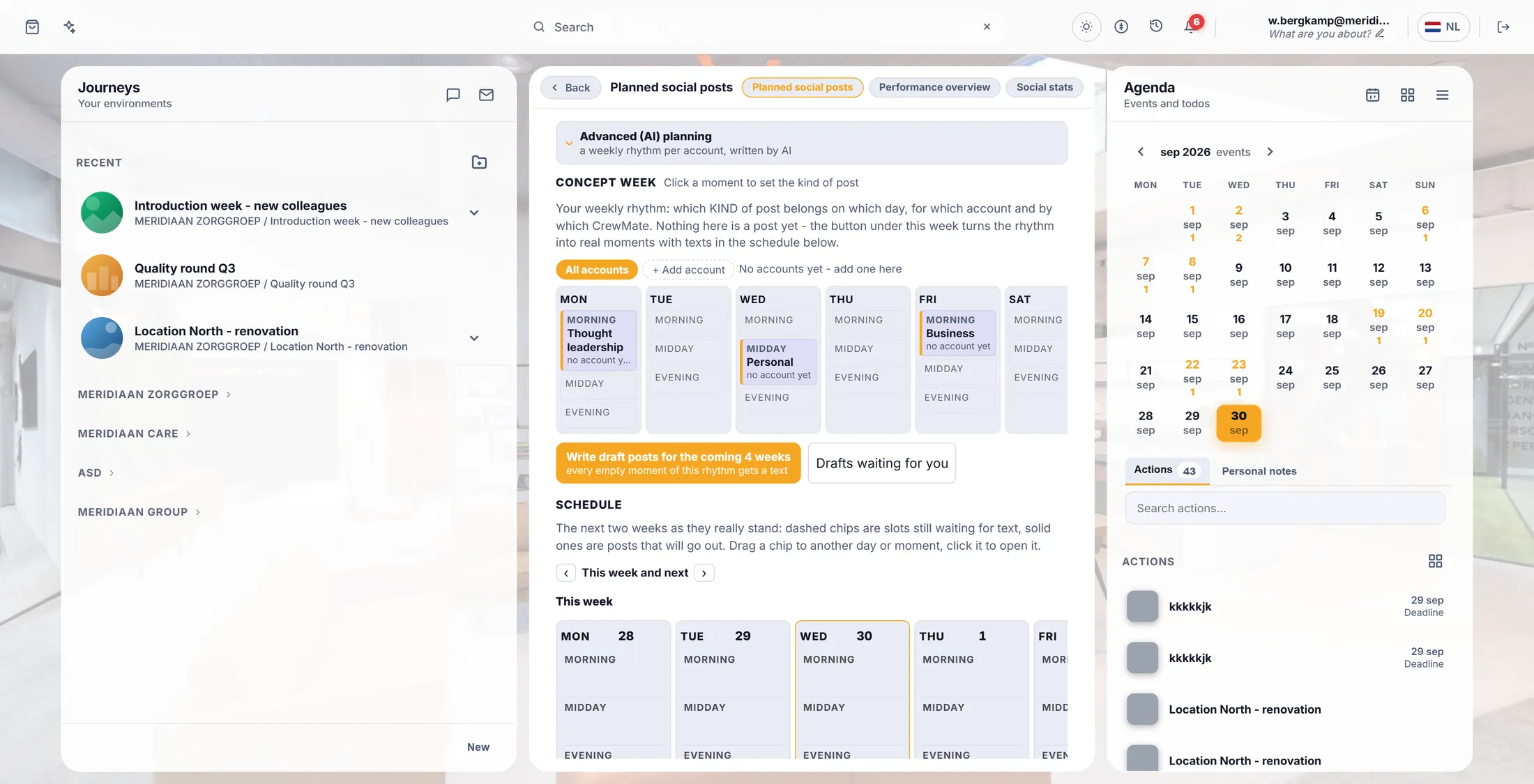
- In the Concept week , click a moment - for example Mon , Morning . A window opens: Mon · morning .
- Kind of post : Thought leadership, Personal, Business, News or Framework.
- Subject for this moment (not needed), for example Introduction week for new colleagues .
- Posts to : tick the account. Written by : pick the CrewMate whose voice it should be.
- Also generate an image if the post needs a picture. Publishing : leave it on I check it first .
- Close the window with the cross. The moment now shows its kind in the week.
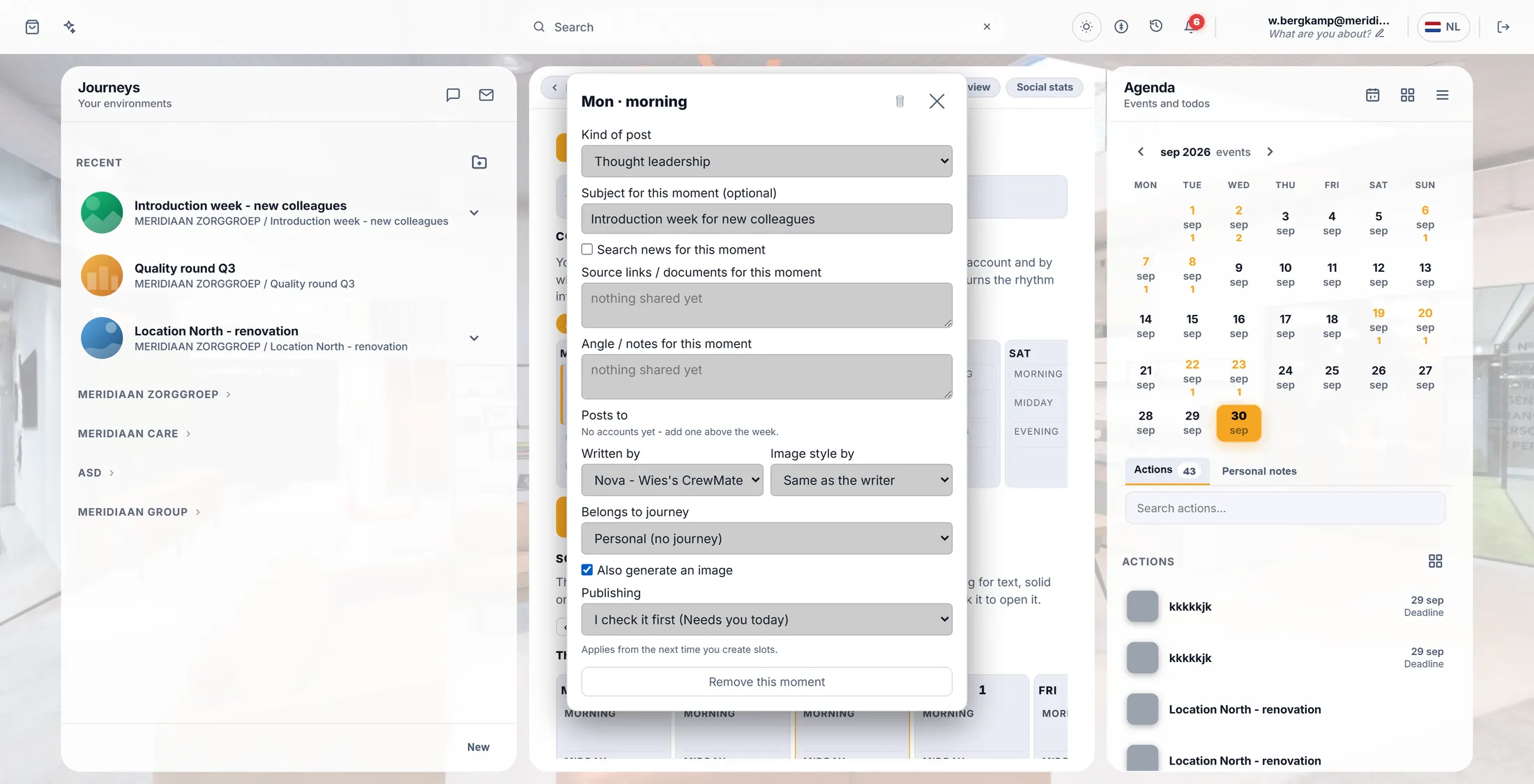
Monday morning: a thought-leadership post, written by Nova. Fill your week
Do the same for two or three more days. That is your week.
- Click a few more moments, for example Wed midday Personal and Fri morning Business .
- Each moment you set shows its kind in the week, and no account yet until you tick one.
- More than one account? Press an account above the week to see only its moments.
- Want a moment gone? Open it and press Remove this moment .
Three posts a week: Monday, Wednesday, Friday. Press the big button
One press. The helper writes all the posts for the next four weeks.
- Press Write draft posts for the coming 4 weeks.
- First it says Looking for open slots... , then it counts: 3/12 - Thought leadership , one post at a time.
- At the end: 12/12 drafts written .
- Nothing is posted. The drafts wait for you - only a moment set to Automatic is scheduled by itself.
Read your posts
Open each post. Change what you want. Then press Plan.
- Press Drafts waiting for you. Every draft is listed with its day, its kind and its account.
- Press Open on a draft. The post window opens with the text under The post .
- Change the text yourself, or ask the CrewMate under Write with AI : "shorter", "friendlier".
- On the right, How it will look shows the post as the network will show it.
- Happy? Scroll to the bottom of the window and press Plan. It goes out at the time under Planned for .
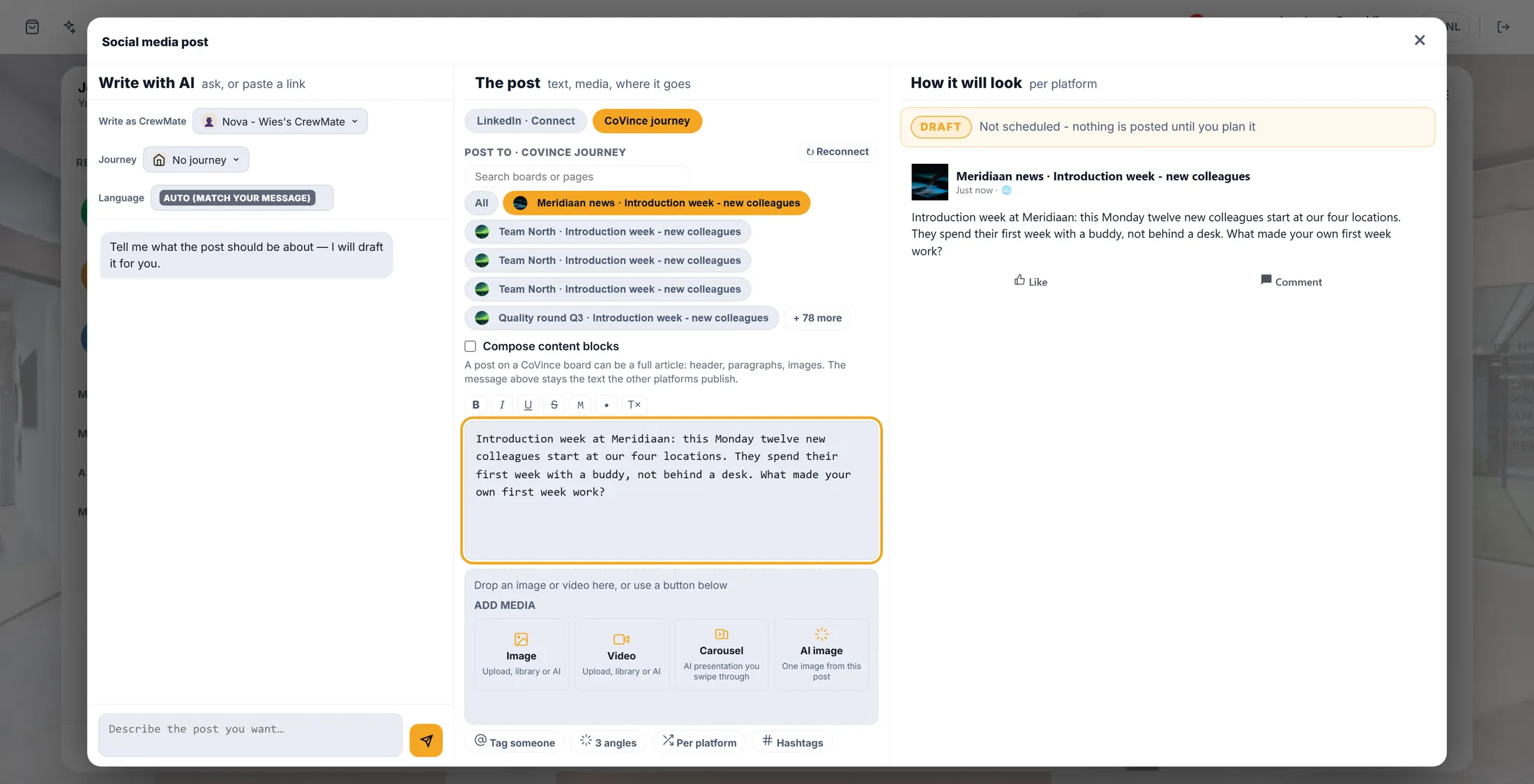
Here you read a post before it goes out. Look at your weeks
See what goes out this week and next. Move a post by dragging it.
- Scroll to Schedule . You see This week and Next week , each day split into morning, midday and evening.
- A dashed chip still waits for text. A solid chip is a post that will go out.
- Click a chip to open it. Drag it to another day or time to move it.
- Use the arrows next to This week and next to look further ahead.
- Later: Performance overview shows which kind of post did best.
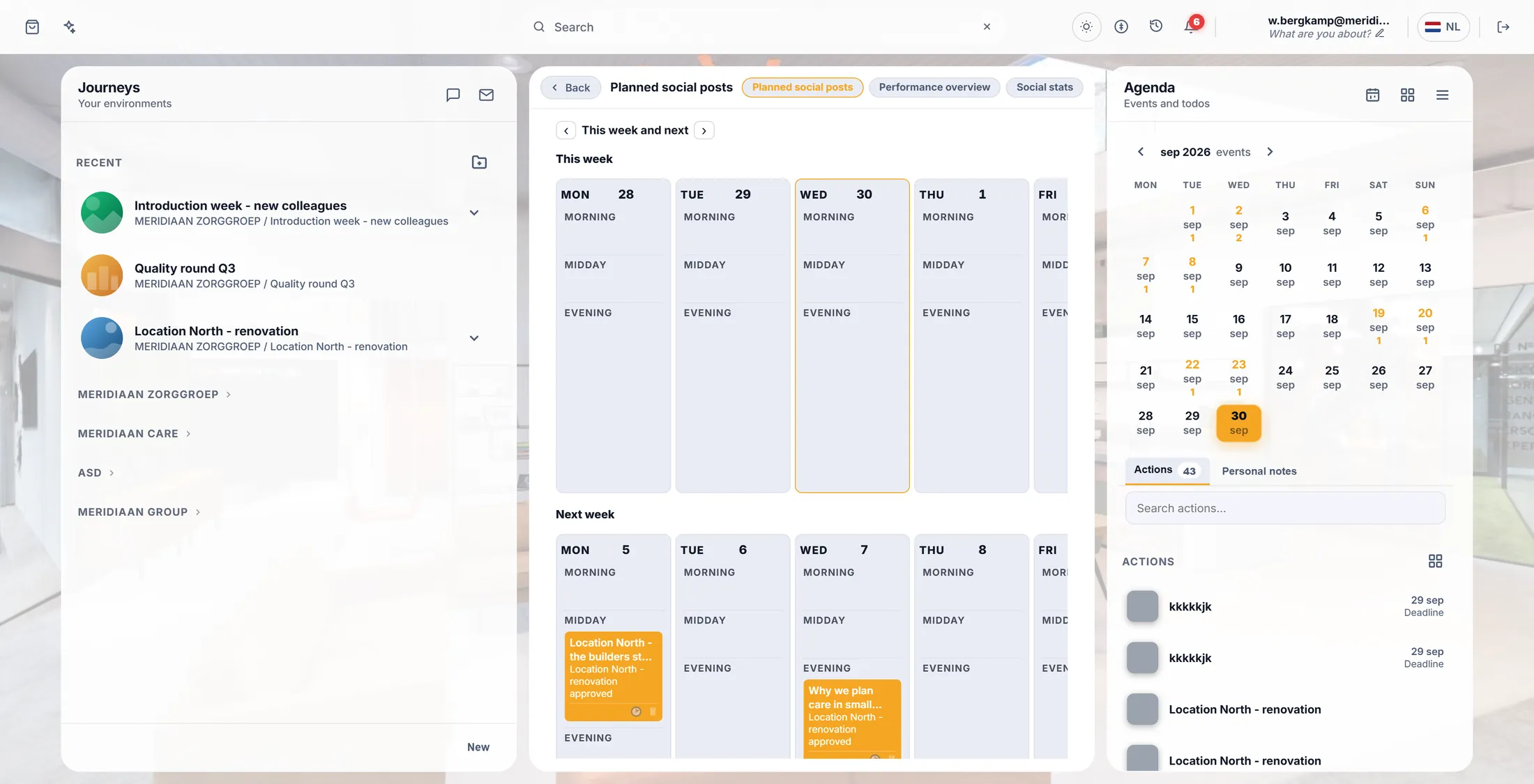
Your posts for this week and next.
If something is not right
I do not see Advanced (AI) planning.
It is folded away. Press the line Advanced (AI) planning .
It says "no account yet".
Open the moment and tick an account under Posts to .
Did something go out without me?
Only if you chose Automatic . Otherwise it waits.
The button says "No open slots".
Set at least one moment in the week first.
The words, in plain language
- concept week
- Your plan for a normal week: which kind of post goes out on which day. It repeats every week.
- moment
- One spot in that week, like Monday morning, with its kind of post, account and writer.
- draft
- A post that is written but not planned yet. Nobody sees it until you press Plan.
Where to go next
- All explainers The other things you can learn here.