Write down your hours
A week grid per journey: a row for each job, a column for each day. Type the hours in a cell, and the row, the day and the week add themselves up. Days off, a month view and an export are one press away.
Coordination - everything that has to happen - 4 min. You need: a journey with time registration on
Reading this changes nothing. Only the numbers you type yourself are saved.
What you will be able to do
- Write down hours Type a number in the right box.
- See your total Per job, per day and per week.
- Mark a day off Sick or on holiday.
- Send it on As Excel or PDF.
Get this ready first
- A journey Hours are always for a journey.
- Your jobs The jobs of the journey are the rows.
Do it together, one step at a time
Six steps. Tick each one off.
Pick your journey
Click your journey. Two buttons appear under it.
- Open CoVince. The left column is called Journeys - those are your journeys.
- Click the journey, for example Introduction week - new colleagues .
- Under it you see two buttons: Start journey and Time registration.
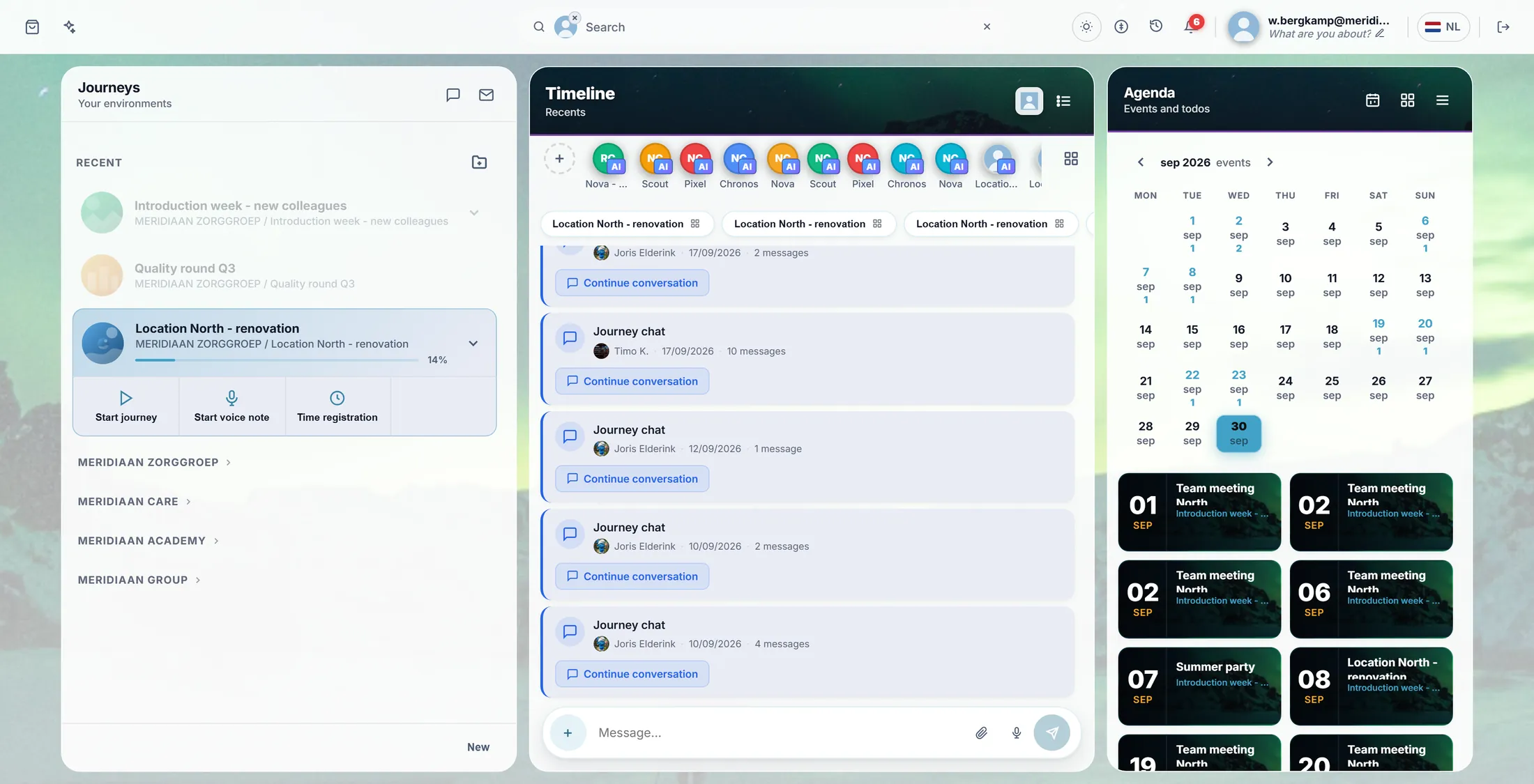
The Time registration button sits under your journey. Open your week
Your week opens. Jobs on the left, days across the top.
- Press Time registration. A big screen opens: Time Registration .
- Press Week at the top. You see one week, Monday to Sunday. Today's date is blue.
- Each row is one job of the journey. General is for hours that fit no job.
- The arrows go a week back or forward. Today brings you back to this week.
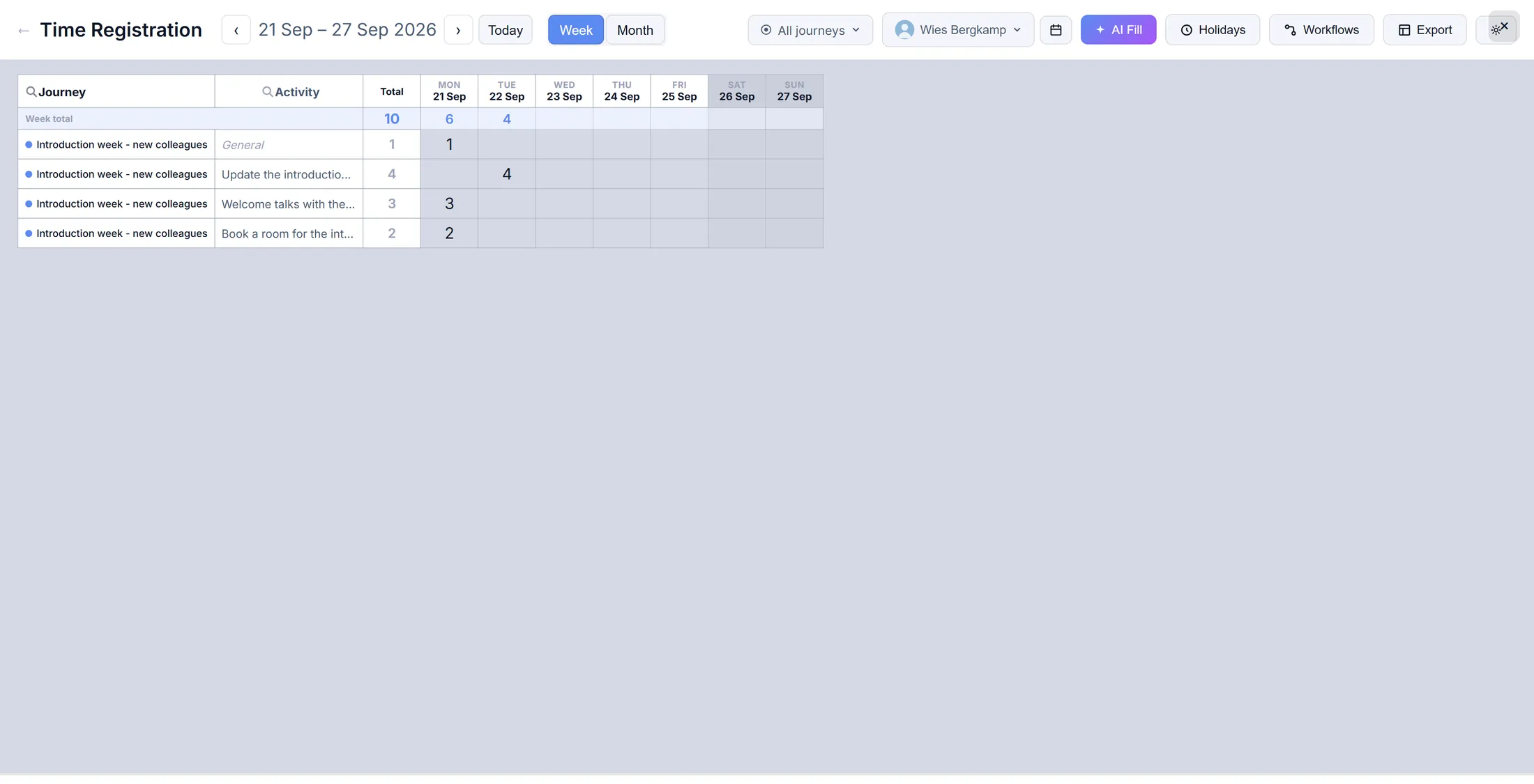
One week. Some hours are already there. Type your hours
Click the box of the job and the day. Type the hours.
- Find the row of the job, for example Book a room for the introduction week .
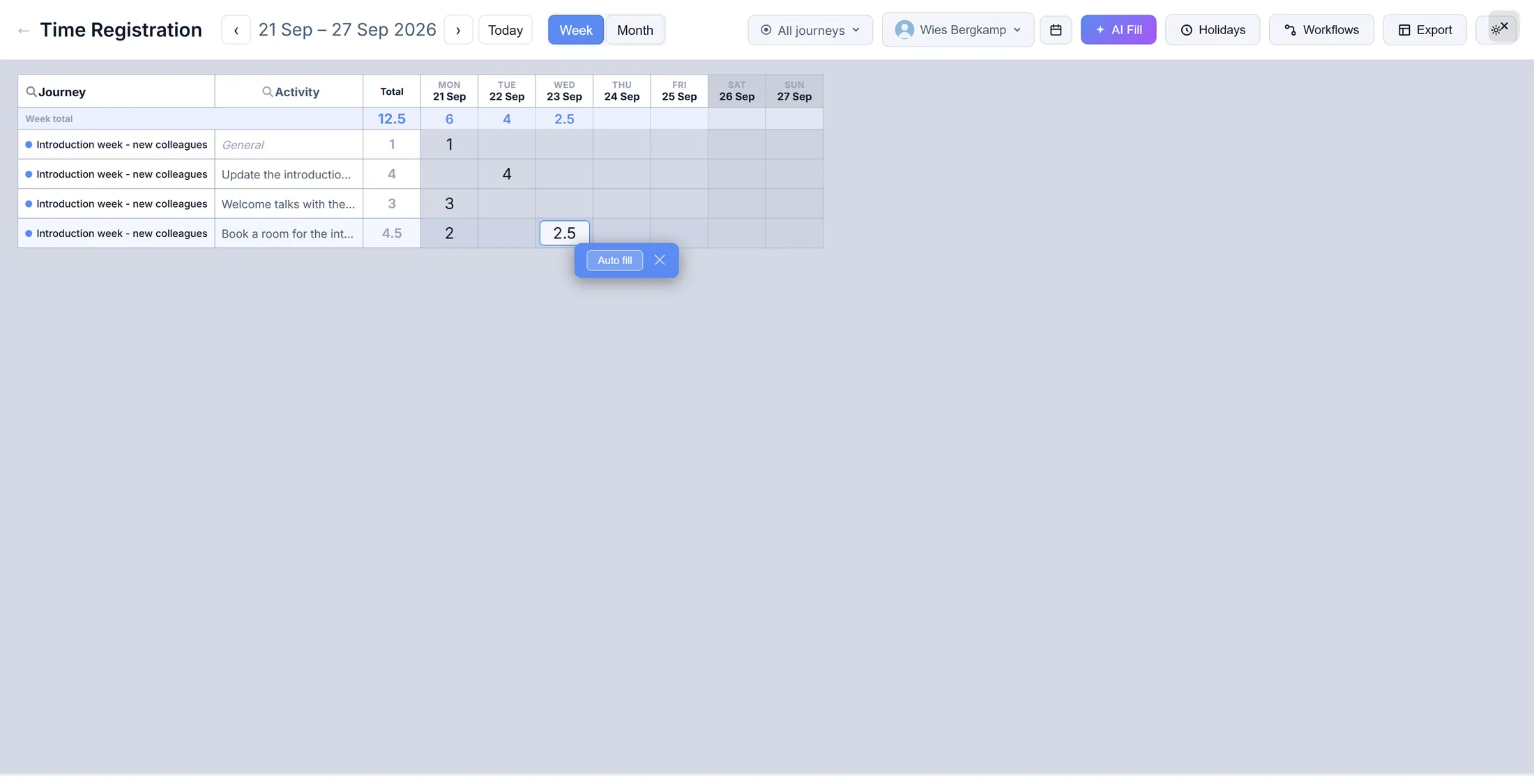
- Click the box under today, for example Wed 23 Sep .
- Type the hours: 2.5 is two and a half hours.
- That is all - there is no Save button. The row total, the day total and the week total change straight away.
2.5 hours on Wednesday. The totals go up. Mark a day off
Right-click the day at the top. Pick Sick or Vacation.
- Right-click the day at the top, for example FRI 25 Sep .
- A small menu opens: Sick and Vacation.
- Press one. The day gets a coloured label and no longer counts for your target.
- Delete data in the same menu takes away all hours of that day - only use it when you mean it.
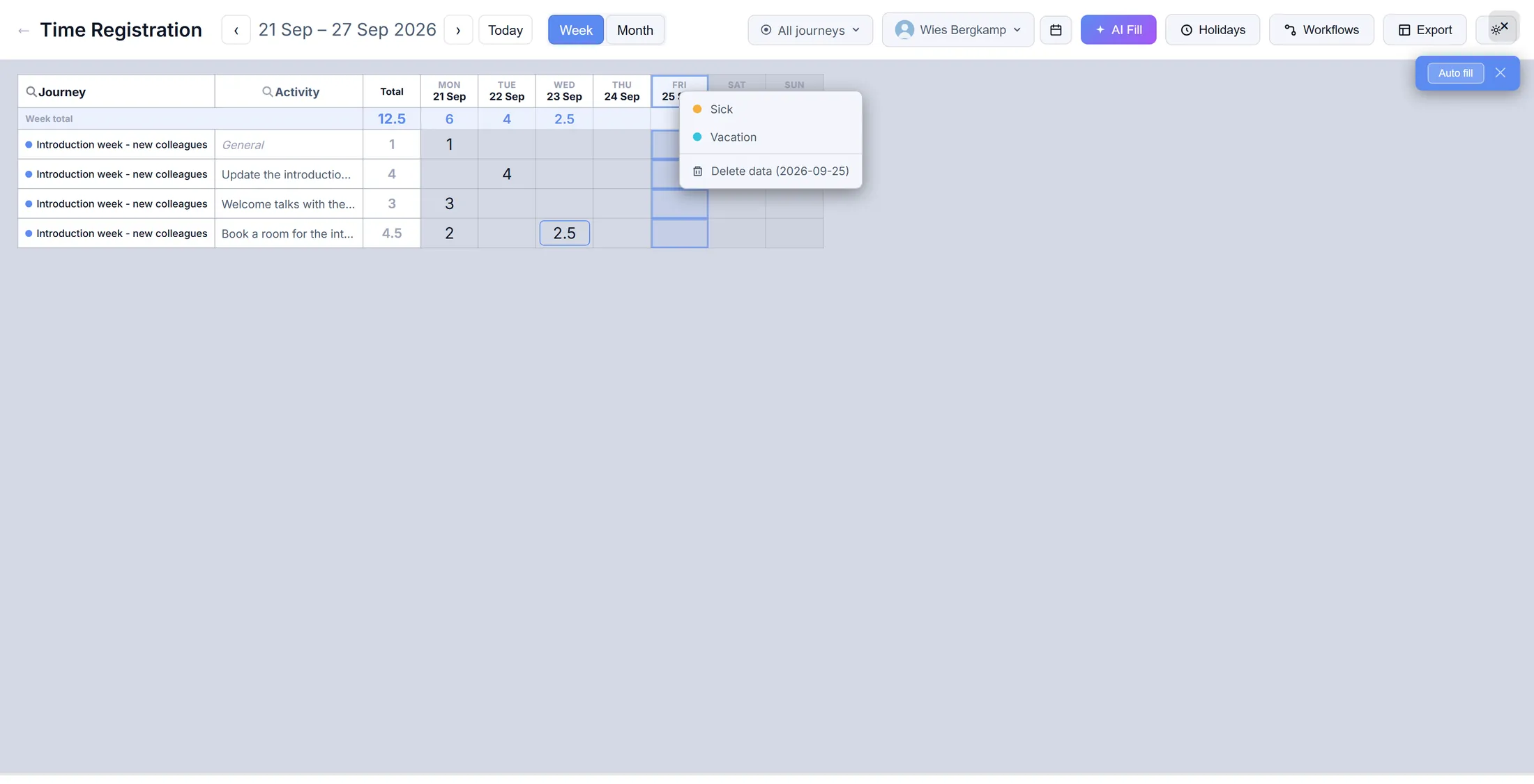
Right-click Friday: Sick or Vacation. Send your hours on
Press Export. Pick Excel or PDF.
- Press Export at the top right.
- Export current view (Excel) gives what you see as a spreadsheet. Export PDF gives it as a PDF.
- Export journey period... and Export all for specific user... ask for the dates first.
- The file lands in your downloads. Nothing is sent to anyone.
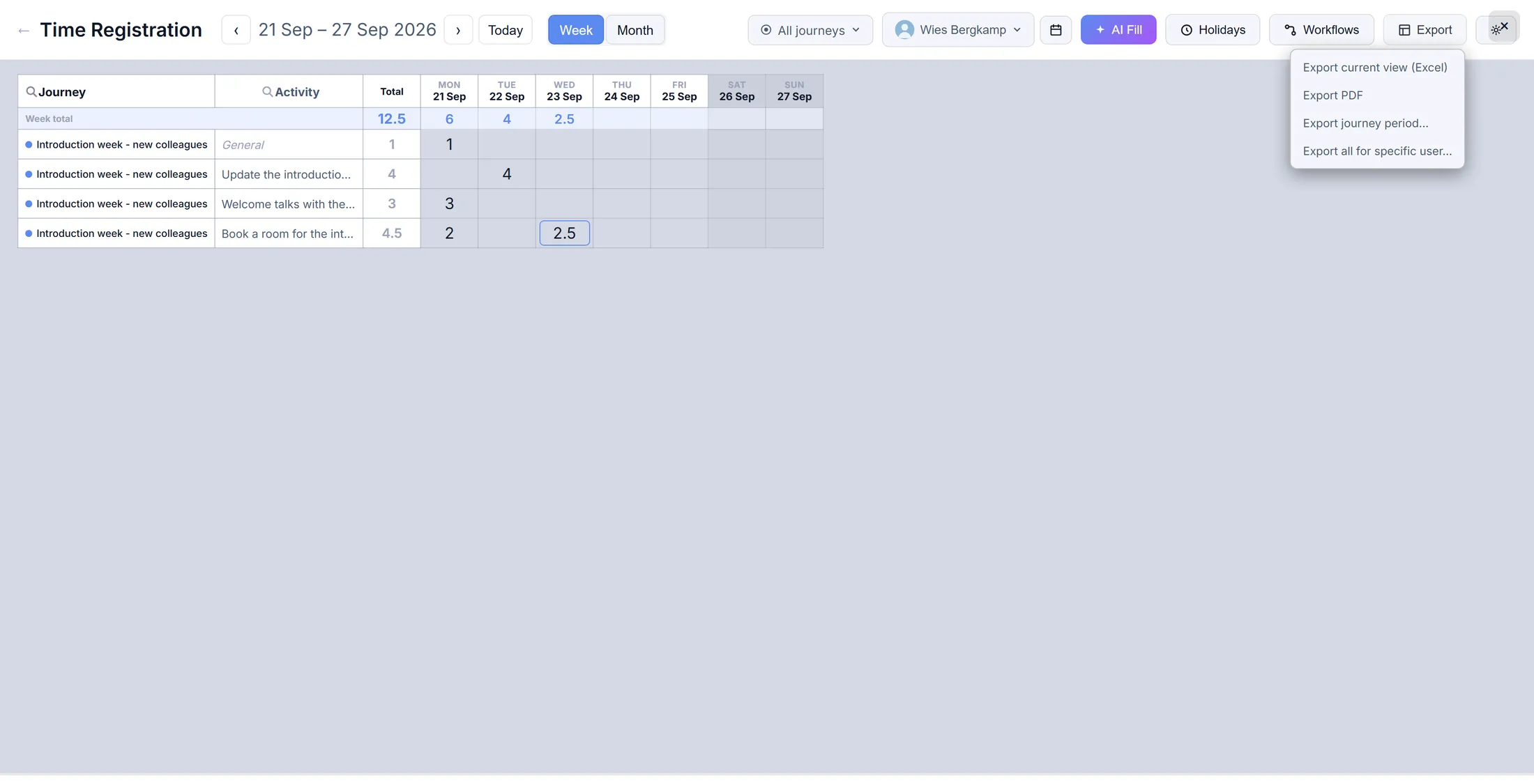
Four ways to take your hours with you. The quick way, every day
Your week is also on the first screen, bottom right.
- Close the big screen with the cross at the top right.
- In the right column, press the word Time Registration.
- A small week appears, with Week total and a bar that fills up.
- Type your hours in the boxes, just like before. Open full view → brings the big screen back.
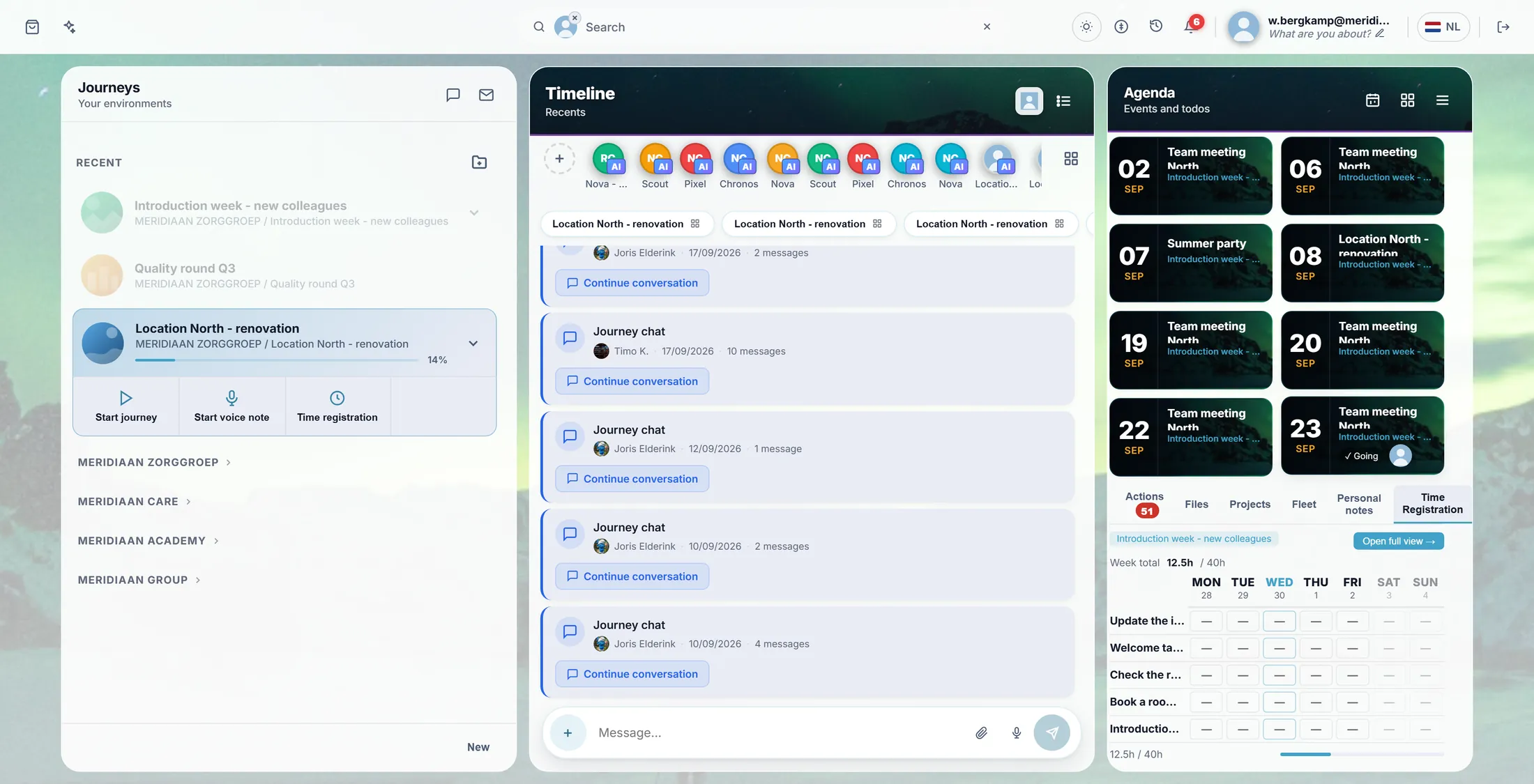
The small week: fill it in each day.
If something is not right
There is no Time registration button.
Hours are not on for this journey. Ask the person who looks after it.
Where is the Save button?
There is none. It saves by itself.
My job is not in the list.
Use General, or ask for the job to be made.
I see the whole month.
Press Week at the top.
The words, in plain language
- activity
- A job in the journey you book hours on. Each one is a row.
- week total
- All your hours of the week added up, next to what you should work.
- off day
- A day you did not work: sick, vacation or a holiday.
Where to go next
- All explainers The other things you can learn here.