Have a video call
A video call in CoVince belongs to a journey: only its members can join, you invite them from inside the call, and the call can take notes for you. No link to send around, no separate app.
Community - talk face to face - 5 min. You need: a journey, and a camera or microphone
Your camera and microphone start OFF. Nobody sees or hears you until you switch them on.
What you will be able to do
- Start a call One button under your journey.
- Camera and sound on Switch them on when you are ready.
- Ask people in Their phone or computer rings.
- Only your people Only people of the journey get in.
Get this ready first
- A journey The call is always about a journey. The people in it can join.
- Camera and microphone A laptop has them built in. A headset is even better.
Do it together, one step at a time
Seven steps: start, switch on, ask people in, talk, and leave.
Pick your journey
The call belongs to a journey. Click the journey first.
- Open CoVince. The left column is called Journeys - those are your journeys.
- Click the journey, for example Quality round Q3 .
- Under the journey a button appears: Video call.
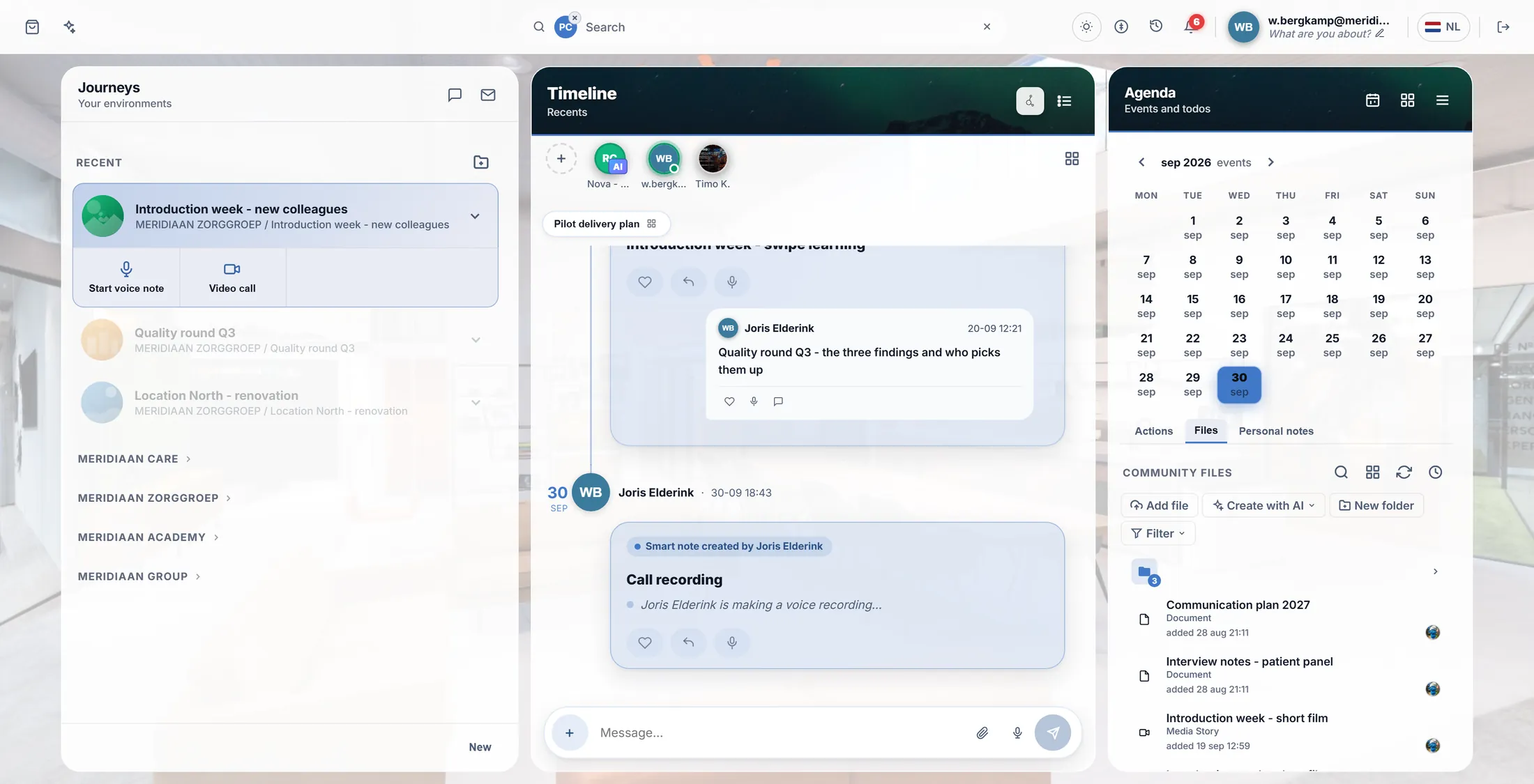
The Video call button sits under the journey. Press Video call
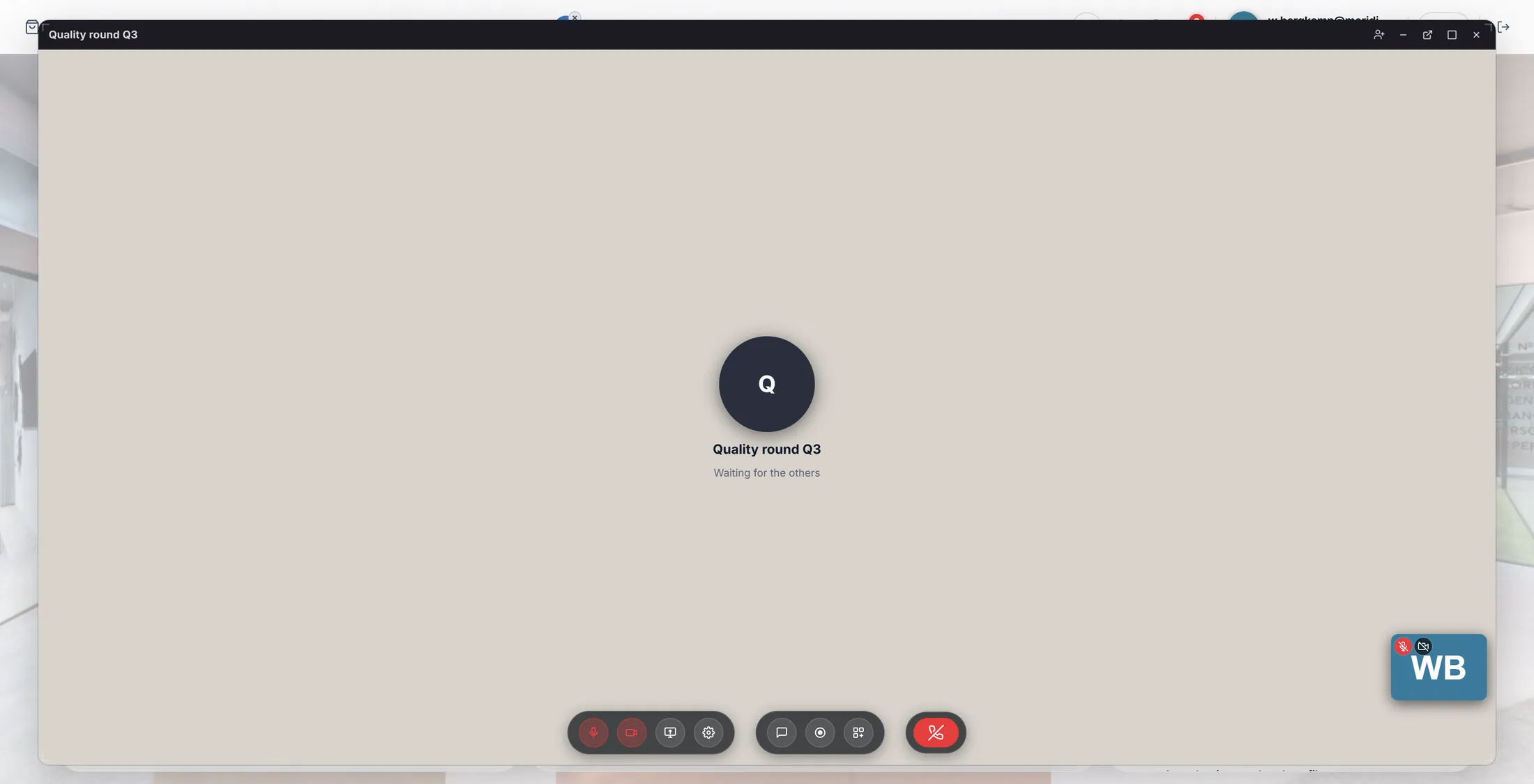
A call window opens. It waits for the others.
- Press Video call.
- A window opens at the bottom right, with the name of the journey at the top.
- In the middle it says Waiting for the others (or Connecting... for a moment first).
- Your own small picture sits in the corner. The microphone and camera buttons are red : they are still off.
The call is open. Nobody sees you yet. Camera and sound on
Press the microphone and the camera. They turn from red to grey: now they are on.
- Press the microphone button (its name is Microphone). It is no longer red: the others can hear you.
- Press the camera button (Camera). Your picture appears in the small window in the corner.
- Want a bigger call? Press the square at the top right. The call fills the screen, like in the picture.
- The first time, the browser asks if CoVince may use your camera and microphone. Press Allow.
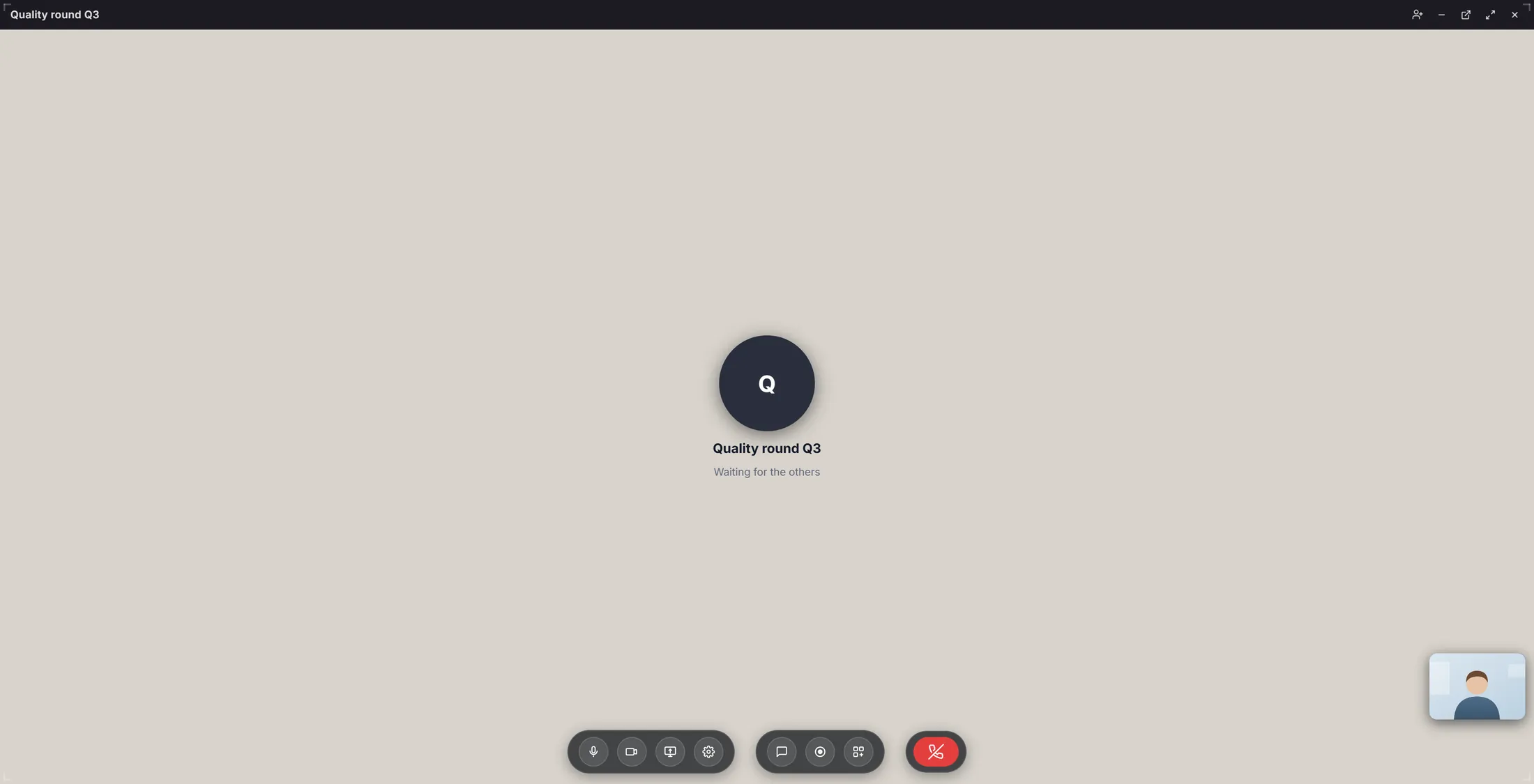
Your own picture is in the corner. The picture here is a drawing. Another camera or headset?
The gear button shows what you use. Pick your headset there.
- Press the gear button (Device settings).
- A small window shows three rows: Camera , Microphone and Speaker , each with what is in use now.
- Press Choose on a row to pick another one - for example your headset.
- Close the small window with the cross. Your choice is remembered for the next call.
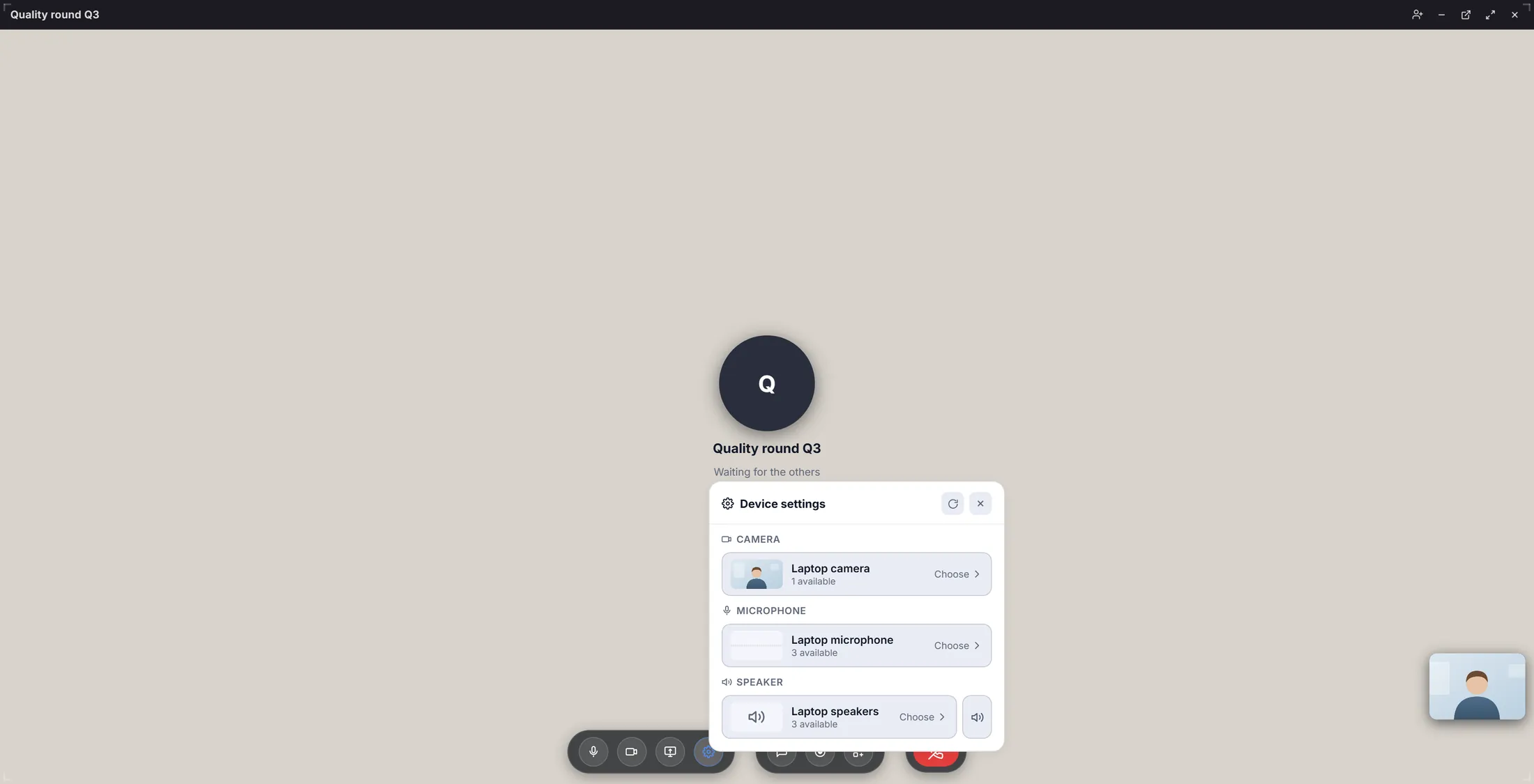
Camera, microphone, speaker - each with Choose. Ask people in
The person-with-plus at the top shows the people of the journey. Press Invite next to a name.
- Press the person with the plus at the top right (Invite).
- A list opens: INVITE , with everybody in the journey. A green dot means they are online now.
- Press Invite next to a name. The button counts down while their screen rings: Ringing 30s .
- Not online? They get a mail instead, and the row says so.
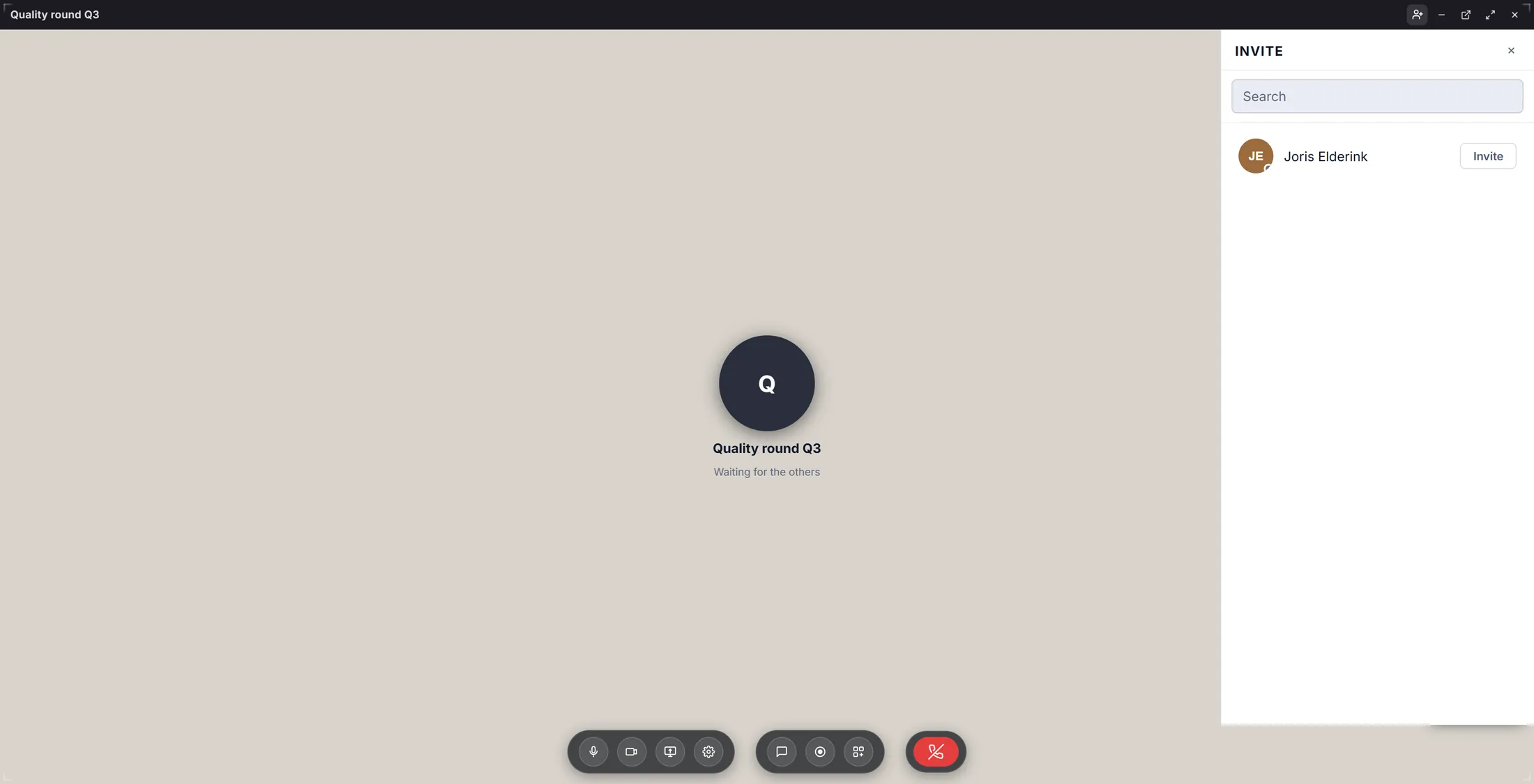
Everybody in the journey, each with Invite. Talk together
When someone joins, you see them big. You are small in the corner.
- Somebody joins: their picture fills the window. More people? The window splits into tiles.
- Want to show something? Press Share screen.
- Want to type a link or a note? Press Chat.
- Want notes of the meeting? The microphone in the middle group records what is said. The explainer Note taker shows how.
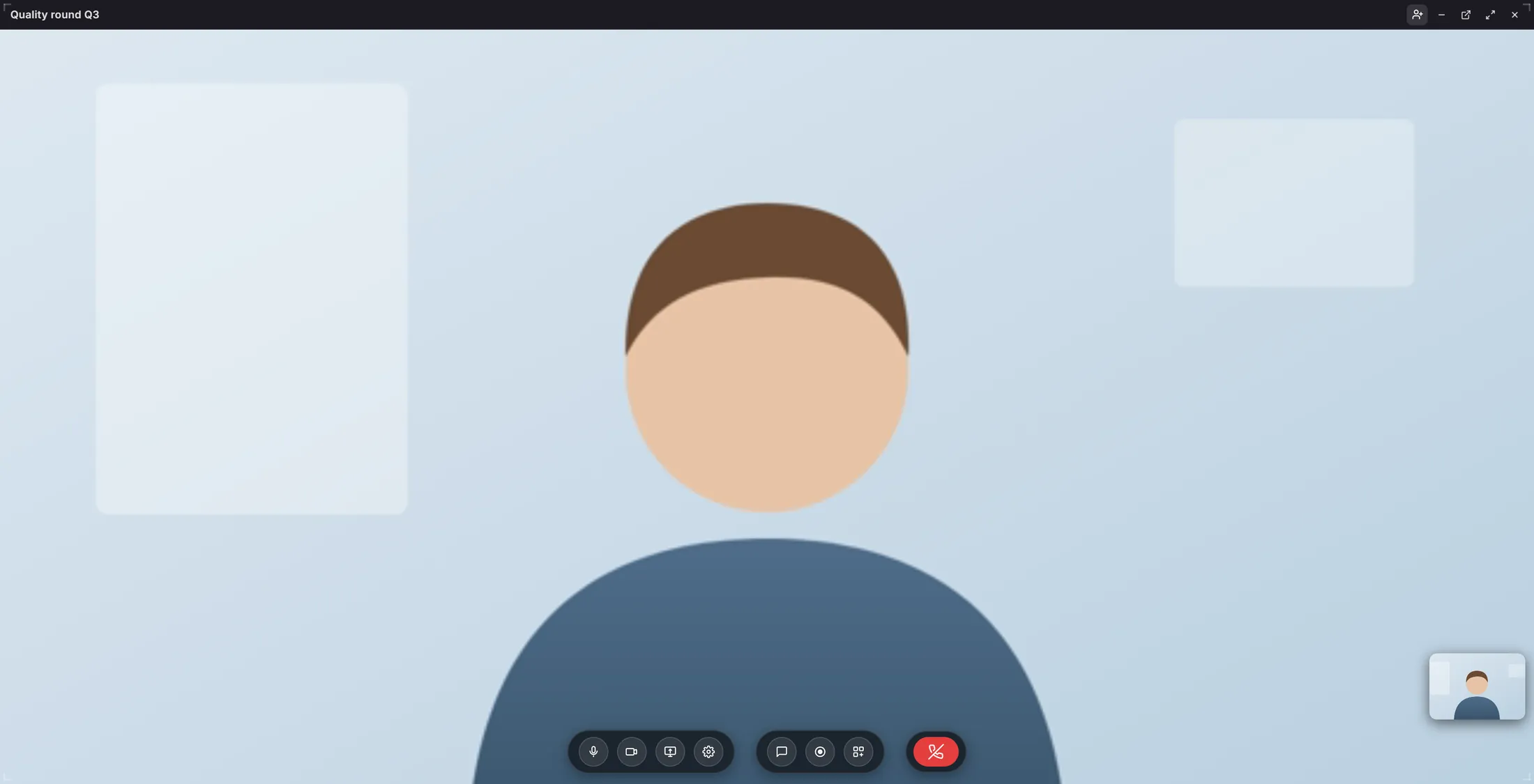
Another person has joined. The people here are drawings. Hang up
The red button with the phone leaves the call. The others can go on.
- Press the red button with the phone (End call).
- The call window closes. You are back on your dashboard.
- The others stay in the call until they leave too.
The red button leaves the call.
If something is not right
They cannot hear me.
Is the microphone button red? Press it. Still nothing? Press the gear and pick your microphone.
Someone cannot get in.
Only people of the journey can join. Add them to the journey first.
Where is the link to send?
You do not need one. People of the journey press Video call too, or you invite them from the call.
I hear an echo.
Use a headset, or turn your speakers down.
The words, in plain language
- mute
- Your microphone is off: the others do not hear you. In CoVince the button is red then.
- self-view
- The small picture of yourself in the corner: what the others see.
- share screen
- Letting the others in the call see your screen, or one window of it.
Where to go next
- Note taker Record a meeting and get the notes afterwards.
- All explainers The other things you can learn here.