Let CoVince take the notes
Record a video call or a meeting in a room. CoVince writes the transcript, turns it into a report - summary, decisions, actions - and keeps it as a note on the journey, where everybody in it can read it back.
Community - what was said, kept - 5 min. You need: a journey, and a microphone
Nothing is recorded until you press the red button. Always tell the others first.
What you will be able to do
- Record a meeting In a video call, or around the table.
- Get the words Everything that was said, written out.
- Get a short report What was decided, and who does what.
- Keep it with the journey Everybody in the journey can read it back.
Get this ready first
- A journey The notes land in a journey.
- Say that you record Ask the others if it is fine. It is their voice too.
Do it together, one step at a time
Seven steps: start, record, stop, read the report.
In a room? Use a Voice note
Sitting around a table? Put a laptop or phone in the middle, and start a Voice note.
- Pick the journey in the left column.
- Press the blue + at the bottom of the Timeline.
- A window opens: Create new . Press Voice note - "Record and let the AI write the report".
- Pick the board, and the recorder opens. From there it works the same as in a call: go on with step 3.
- In a video call ? Then use the Record button of the call: that is the next step.
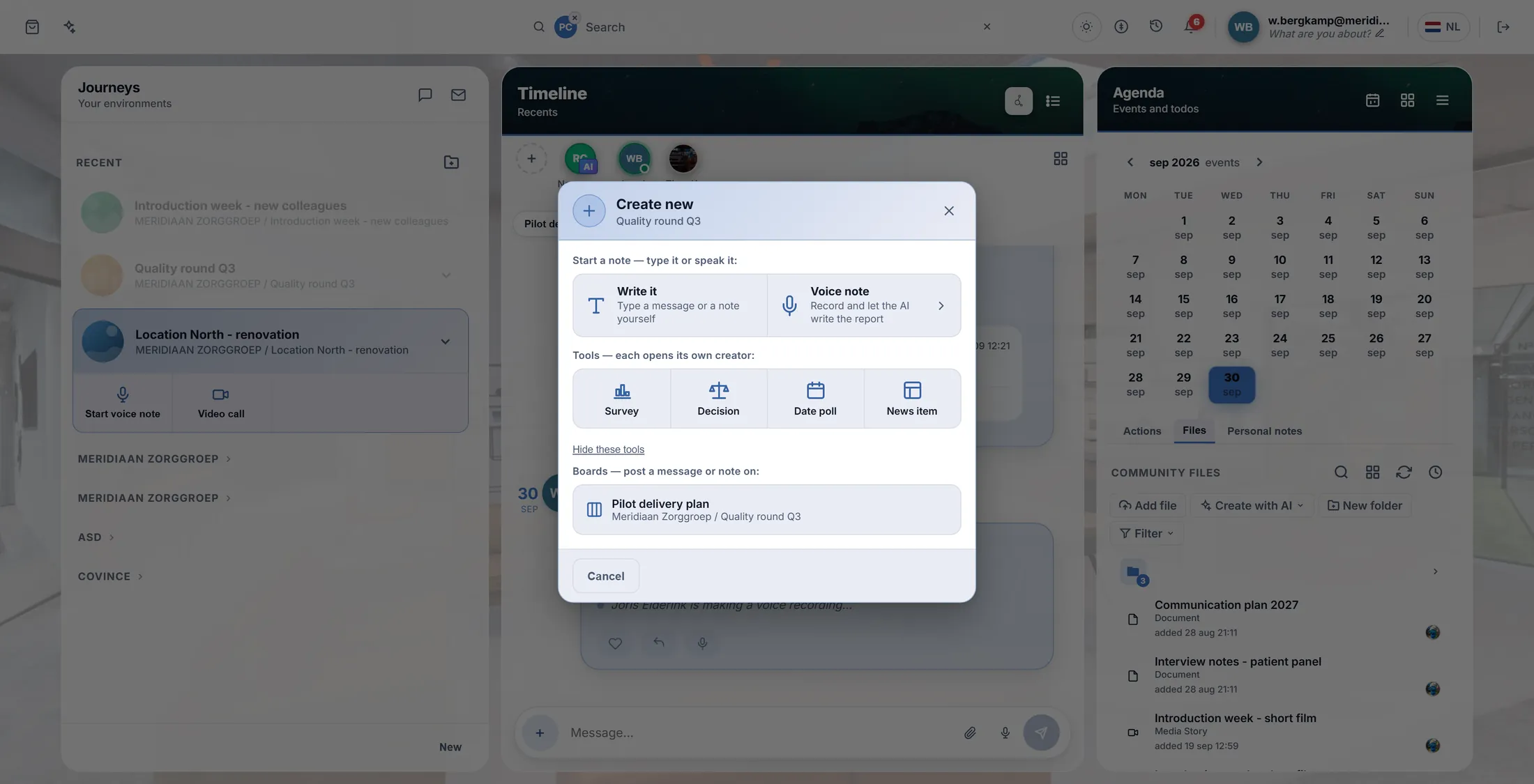
Voice note: record, and the AI writes the report. In a video call: press Record
In the call bar, the microphone in the middle group starts the note taker.
- Start or join the video call of the journey (explainer Video call ).
- Look at the bar at the bottom. The middle group has three buttons: chat, a microphone, and more.
- Press that microphone. Its name is Record what is said into a note on the timeline .
- This is not the microphone that mutes you - that one is on the far left.
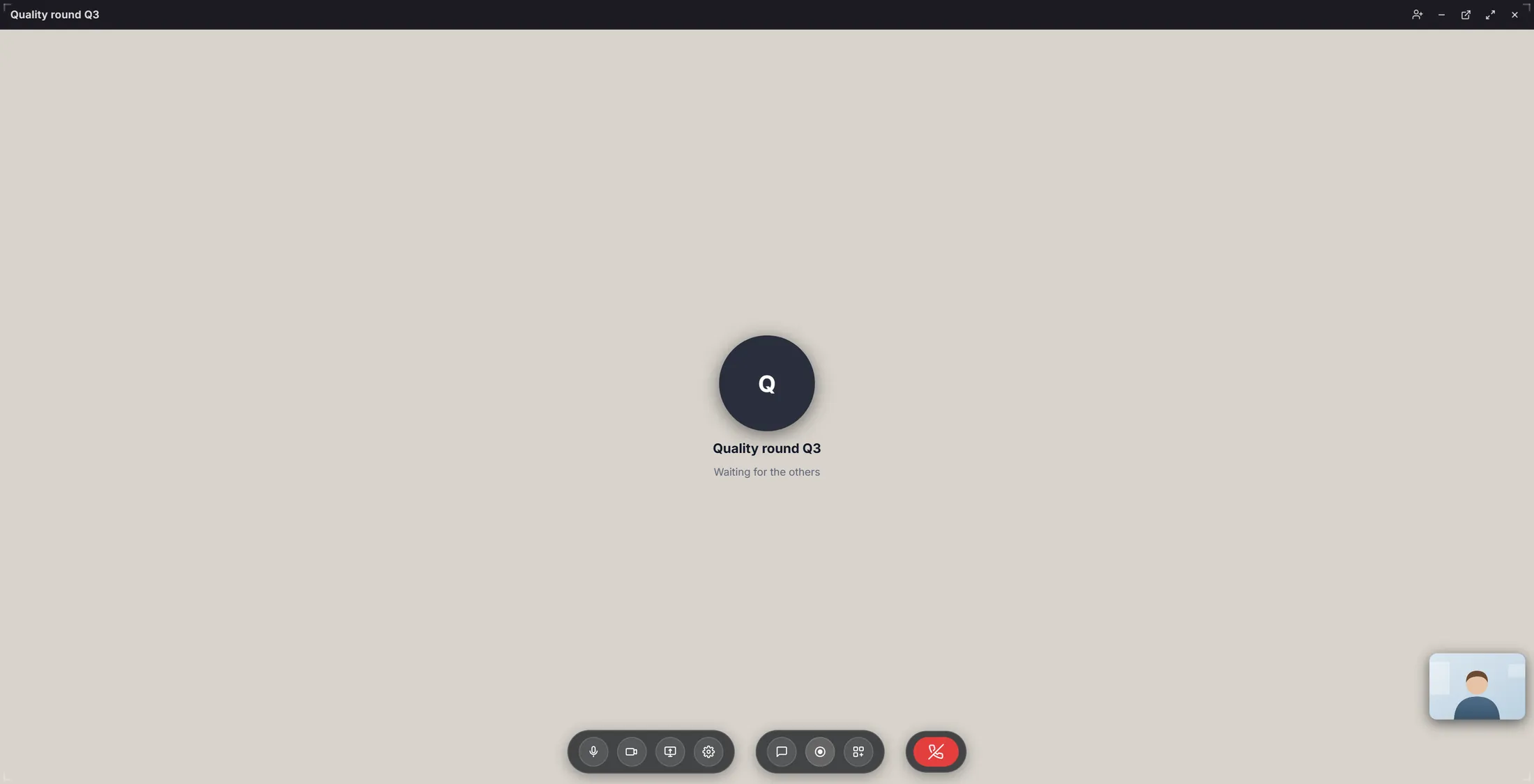
The middle microphone records. The left one mutes you. The recorder is ready
A panel opens top left. It says Ready. Check the language, then press the big red button.
- The panel says Ready and Press the button below to start recording .
- Check the language on the left, for example EN . Press it to pick the language the meeting is in.
- Tell the others you are going to record.
- Press the big red round button.
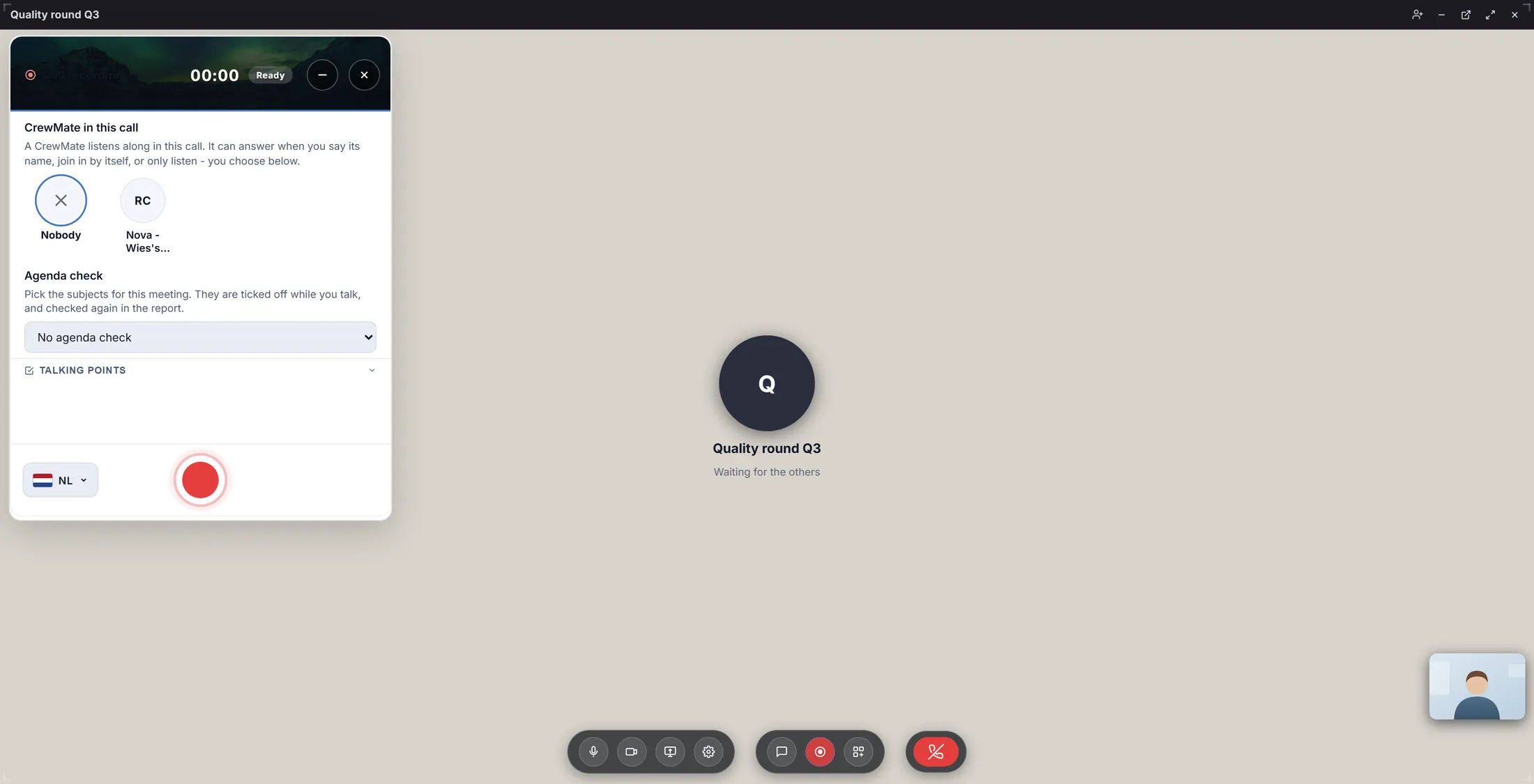
Ready to record. Whose voices?
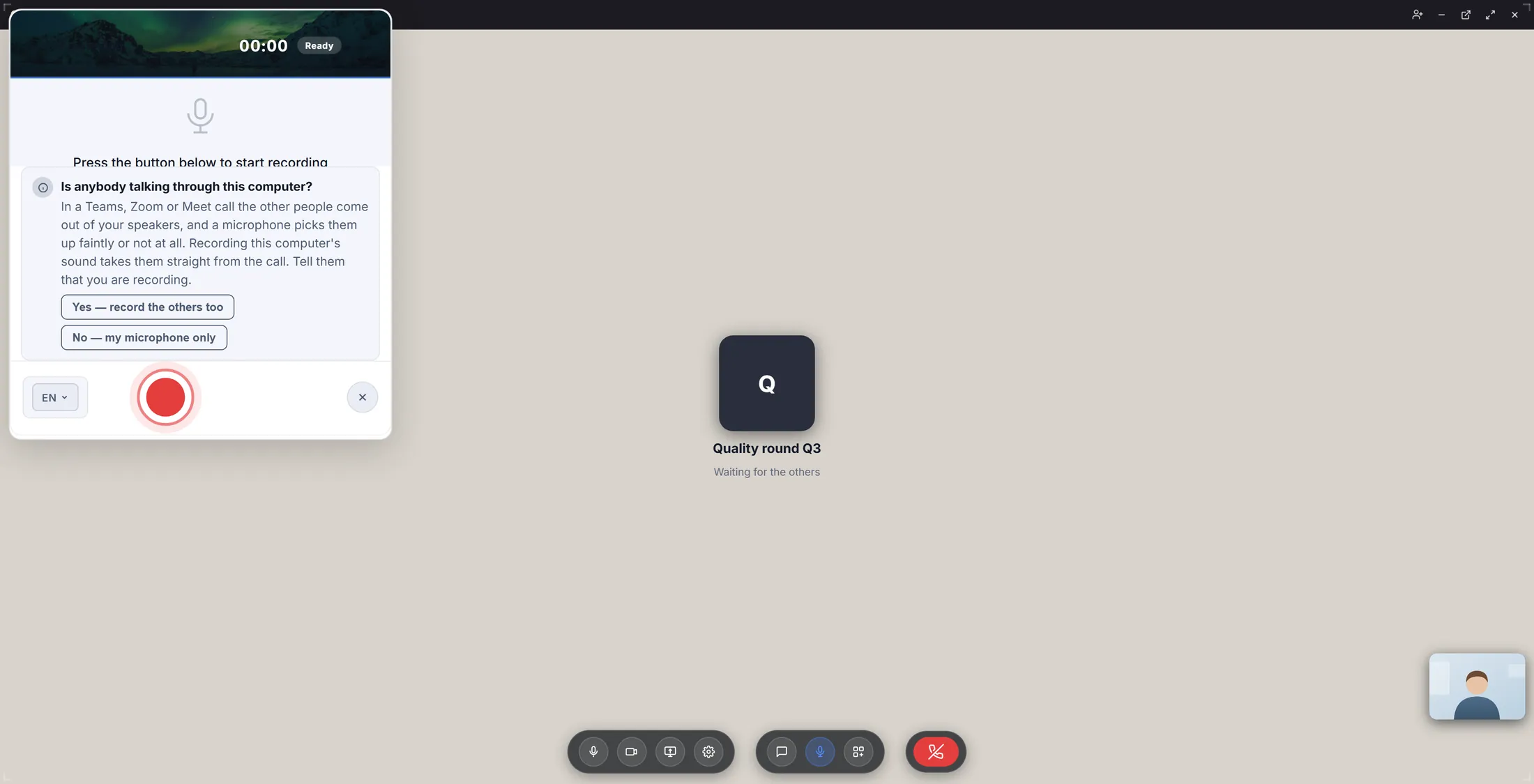
CoVince may ask one question first. Pick one of the two answers.
- It asks: Is anybody talking through this computer?
- Yes — record the others too: when you are in a Teams, Zoom or Meet call on this computer. CoVince then records the sound of the computer as well.
- No — my microphone only: for a meeting in a room, or a CoVince video call.
- The recording starts right after your answer.
One question, two answers. It is recording
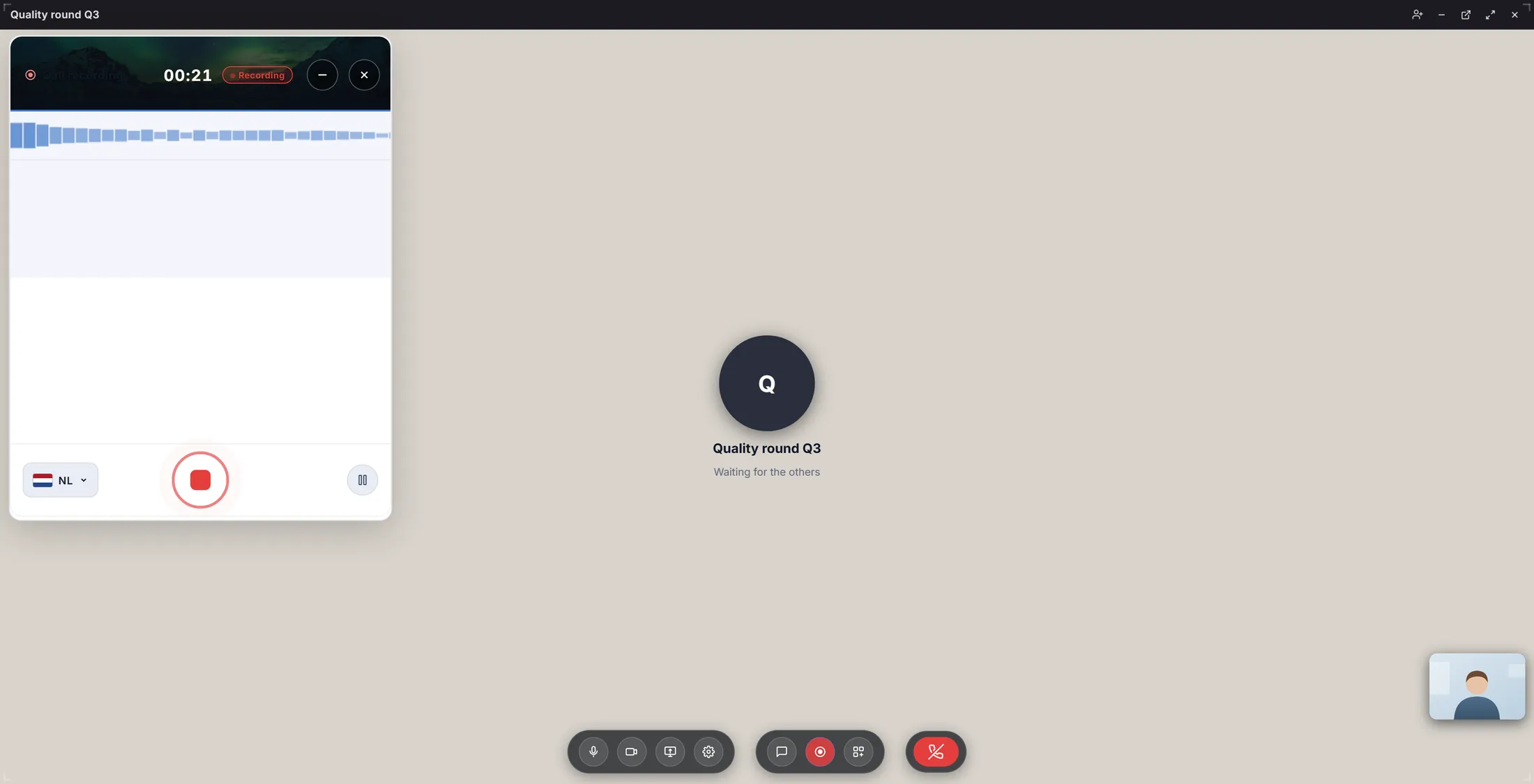
The clock runs and the badge says Recording. Just have your meeting.
- The badge says Recording and the clock runs.
- The blue wave moves when somebody speaks. No wave? Check your microphone.
- A break? Press the pause button (two stripes). Press it again to go on.
- You can make the call window small and keep working: the recording goes on.
Recording. The red square stops it. Stop, and wait a moment
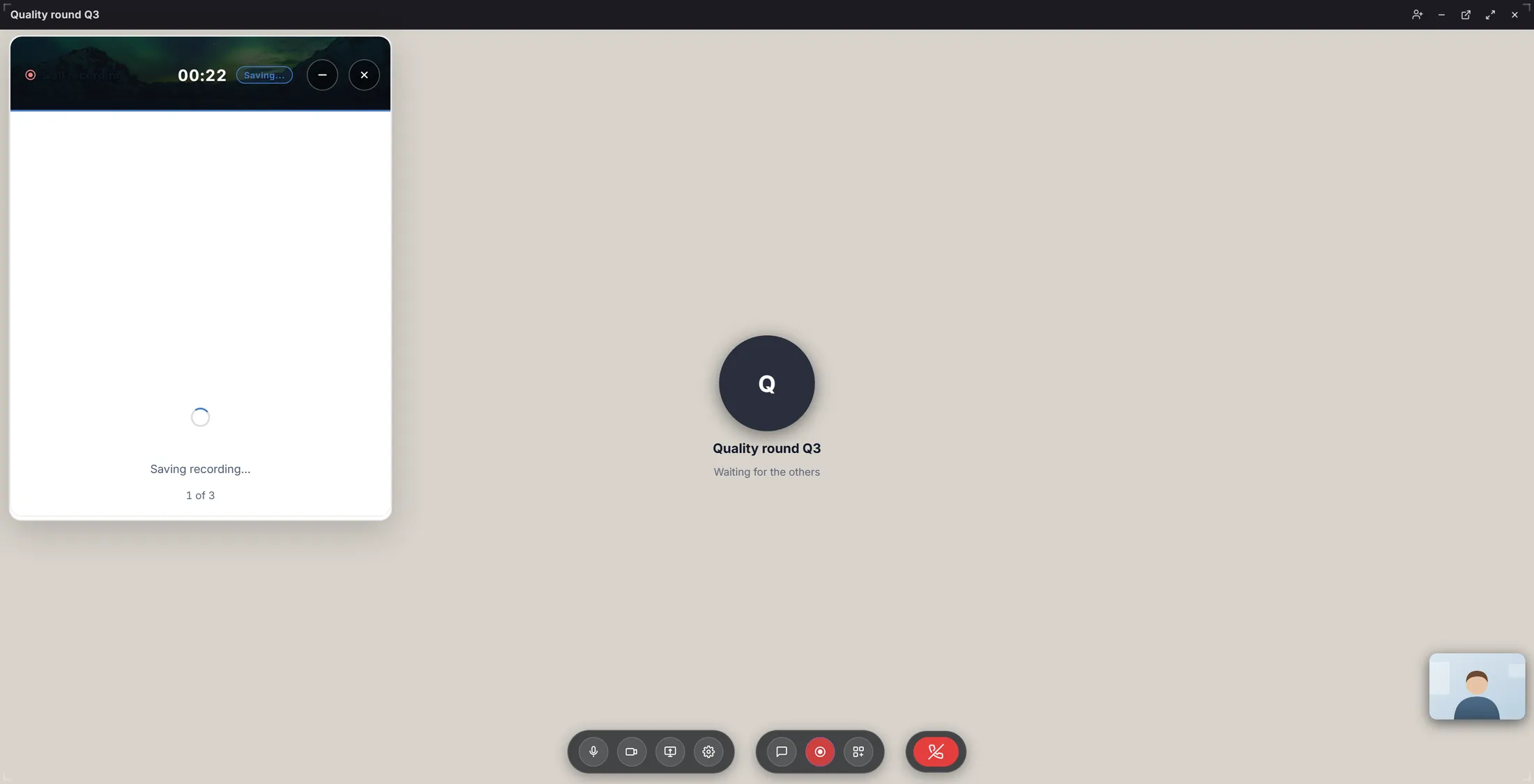
Press the red square. CoVince saves the sound and writes it out. That takes a moment.
- Press the red square.
- The badge says Saving... . In the middle you read what it is doing: Finishing transcription... , Saving recording... , Analysing...
- Keep the page open until the report appears. A long meeting takes longer.
Saving. Then the report comes. Read the report, and save it
You get a short report: what was said, what was decided, who does what. Press Save to Note to keep it.
- The panel shows Analysis Report : a summary, the main points, the decisions and the actions.
- Something wrong? Change a line with the pencil that appears when you point at it.
- Press Save to Note. The note, with the recording, the transcript and the report, is now on the Timeline of the journey.
- Want a file? Export. Not good at all? Discard - then nothing is kept.
- Later: open the note on the Timeline to read the report again, listen back, or name the speakers.
If something is not right
I press Record in the call and nothing happens.
Open any note on the Timeline once, then try again. Or use the Voice note from the Timeline +.
Can it take notes in Teams or Zoom?
Yes, with a laptop: start a Voice note and answer "Yes - record the others too".
The wave does not move.
The recorder hears nothing. Check that the right microphone is picked, and that the browser may use it.
The report is in the wrong language.
Pick the right language (EN, NL...) before you press record.
The words, in plain language
- transcript
- Everything that was said in the meeting, written out as text.
- report
- The short version CoVince makes from the transcript: summary, decisions and actions.
- note
- A card on the Timeline of a journey. The recording, transcript and report are kept in one.
Where to go next
- Video call Start and join the video call of a journey.
- All explainers The other things you can learn here.