Cut a video
Open a video from Community Files in the editor: it writes out every word, picks the strongest pieces, and lets you cut by the text, style the captions and export the whole film or one piece - saved next to the original or over it.
Content - cut a film you already have - 6 min. You need: a video in the files of your journey
Your video stays as it is. The cut is a new copy, and only when you choose to save it.
What you will be able to do
- Open a video to cut Right-click the video, Edit video.
- Cut by the words Click the words you want to keep.
- Add captions The spoken words, big on the picture.
- Save it back As a new file, or over the old one.
Get this ready first
- A video in the files Put the video in the files of your journey first.
- Words in it It works best when people talk in the video.
Do it together, one step at a time
Seven steps. CoVince does the hard part in step 2.
Open the video
Find your video in the files. Right-click it. Press Edit video.
- Click your journey in the left column.
- In the right column, press Files. These are the Community Files of the journey.
- Find the video, for example Introduction week - welcome.mp4 , and click it with the right mouse button.
- Press Edit video - it says Cut it, add captions, save it back .
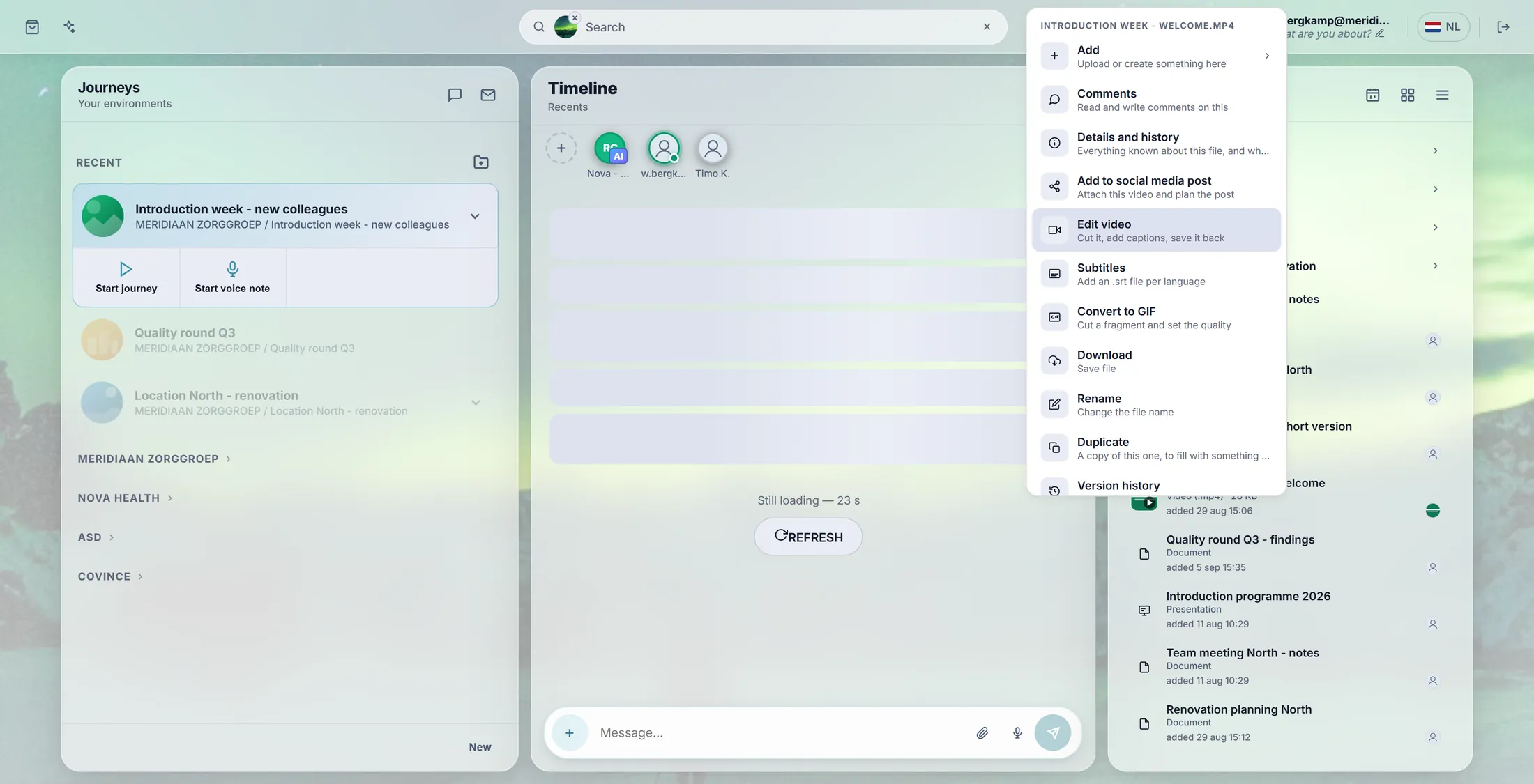
Right-click the video: Edit video. Wait while it listens
The editor listens to your video and writes down every word. It says how far it is.
- A window Edit video opens with your film on top.
- Under it, a line counts: Getting the sound out of your video... 45% , then Processing your video: transcribing and picking highlights...
- Long video? Let it work. The line shows it is busy - you do not need to press anything.
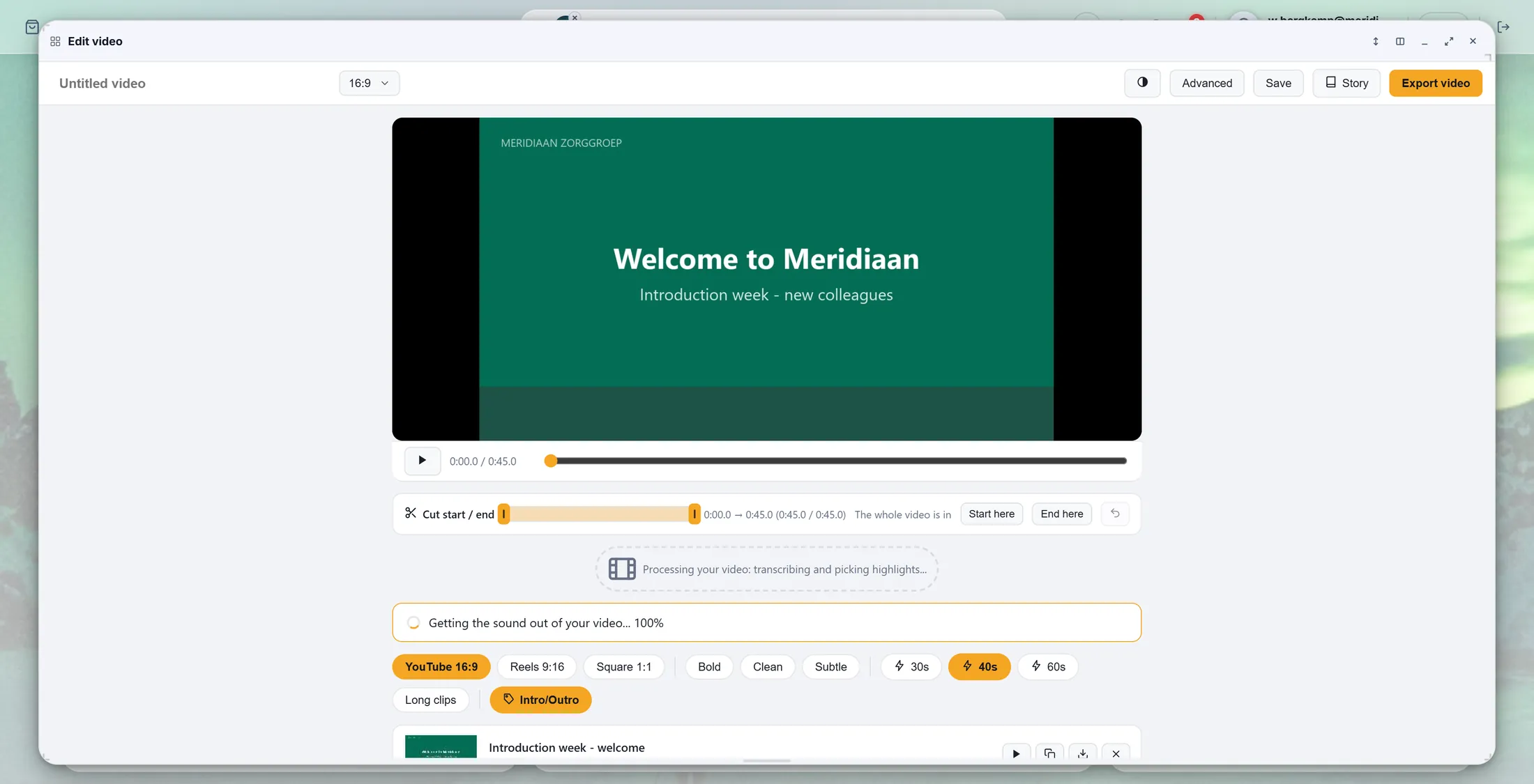
It is listening. The line counts. Look at the pieces
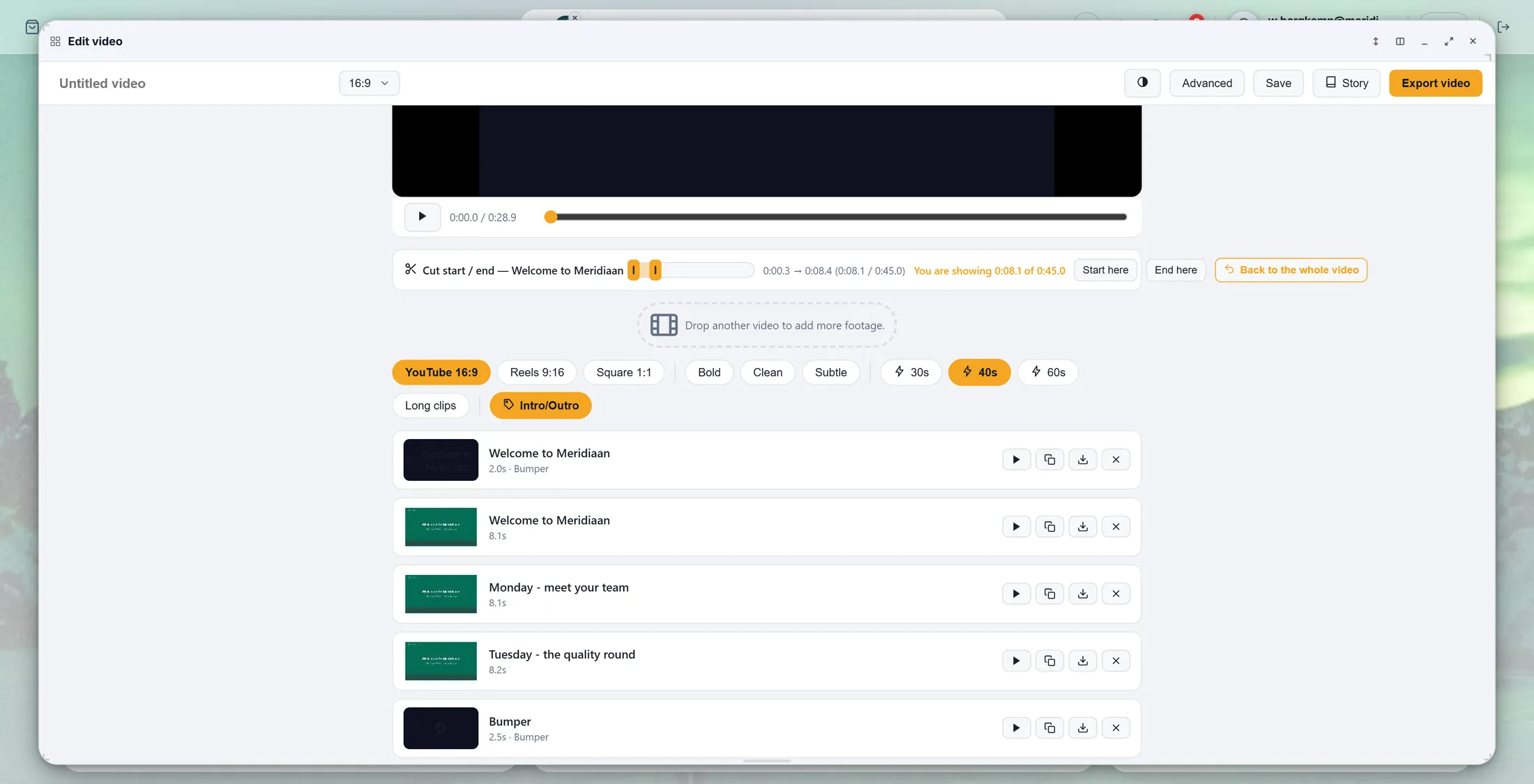
CoVince cut the best parts. Each part is a card. Keep them, or throw one away.
- Under the film is a list of cards. Each card is one piece, with a title from what is said: Monday - meet your team .
- Press the play button on a card to watch that piece. The cross throws it away; the double square makes a copy.
- The chips above choose the shape: YouTube 16:9, Reels 9:16, Square 1:1; and the length: 30s, 40s, 60s.
- Intro/Outro puts a short title card before and after.
Each card is one piece of your video. Cut by the words
Read what is said. Click the first word and the last word you want. Add it.
- Press Advanced at the top.
- Under the film: Transcript and AI snippets - press it if it is closed. You now read the transcript: every word, with the time in front.
- Click the first word you want, then the last word. Everything between turns orange.
- Press Add selection to timeline. That passage is now a piece on the timeline at the bottom.
- Want it the other way round? Type a wish in the box above - the 3 strongest tips, max 20 seconds each - and press Create snippets.
- A wrong word? Double-click it and type it right.
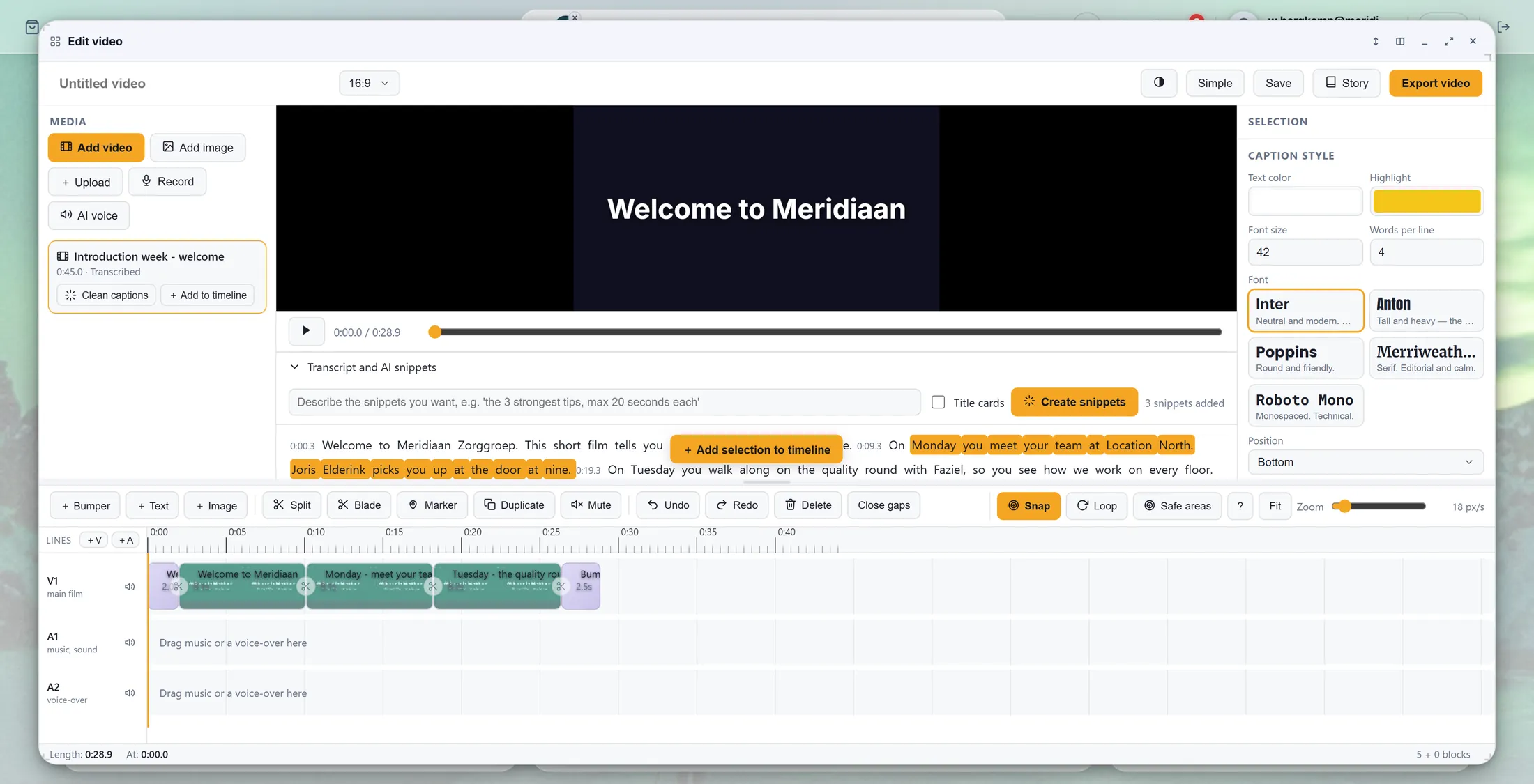
Orange words = the part you keep. Add captions
The spoken words come on the picture, big and clear. Pick a style.
- In the row of chips, pick Bold, Clean or Subtle.
- Play the film: the words appear on the picture while they are said. The word being spoken lights up.
- More control? In Advanced, the panel CAPTION STYLE on the right: text colour, highlight, font size, words per line, font and position.
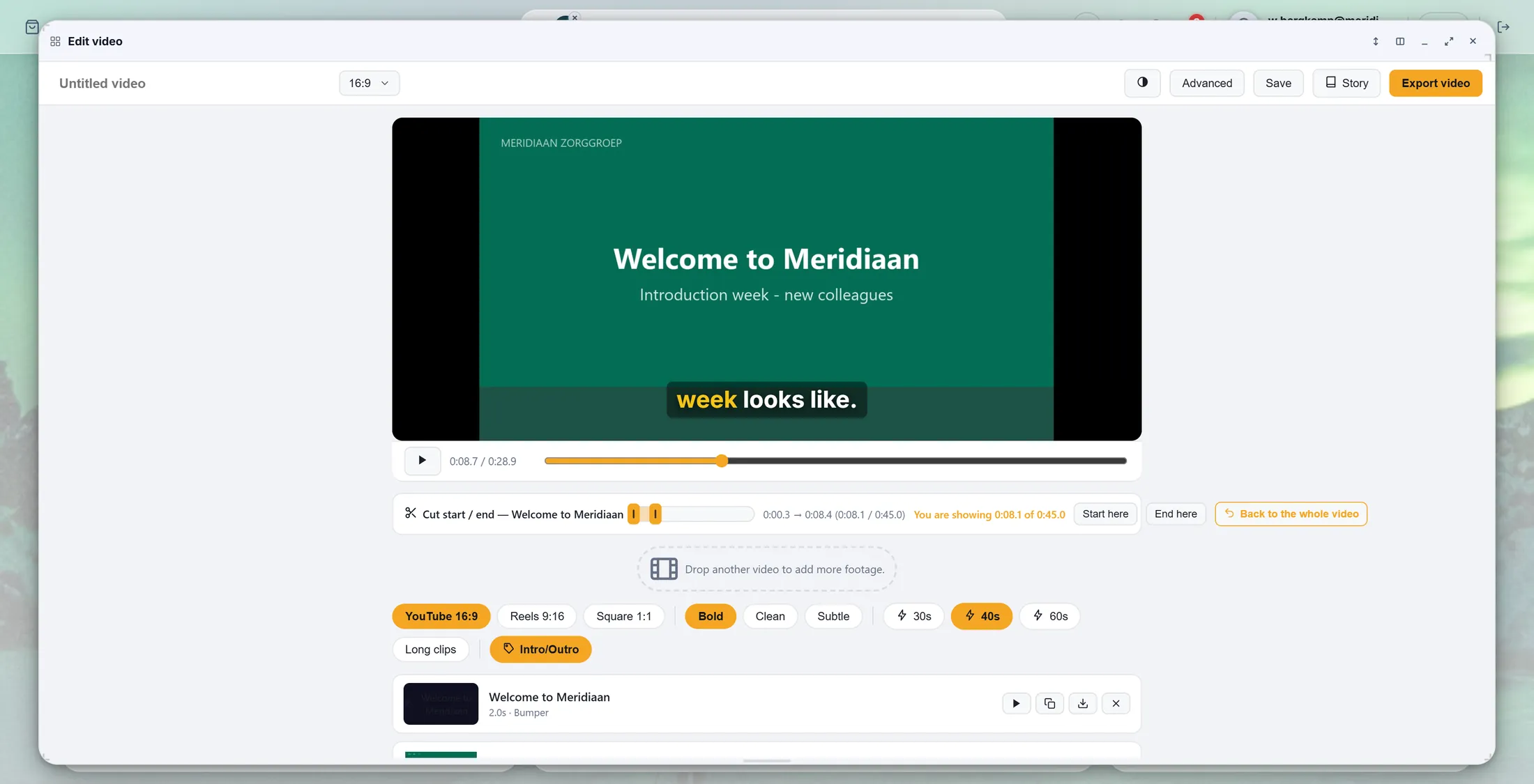
The words on the picture. Bold is chosen. Make a piece shorter
Drag the orange handles to make a piece start later or end sooner. The round arrow undoes it.
- Click a piece card. Its name is now in the bar Cut start / end .
- Drag the left orange handle to the right: the piece starts later. The right handle: it ends sooner. The times beside it follow.
- Or play to the right moment and press Start here or End here.
- Cut too much? Press the round arrow (Back to the whole video) and it is whole again.
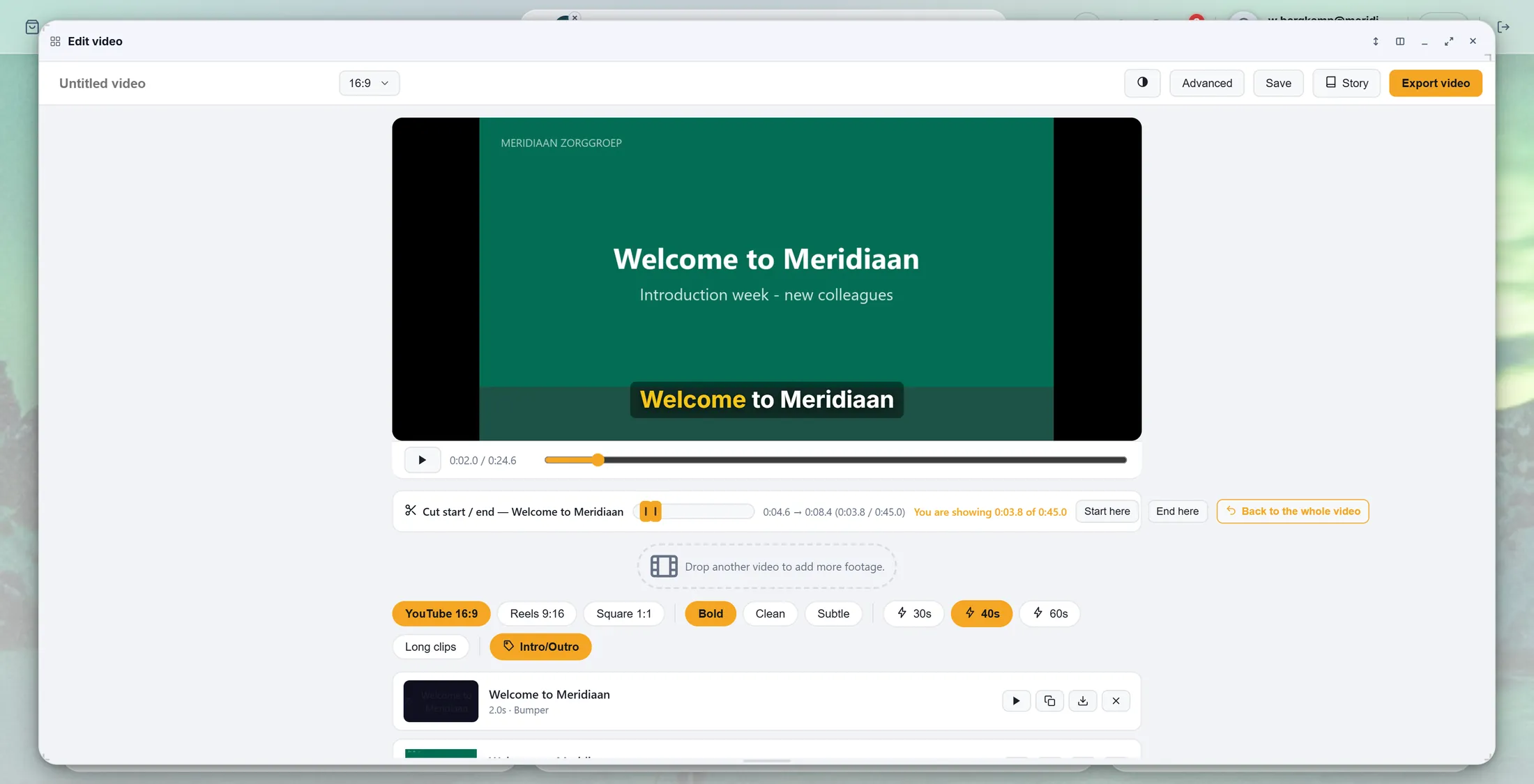
The start moved: the piece is shorter. Save your video
Press Export video. Wait. Then choose: a new file, or over the old one.
- Press Export video at the top right.
- A window counts: a percentage, part 2 of 4 , and how long it has been going.
- Only one piece? Each piece card has its own export button (the arrow down): it saves just that piece.
- When it is ready CoVince asks Where should it go? Press Save as a new file to keep both - or Replace the original: the old one stays in Version history.
- The new video is in Community Files, next to the old one.
If something is not right
I do not see Edit video.
It is only there for videos. Right-click the video itself.
The text is wrong in places.
Double-click the wrong word and type it right.
I cut too much.
Press the round arrow next to End here.
Is my old video gone?
No. Only if you press Replace, and even then it stays in the history.
The words, in plain language
- transcript
- Everything that is said in the video, written out word by word, with the time.
- caption
- The spoken words shown on the picture, so you can follow without sound.
- Community Files
- The files of a journey: everybody in the journey finds them there.
Where to go next
- Make a media story Make a new film from a paragraph of text.
- All explainers The other things you can learn here.