Actions: who does what, and when
Every job in a journey as a card: made in one line, handed to a person, given a date, and followed on the action board - by status, by person or on a timeline, with the late ones in red.
Coordination - everything that has to happen - 5 min. You need: a journey
Reading this changes nothing. An action is only made when you press OK.
What you will be able to do
- Write down a job One line: what has to be done.
- Say who does it Press a name.
- Say when Today, tomorrow, next week or a day you pick.
- See what is late Red is late. Green is fine.
Get this ready first
- A journey Actions always belong to a journey.
- The people in it You can only give a job to someone in the journey.
Do it together, one step at a time
Seven steps. Tick each one off.
Find your actions
Click your journey. On the right you see its actions.
- Click your journey in the left column, for example Introduction week - new colleagues .
- In the right column, press the word Actions. The number next to it says how many are still open.
- Under it is a list of the actions, with their date. Red means something is late.
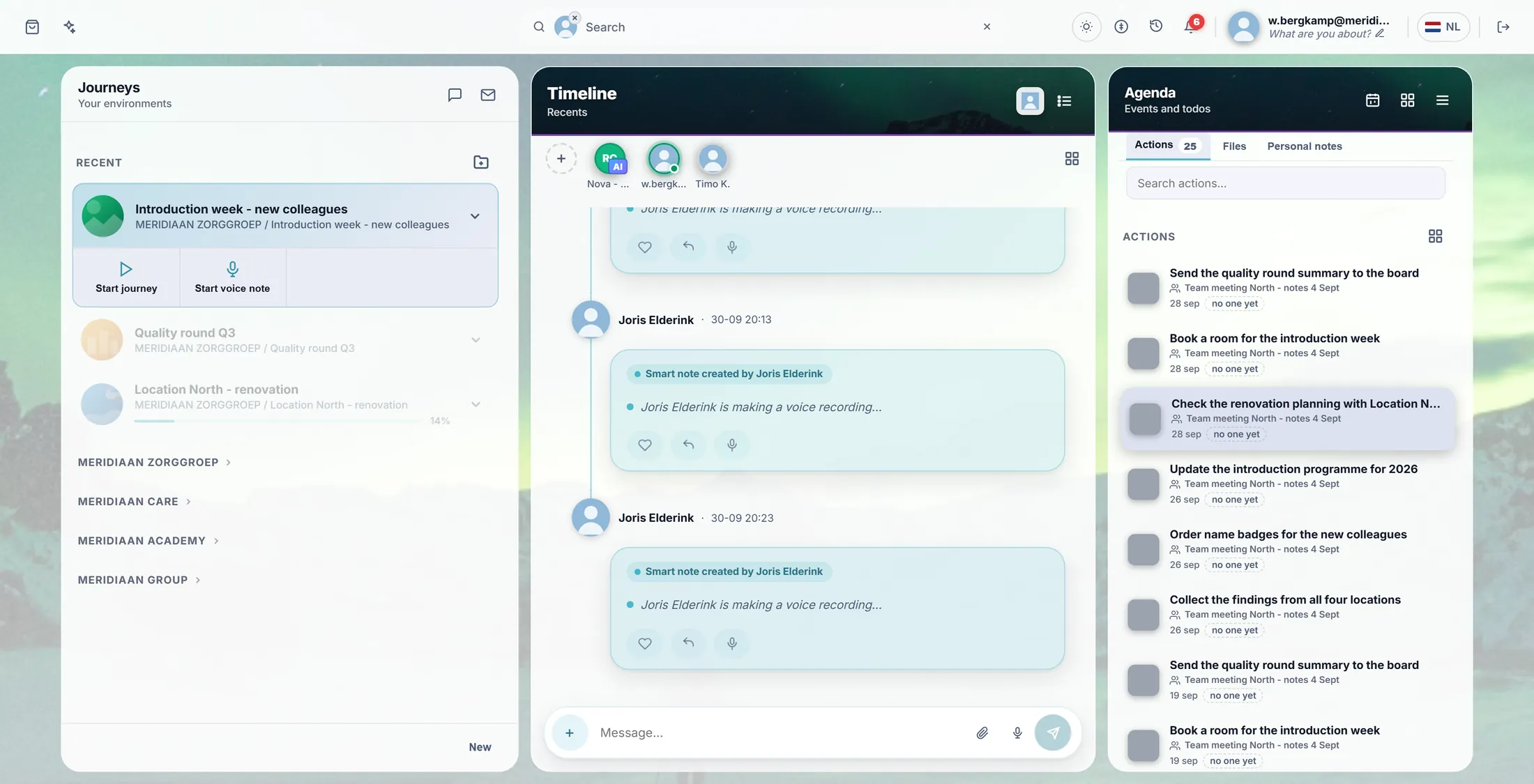
The Actions tab, and the button with four squares. Open the big board
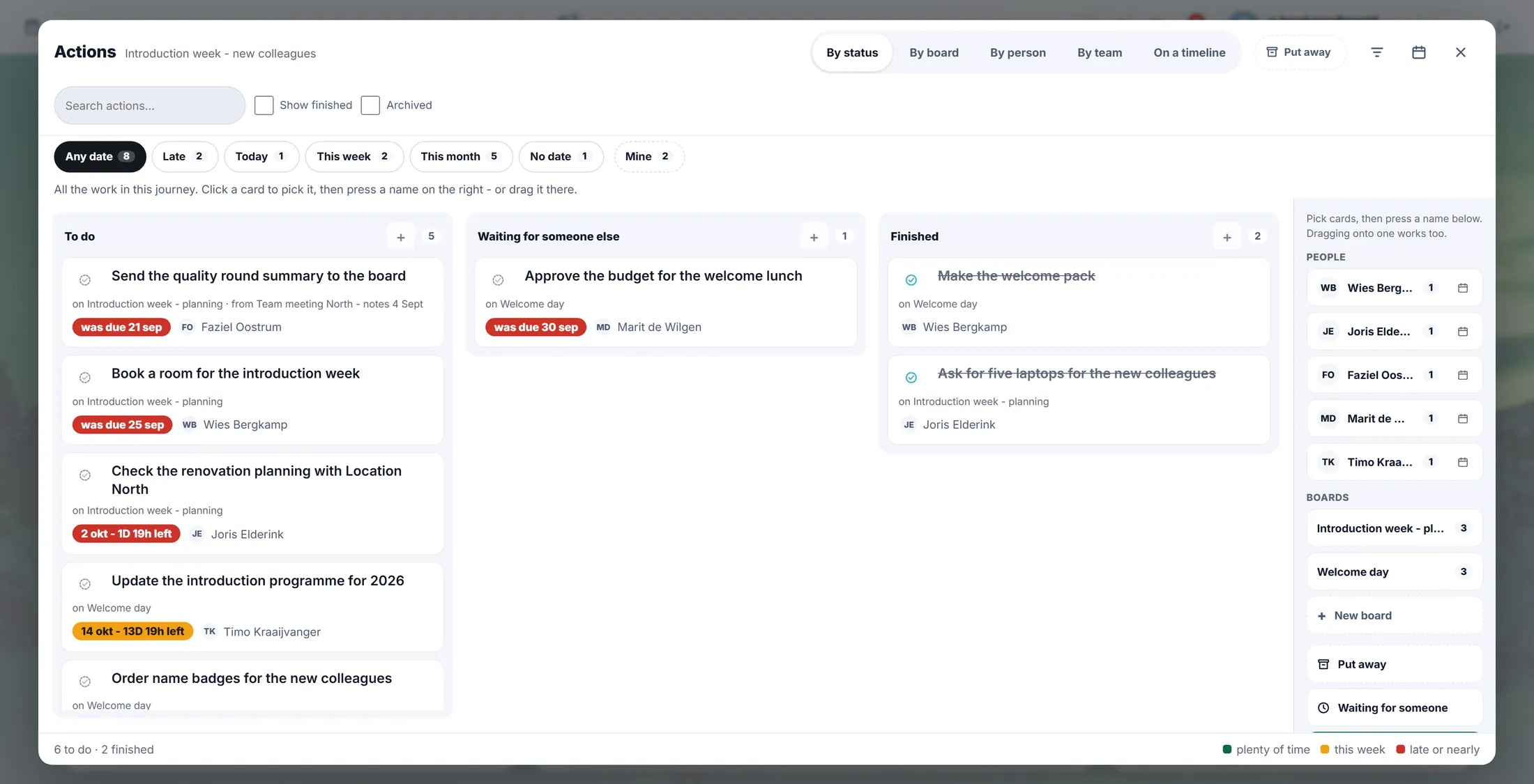
One screen with every job of the journey.
- Next to the word ACTIONS , press the button with four squares. Its name is Open the action board .
- The board opens with three columns: To do , Waiting for someone else and Finished .
- Each card says what it is, the board it is on, the date and who does it. Nobody yet means no one has it.
To do, waiting, finished. The names are on the right. Write down a new job
Press + and type what has to be done.
- Press the + at the top of the column To do .
- A small window opens: New action . Type what has to be done, for example Book a room for the introduction week .
- Press OK. The card appears in To do .
- A new action is first given to you, the person who made it. You can give it to someone else in the next step.
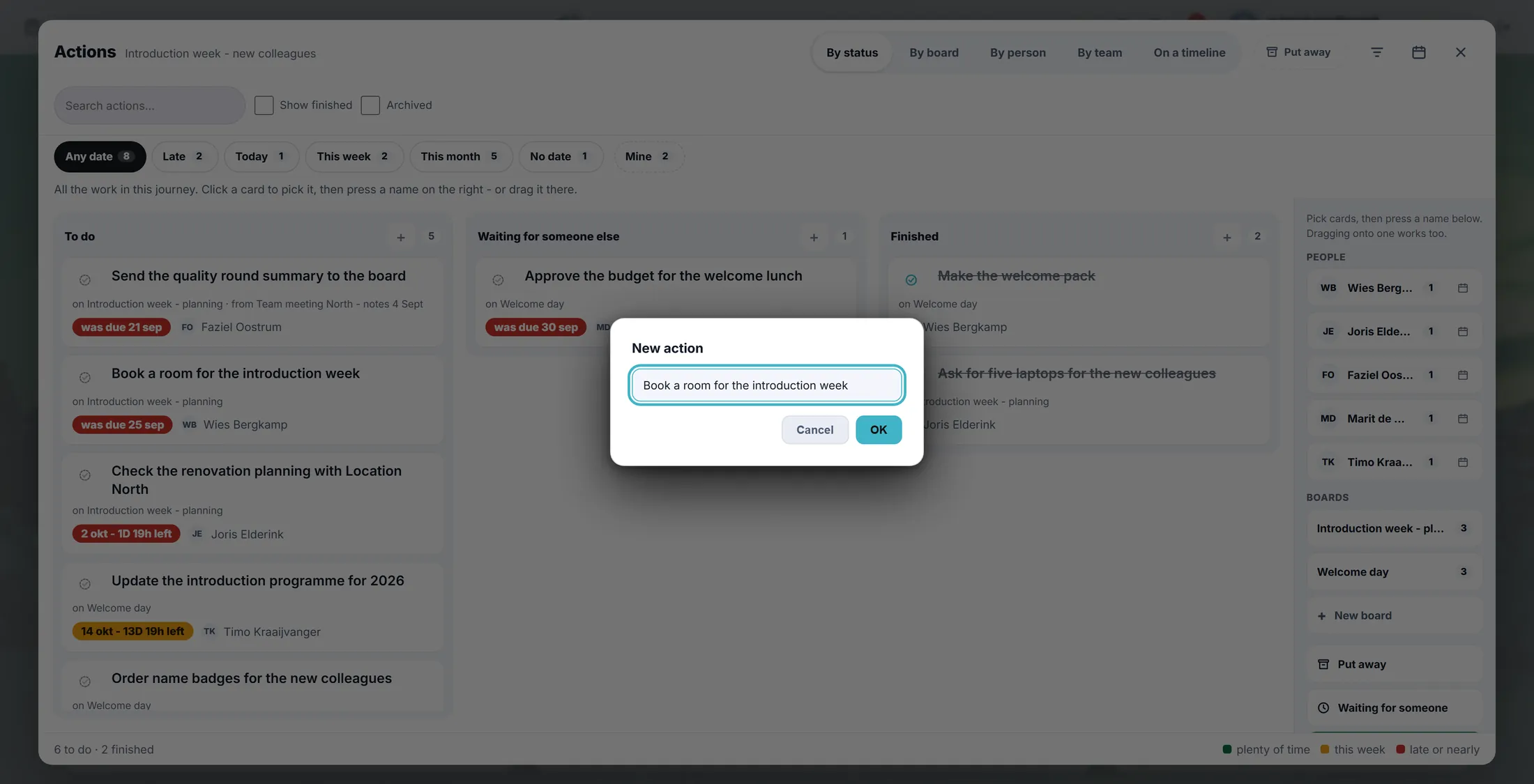
Type the job, press OK. Say who does it
Click the card, then press a name.
- Click the card once. It gets a blue line: it is picked.
- A bar appears at the bottom: 1 selected , Give to…, Mark finished, Date….
- Press a name on the right, under PEOPLE , for example Joris Elderink . Or press Give to… and choose there.
- The card now shows that name. Dragging the card onto a name works too.
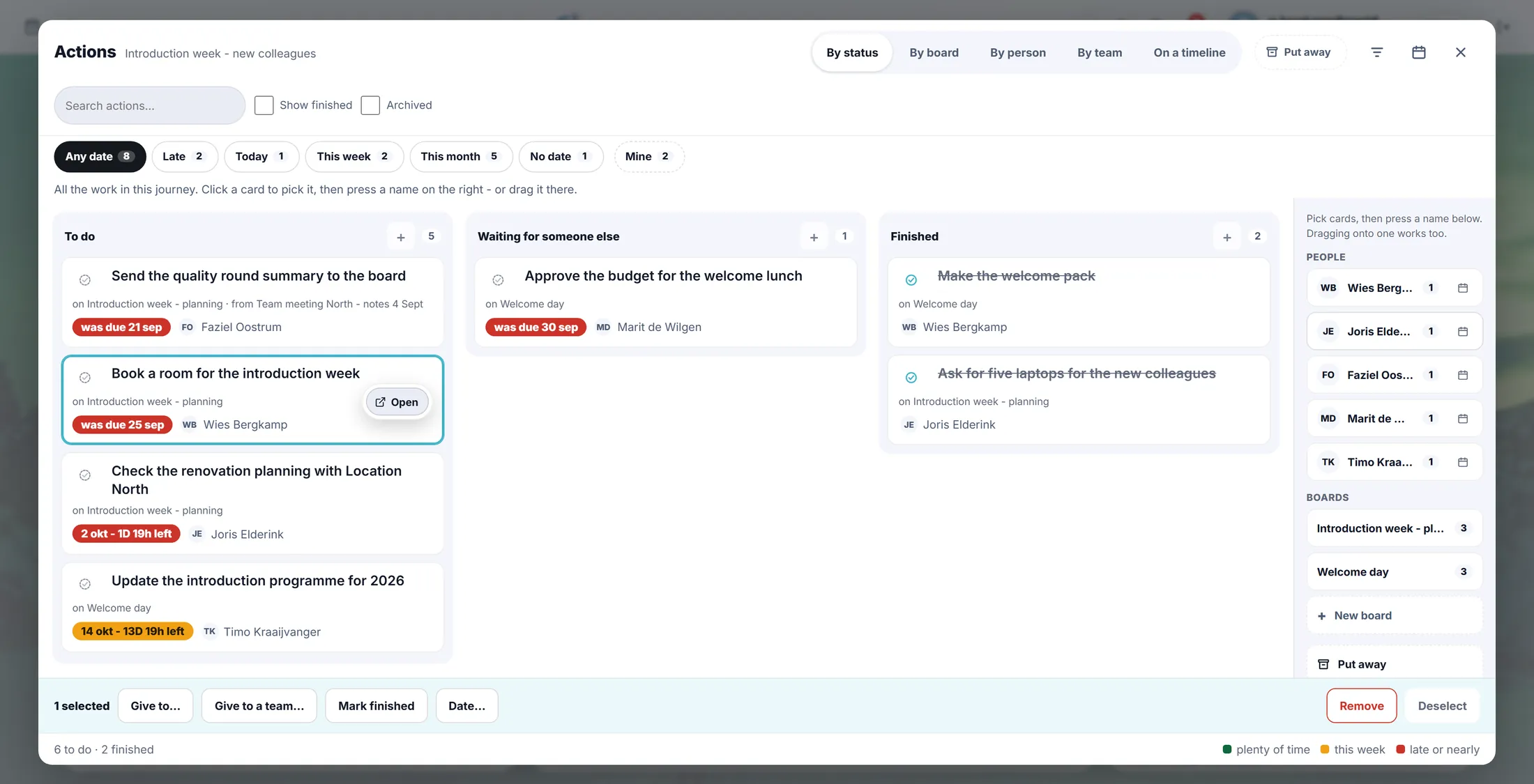
Picked card, names on the right, bar at the bottom. Say when it must be done
Press Date… and pick a day.
- With the card still picked, press Date… in the bar at the bottom.
- A list opens: Plan it for Today, Tomorrow, Next week, or Pick a day… for any day.
- Press one. The card now shows the date and how long is left, for example 25 Sept - 1D 19h left .
- The colour tells you how close it is: green is plenty of time, orange is soon, red is late or nearly.
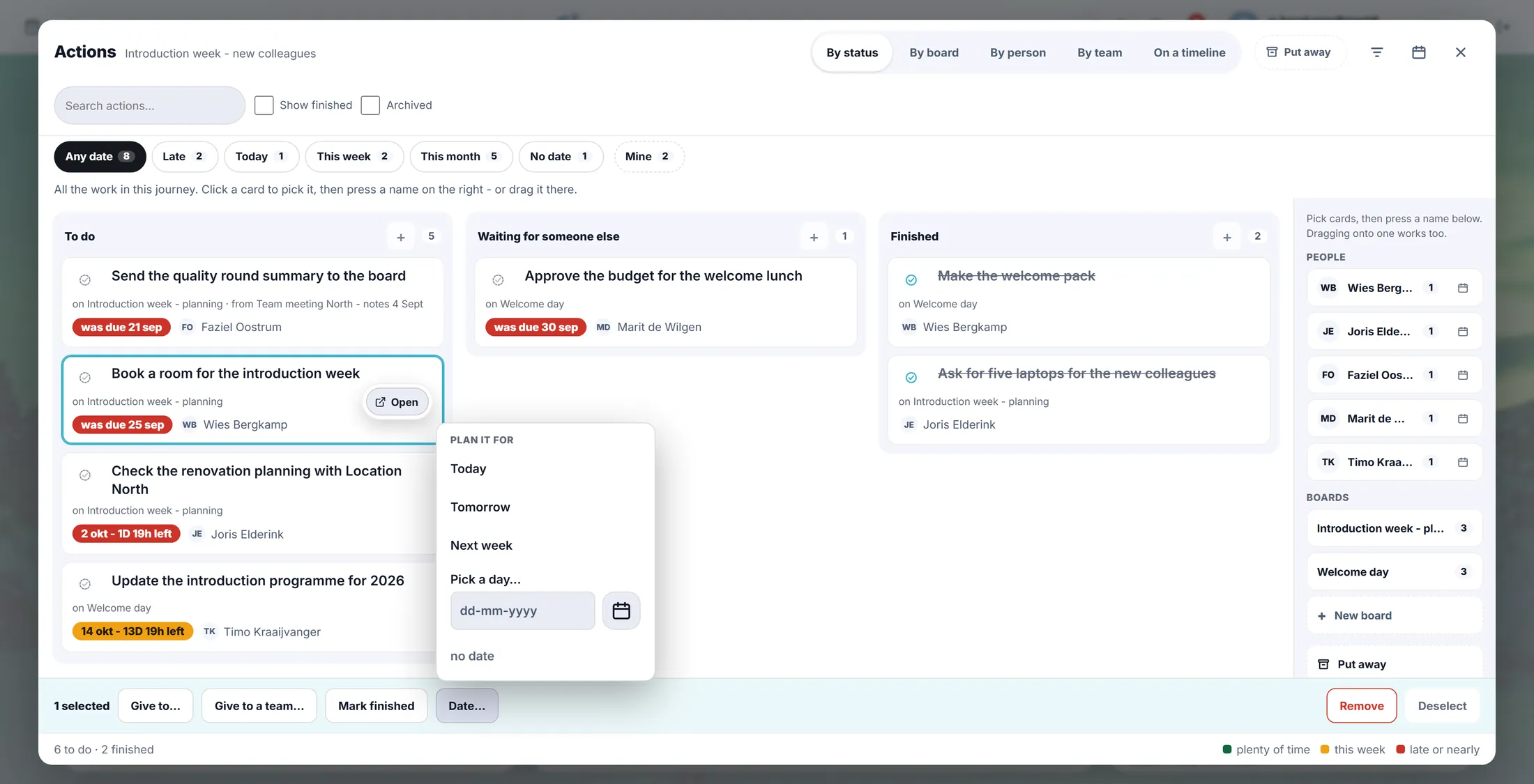
Pick a day. The card gets a coloured date. See who does what
Press By person. Every person gets a column.
- At the top, press By person. Now each person has a column with their own jobs.
- By board groups the jobs per board. On a timeline puts them by week.
- By status brings back To do, Waiting and Finished.
- The board remembers the view you chose for next time.
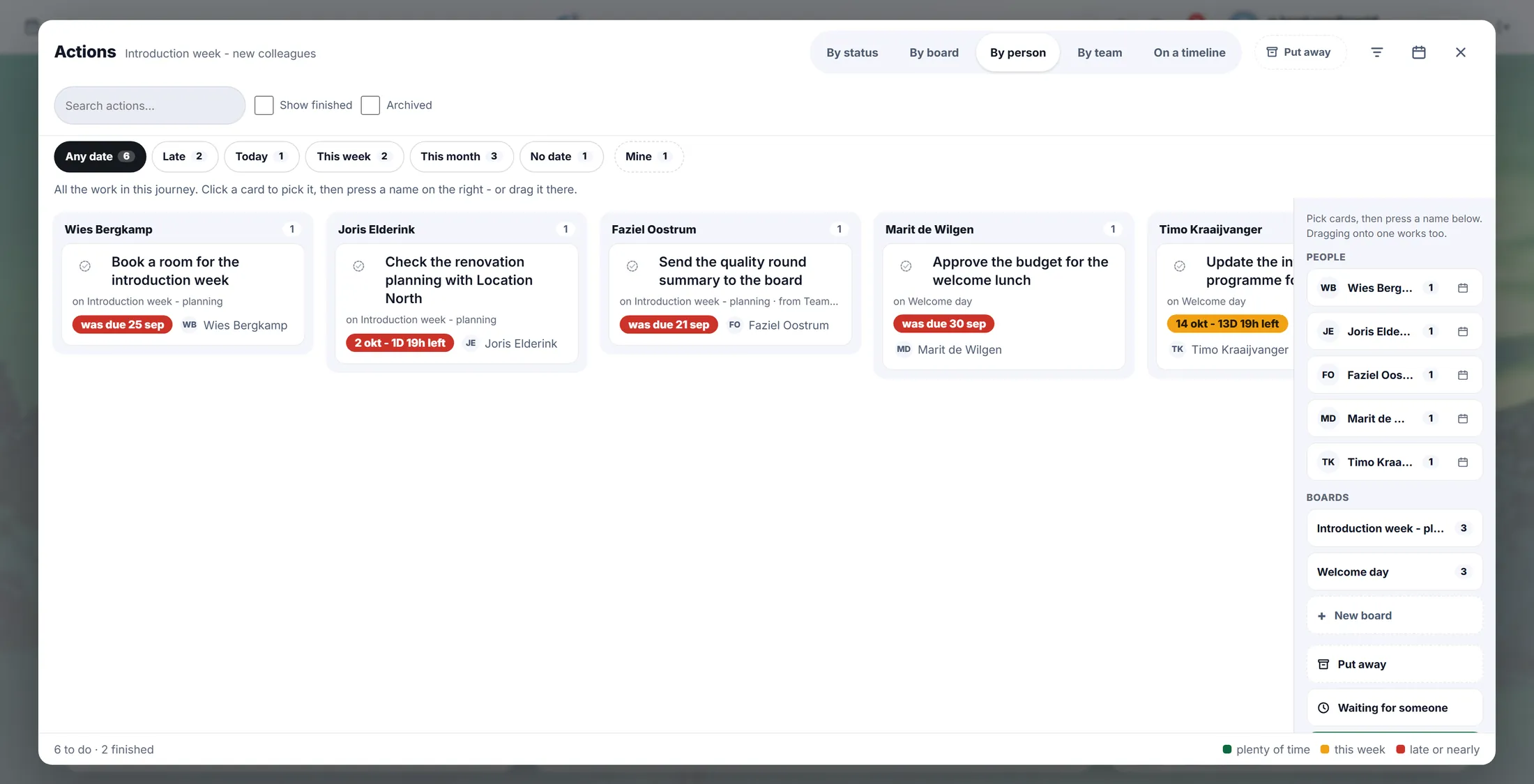
One column per person. Find what is late, tick off what is done
Press Late to see only late jobs. Tick the circle when a job is done.
- Press Late. Only the late jobs stay. The number in each chip says how many there are.
- This week shows what is due soon. Mine shows only your own jobs. Any date shows all again.
- Job done? Press the round circle at the left of the card. It moves to Finished .
- Or pick the card and press Mark finished, or drop it on Finished on the right.
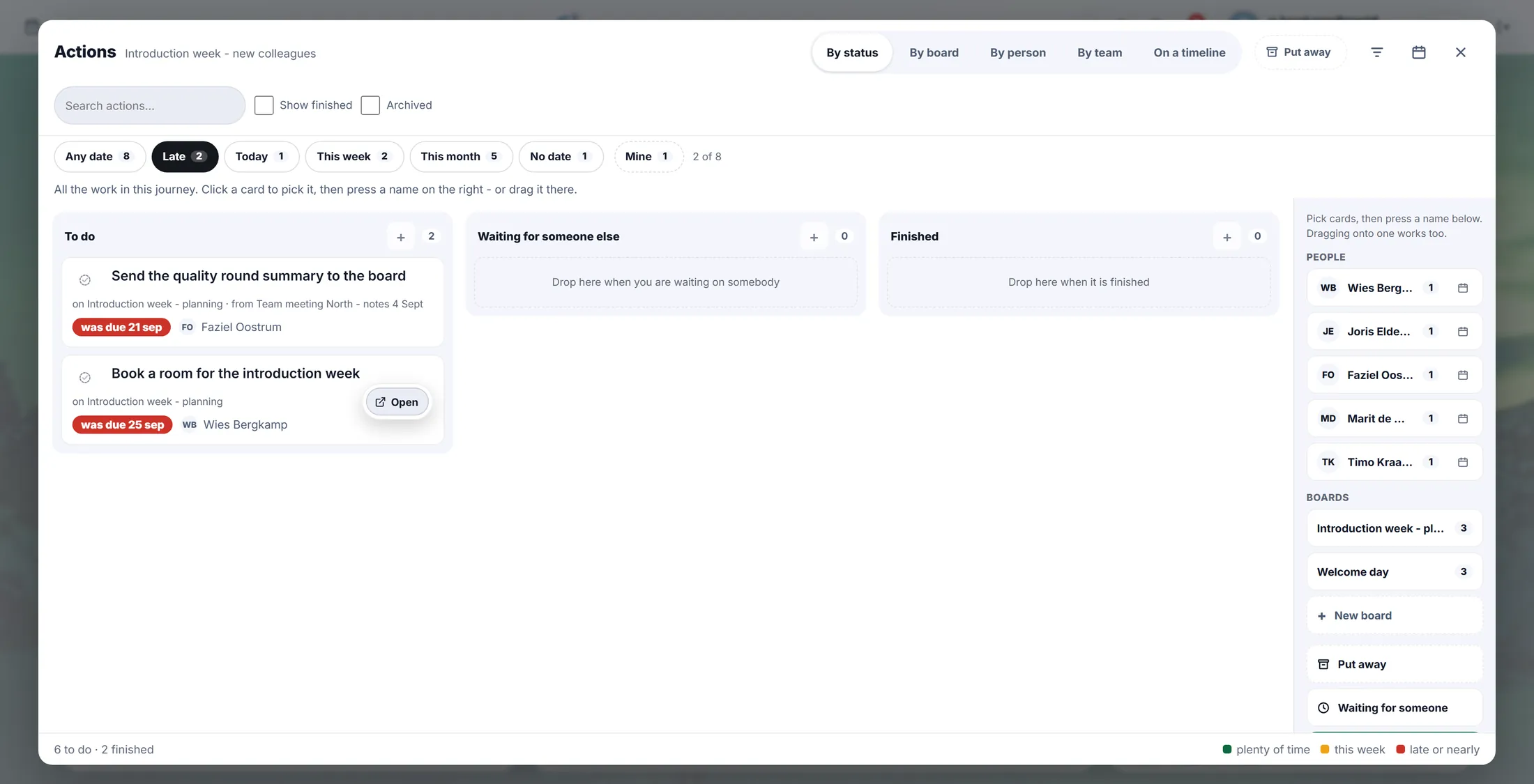
Only what is late. Here: one job.
If something is not right
I do not see the four squares.
Click a journey on the left first. Then press Actions.
I cannot give a date.
Give the job to a person first.
A name is missing on the right.
Add them to the journey first.
I removed a job by mistake.
Press Undo straight away.
The words, in plain language
- action
- One job that has to be done, with a person and a date.
- owner
- The person who does the job. The board shows their name on the card.
- deadline
- The day the job must be done. Its colour shows how close it is.
Where to go next
- All explainers The other things you can learn here.