A story that ends in a choice
A Story + Next Flow slide ends with choice buttons. Each choice jumps to another slide of the same block and can give points - that is how a case or a scenario is built, where the decision changes what happens next. The Branch view shows all the paths as a map.
Competence - a case with choices - 6 min. You need: a learning you may change
Nothing changes until you press Save branches. You can try every choice.
What you will be able to do
- Ask "what do you do?" A story that stops at a choice.
- Send each answer somewhere Every answer has its own next slide.
- Give points The best answer can earn points.
- See all the paths A map of where every answer goes.
Get this ready first
- A learning No learning yet? The explainer "Make a learning" shows how.
- The slides the answers go to Make them first - one per answer. For example "Too fast: check first".
Do it together, one step at a time
Six steps. The pictures are the real screens.
Add the slide
Pick the kind of slide that ends in a choice.
- Open the learning and click the block of your case on the left, for example A fall on the ward - case .
- Press Add Slide at the top right. The window Select Slide Type opens.
- Type story in the search box.
- Click Story + Next Flow - Story ending in branching choices . The slide is added and its panel opens.
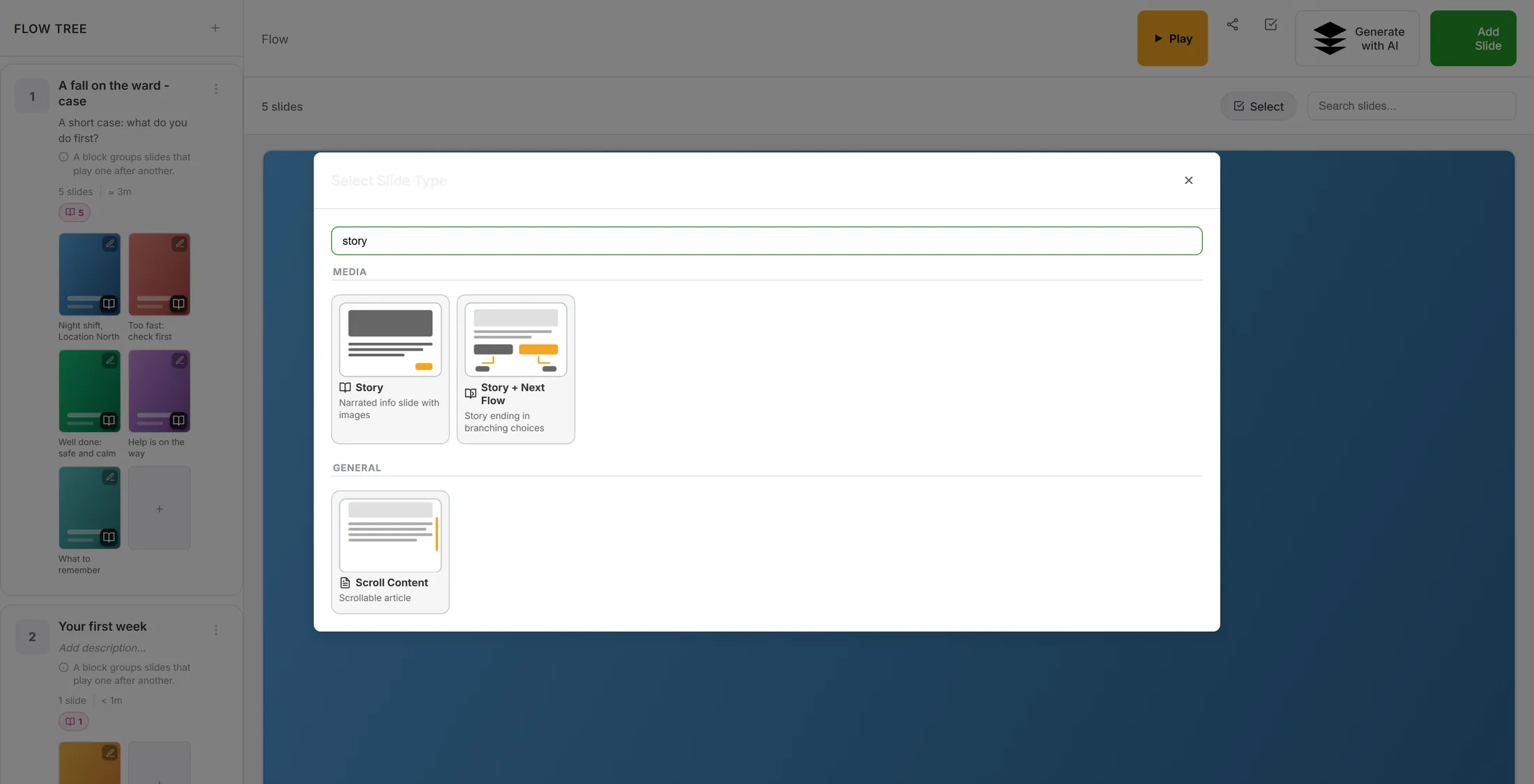
The second card is the one with the choice. Write the story
First the story. The choices come underneath.
- Give it a TITLE : You find a resident on the floor .
- Press Edit story and write the situation, part by part - just like a normal Story slide.
- End the story with the question itself: What do you do?
- Under it is BRANCHES : a box for a short prompt, and CHOICE 1 , still empty.
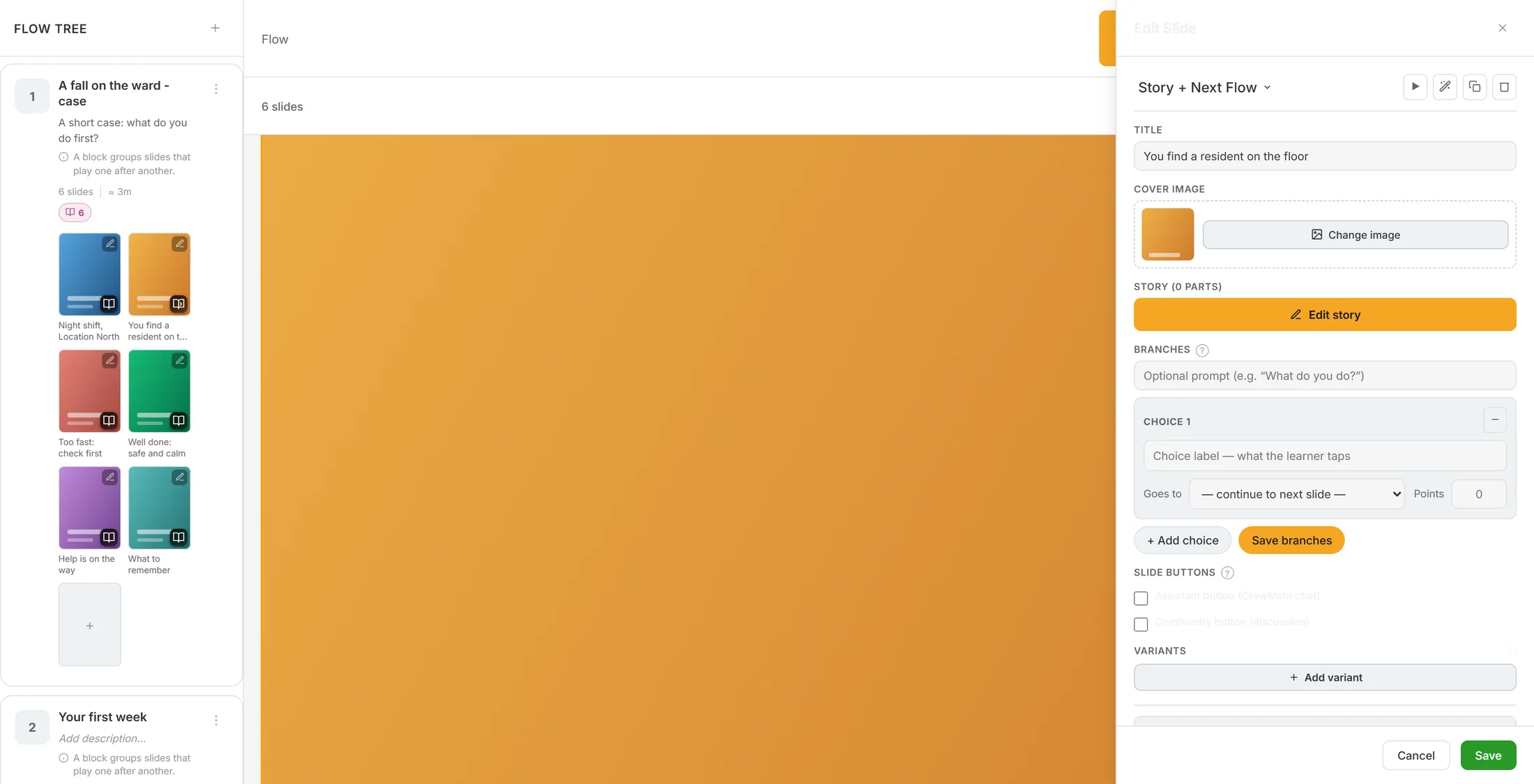
The story on top, the choices under it. Write the answers
Each answer: what it says, where it goes, how many points.
- Press + Add choice until there are as many choices as you need - three is good.
- Type what the reader taps in each box: Help her up straight away , Check for pain first, then call a colleague , Call the team leader and stay with her .
- Goes to : pick the slide this answer leads to. Leave - continue to next slide - to just go on.
- Points : what this answer earns. The best one 10, a fair one 5, a wrong one 0.
- The minus button top right of a choice removes it.
- Press Save branches. It says Branches saved .
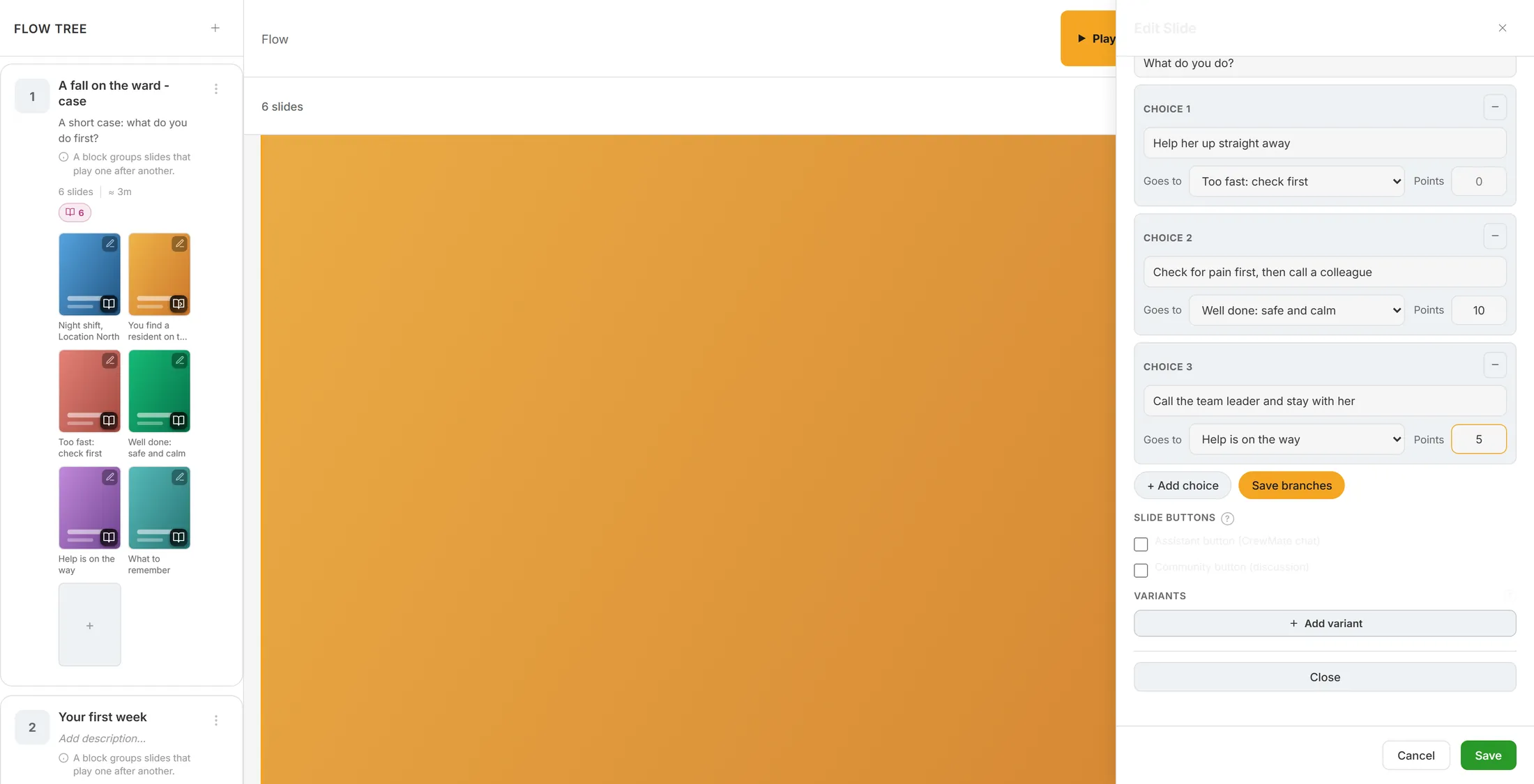
Three answers, each with its own next slide. Look at the map of paths
One button shows every answer as a line.
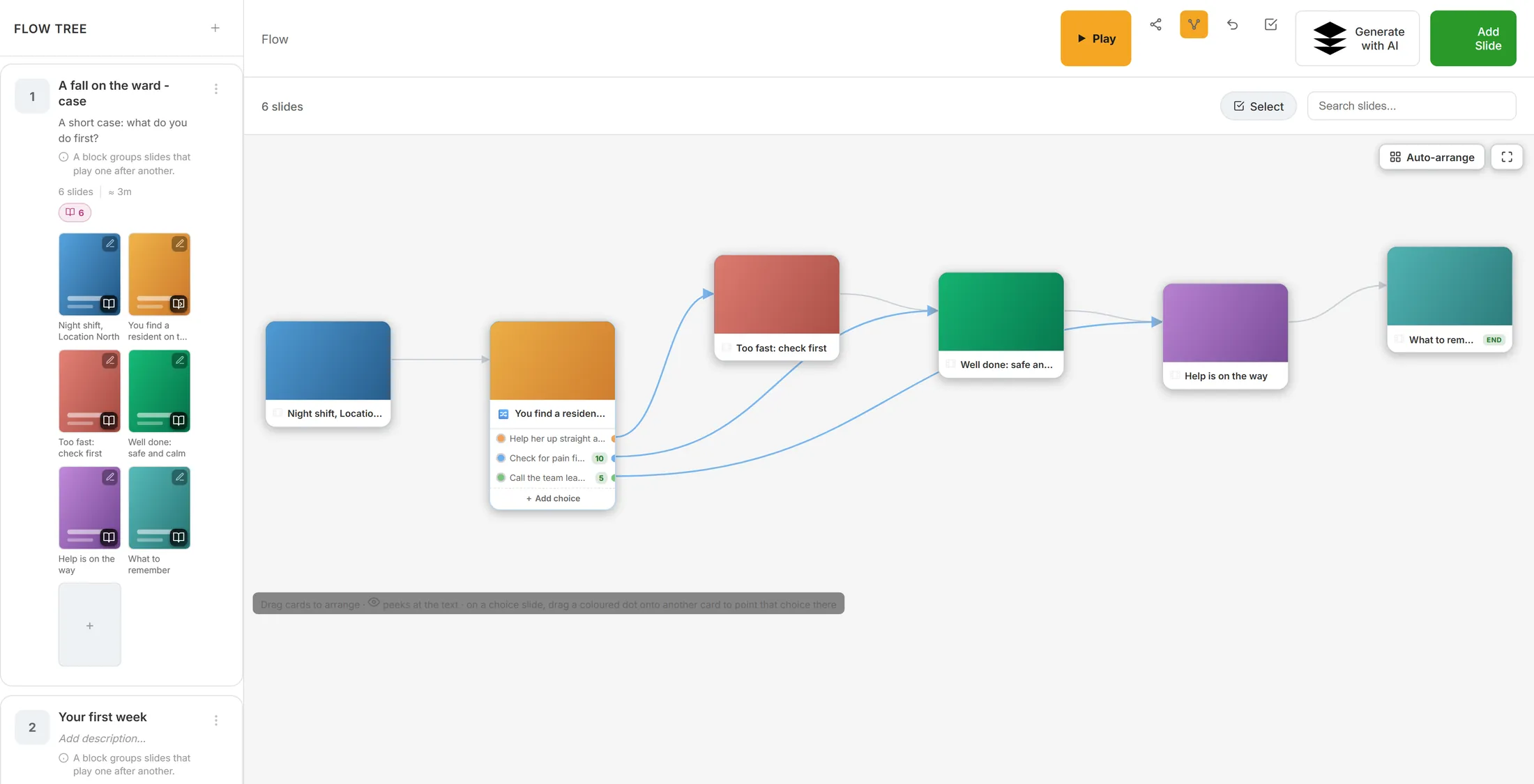
- Close the panel. In the buttons at the top there is now a new one with three dots and two lines: Branch view . It only appears in a block with a Story + Next Flow slide.
- Press it. The slides become cards on a canvas.
- Your choice slide lists its choices, each with a coloured dot, and the points in a small green badge. Each dot has a line to the slide it goes to.
- Change a path: drag a coloured dot onto another card. Click a line to rename it, point it elsewhere or delete it.
- Grey lines are the plain order: after that slide, the next one. Auto-arrange tidies everything from left to right.
- Press the Branch view button again to go back to the slides.
Every answer is a line. What your reader sees
The story plays, then the answers appear as buttons.
- The story plays like any Story slide.
- When it ends, the answers appear as big buttons.
- The arrows are gone: the reader has to choose.
- A tap takes them to the slide of that answer, and adds its points - once. Trying the case again does not add them twice.
- A choice that goes back to an earlier slide is a new try: the slides after it have to be done again.
Make every path end well
After an answer slide, the reader goes on to the next slide in the row.
- Look at the grey lines: after Too fast: check first the reader would go on to Well done: safe and calm .
- Not what you want? Make the outcome slide a Story + Next Flow too, with one choice: Try again back to the case, or Go on to What to remember .
- Or put the outcome slides in an order where the next one makes sense.
- Press Play and walk every path once yourself.
Grey lines: where the reader goes after an answer slide.
If something is not right
The slide I want is not in "Goes to".
It must be in the same block. Move it there, or make it there.
I do not see the Branch view button.
It only comes when the block has a Story + Next Flow slide.
My answers are gone.
Press Save branches after you change them.
A reader says a path did not work.
The slide it pointed to was deleted. Pick a new one.
The words, in plain language
- branch
- One of the paths a reader can take.
- block
- A group of slides that play one after another.
- Branch view
- A map of all the paths.
Where to go next
- Make a learning Start here if you have no learning yet.
- Practise with an avatar A talking face your reader practises with.
- All explainers The other things you can learn here.