Your profile and settings
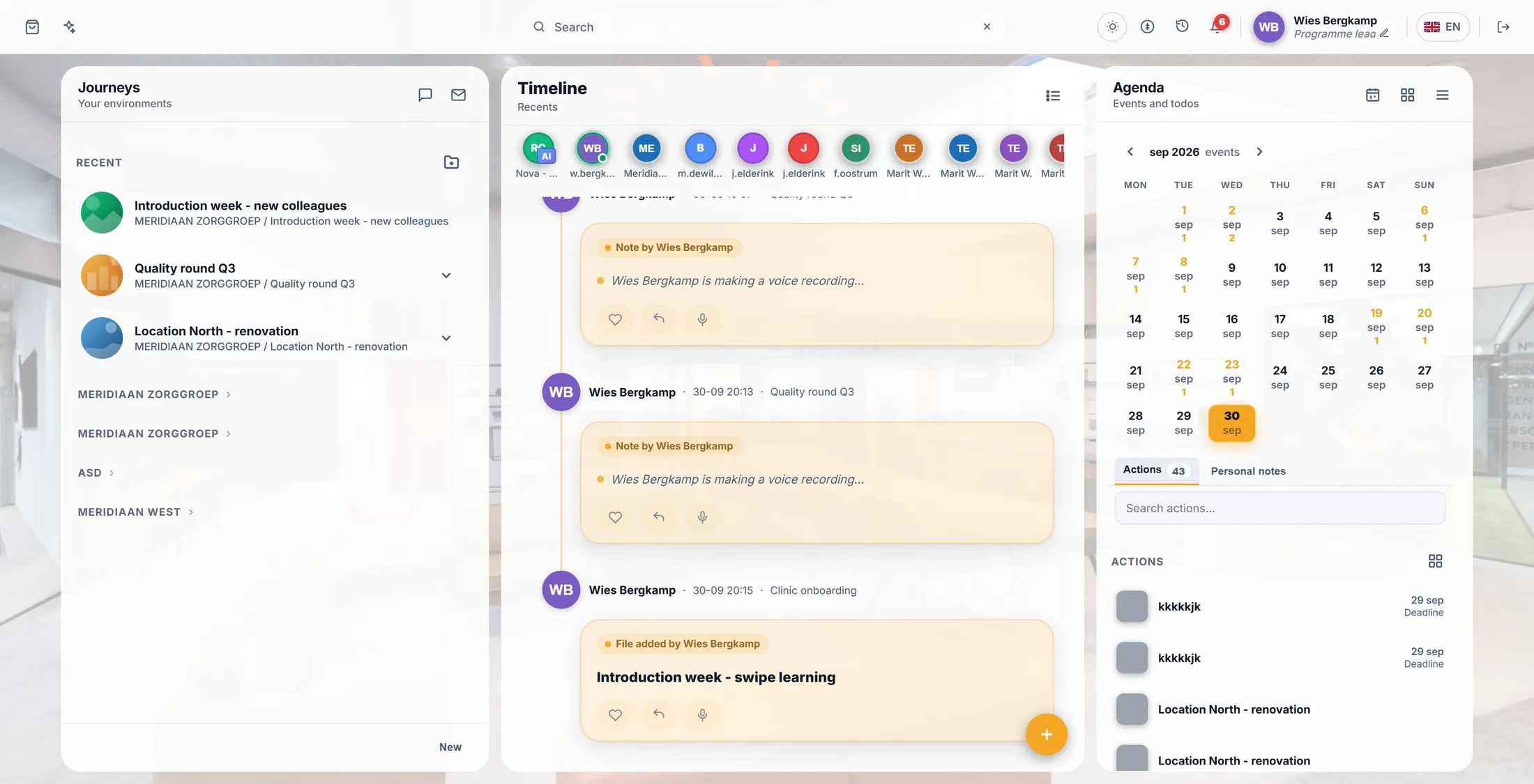
Everything that is yours, in the top right corner: your name and picture, the line under your name, the language of CoVince, light or dark and the letter size, and the notifications with Do not disturb.
Set up once - your own profile - 5 min. You need: to be logged in
Reading this page changes nothing. You can change every setting back.
What you will be able to do
- Your name and photo So colleagues know it is you.
- One line about you What you do, under your name.
- Language and look Your language. Light or dark. Bigger letters.
- Quiet when you want Stop the ringing for a while.
Get this ready first
- Be logged in You see your name at the top right.
- A photo (not needed) A JPG or PNG. Or take one with the camera.
Do it together, one step at a time
Seven steps. Do only the ones you need.
Press your name
Your name is at the top right. Press it: your card opens.
- Look at the top right. There is your picture and your name.
- Press your name. Your card opens: picture, name, mail address.
- On the card: Edit profile, Profile page, Bookings and Credits.
- Below, the words Profile, Tasks, History and Agenda show more about you.
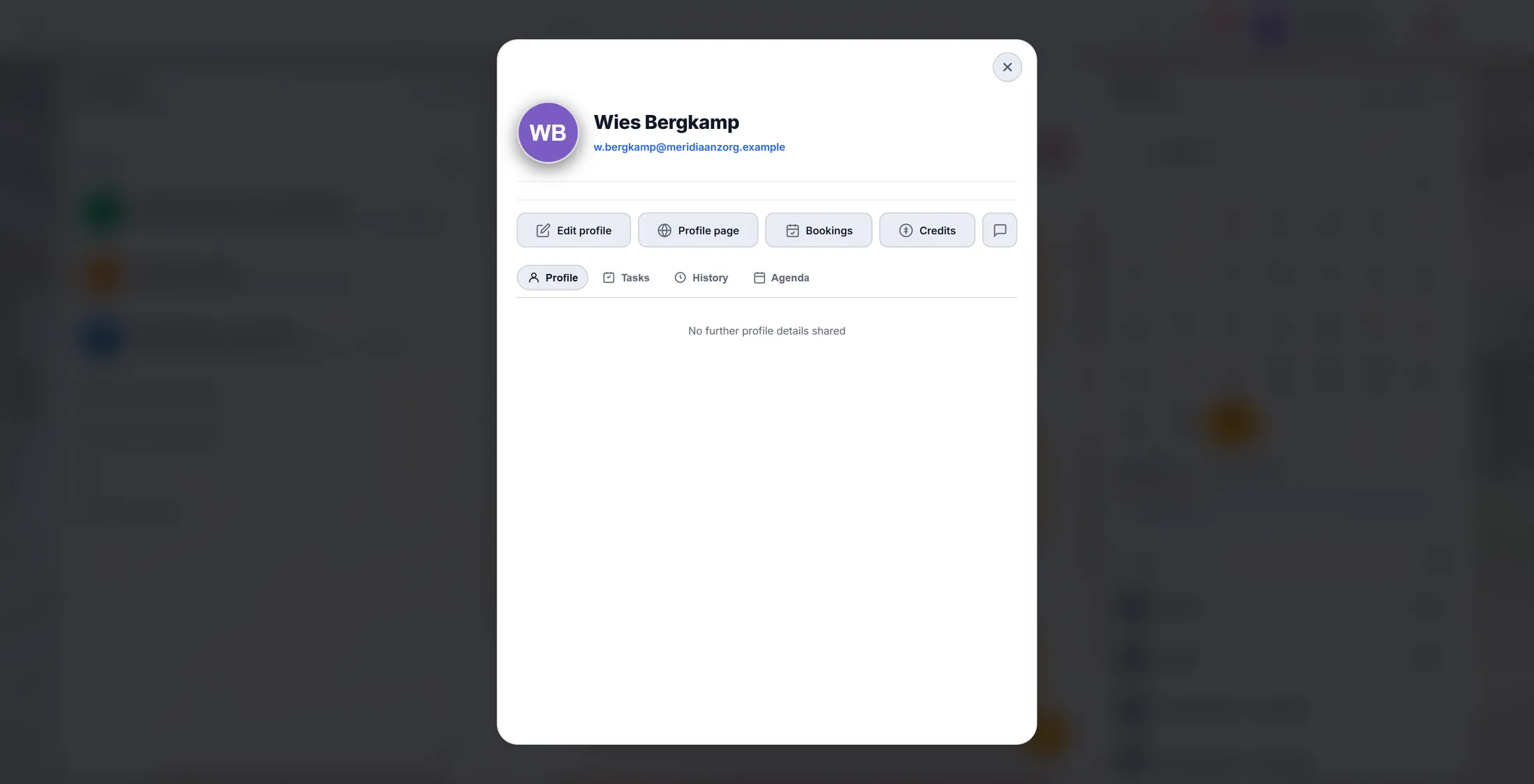
Your card. Edit profile is the first button. Your name
Type your first name, then your last name.
- On your card, press Edit profile. A window opens: Set up your profile .
- Type your first name, for example Wies . Press Next.
- Type your last name, for example Bergkamp . Press Next.
- The dots at the top show how far you are. The arrow ← goes back.
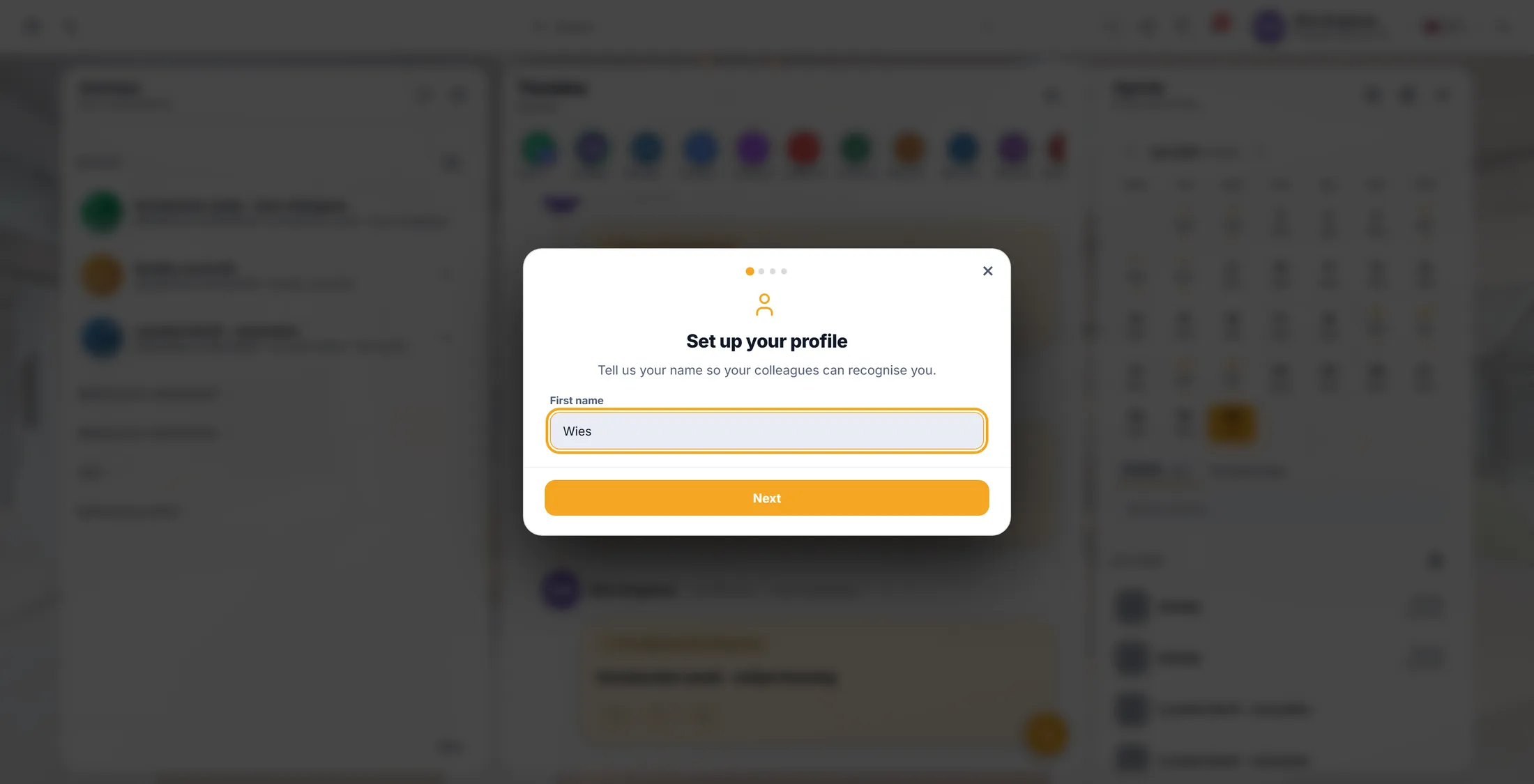
Type your first name. Your photo
Add a photo, so people know who you are. You may skip this.
- Choose how: Upload, URL, AI or Camera.
- With Upload: press Choose photo and pick a JPG or PNG from your computer (at most 10 MB).
- With Camera: look into the camera and take the picture.
- Press Next. No photo? Press Next anyway - it is not needed.
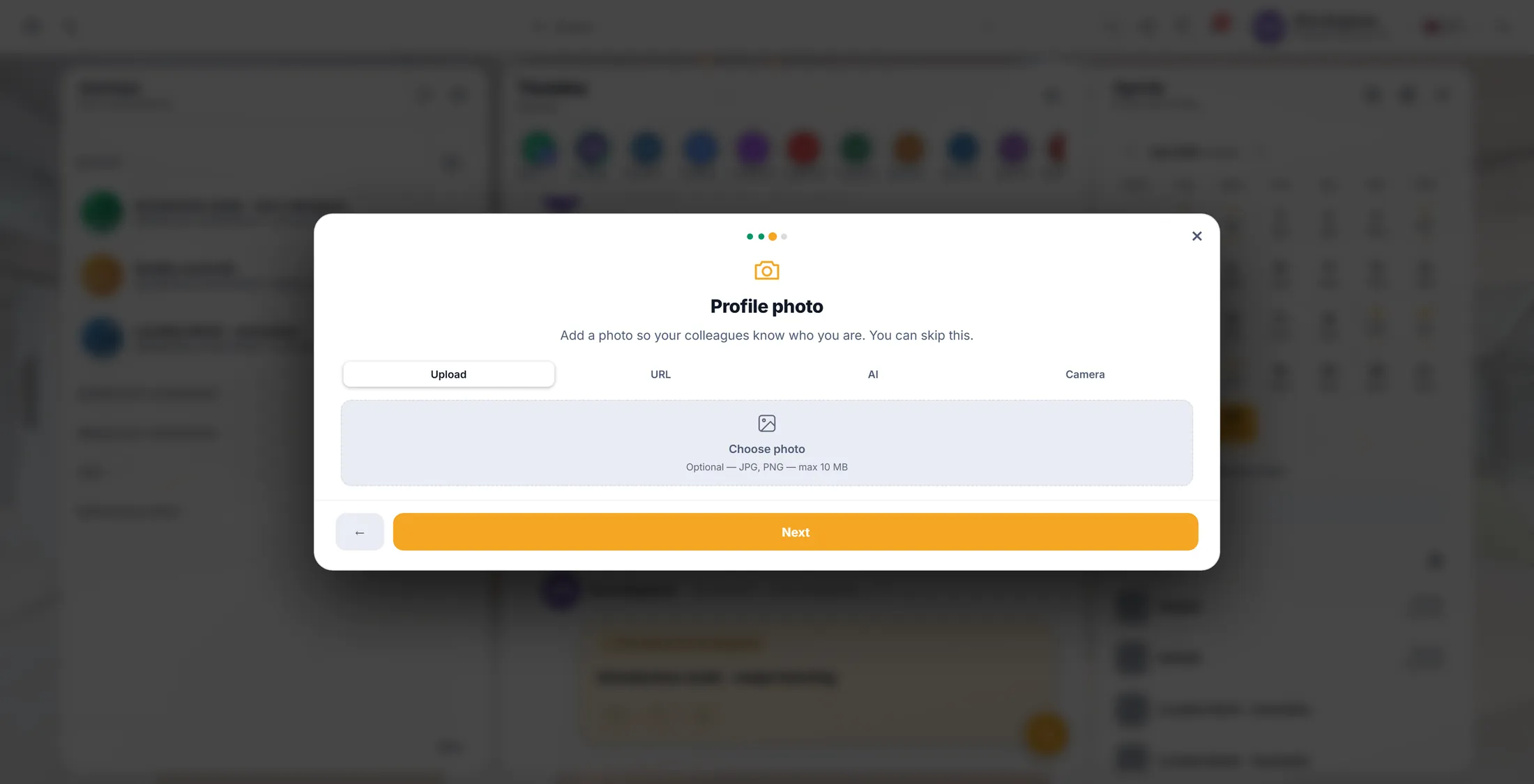
Four ways to add a photo. Your language, then Save
Pick the language for CoVince. Then press Save profile.
- Press your language: Nederlands, English, Deutsch, Español, ไทย or Français.
- Press Save profile. The window closes; your name and picture at the top right change.
- Later, the language button at the top right (it shows EN , NL ...) changes the language in two presses. CoVince reloads in the new language.
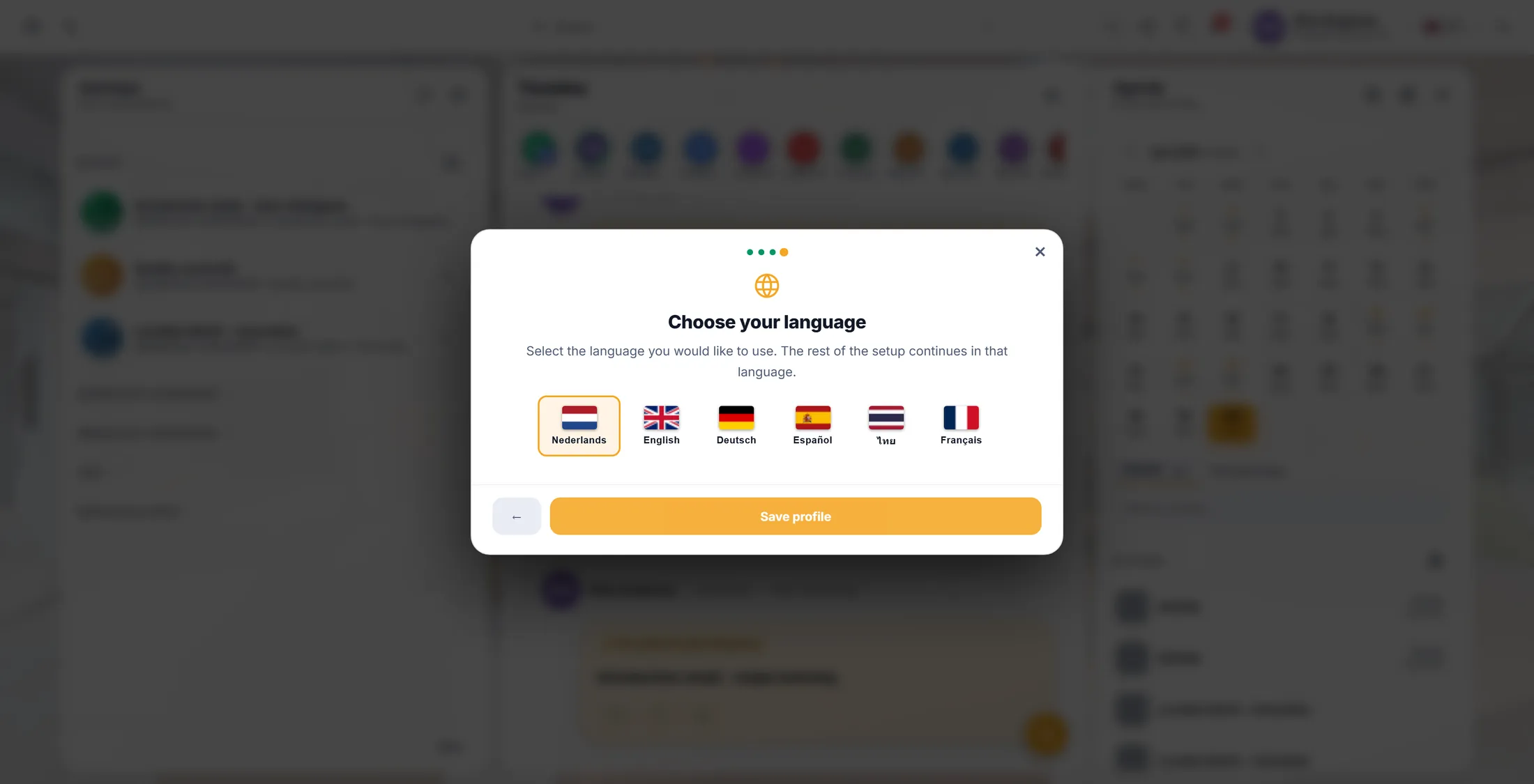
Pick a flag, then Save profile. One line about you
Under your name is one line. Write what you do.
- Look under your name at the top right. Nothing there yet? It says What are you about?
- Click that line. It becomes a box to type in.
- Type one line, for example Care programme lead .
- Press Enter to save. It says Your one-liner is saved . Press Esc to stop without saving.
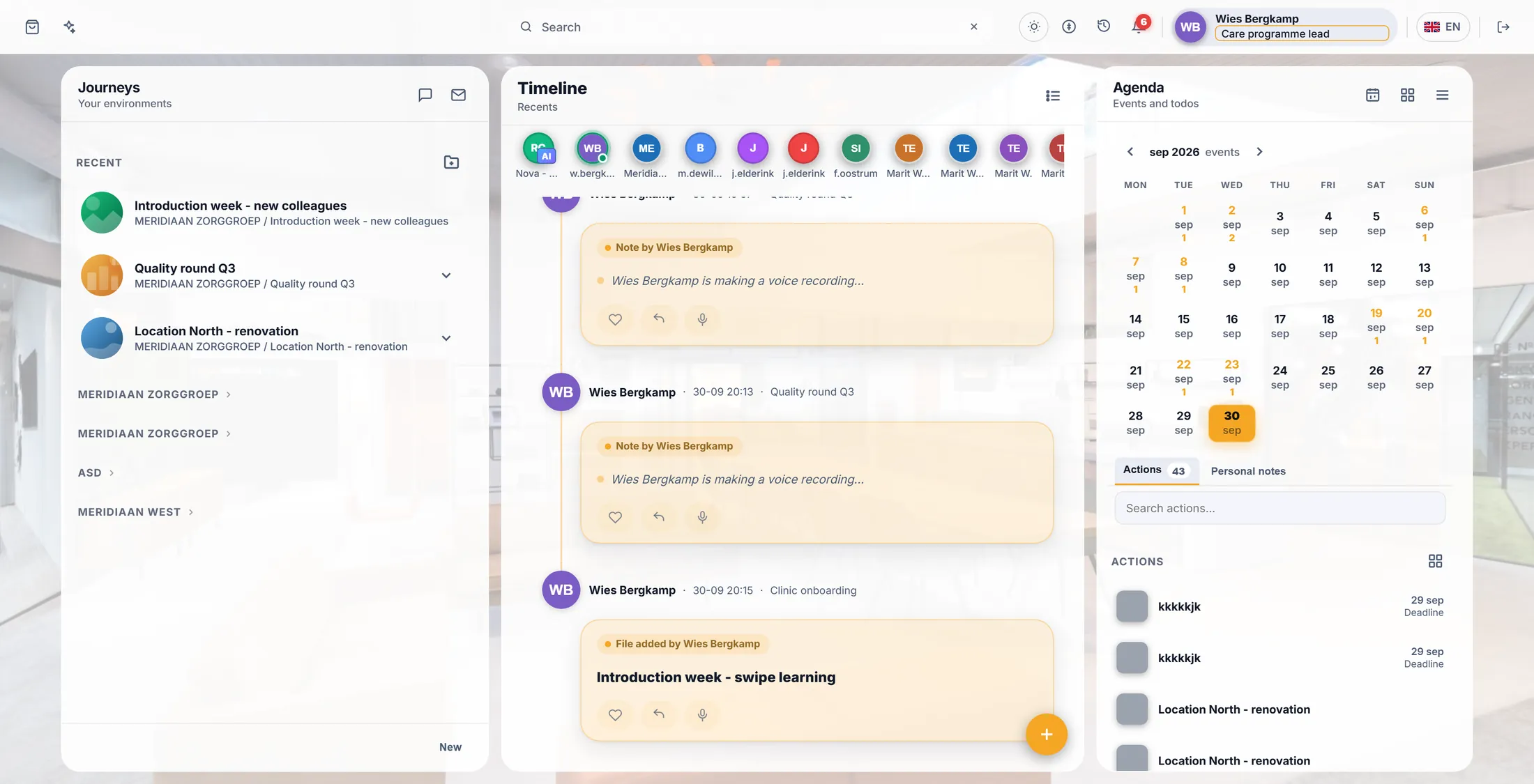
Type your line, press Enter. Light or dark, big or small
The sun button changes the colours and the letter size.
- Press the sun at the top right ( Switch theme ).
- Under Theme : Light, Dark or High contrast. The tick shows which one is on.
- Under Text size : slide to the right for bigger letters, to the left for smaller.
- Click next to the list to close it. The choice is kept on this computer.
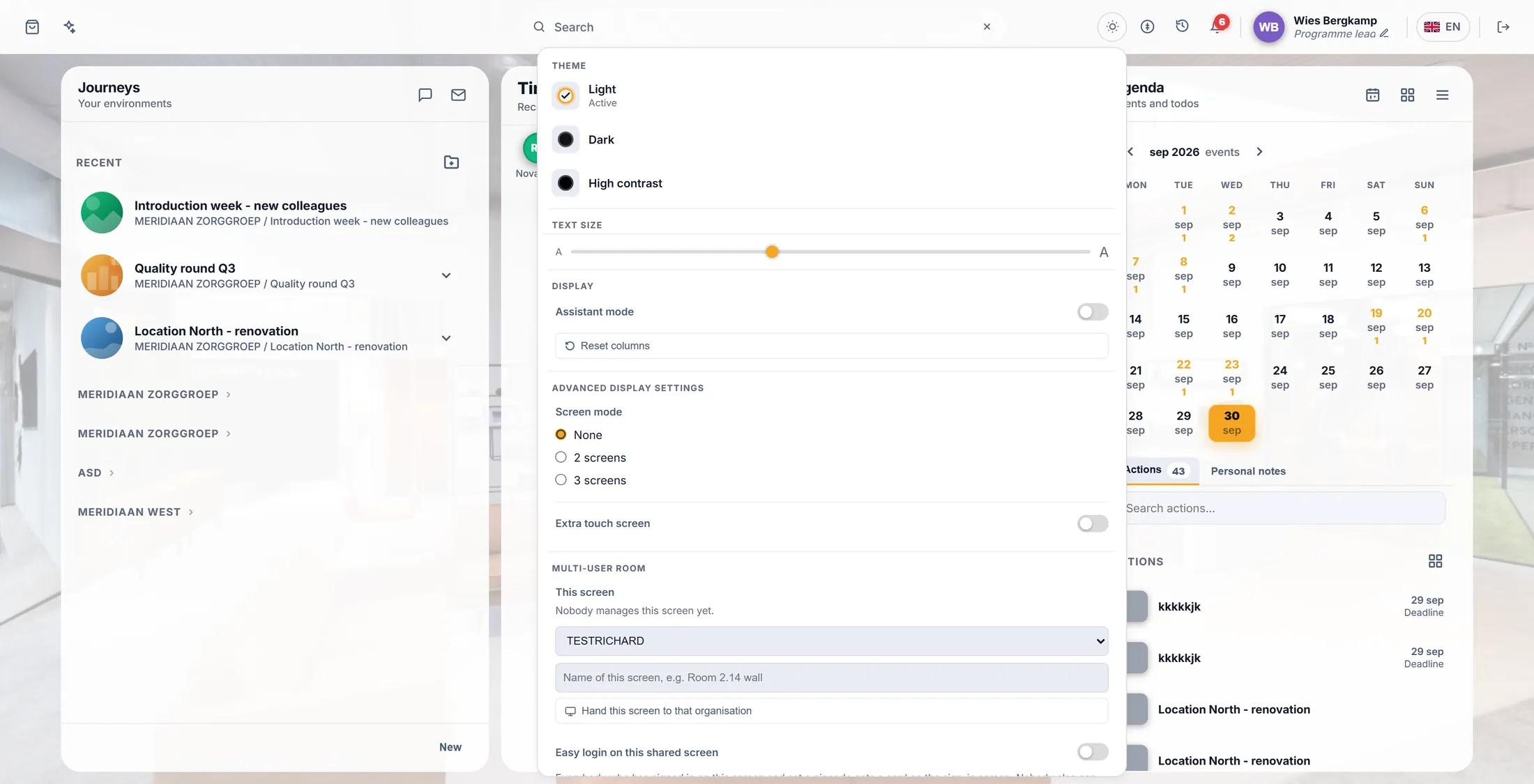
Colours and letter size. Notifications, and some quiet
The bell shows what is new. You can make it quiet for a while.
- Press the bell at the top right. The number on it is how many are new.
- Want quiet? Next to Do not disturb press 30m, 1h or Today. Off turns it back on. Everything still arrives in this list.
- Type a status, for example in a workshop until 3 , and press Save.
- Looking for an old one? Type in Search notifications , or press Show older. Mark all read clears the number.
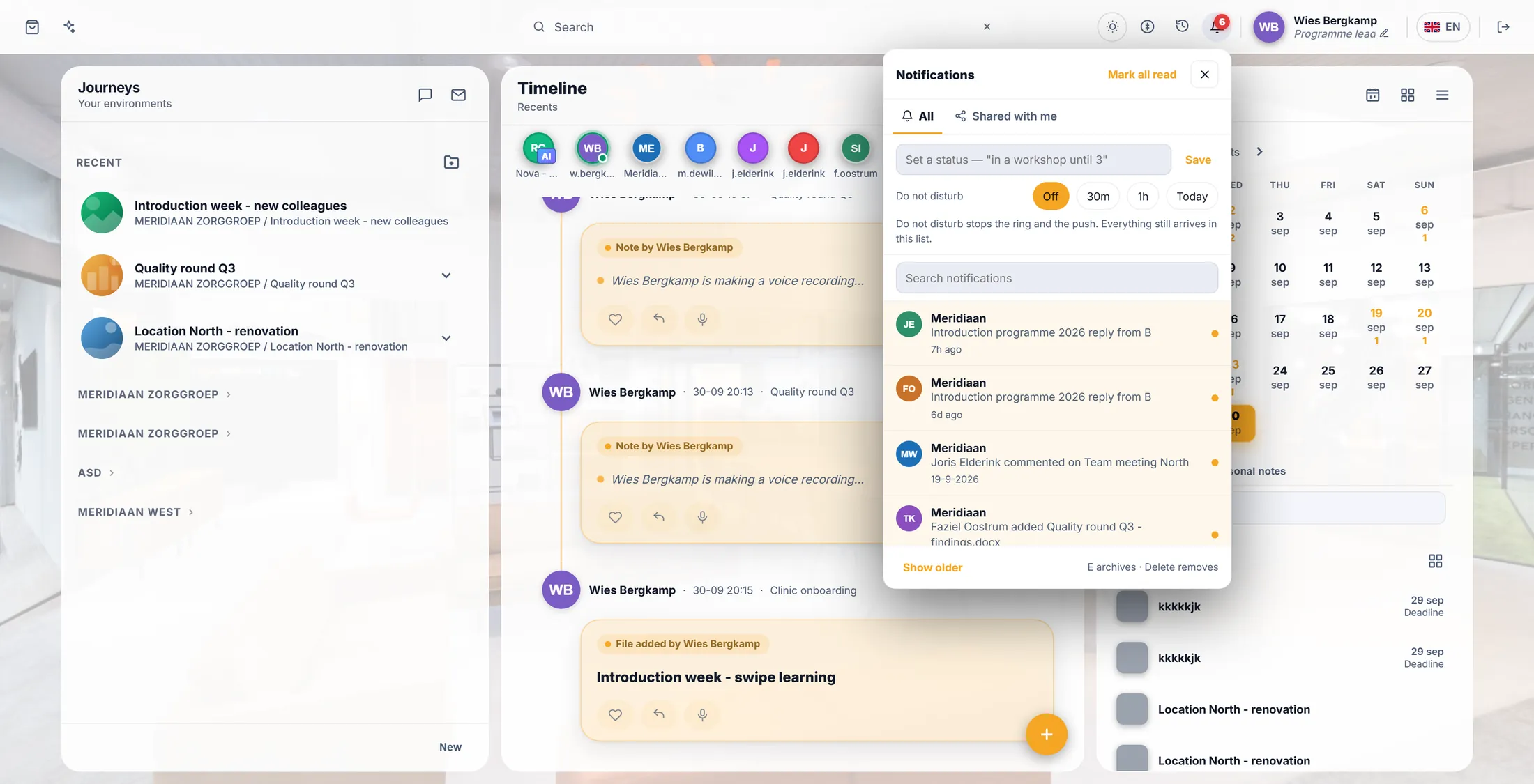
The bell: what is new, and quiet when you want.
If something is not right
My new name does not show.
Did you press Save profile at the end? Do the steps again and press it.
Dark does nothing.
Some journeys have a picture look that is always light. Choosing Dark turns that look off.
Half the screen is still in the old language.
Wait for the page to reload. Or press F5.
I get no ringing at all.
Look at Do not disturb. Press Off.
The words, in plain language
- one-liner
- One short line under your name that says what you do.
- theme
- The colours of CoVince: Light, Dark or High contrast.
- do not disturb
- No ringing and no push for a while; the messages still arrive in the list.
Where to go next
- Connect your calendar Show your Google or Outlook appointments in CoVince.
- All explainers The other things you can learn here.