Do more on the whiteboard
Past the sticky notes: mindmaps whose ideas become actions with an owner, a countdown for a session, a live web page on the board, sections the CrewMate can summarise, connections between notes, sharing and downloading, and the board's own history.
Content - the board, one step further - 8 min. You need: a board in a journey
Reading this changes nothing on your boards. Undo takes back anything you try.
What you will be able to do
- Make a mindmap One word, ideas around it.
- Give work to people Who does it, and how far it is.
- Keep time A big timer everyone sees.
- Go back See the board as it was.
Get this ready first
- Open a board Any board in your journey. New to boards? Read "Use the whiteboard" first.
- People in the journey You can only give work to people who are in the journey.
Ten things, one at a time
Each step is one thing. Do the ones you need.
Make a mindmap
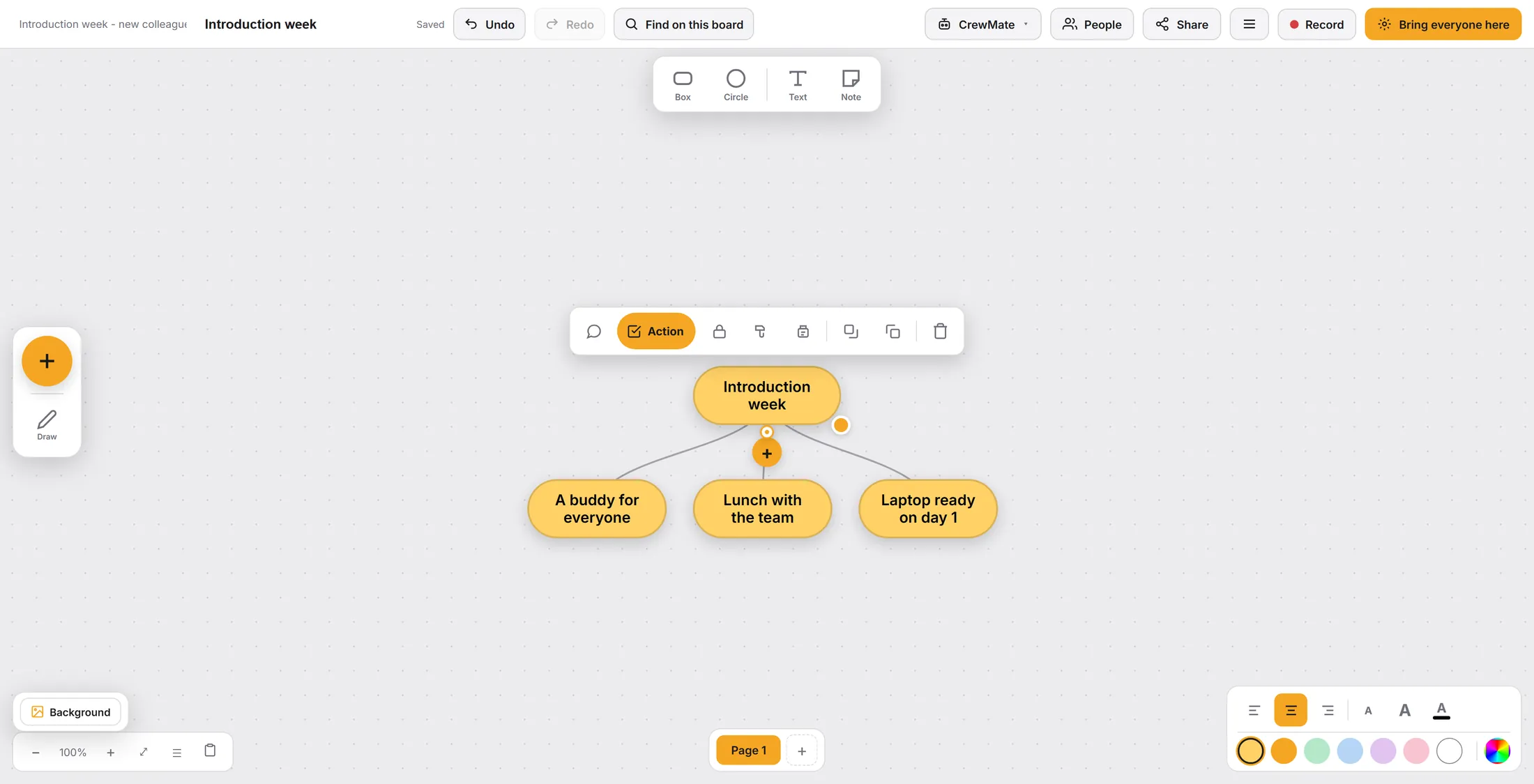
Put one word in the middle. Add ideas around it.
- Press the big orange + on the left, then Mindmap .
- Double-click the bubble and type the subject, for example Introduction week .
- Click the bubble. Press the small + under it: a new idea appears, joined by a line.
- Type the idea. Press + again for the next one. An idea can have its own ideas.
The small + adds the next idea. Turn an idea into work
An idea becomes a job: who does it, and how far it is.
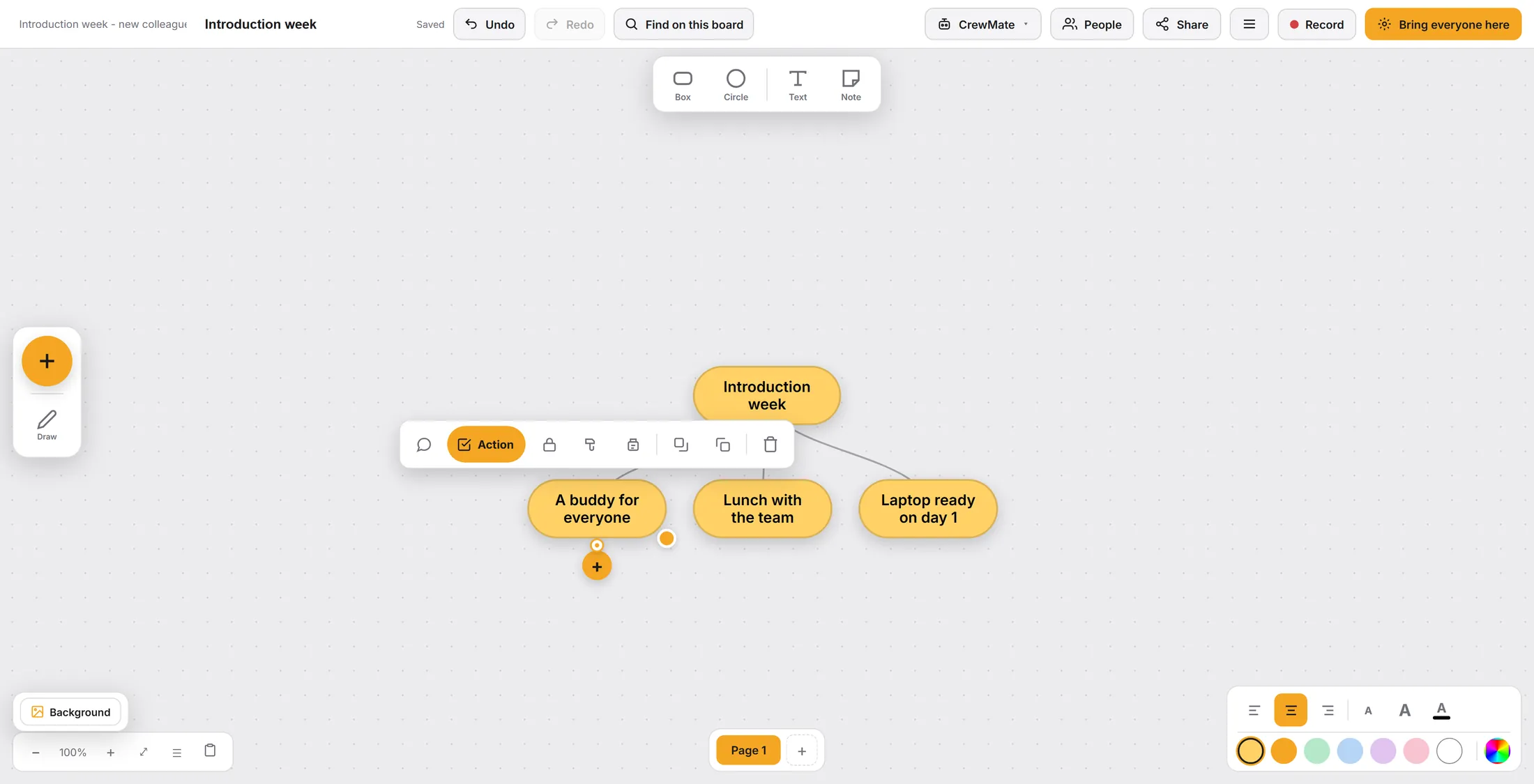
- Click an idea or a note. A bar appears above it.
- Press the orange Action. The idea now has an owner, a progress and room for files.
- Next to it: Comments (the speech bubble) to talk about this one idea.
- The other buttons: lock, copy style, paste style, back, front, and delete.
Action makes it a job. Give it to someone
Drag a name onto the idea. Now it is theirs.
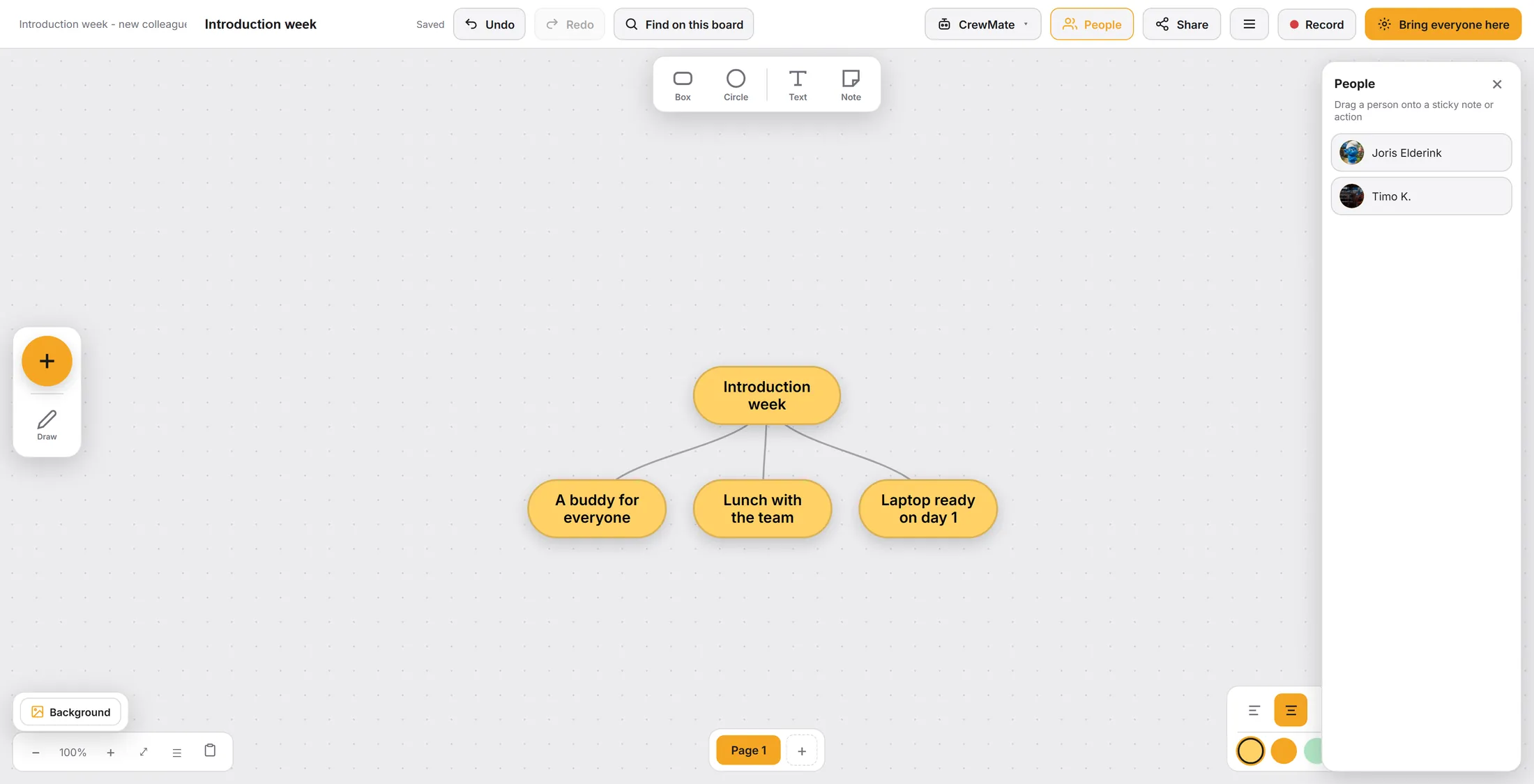
- Press People at the top. A list of people opens on the right.
- Drag a person onto a sticky note or an action.
- Their picture is now on it. They see it in their own actions.
Drag a name onto the idea. Set a timer
A big clock everyone on the board sees.
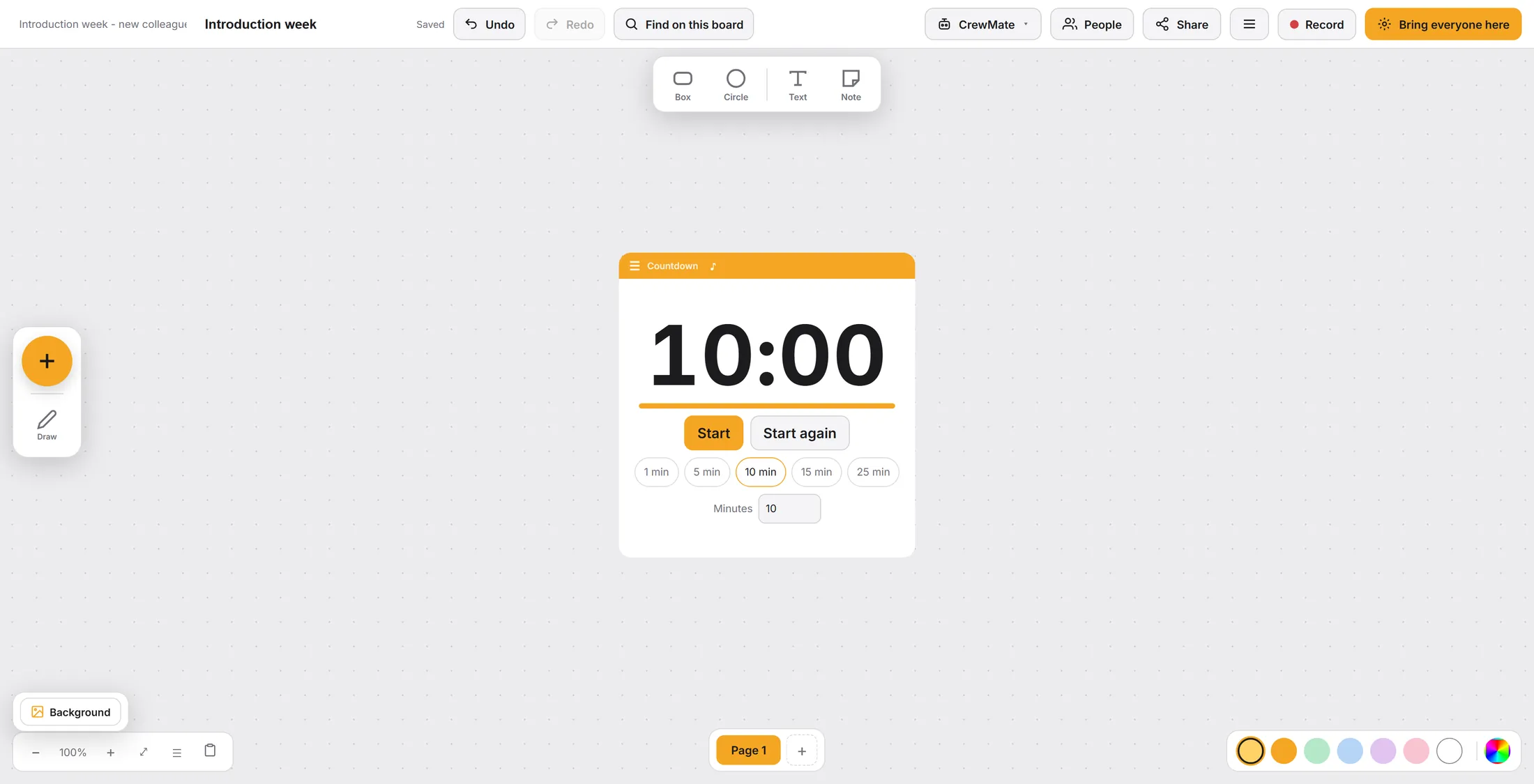
- Press + > Countdown .
- Pick a time: 1 min, 5 min, 10 min, 15 min, 25 min, or type the Minutes .
- Press Start. Start again sets it back.
- The note sign at the top turns the sound on or off.
Everybody sees the same clock. Show a web page
A real website, right on the board.
- Press + > Web page .
- Type the full address, starting with https://, and press Show it.
- Or pick a page you keep in the journey: Or a page from Community Files , with a search box.
- It is the live site, not a copy: what changes there, changes here.
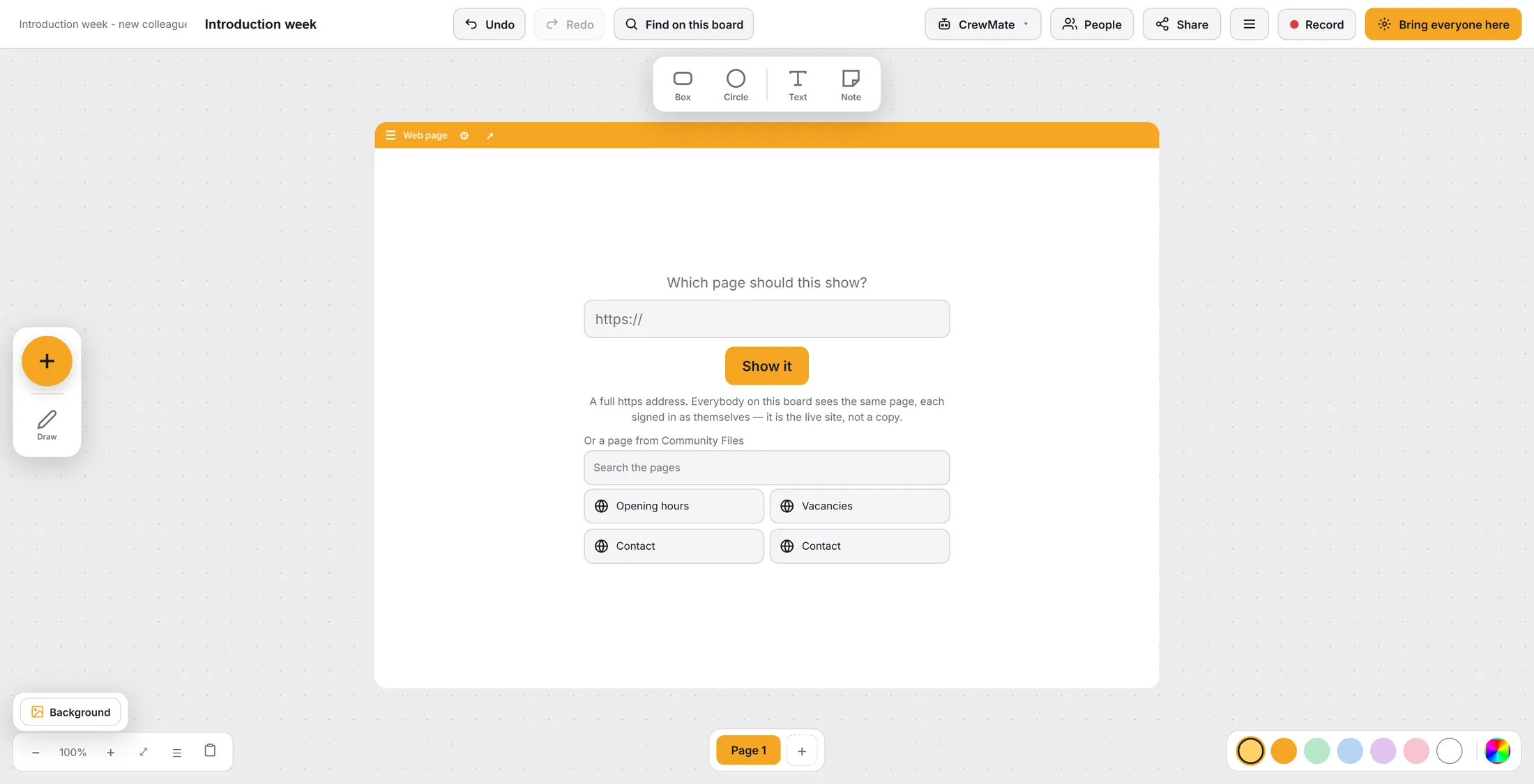
An address, or a page you already have. Ask about a part of the board
A section groups notes. The star gives quick help for that part.
- Make a section with + > Frame , and put notes in it.
- Press the small star next to the section's name.
- Summarise this section writes a short summary. Turn into an action list makes jobs of the notes.
- Name this section gives it a name. Bring everyone to this section takes all viewers there.
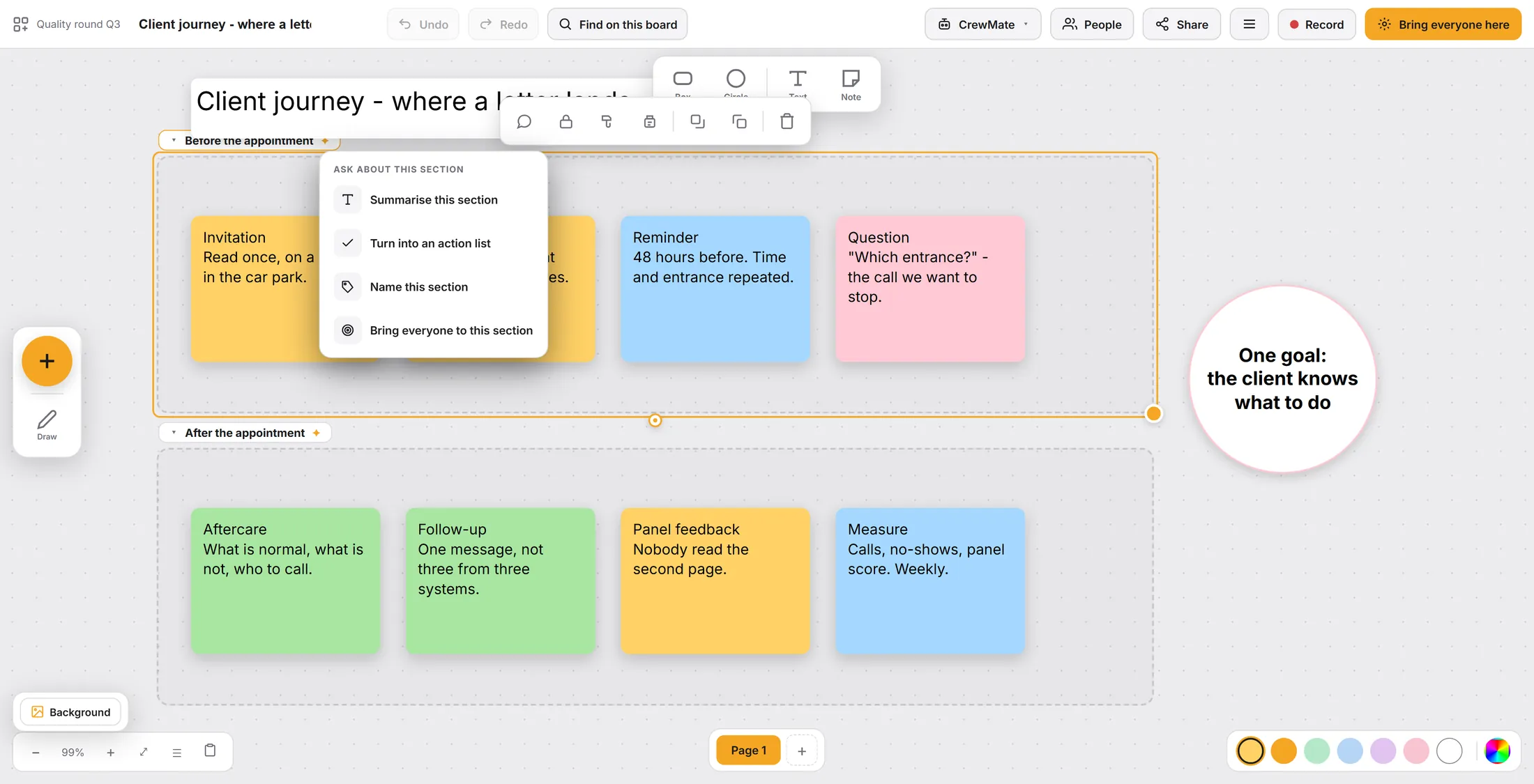
Quick help for one part of the board. Draw a line between two notes
Show that one note leads to another.
- Click a note. A round dot appears on its edge.
- Drag that dot onto another note and let go.
- A line now joins them. Move a note: the line follows.
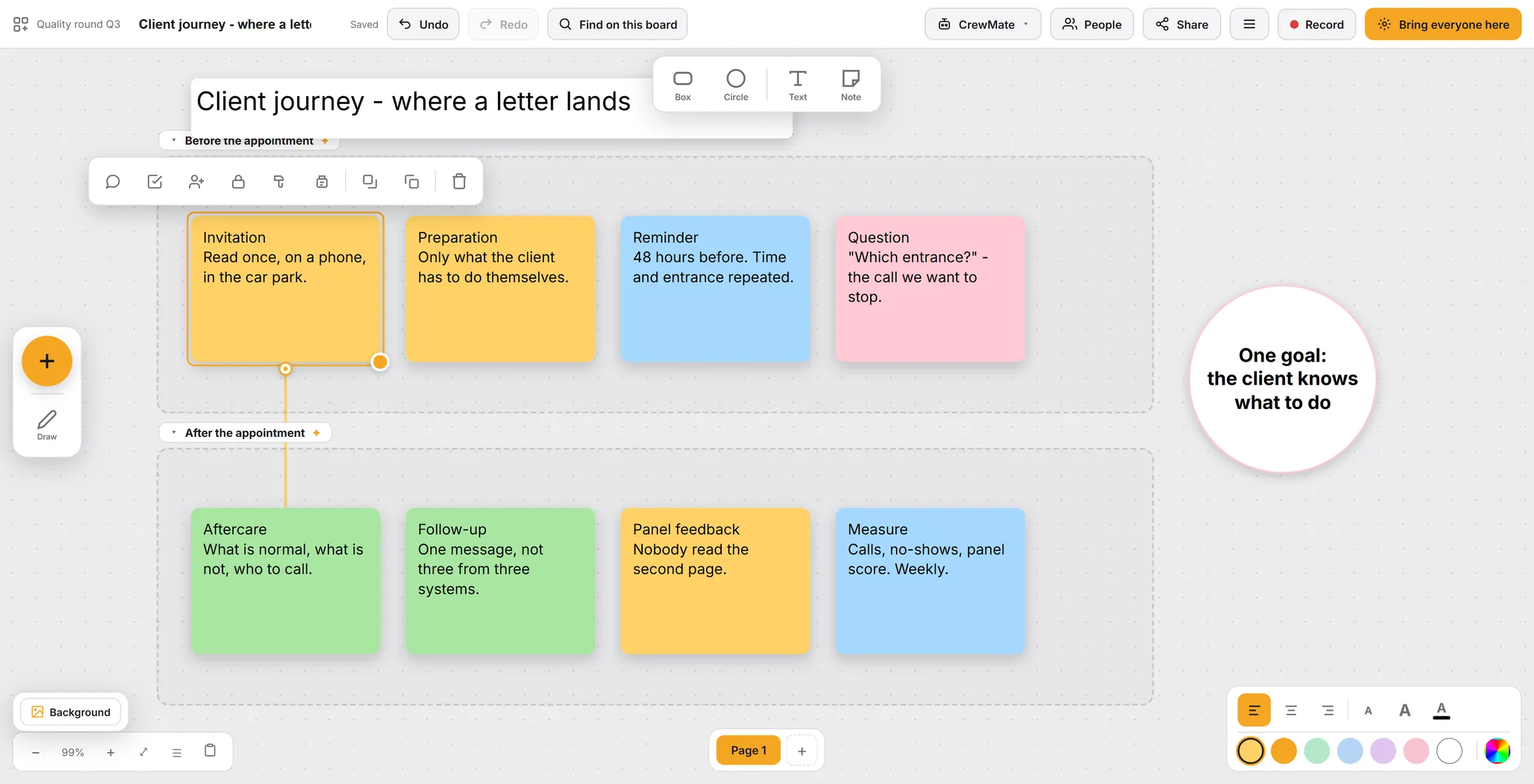
Drag the dot to the other note. Ask the board's helper
A helper that reads the board and answers.
- Press CrewMate at the top. A panel opens on the right.
- Press a quick choice: Summarize the board, Advise an idea, Ask a question or Build an app.
- Or type in the box, for example create an action list about the aftercare , and press the arrow.
- Pick the language of the answers at the top of the panel.
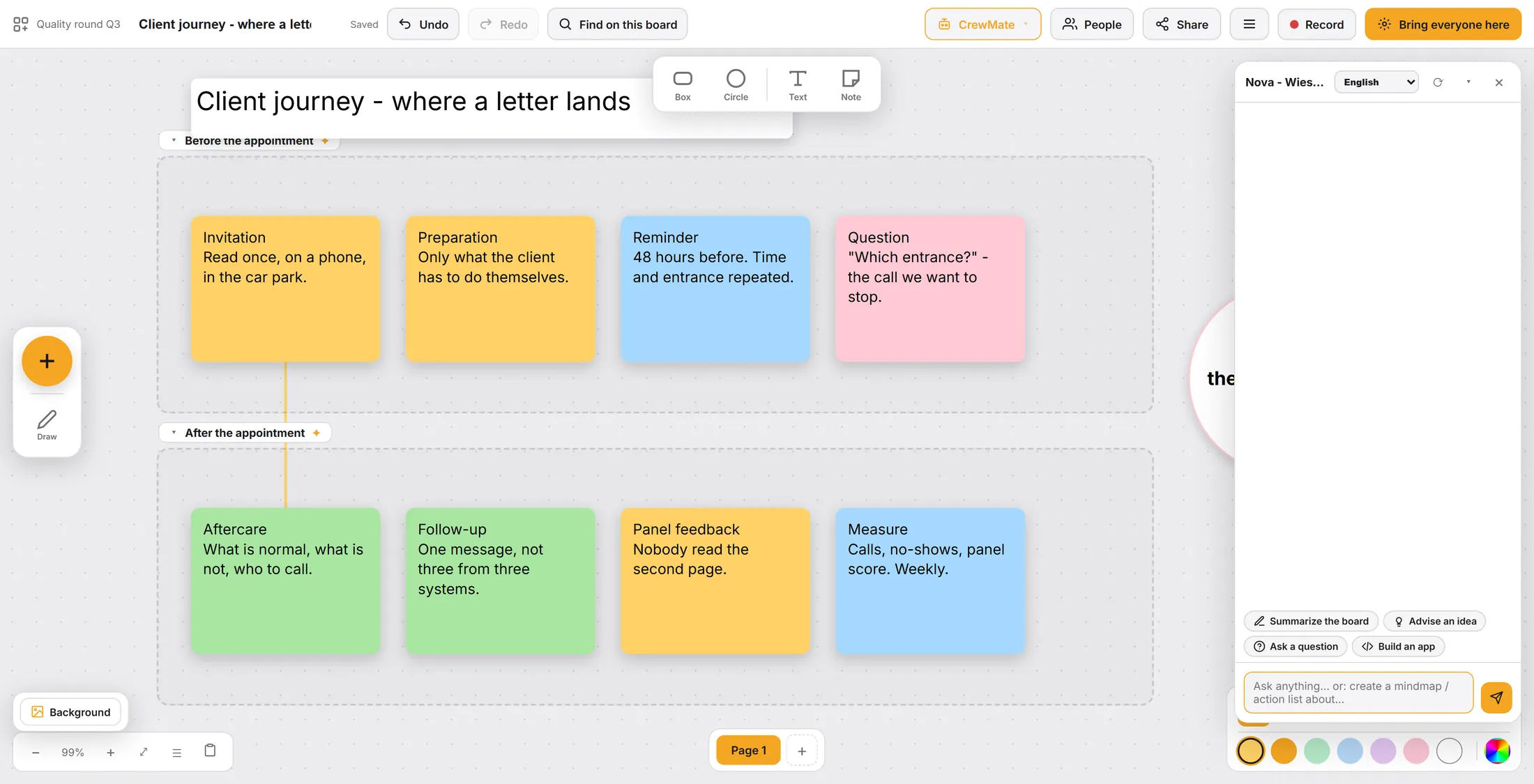
It knows what is on the board. Share it, or take it with you
Send the board to people, or save it as a file.
- Press Share at the top.
- Search a person in this journey, add a message if you like, and press Send.
- Under Download content : This page as an image, Every page as an image, The whole board as a PDF, or Word document + all files (zip).
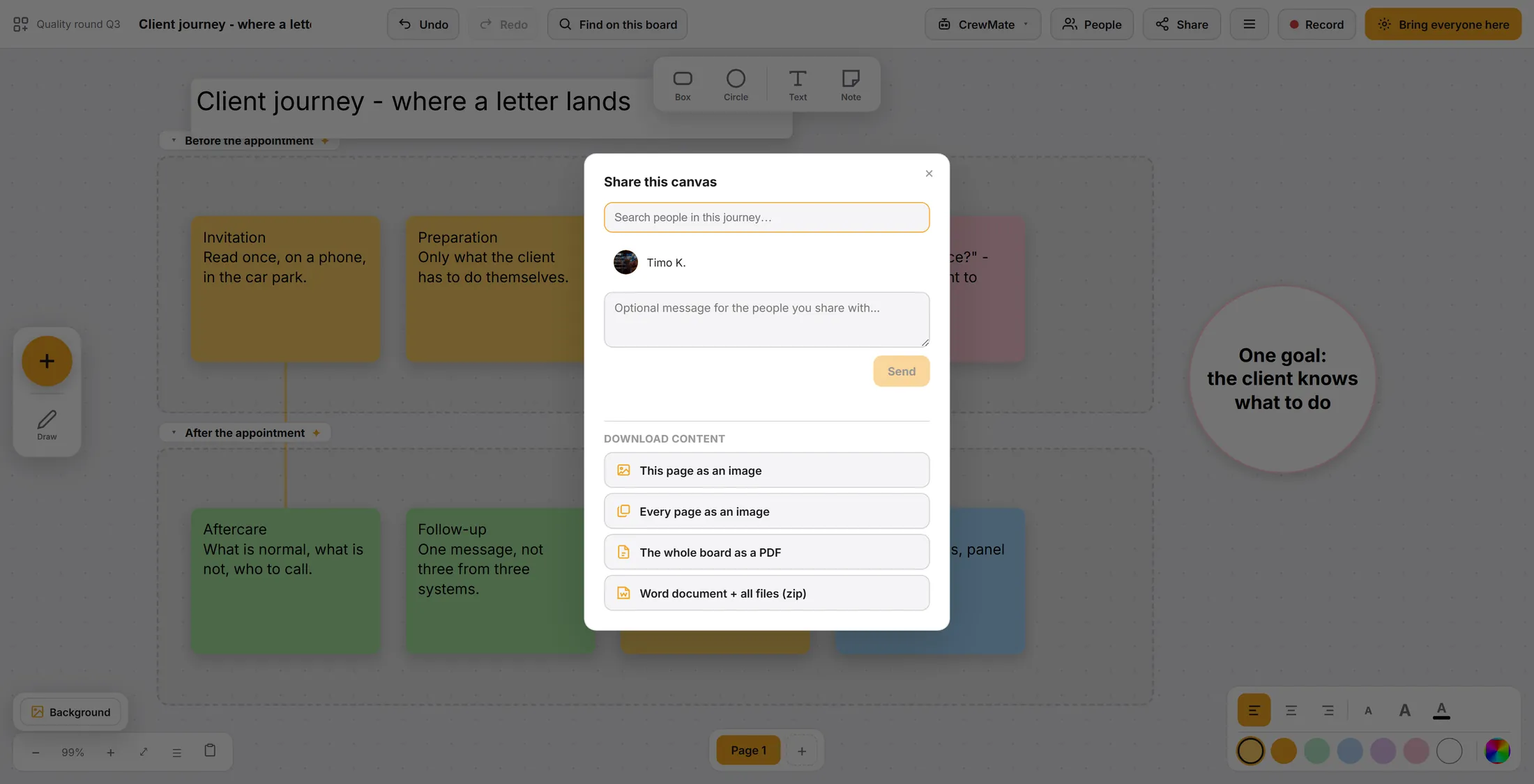
Send it, or save it. Go back in time
Save how the board looks now. See it as it was.
- Press the menu (three lines) at the top, then Go back in time .
- Type what this moment is, for example After the workshop , and press Keep this moment.
- The board also keeps itself every quarter of an hour while somebody is working on it.
- Open a kept moment to see the board as it was then.
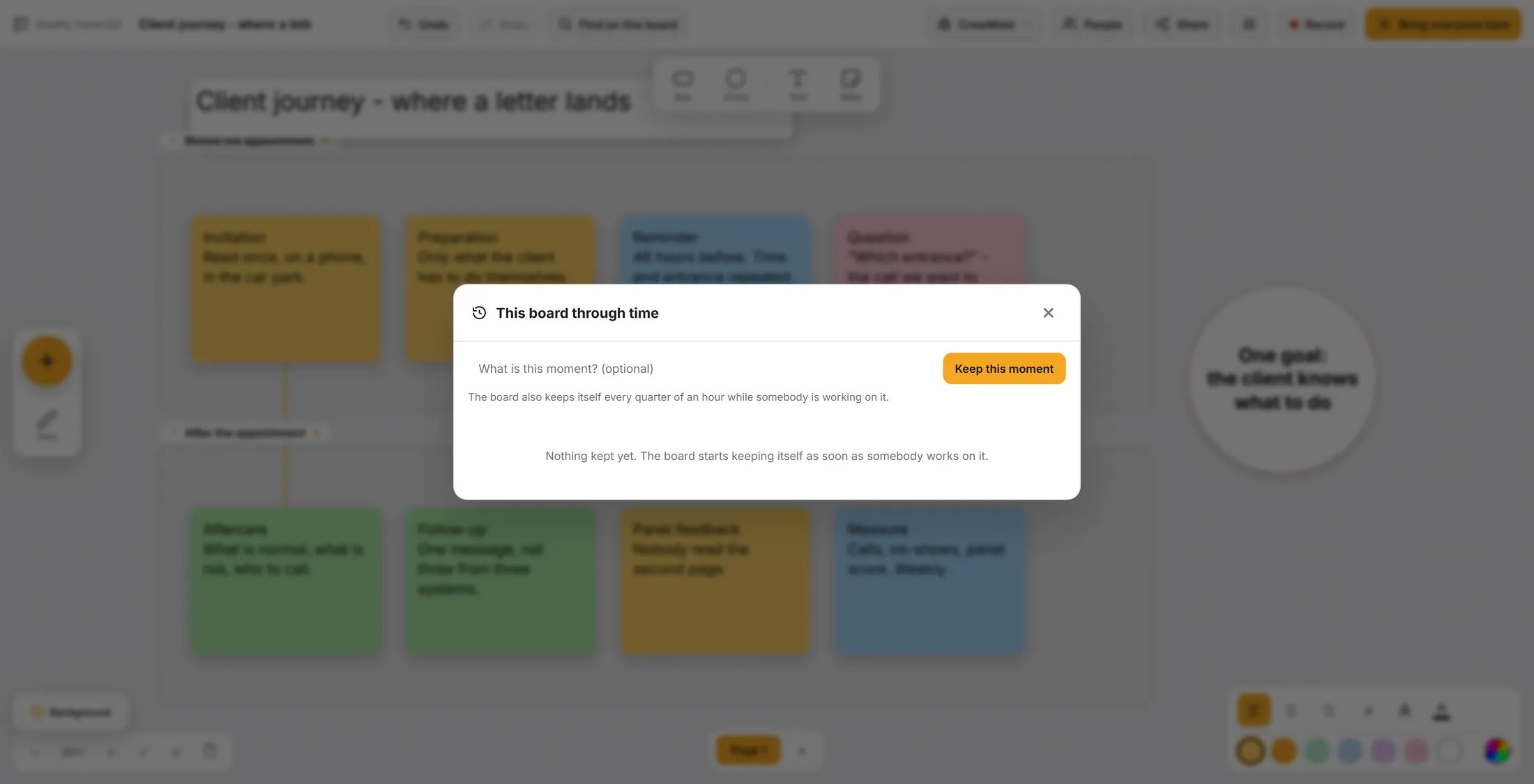
Your board, safe at every moment.
If something is not right
I cannot find Mindmap or Countdown.
Press the big orange + on the left, then scroll the list.
A person is not in the People list.
Only people in the journey are there. Add them to the journey first.
I changed something by mistake.
Press Undo at the top. Or go back in time (step 10).
The web page stays empty.
Some websites do not allow being shown inside another page. Use Community Files, or a link.
The words, in plain language
- mindmap
- One subject in the middle, with ideas drawn around it and joined by lines.
- action
- A note that is also a job: someone owns it and you can see how far it is.
- section
- A marked part of the board that keeps a group of notes together.
Where to go next
- Use the whiteboard Make a board and put notes on it.
- All explainers The other things you can learn here.