Send a mailing
Mail merge sends one personal mail per person from your own mailbox: the list comes from a journey, a sheet, a file, your address book or typed addresses, and fields like {{firstName}} are filled in per person. You check a preview before anything leaves.
Communication - one mail to many people - 6 min. You need: your mail connected to CoVince
Nothing is sent until you press Send to all, and then say yes once more.
What you will be able to do
- Mail a whole group Up to 500 people at once.
- Use their name "Dear Joris" instead of "Dear all".
- Use a list you have A journey, a sheet, a file, your contacts.
- Check first See it before anyone gets it.
Get this ready first
- Your mail connected The mailing goes out from your own mail. Connect it first.
- Your list A journey, a spreadsheet, or just the addresses.
Do it together, one step at a time
Six steps. The last one is the only one that sends.
Write the mail
Write your mail once. Put {{firstName}} where the name goes.
- Open your mailbox and press the round pen button. New mail opens.
- Leave To empty: the list comes in the next steps.
- Type the Subject , for example Introduction week - the programme is ready .
- Write the text. Where the name goes, type {{firstName}} - with the two curly brackets: Dear {{firstName}},
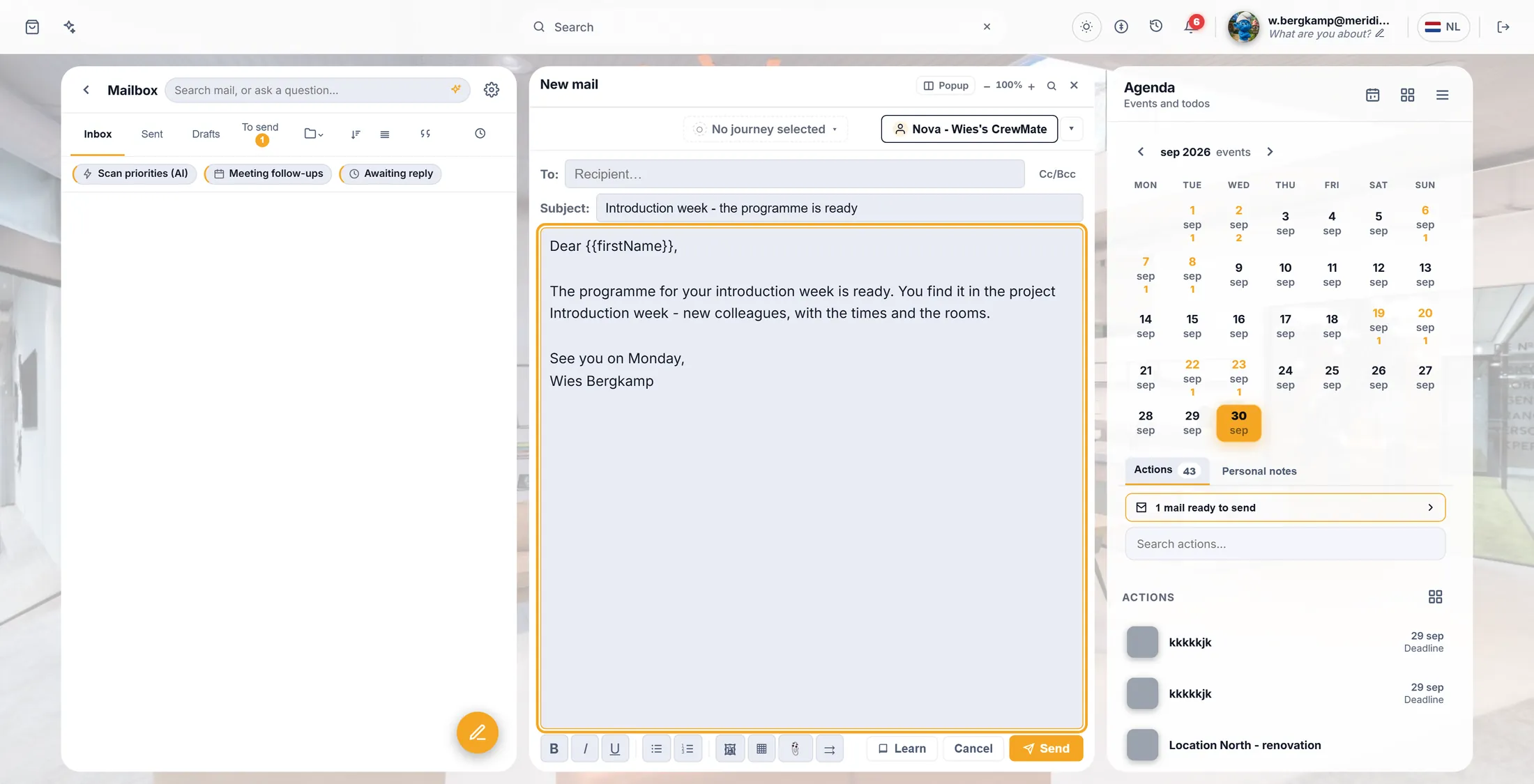
The mail, with {{firstName}} where the name goes. Open Mail merge
The last button under the text opens Mail merge.
- Look at the row of small buttons under the text: bold, italic, lists, picture, table, file.
- The last one is two arrows: Mail merge - one personal mail per recipient . Press it.
- The Mail merge window opens, in three parts: 1. Who gets it , 2. The message , 3. Check and send .
- Under part 2 it says The message is the text you already wrote.
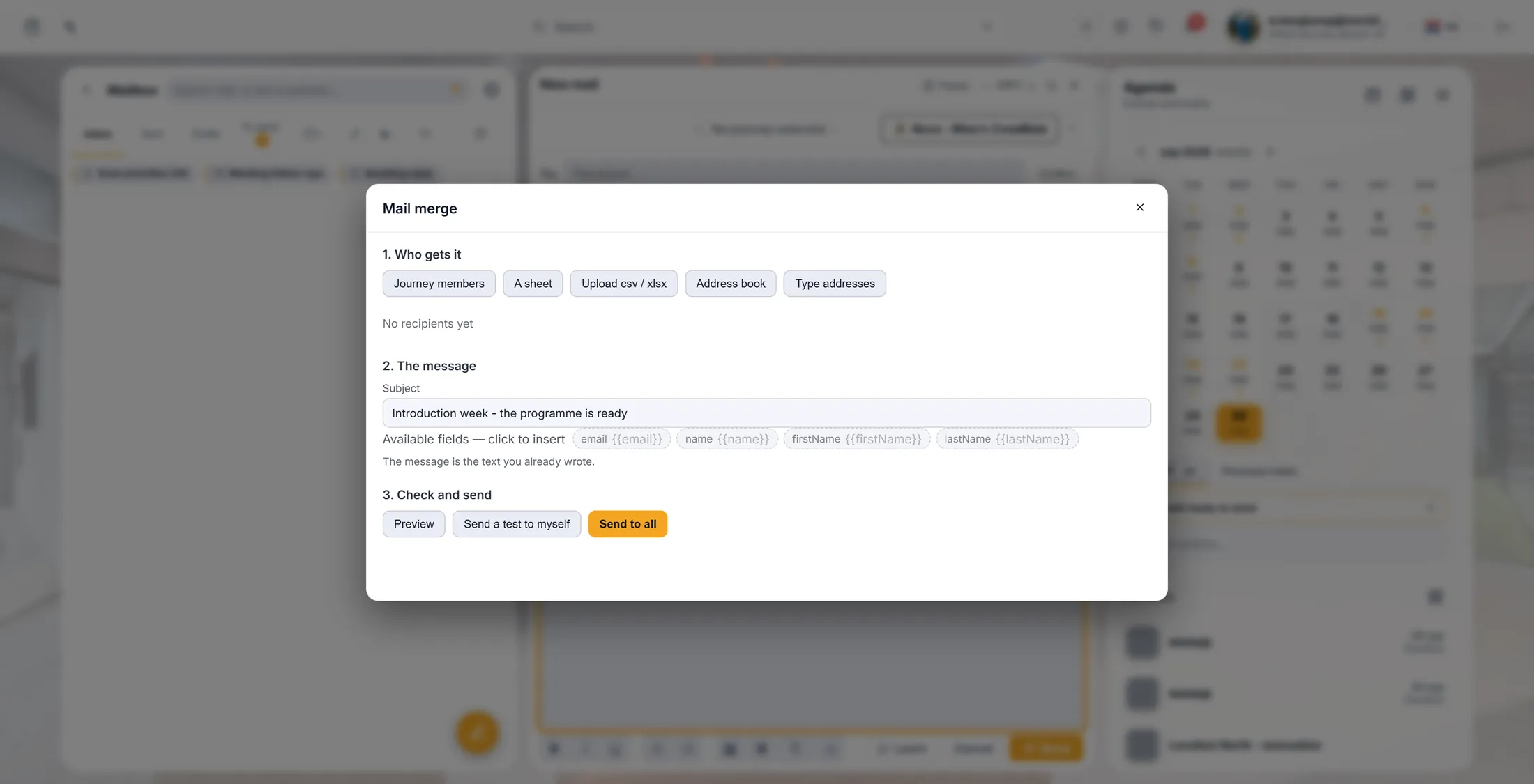
Three parts, from top to bottom. Choose who gets it
Pick where your list comes from. You see everybody in a list.
- Journey members: everybody in one or more journeys.
- A sheet or Upload csv / xlsx: a table. It asks Which column holds the address? and Which column holds the name?
- Address book: people you mailed before. Type addresses: one address per line, or with commas.
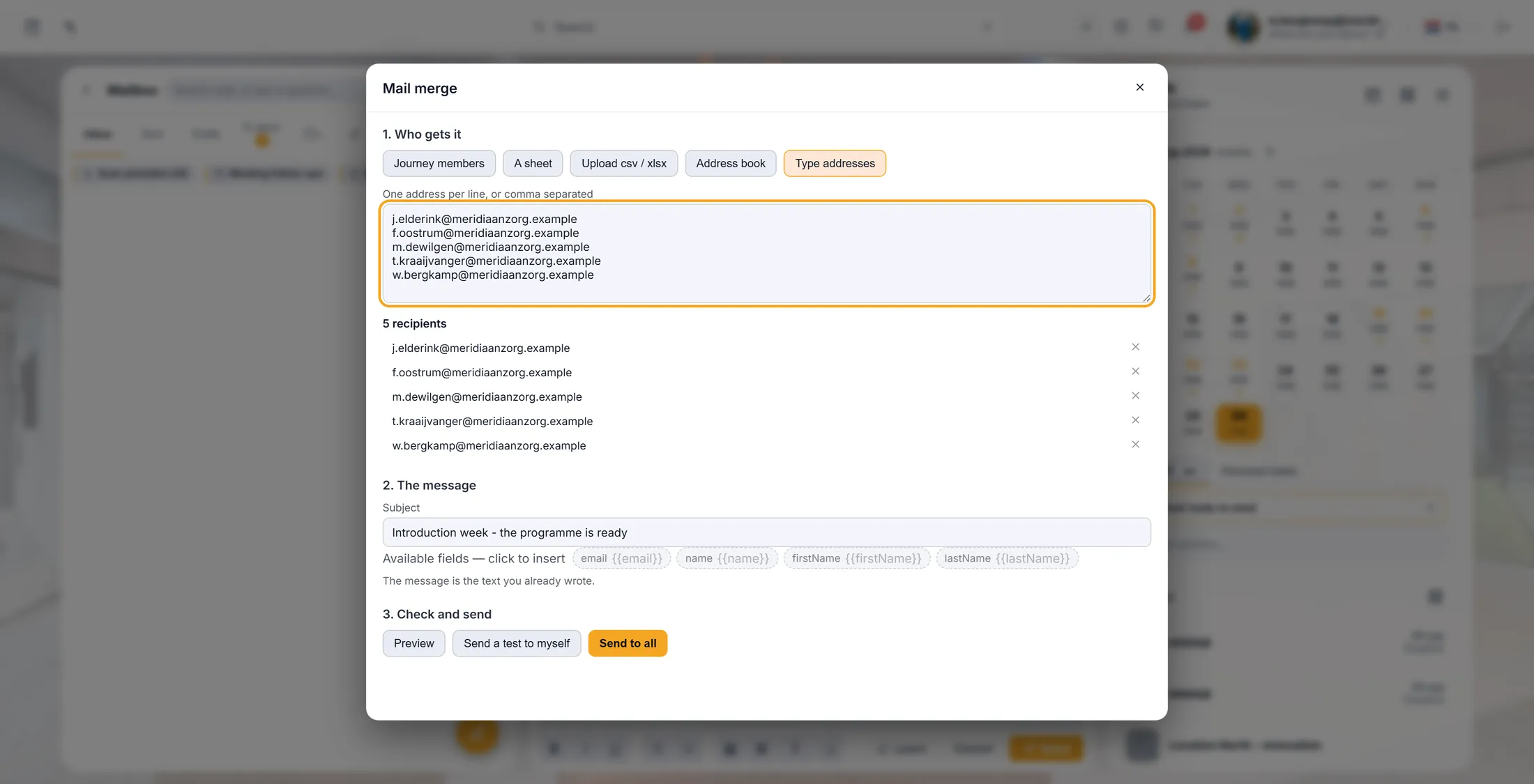
- The list shows 5 recipients . Somebody should not get it? Press the cross on their line.
Five addresses typed, five people in the list. Make it personal
Put the name in the subject too. Give a spare word for people without a name.
- The Subject is already filled in from your mail. You can change it here.
- Click in the subject, then click a field under it: email , name , firstName or lastName . It is put where your cursor is.
- Typed addresses have no name , so {{firstName}} would stay empty. Give a spare word: {{firstName|colleague}} - then it says "Dear colleague".
- A sheet or a file with more columns? Every column becomes a field of its own.
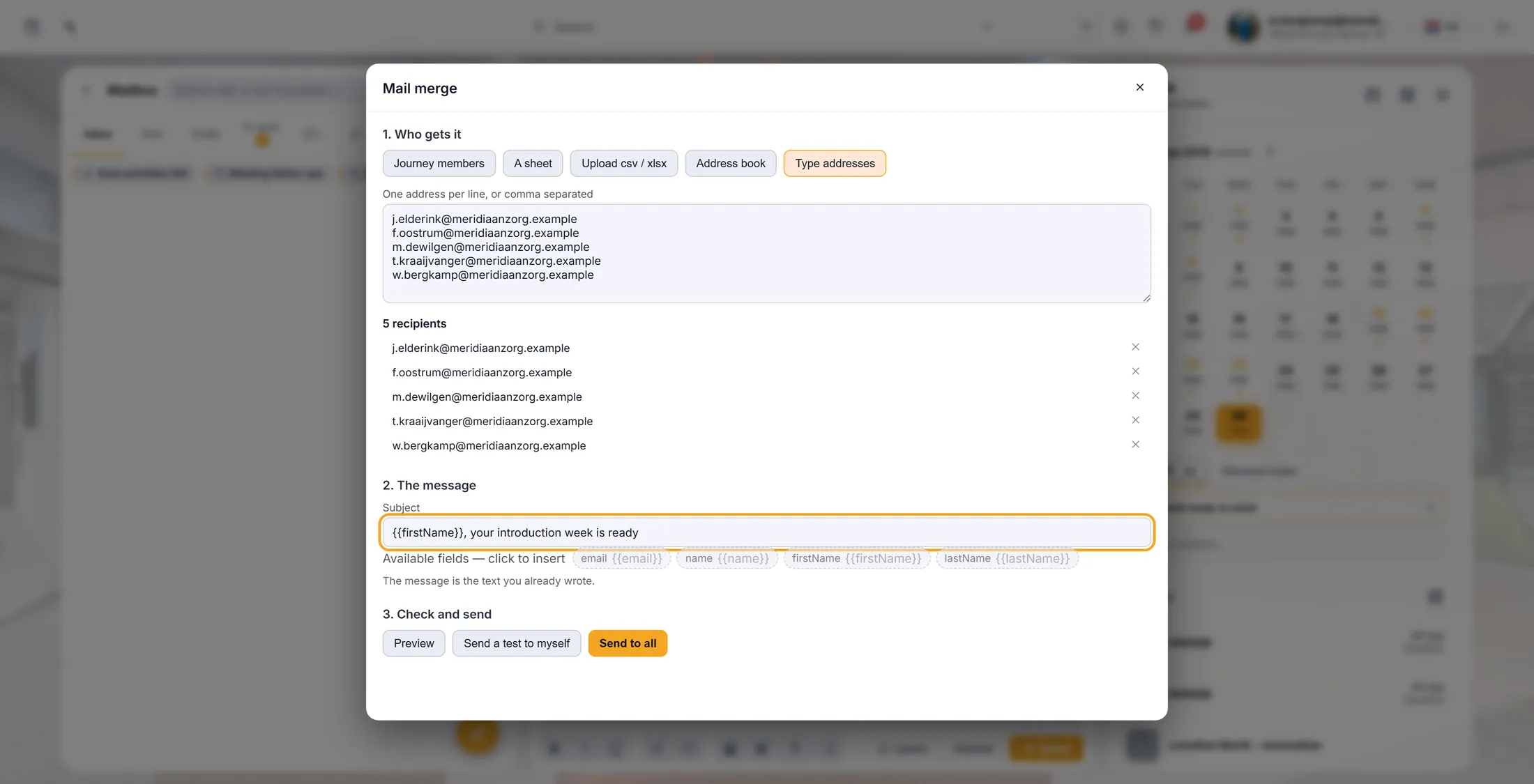
The name at the front of the subject. Look first, send a test
See how the mail looks for the first people. Send one to yourself.
- Press Preview. You see the first mails as each person will get them: Preview for their address, the subject, the text.
- A yellow box says These fields are empty for some recipients ? Add a spare word, as in step 4.
- Press Send a test to myself. One mail comes to your own mailbox. Open it and read it as they will.
Send to all
Press Send to all. Say yes. It counts until everybody has it.
- Press Send to all. It shows the preview once more and asks: Send this message to 5 recipients?
- Press Send to all again to go, or Cancel to stop.
- It counts while it sends: Sending 3 / 5 . Each person gets their own mail, from your address.
- At the end: Merge finished , with how many were sent, failed or skipped. Failed ones are listed; Copy failures copies them.
If something is not right
I do not see the Mail merge button.
Open a new mail first. It is the last button under the text.
People got "Dear ,".
Their name was missing. Use {{firstName|colleague}} next time.
It says the text is missing.
Close Mail merge, write your mail, then open it again.
Can I send to more than 500?
Not in one go. Split the list in two.
The words, in plain language
- mail merge
- One mail sent to many people, each getting their own copy with their own details.
- field
- A word in curly brackets, like {{firstName}}, that is replaced for each person.
- fallback
- The spare word after a | that is used when a field is empty: {{firstName|colleague}}.
Where to go next
- Your mailbox in CoVince Connect your mail first.
- All explainers The other things you can learn here.